
I set up a simple photography website for a client. Although it was simple, it was very image intensive and I wanted to use shared hosting to keep the price down.
The solution? Use a CDN!
Of course, my first thought was to use Cloudflare as the most popular solution. But for such a simple website, the DNS settings and cache rules I had to set up didn’t make any sense.
To understand what I mean, you just need to watch my Cloudflare setup tutorial.
That’s why I thought about Cloudflare alternatives instead. But while the solutions were simple, the costs were impractical.
I thought to myself, “There must be a simpler CDN solution!”
That’s when I realized something was broken. CDNs are designed to make websites faster, not give you headaches.
Then I found Envira Gallery CDN by Envira Gallery. Five minutes to set up. No DNS changes. No jargon. Only fast image loading from 335+ global servers.
In this review, you’ll learn why image-intensive websites need special solutions.
What makes the Envira Gallery CDN different from traditional CDNs? And how to set it up in under 5 minutes and who should (and shouldn’t) use this solution.
Key Takeaways – What you will learn in this review:
- Why image-heavy websites have problems: Images make up 50-70% of page weight and cause 53% of mobile visitors to abandon slow-loading websites
- The CDN complexity problem: Traditional CDNs require DNS changes, external dashboards, and two to four hours of technical setup, all of which intimidate non-technical users
- Envira Gallery CDN’s solution: Native WordPress plugin with 5-minute setup, automatic device optimization and WebP conversion without coding
- Who benefits most: Photographers, e-commerce stores, visual bloggers and real estate sites with image-heavy content and limited technical knowledge
- Real cost comparison: Flat rate of $10/month compared to traditional CDN solutions that cost $50-$200+ per month, with pay-as-you-go billing surprises
Also, here is a table of contents to help you navigate the entire Envira Gallery CDN review. Need to jump to any section? Simply use the links below.
With that out of the way, let’s get started!
Why image-intensive websites need special solutions
As mentioned earlier, images typically make up 50-70% of your website’s total weight.
A single high-resolution photo from a modern smartphone? That’s 5-10 MB right there. Put ten product photos on a page and ask visitors to download 50-100 MB of data.
Additionally, if these images are loaded from a single server location, they will experience delays due to distance. A US server serving images to a visitor in Tokyo? That’s a 3-5 second wait.
This most affects certain types of websites:
Here are more reasons why image-heavy websites need specialized solutions.
- Performance Impact: The impact on performance sets off a chain reaction. Slow images lead to high bounce rates. Then high bounce rates destroy conversions. After all, lost conversions mean lower sales.
- SEO impact: Additionally, slow images hurt your SEO ranking as Google penalizes slow-loading websites. Fewer people will find you organically.
- Bad User Experience: In addition, overloaded hosting servers crash during traffic peaks. Mobile users (who now make up the majority of web traffic) are particularly frustrated.
The statistics are brutal: 53% of mobile visitors abandon websites that take more than 3 seconds to load. Every second of delay reduces conversions by 7%.
Why traditional CDNs fall short
Here lies the problem that most website owners face with traditional CDN solutions.
The technical complexity is overwhelming.
- Traditional CDNs require DNS changes that intimidate non-technical users. You must configure cache rules, deletion policies, and security settings in separate dashboards outside of WordPress.
- The documentation assumes you are a developer. Setup time? At least 2-4 hours if you are a beginner. Sometimes much longer.
- Additionally, traditional CDNs treat images the same as JavaScript, CSS, and fonts. These are generic solutions. This means they are missing out on huge opportunities for image-specific performance improvements.
No automatic resizing for different devices.
- No format conversion from JPEG to WebP. Additionally, no device detection delivers smaller images to cell phones.
Apart from that, hiring a developer for CDN setup costs $300-$1,000. This is in addition to the monthly CDN fees.
What image-heavy websites actually need
After working with dozens of image-heavy websites, I have identified five critical requirements:
1. Automatic image optimization
- Your CDN should recognize each visitor’s device type. Desktop computers get high-resolution images, tablets get medium-resolution versions, and mobile phones get optimized small images.
- In addition, the format conversion should be automatic. The CDN should convert JPEG to WebP if the browser supports it. No manual work per image.
2. Global delivery infrastructure
- You need servers in over 100 locations worldwide to enable automatic redirection to the nearest server. This results in loading times in the millisecond range, regardless of the visitor’s location.
3. WordPress native integration
- Everything should work in your familiar WordPress dashboard. This means there are no external dashboards to learn. The dashboard should also have visual indicators of CDN status and one-click bulk operations.
4. No technical setup
- No DNS changes required, no configuration files or writing cache rules. Simply install, activate, done.
5. Affordable flat rates
- No surprise overage fees or complicated usage tiers. You need predictable monthly costs and unlimited image support.
The reality is that until mid-2025 there was no CDN solution that met all five requirements. You could find services that were either low-tech OR feature-rich, but never both.
This gap left WordPress beginners struggling with complex tools or settling for subpar performance. This is where Envira Gallery CDN comes into play.
Envira Gallery CDN comes from Envira Gallerythe team behind one of WordPress’s most popular gallery plugins.
With this in mind, Envira Gallery has been helping photographers, artists, and visual creators showcase images on WordPress for years.
As a result, they have seen first-hand how image-heavy websites struggle with performance.
Additionally, they have built a reputation for making complex features simple even for non-technical users. First of all, the gallery plugin works simply by dragging and dropping, with no programming required.
Check out my updated Envira Gallery review. I’ll explain everything this gallery plugin can do.
When they looked at the CDN market, they saw the same problem everywhere.
The best CDN solutions are designed for developers, not everyday users. Yes, these CDN tools are powerful, but also intimidating.
Envira Gallery’s approach to CDNs is different!
They asked, “What if we built a CDN specifically for WordPress images, designed for people who have never touched a line of code?”
The result is Envira Gallery CDN. It combines their deep understanding of WordPress image management with an enterprise-level CDN infrastructure.
Plus, it makes perfect sense!
A company that specializes in beautifully displaying images is now making sure those images load lightning fast. They’ve applied everything they’ve learned about easy-to-use WordPress tools to CDN technology.
To demonstrate how easy it is to use Envira Gallery CDN, let me walk you through how to set it up.
Ease of Use: How to set up the Envira Gallery CDN
Step 1: Purchase and download your plugin
Time required: 1 minute
First open your browser and Visit the Envira Gallery CDN page.
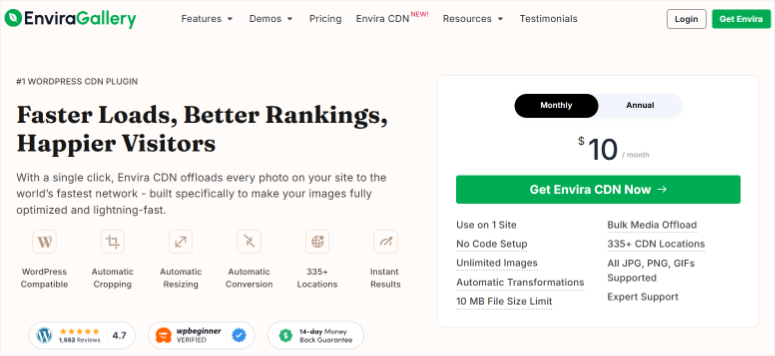
Two price options are clearly presented here. The monthly plan costs $10 per month and you can cancel at any time without penalty.
Or the annual plan costs $100 per year, saving you $20 compared to paying monthly.
Both plans include identical features. So you get unlimited images, 335+ CDN locations, automatic transformations, device optimization, WebP conversion, the bulk offload tool, WordPress integration, and updates support.
Choose the plan that fits your budget. Then select “Download Envira CDN now” and complete the purchase process.
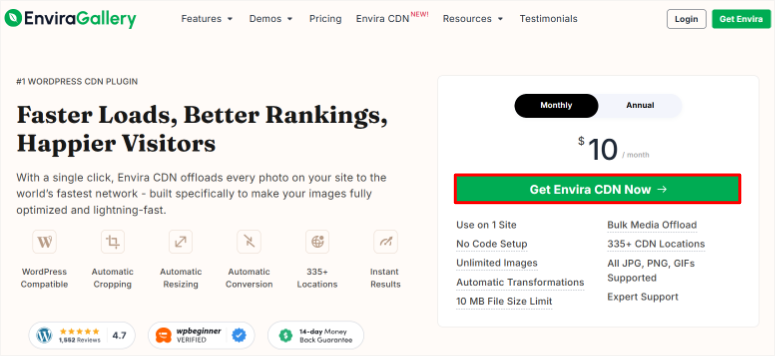
You should then find a confirmation email about your purchase in your inbox. Click on the download link in the email.
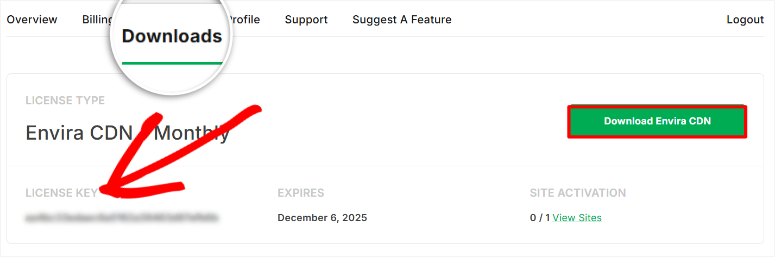
Alternatively, log in to your Envira Gallery Account and navigate to Downloads Tab. Click here on the “Envira CDN” download button.
On this page, copy the license key. You will need it later to activate the Image CDN plugin.
Step 2: Install the plugin in WordPress
Time required: 2 minutes
Now log in to your WordPress admin dashboard and install the plugin like any other. Go to Plugins » Add plugin and upload the plugin zip file you just downloaded.
Then activate it to make it live on your website.
If you encounter any problems here, you can find instructions on how to install plugins here.
Next, you need to check and activate the plugin.
Envira Gallery CDN makes this process very easy as right after installing and activating the plugin, a popup will automatically appear asking you to enter the plugin License key.
Click on it to be redirected Envira CDN under the License tab.. Then, in the text bar that appears, paste the previously copied code and click “Confirm Key”.
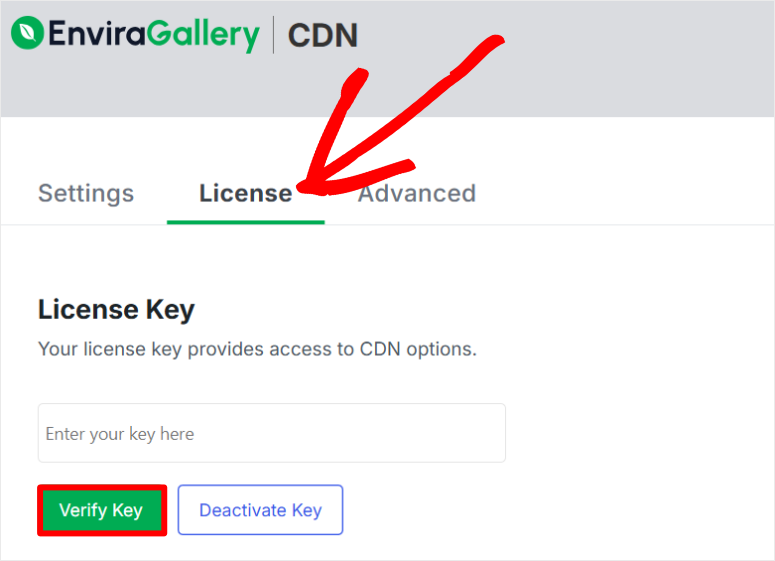
WordPress then connects to Envira Gallery’s servers to confirm your purchase. This only takes a few seconds.
If the verification is successful, a green checkmark will appear with the success message “License verified successfully”.
The CDN status indicator on the page will show “Connected,” telling you that your license is now active and ready to use.
Step 3: Enable the CDN and Image transformations
Time required: 30 seconds | Your images are now loaded from over 335 global servers
Now go to the Envira CDN settings page by selecting the Settings tab next to the License tab. Now comes the moment when everything is activated.
Next, toggle the switch labeled “Enable Envira CDN.”
Once you do this, the CDN is active. Any new images you upload from this point on will be automatically delivered over the CDN network.
But we’re not done yet. This next shift is crucial.
Scroll down and turn on “Enable Image Transforms” with a toggle key.
This is the most important setting.
Image Transformations enables automatic device detection, intelligent resizing and WebP conversion.
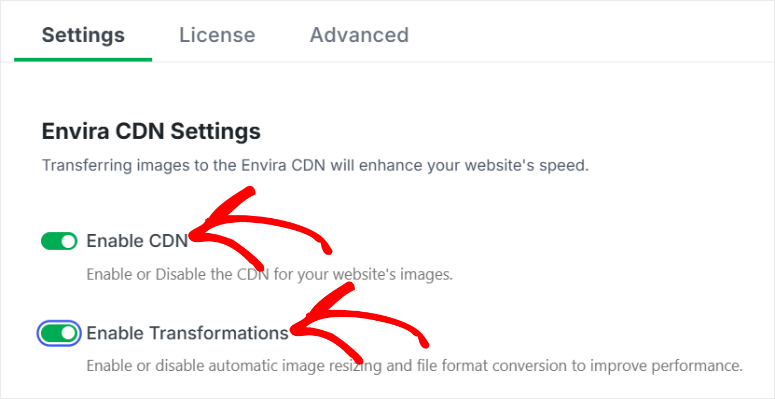
If this switch is not activated, you will simply distribute the same size images geographically. When enabled, you get full optimization tailored to each visitor’s device.
Both switches are saved automatically, so you don’t need to click the Save Changes button anywhere.
That’s it. Your CDN is now fully active and optimized for new uploads.
Step 4: How to use the Envira Gallery CDN
Time required: 2 minutes | Confirm that your images are loading from the CDN
Let’s make sure everything is working properly.
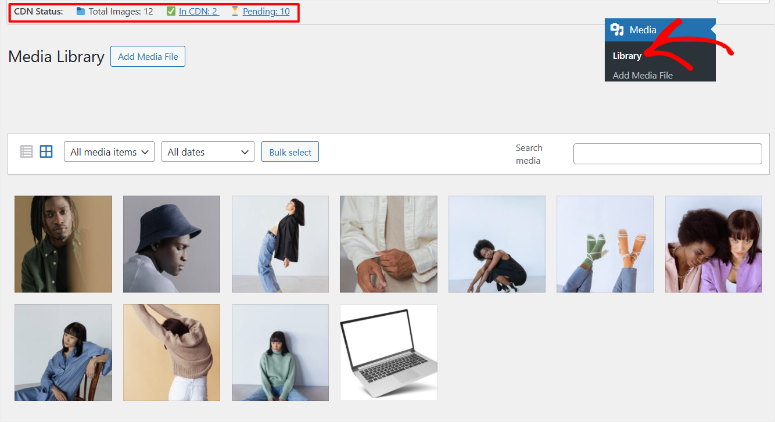
First go to Media » Library in your WordPress dashboard. At the top of this page you will see a new column labeled “CDN Status”.
Images that have been successfully uploaded to the CDN will appear in this column with a green checkmark. Images still on your hosting server will show a gray icon or the text “Not on CDN”.
Now there are three ways to add your images to the Envira Gallery CDN. Once you enable the settings as described above, all new images will initially be sent directly to the CDN.
Second, you can manually offload the images to the CDN. All you have to do is click on any image in your gallery. Then scroll to the bottom of the image popup.
Here you will see a new option called “Offload to CDN”. Click on it and you’re done.

The third method is bulk offload, which we discuss in detail in the Features section.
Now that you know how to use the Envira Gallery CDN, let’s check on the front end that images are actually being loaded from the CDN.
The long method is to right-click anywhere on your live page and select “View Page Source” from the menu. This will open a new tab showing the raw HTML code.
The browser highlights all image source attributes in your HTML. Look at the URLs in the quotes.
This is complicated, but a great way to see Envira Gallery CDN in action.
The easier approach is to simply open each image uploaded to the Envira Gallery CDN in your WordPress media and click “View CDN URL”.

You should see something like this:
- Before CDN, your image URLs looked like this:
src="https://www.isitwp.com/envira-gallery-cdn-review/yoursite.com/wp-content/uploads/2025/01/photo.jpg" - After the CDN, your image URLs should look like this:
src="https://www.isitwp.com/envira-gallery-cdn-review/cdn.enviragallery.com/(random-hash)/photo.jpg"
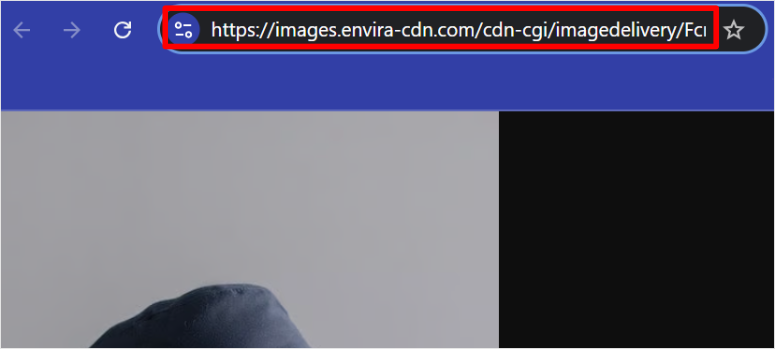
Do you see the difference? The domain has been changed from your website to the CDN domain. This is confirmation that the CDN is working.
If you see the CDN domain in your image URLs, congratulations. Your setup is complete and works perfectly.
So how do you test if your CDN is working?
Easy to use IsItWP’s free website speed test tool. This allows you to see results immediately without logging in or entering your email address.
You can also use PageSpeedInsightsa Google tool, for a more detailed breakdown.
Now let’s see what Envira Gallery CDN can do.
Envira Gallery CDN features
As you can see, Envira Gallery CDN is for anyone who wants to eliminate the complexities of CDNs like Cloudflare. But what features does this image CDN actually offer?
Designed exclusively for WordPress images
Envira Gallery CDN keeps everything in your familiar WordPress dashboard. The settings are right in your sidebar menu. No external accounts need to be created. No separate logins to remember.
What’s special about it is that you don’t need the Envira Gallery plugin to use it. This is a standalone CDN solution that manages all image sources on your WordPress site.
It works with:
Supported file types include PNG, JPG/JPEG and GIF files up to 10MB each. This 10MB limit allows for unrestricted capture of high-quality professional images.
Also, there is no limit to the number of images. Upload 100 images or 100,000 images. The prices remain the same.
Envira Gallery CDN cannot handle the following: JavaScript files, CSS stylesheets, fonts, videos, or other non-image assets.
This focused approach is actually a strength. By specializing exclusively in images, the optimization is better than with generic CDN solutions.
Download your existing images in bulk
Envira Gallery CDN isn’t just for new uploads. It can also push all your existing images to the CDN with one click.
The built-in bulk offload feature automatically pushes your entire media library to the CDN network in the background.
Once you press the button Bulk offloading images If you click on the button in the “Settings” tab, the process starts automatically and takes approximately 51 minutes per 1,000 images.
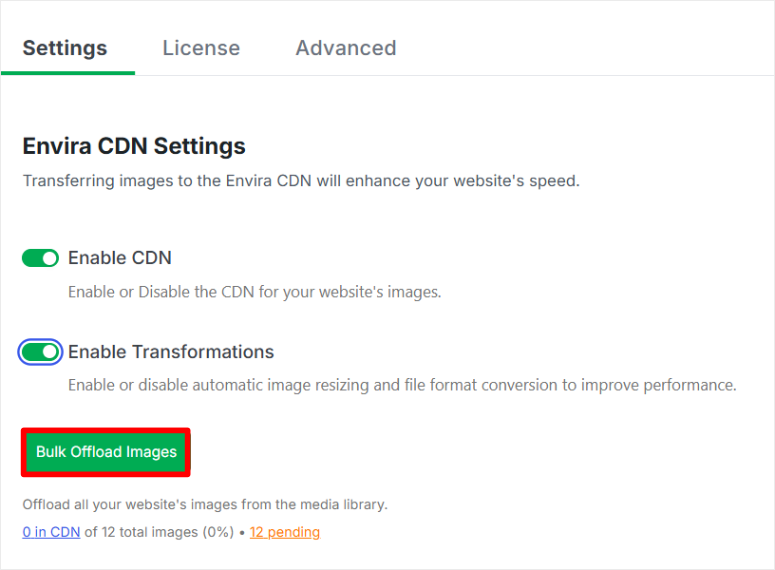
That’s fast! So a site with around 500 images will take around 25 minutes, while a site with lots of images and around 5,000 images might take around 4 hours.
You don’t have to keep the page open and your website stays online all the time. Once this is done, each image will load faster from the CDN.
Universal compatibility without configuration
Common CDNs require you to specify which images to optimize. You write rules that determine which folders receive CDN treatment and set up path patterns and exclusions.
Envira Gallery CDN automatically detects every image in your WordPress ecosystem.
Media library uploads? Covered. Featured images in blog posts? Treated. Product photos in WooCommerce? Optimized. Gallery plugin images? Completed.
You upload pictures as always. From then on, the CDN takes over without any per-image setup.
Also, you can add the images through any page builder by using its visual builder.
Intelligent image processing for beginners
Most CDNs simply move files geographically.
You take your 5MB image and distribute the same 5MB file to servers worldwide. While geographic distribution is helpful, you’re still serving oversized images to mobile visitors.
On the other hand, Envira Gallery CDN intelligently analyzes each image request. Desktop, tablet and mobile visitors are presented with images with different resolutions.
This happens automatically without having to create multiple versions of each image. Upload it once in high quality and the image CDN will generate optimized variations for each device type as needed.
Background processing that doesn’t interrupt
Most CDN setups require you to take your website offline or at least schedule maintenance windows. Ultimately, image optimization processes can overwhelm servers if not carefully managed.
Envira Gallery CDN processes everything in the background with low priority. If you enable the bulk offload feature for existing images, they will be processed gradually without affecting site performance.
Visitors who visit your website don’t notice anything. You can still edit posts and upload new content. The optimization runs quietly in parallel.
This background information also extends to ongoing operations. New image uploads trigger automatic CDN delivery without manual intervention.
Delete an image in WordPress? It will be automatically removed from the CDN. Update an image by uploading a new version? The CDN will be updated within minutes.
Traditional CDNs require manual cache cleaning and complicated update workflows. Envira Gallery CDN automatically syncs with your WordPress media library.
One-click bulk operations
It is impossible to manage thousands of images individually. Popular CDNs allow you to upload files via FTP, use command-line tools, or manually select which images should receive CDN treatment.
Envira Gallery CDN includes a one-click bulk offload tool. Click once. Every image in your media library is automatically pushed to the CDN. No selection or file-by-file upload is required.
Progress is transparent. You’ll see exactly how many images have been transferred and monitor completion status without a technical log file.
This mass process is also reversible. Disable the CDN and the images will be served from your hosting server again.
This means there are no broken links or missing images. Everything still works as the originals remain safely in your WordPress media library.
Visual feedback in WordPress
With most CDNs you remain uncertain whether the optimization works. They check page load speeds and hope for improvement. They look at the page’s source code and try to interpret technical URLs.
Envira Gallery CDN adds a CDN Status column directly in your WordPress media library.
Green checkmarks indicate images that were successfully delivered over the CDN. While gray icons indicate that images are still on your hosting server.
This visual feedback allows you to check that everything is working without having to open browser developer tools or run speed tests.
Additionally, the main settings page displays connection status, total images paged, and CDN health indicators. Everything is visual, clear and accessible to non-technical users.
Envira Gallery CDN Pricing
Envira Gallery CDN ensures easy pricing.
Only $10 per month with unlimited images. No per GB or inquiry fees or surprise bills. The flat rate remains the same even during traffic peaks.
You can pay monthly or annually, starting at $100/year and can save $20. Both plans include full features, no hidden tiers or limitations.
Here’s everything included in both plans:
- ✅ Unlimited images – Upload as many images as you need. No counting limit.
- ✅ Over 335 global CDN locations – Your images are loaded from servers worldwide.
- ✅ Automatic image transformations – Device detection and resizing occur automatically.
- ✅ Device-specific optimization – Desktop, tablet and mobile visitors receive perfectly sized images.
- ✅ WebP conversion – Automatic format conversion if browsers support it.
- ✅ Bulk offload tool – Transfer all existing images with one click.
- ✅ WordPress dashboard integration – Everything works in WordPress.
- ✅ Email support – Get help when you need it.
- ✅ Plugin updates – Automatic updates keep your CDN up to date.
- ✅ Limit of 10 MB per image – Supports high quality professional photography (PNG, JPG, GIF).
- ✅ HTTPS/SSL included – Secure delivery integrated.
- ✅ 99.9% uptime guarantee – Your images remain accessible.
Most importantly, you get a 14-day money-back guarantee, no questions asked. This means you can test it out, and if it’s not right for you, you can request a refund.
How Envira Gallery CDN compares to other CDN solutions
Before you make a decision, let’s take a look at how the Envira Gallery CDN compares to the most popular CDN services.
I have tested all these solutions on real WordPress sites. This comparison will show you exactly what you’ll achieve (or avoid) with each option.
| Special feature | Envira Gallery CDN | Cloud flare | BunnyCDN | Sucuri | KeyCDN |
|---|---|---|---|---|---|
| Cost | $10 flat rate/m | Free. Pro starts at $20/m | Starts at $0.01/GB | Starts at $229/year | From $0.04/GB |
| Setup time | 5 minutes | 2-4 hours | 1-2 hours | 2-3 hours | 1-3 hours |
| Technical knowledge required | None | medium | medium | medium | High |
| WordPress integration | Native dashboard | Third party plugin | External dashboard | WordPress plugin | External dashboard |
| Image-specific optimization | Yes | NO | NO | NO | NO |
| Automatic device detection | Yes | Manual setup | Manual setup | Manual setup | Manual setup |
| Automatic WebP conversion | Yes | Manual setup | Manual setup | Manual setup | Manual setup |
| Automatic image resizing | Yes | NO | NO | NO | NO |
| DNS changes required | NO | Yes | Yes | Yes | Yes |
| External dashboard | NO | Yes | Yes | Partially | Yes |
| Global server locations | 335+ | 300+ | 100+ | 25+ | 100+ |
| Manages all assets | Just pictures | Yes (JS, CSS, etc.) | Yes (JS, CSS, etc.) | Yes (JS, CSS, etc.) | Yes (JS, CSS, etc.) |
| Main focus | Providing WordPress images | Full CDN + Security | Affordable global CDN | Safety + performance | Developer friendly CDN |
| Best for | Non-technical WordPress users with image-heavy websites | Technical users who need a full CDN for the website | Budget conscious developers | Security-focused companies | Developers are familiar with APIs |
There is the free plan, but it has limited features and requires complex setup. Allow 2-4 hours for configuration.
The Pro plan costs $20 per month but still requires technical knowledge for proper setup. Then the business plan increases to $200 per month.
Additionally, images are not the focus of Cloudflare. It is a general CDN that treats all assets equally.
BunnyCDN:
BunnyCDN charges a base fee of $1 per month plus $0.01 per gigabyte of bandwidth.
This usage-based pricing sounds cheap at first. However, for image-intensive websites, bandwidth fees can easily exceed $50-100 per month.
Additionally, you need to manage the settings in an external dashboard outside of WordPress. A technical setup is required.
Sucuri:
Starting at $200 per month, Sucuri positions itself as a best-in-class security and performance solution. The platform includes a web application firewall in addition to CDN functions.
Construction requires 2-3 hours and moderate technical knowledge. While the WordPress plugin simplifies some tasks, you still need to configure DNS settings and security rules.
The high price reflects the focus on security rather than image-specific optimization.
Check out my updated Sucuri review here.
KeyCDN:
KeyCDN charges a minimum of $49 per month, with usage-based pricing beyond that. High technical knowledge is required to properly configure this developer-friendly CDN.
Setup takes 1-3 hours even for experienced users. You manage everything via an external dashboard with REST API configuration.
Who should use Envira Gallery CDN (and who shouldn’t)?
Envira Gallery CDN is perfect for:
- Website owners without technical knowledge: You manage your own WordPress site without a developer on staff. Terms like “DNS propagation” or “cache clearing rules” make your eyes glaze over. You want simple toggle switch solutions that simply work without having to read technical documentation.
- Photographers and portfolio sites: They present customer galleries with hundreds of high-resolution images. Event and wedding pages need to load quickly to have an emotional impact. Slow galleries lose potential customers before they see your beautiful work.
- E-commerce stores: Product photography increases your sales with multiple images per item. Mobile shoppers expect quick and instant checkout on their phone. They compete with Amazon’s enterprise infrastructure on a small business budget.
- Creative professionals: Graphic designers, digital artists, architects and interior designers visually represent portfolio work. Your images are your references. Slow loading galleries undermine the professional impression you give.
- Food and travel blogger: Recipe photos need to look immediately appetizing. Destination images encourage engagement. Your images are your content, and slow loading kills interest before readers scroll.
- Fashion and lifestyle blogger: Outfit photos drive affiliate sales and brand partnerships. Visual storytelling is your primary method of communication. Fast-loading images captivate readers and ensure that they click through your content.
- Real estate professionals: Real estate listings contain multiple photos that need to load seamlessly. Mobile shoppers browse on their lunch break and don’t wait. A 5 second delay means they have moved on to the next entry.
Choose something else if:
- You need full CDN coverage of the website (not just images)
- They have developers who take care of the technical setup
- Your website is not particularly image-heavy
- Instead, you need video optimization
- You are on a different platform than WordPress
The right tool depends on your specific situation. Envira Gallery CDN excels at providing easy image serving to WordPress users.
If that suits your needs, it’s an excellent choice. If you need a more powerful CDN solution, the above options are for you.
The key is choosing tools that actually solve your specific problems.
That’s it! Through this review, you now have a better understanding of the Envira Gallery CDN. If something is unclear, check out the frequently asked questions below.
FAQs: Envira Gallery CDN Review
Does Envira Gallery CDN work with any WordPress theme?
Yes, Envira Gallery CDN works with every WordPress theme I have tested. The plugin works at the WordPress core level, meaning it processes images before your theme even touches them.
Whether you use Astra, Divi, GeneratePress, OceanWP or another theme, the CDN works exactly the same.
It also works seamlessly with page builders. Elementor, Beaver Builder, Divi Builder, WPBakery, and Gutenberg all work well with Envira Gallery CDN.
What happens to my original images after I activate Envira Gallery CDN?
Your original images remain secure in your WordPress media library on your hosting server. Instead, Envira Gallery CDN creates copies of your images and distributes those copies to the CDN network.
The original files remain untouched in your wp-content/uploads folder.
This means you can disable the CDN at any time and your website will continue to function normally. Nothing breaks. All of your images are still in your media library exactly where you left them.
Can I use this if I don’t have Envira Gallery plugin?
Absolutely. You don’t need an Envira Gallery plugin at all. Envira Gallery CDN is a completely standalone product. It works independently on any WordPress site with any combination of plugins.
If you use the Envira Gallery plugin to create photo galleries, the two products work beautifully together. But it is not necessary at all.
Will this slow down my WordPress dashboard?
No, the Envira Gallery CDN does not affect the performance of your WordPress dashboard.
The CDN only processes images on your publicly accessible website (the frontend). If you’re logged into the WordPress admin panel, working on posts, or managing your media library, everything works normally.
The plugin runs efficiently in the background. Server resources are not constantly being processed or consumed while you work.
During the initial bulk offload of existing images, you may notice background activity. But even this process is designed to run at low priority, so it won’t interfere with your regular work.
What happens if I no longer want to use Envira Gallery CDN?
Cancellation is easy and your website will continue to function properly.
To stop using Envira Gallery CDN, simply toggle the “Enable Envira CDN” switch to OFF in your Settings. That’s it. The images will immediately be served again from your hosting server.
You can also deactivate the plugin entirely if necessary and all your images will remain in your media library exactly where they always were.
No broken image links or missing photos. Everything continues to function normally.
Plus, there is no binding, complicated migration or dependency. You can cancel at any time and request a refund within the 14-day money-back guarantee.
Final Verdict – Is the Envira Gallery CDN worth it?
Yes, absolutely.
Envira Gallery CDN delivers exactly what it promises: enterprise-grade image performance without enterprise-grade complexity.
For $10 per month, you get over 335 global servers, automatic device optimization, WebP conversion, and 5-minute setup.
They don’t worry about DNS changes, external dashboards, or required technical knowledge. Keep in mind that traditional CDNs cost more and require hours of configuration. Envira Gallery CDN just works.
If your WordPress site relies on images, this image CDN tool is for you. Faster loading means fewer bounces, better conversions and happier visitors.
The best CDN is the one you actually implement. Envira Gallery CDN removes all barriers that prevent this from happening.
Now if you want to create beautiful and brighter images, here are some amazing AI image generators to get you started. The good news is that they are smaller, therefore better loading and unique.
Aside from that, there are other articles here that I know you will find interesting.
These resources will help you go beyond image optimization. They help you improve your entire WordPress site from the code onwards. Let’s turn your website into a speed demon.