
One Saturday afternoon I spent three hours copying form submissions into Word documents.
A customer needed professional invoices for every quote request. So I copied data from 27 form entries, formatted each one, saved it as a PDF, and emailed them one by one.
My back hurt from sitting, my eyes stung from staring at spreadsheets, and I kept making mistakes when copying customer names and addresses.
The worst? I knew there had to be a better way. Free online PDF converters felt insecure about customer data. Additionally, the PDFs ended up looking generic and unprofessional.
It turns out that WordPress form plugins can automatically generate branded PDFs, which is far better than the general results I got with online PDF tools. No copying, no formatting, no manual emails.
Only professional documents delivered immediately.
After discovering this, I tested the best WordPress form plugins I could find to see which ones actually make PDF creation easier. In the end, I identified WPForms and Formidable Forms as the best options.
In this guide, I will show you how to convert your form submissions to PDF using these two form plugins.
To see all the steps at a glance, use the table of contents below. You can also use it to jump to any section of this tutorial.
With that out of the way, let’s dive in.
Why convert form submissions to PDF?
Professional documentation is more important than most people realize.
I’ve lost count of how many times a customer has been rejected because their quote form wasn’t “official enough.” A simple PDF with their logo would have solved the problem.
Here are more reasons why you should convert your form submissions to PDF in WordPress.
- Create PDFs legal documentation: Courts accept them, insurance companies trust them, and accountants love them. Your email screenshot in your inbox? Not so much.
- Security becomes automatic: Free online PDF converters send your customer data to random servers. Who knows what will happen with this information? When WordPress generates PDFs directly, the data never leaves your server.
- A professional appearance creates trust: A branded PDF with your logo and colors screams legitimacy. Branded PDFs look like real business documents. While emails with generic forms look like spam.
- Keeping records becomes easier: Each submission becomes a searchable file. No more digging through email threads looking for what someone ordered three months ago.
- Customers now expect: When someone requests a quote or makes a purchase, they want a professional PDF receipt. No plain text email.
Additionally, you can use this feature for more than just invoices. For added professionalism, you can also create customer feedback forms that collect reviews and testimonials in PDF format.
Or for applications, surveys, internal forms, etc.
Now that you understand why converting your form inputs is so important, let me show you how to do it step by step.
Method 1: Convert form submissions to PDF with WPForms
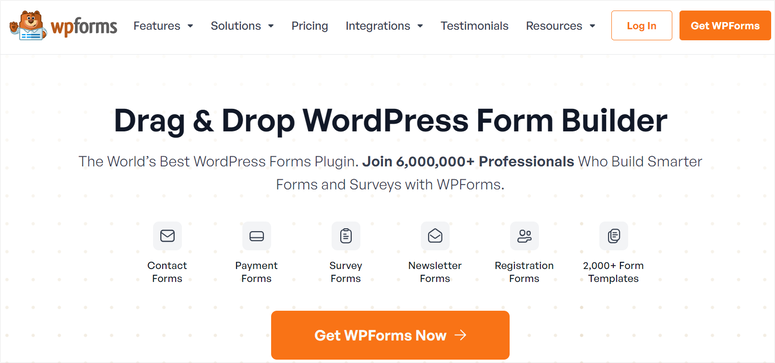
WPForms is the best drag and drop form builder. It solved my PDF problem in less than 15 minutes.
This is possible because the WPForms PDF add-on offers you over 40 professional templates.
All you have to do is choose one, add your logo, make customizations, and a branded PDF will be automatically generated with every form submission. No manual work after setup.
Aside from the drag-and-drop builder, you can now create a WordPress form using AI to speed up the initial form creation process.
I tested invoice templates, certificate layouts and legal document formats. All looked professional enough to ship to paying customers.
I particularly like the live preview that shows exactly what the PDF would look like before I save anything.
Here’s the catch: you need WPForms Pro or higher. WPForms Litethe free version does not contain PDF functionality.
However, if you value professional documentation, the time saved will pay for the upgrade.
Check out my updated WPForms review to see all the features of this form plugin
Step 1: Install WPForms and activate the PDF add-on
It’s super easy to install WPForms. To access the Pro version, you need to visit the official website and make a purchase. As mentioned, to access PDF features, you need a Pro plan or higher.
After purchasing the plugin, log in to your WPForms account and download the file. Also copy the license key.
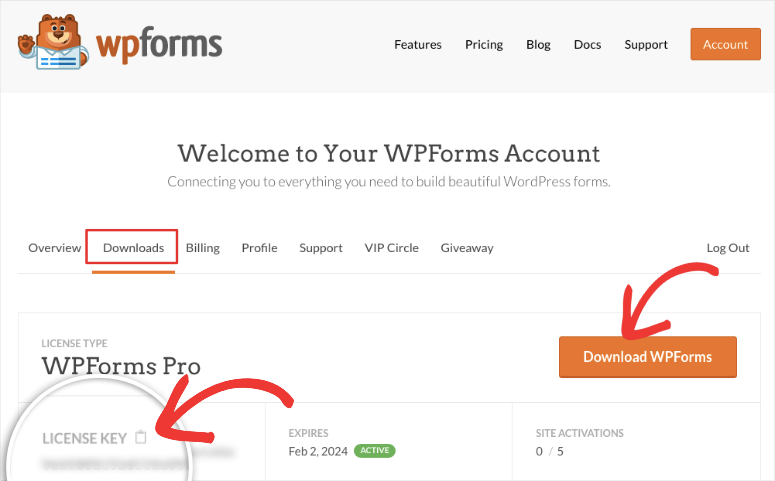
Then go to your WordPress dashboard and install it. I won’t walk you through the setup process step by step; Check out this post if you want to learn how to install WPForms.
Once installed and activated, you should see a new menu option in your WordPress dashboard called “WPForms”. To keep the plugin clear, WPForms only has the basic functions after installation.
To access additional features, you need an add-on.
Now let me show you how to set up the PDF add-on.
Next, navigate to WPForms » Add-ons in your left sidebar.
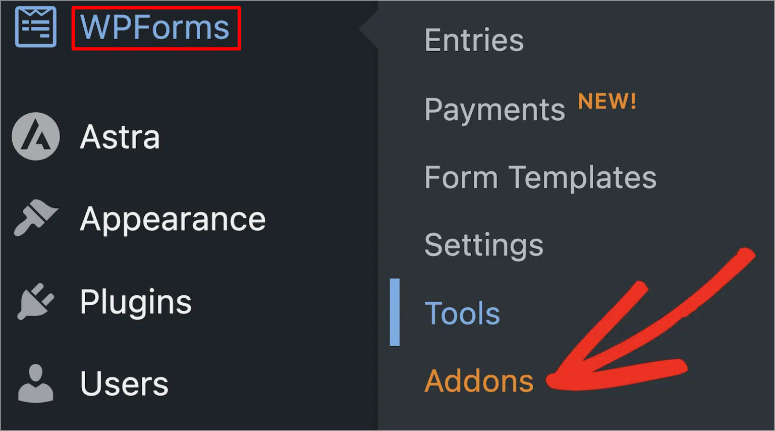
Here you will see a list of available add-ons. Then search for “PDF” in the search box at the top. Once you see it, select it Install add-onthen “Activate”.
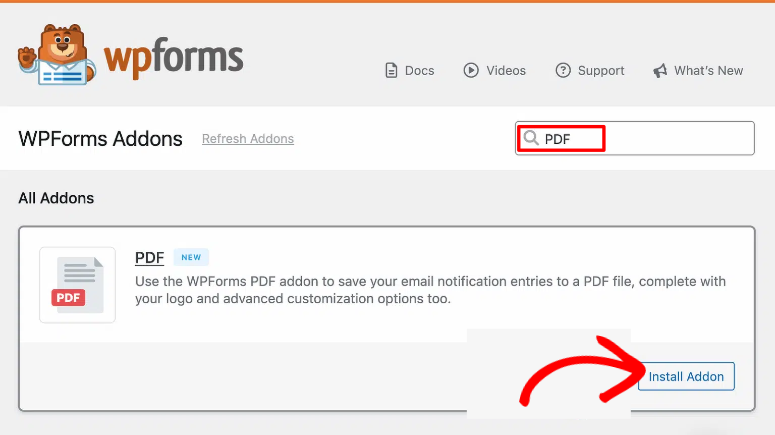
After that, no additional configuration is required at this point. You’ll see a green checkmark confirming it’s active.
Step 2: Create or edit your form
Before you dive into PDF settings, you’ll need a form with the correct fields for your document. Remember: everything starts with creating a form.
The fields you insert into your form become the data that populates your PDF. Skip a field here, otherwise there will be spaces in your document later.
⚠️Note: If you already create forms with WPForms, you can edit the existing ones. In your case, go to step 3.
Now to create a new form, go to WPForms » Add New in your WordPress dashboard. On this screen you will see the 2000+ WPForms templates to choose from.
Choose a template:
As mentioned earlier, WPForms provides you with pre-designed templates that meet general document needs.
For invoices or quotes, start with the Order form template as it contains already configured product selection, quantity and price fields.
This applies to certificates or awards Event registration The template is an excellent basis.
Want to speed things up? Hover over it Generate with AI and click Generate form Button. Describe what you need and WPForms will create the form structure for you in seconds.
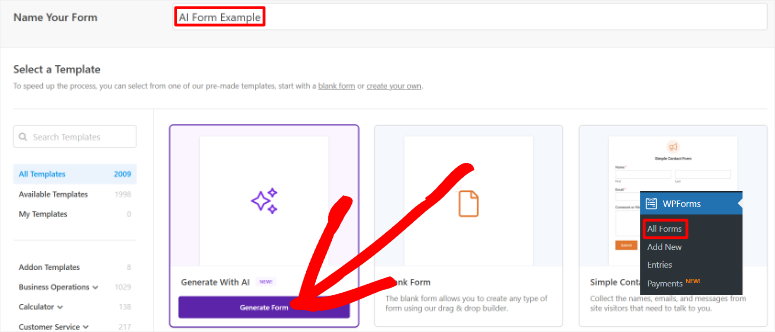
Check out this guide to learn how to build your forms with AI.
As if that wasn’t enough, you can also choose Empty form if you prefer to start from scratch.
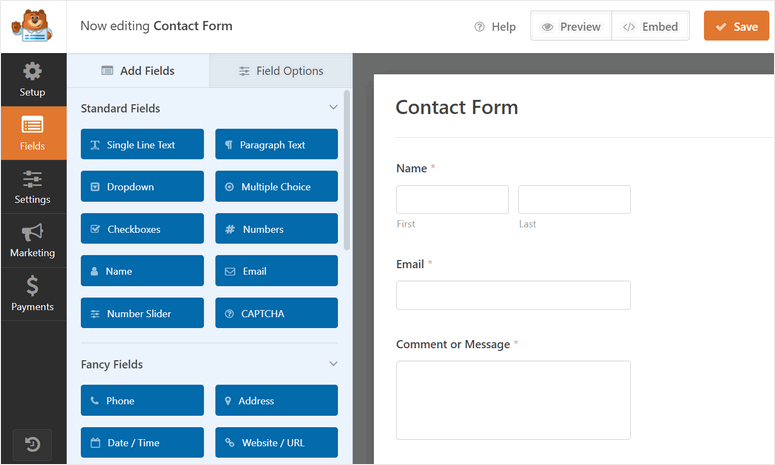
But for this tutorial, I chose the “Simple Contact Form” template so that it is very easy for you to understand.
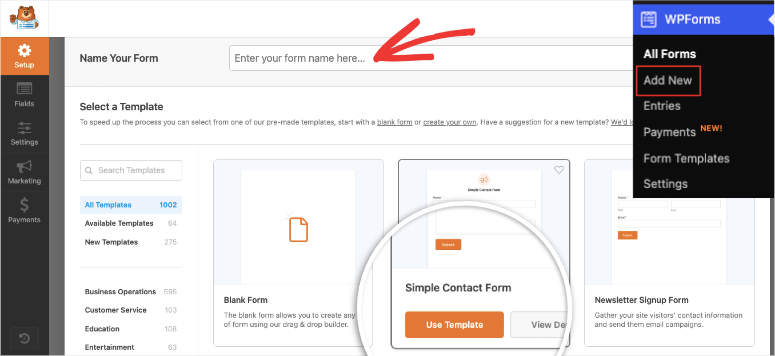
Once you’ve selected your template, you’ll be redirected to the drag-and-drop form builder so you can customize your form to suit your business.
The fields are on the right and the preview area is on the left. Simply drag the fields on the left to the previous one on the right to the exact location you want the field to appear and you’re done.
Add the correct fields:
After you’ve customized your form, you’ll need to make sure you have the correct fields for the PDFs you want to create.
For example, every invoice requires customer information. So, add name And e-mail fields first. Do you need a product or service selection? Add Falling down or checkbox Fields in which your offers are listed.
For quantities or amounts please include number Fields. These calculate totals automatically when you set up payment processing.
In this article you will find a detailed explanation of customizing your forms with WPForms.
Step 3: Set up your PDF configuration
When your form is ready, it’s time to tell WPForms how to generate the PDF.
Open your form in the WPForms builder and select that Settings tab in the left sidebar. Then select the option from the menu options you see next PDF Tab.
Once the PDF settings page opens, you should see that it is blank. Click on Add new PDF Click the button to begin.
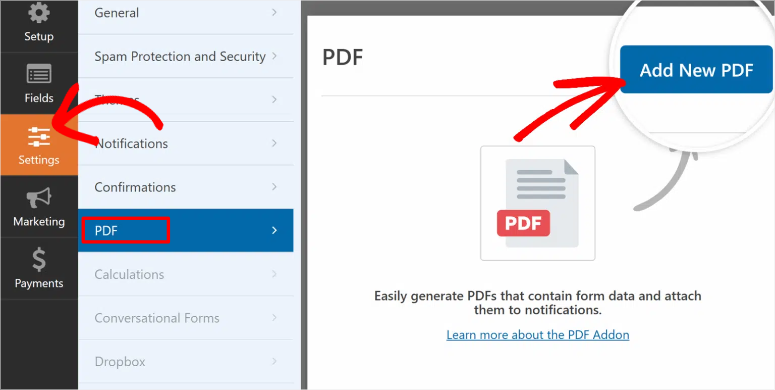
Next, a small popup will ask you to give your PDF a name. This name is for your dashboard organization only and is not the actual PDF file name.
Use something descriptive like “customer invoice PDF” or “course certificate” so you remember what it does in six months.
When you’re done, click OK.
Welcome to the PDF editor:
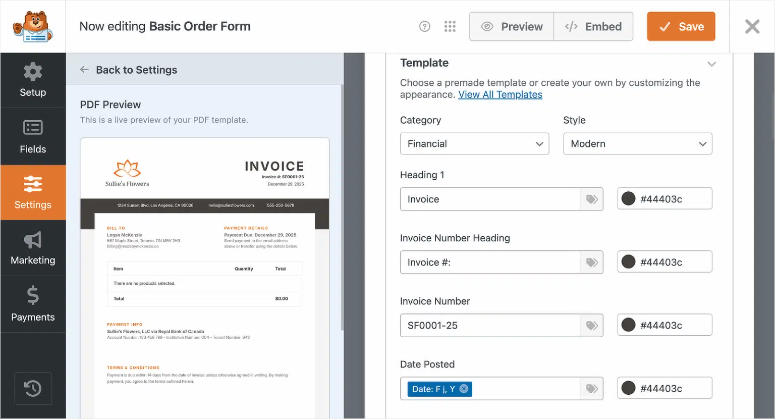
First, you will notice that the interface is divided into two sections. The left side shows a live preview of your PDF, while the right side contains all of your customization options.
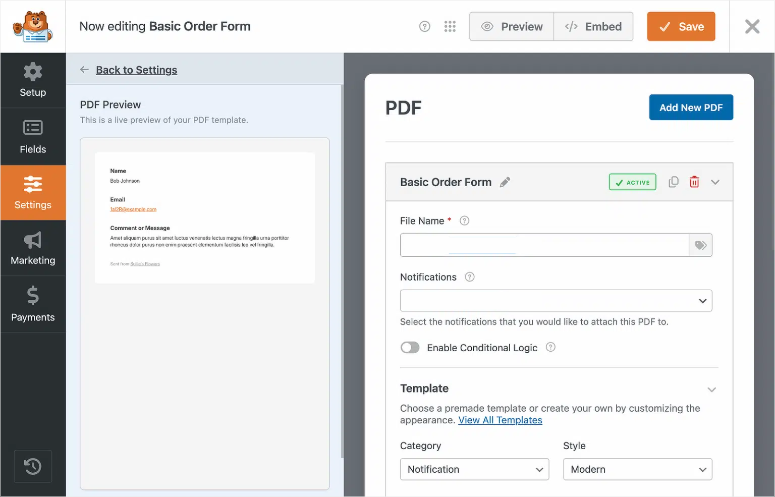
Like the drag-and-drop builder you used before, what you see in the preview is exactly what your customers will receive. No surprises, no guesses.
Configure the file name:
The filename The field specifies the name of the downloaded PDF.
The default generic name doesn’t help anyone. So use smart tags to create unique, organized file names.
type {form_name}-{entry_id}.pdf in the file name field.
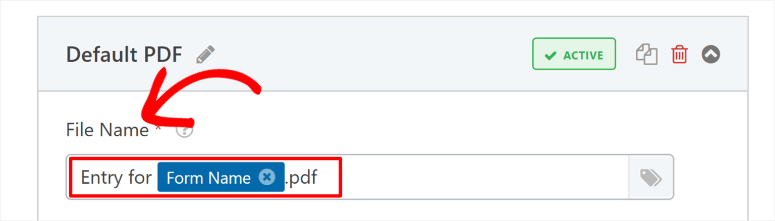
This creates file names like “Quote-Request-127.pdf” or “Registration-456.pdf”.
The entry ID makes each file unique. No more downloading form.pdf 50 times and watching your computer rename it from form (1).pdf to form (50).pdf.
Check out this tutorial to fully understand it Dynamic WPForms tags and how to use them.
Set up email notifications:
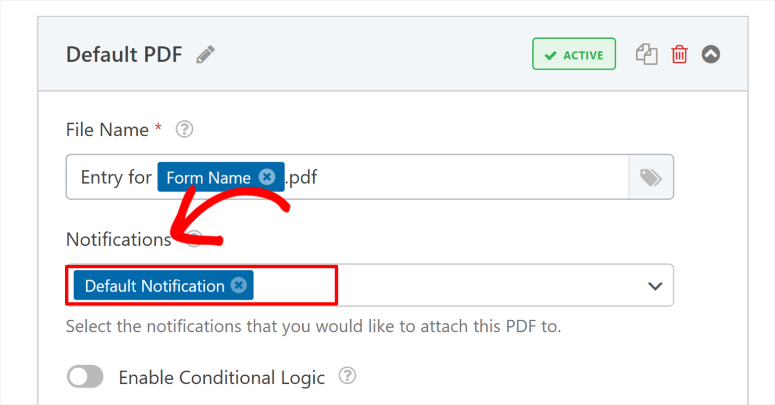
Scroll down to Email notifications Drop-down menu to control which email notifications have the PDF automatically attached.
Your options:
- Default notification: sends the PDF to you (the administrator). You will receive a copy for your records.
- User notification: Sends the PDF to whoever filled out the form. You will receive an immediate confirmation.
- Both: sends to everyone. I recommend this for most situations.
Remember that the client will require proof of their submission while you want to keep it in your records. As a result, you both should receive the PDF automatically.
To send a copy to yourself and the user, select the Default Notification smart tag.
(Optional) Conditional logic:
See this Conditional logic Section? This allows you to generate PDFs only when certain conditions are met.
Example: Only create invoices if the order value exceeds $50. Or only generate certificates when someone selects “Course Complete” from a drop-down menu.
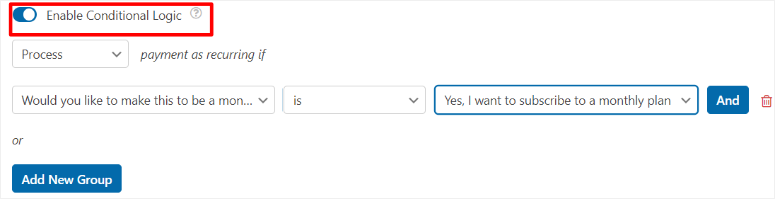
Most people skip this at first. But the good news is that you can always add conditional logic later if you need it.
Step 4: Choose your template and style
This is where your PDF transforms from generic form data into a professional branded document.
As mentioned earlier, WPForms includes over 40 pre-built templates divided into four categories. Each solves a specific document need.
To select a template, click the All Templates button at the top of your PDF editor. All templates will then be displayed to you.

The four template categories:
- Notifications: Templates customize email styles for easy summaries. Think of order confirmations or contact form receipts. Clean, compact, easy to scan.
- Documents: Templates offer flexible layouts that are perfect for contracts, applications and official documents. Professional formatting with clear section headings.
- Financially: Templates were created specifically for invoices, quotes and billing. They already include structured individual items, totals and payment terms.
- Certificates: Templates provide award and closing layouts. Landscape format, decorative elements, space for signatures.
I’m creating an invoice, so I selected Financially. Check out an example of what it looks like below.
Customize your content:
Now comes the fun part. You can edit almost everything in the template.
See the preview on the left? It’s clickable.
Click any text field in the preview. A red border indicates what you are currently editing. A text editor will appear on the right.
Now replace the placeholder text with your actual business information.
The text editor contains formatting options. This feature allows you to add headings, bold text, create bullet points, and insert links. If you know HTML, you can also add custom code.
Smart tags pull dynamic data:
This function saves a lot of time.
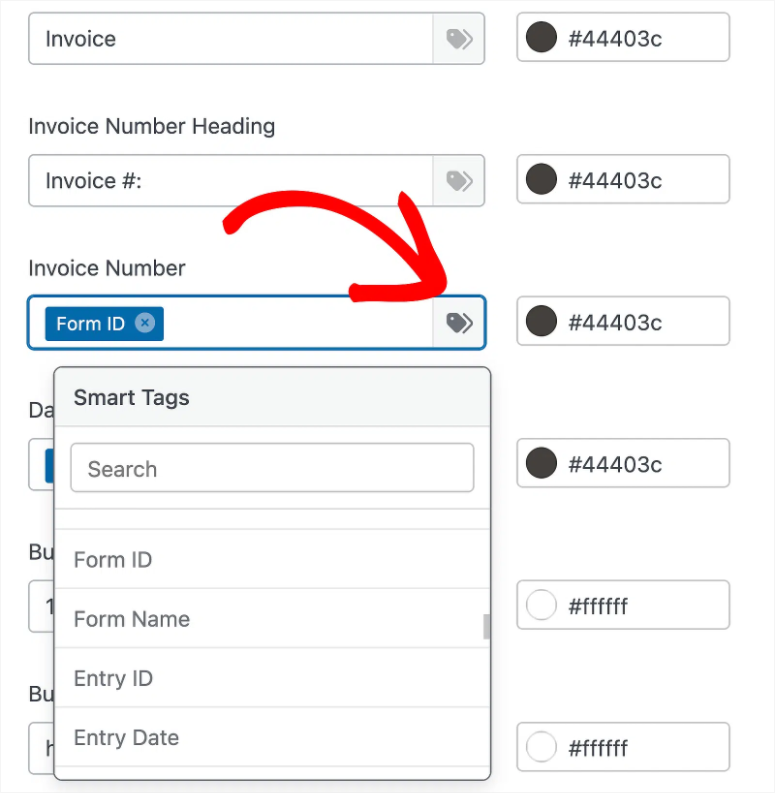
Instead of entering static text, insert smart tags that automatically retrieve information from form submissions.
To do this, click on Smart tag icon next to an editable field. A drop-down menu will then appear listing all of your form fields and system data.
Here’s what I use most often:
- {entry_id} automatically creates unique invoice numbers. Entry 1 becomes Invoice 1, Entry 2 becomes Invoice 2, and so on.
- {field_id=“X”} retrieves data from specific form fields. Replace X with your field number. If field 3 is “Customer Name”, use {field_id=“3″} to insert it.
- {date format=“F j, Y”} adds the submission date in the format “January 12, 2026”.
- {form_name} indicates which form was submitted.
Highlight your PDF appearance:
Once you’ve adjusted the colors, scroll down to Look Section. This is where real branding happens.
First, Choose your color theme. The Color Theme drop-down menu shows pre-made color schemes. Color previews are displayed for each theme name.
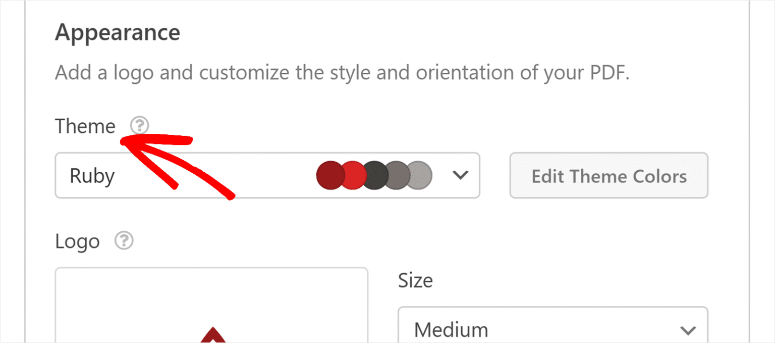
Don’t like pre-made themes? Click Edit theme colors and edit them as you wish.
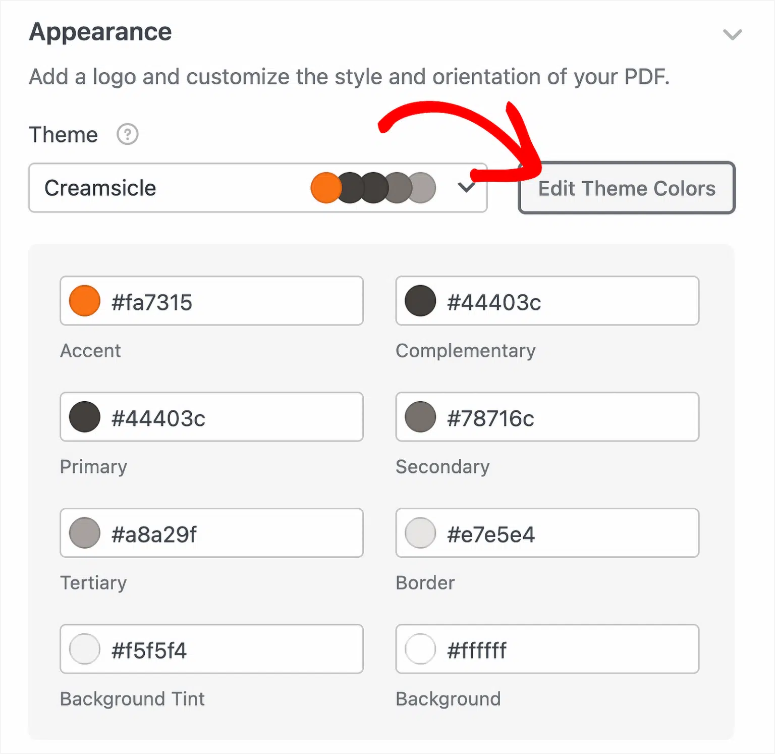
For theme security, WPForms now creates a copy of the theme instead of overwriting the original. This allows you to experiment freely and come back again and again.
Upload your logo:
Next, select the Upload image Button in the Appearance section. Then select your logo file. WPForms accepts .png, .gif, .jpg and .svg formats.
Once uploaded, you will be presented with size and position options to customize your logo.

If you are satisfied, click Save before we continue. You’ve created a professional, branded PDF template and it’s now ready to go live.
Step 5: Test and start your PDF system
Before making your PDF submission form live, I always recommend you to never skip the testing. So as soon as you Save If you open the form using the button at the top of the form builder, this will lock all of your PDF settings.
Now you can submit a test entry:
Use that preview Click on the button at the top of the screen and click on it. Your form will open in a new browser tab and look exactly as visitors will see it.
Fill out the form with test data. Don’t just type “test” in every field. Use realistic information.
Then submit your test form.
Find your generated PDF:
Next, navigate to WPForms » Entries in your WordPress dashboard. Here you will see your test submission at the top of the list. Click view next to it.
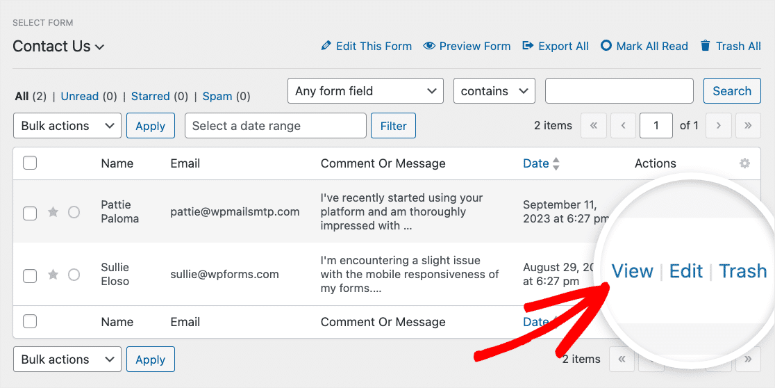
Next, the entry details page opens, displaying all submitted form data.
Look for the PDF section under the credentials and click the download link with your PDF file name.
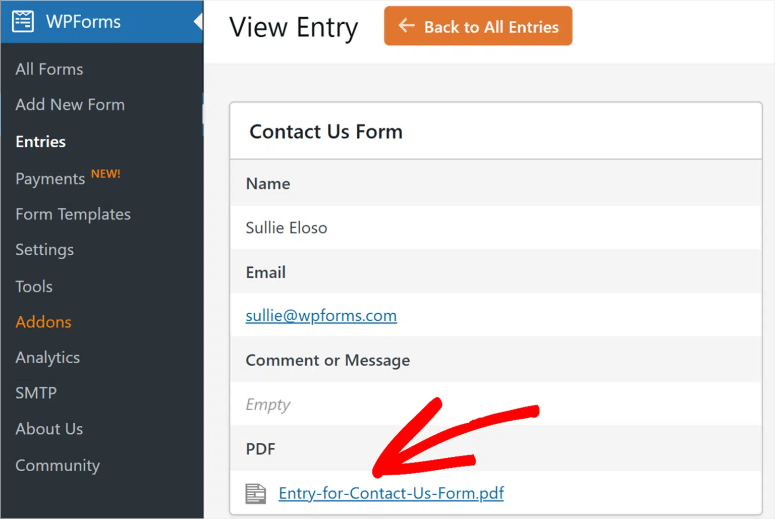
Open the File and Quality Checker of your PDF file and make sure everything is working properly.
Test email delivery:
Open the email inbox you configured for notifications. You should have received an email (or two if you selected both admin and user notifications).
Find the email and look for the PDF attachment. Click to open the attachment directly from the email to ensure it opens without errors.
If everything is working properly, it’s time to go live:
If everything looks good, publish your form.
All you need to do is go to your form builder and click the “Embed” button in the top right corner. A popup will then appear with the publishing options available to you.
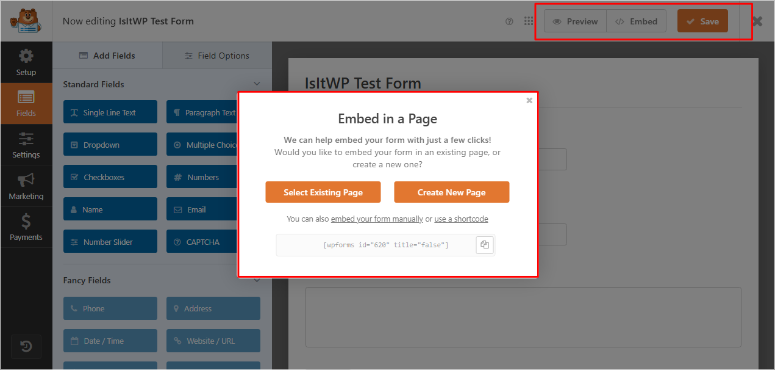
You can add it to a new or existing page using the WPForms block, create a new page with the form already placed, or use a shortcode to add it to any widget-ready location.
Congratulations! From now on, every submission will automatically generate a professional, branded PDF. It sends emails to the right people instantly. No manual work required.
Automation takes care of everything while you focus on your actual business.
Method 2: Print Formidable Forms to PDF (Quick Alternative)
Formidable Forms takes a different approach to PDF generation.
Instead of automated branded templates, it offers the Print to PDF feature, which is better for quick one-time exports than automated professional documents.
If you need to manually export form entries for your records, this works fine. However, if you want automated, branded PDFs to be sent to customers instantly, WPForms is by far the better choice.
Basic facility
After installing Formidable Forms, navigate to Impressive → Add-Ons in your WordPress dashboard.
Look for that WordPress PDFs Plugin in the add-ons list. Click Install next to it.
The PDF generation functionality is now available. No complex configuration is required for basic exports.
Printing as PDF process
Next, navigate to your form Entries Page. Find the entry you want to export and click view or Edit below the input line.
Look in the right sidebar on the listing details page and select Download as PDF Click the button to download the PDF file to your computer.
The PDF contains all form data in a simple layout. Clean, functional but not branded or customized.
That’s it! You can now create PDF files from your form submissions using both WPForms and Formidable Forms.
But what are the main differences between these two form plugins when dealing with PDFs?
WPForms vs. Formidable Forms for PDFs: Quick Comparison
Here’s how the two plugins stack up specifically for PDF generation:
| Special feature | WPForms Pro | Impressive shapes |
|---|---|---|
| Brand templates | 40+ prefabricated | Custom views only (coding required) |
| Setup time | 15 minutes | 30-45 minutes (easy), hours (custom) |
| Visual editor | ✅ Live preview | ❌ Code based |
| Automatic email | ✅ Integrated essay | ✅ Basic attachment |
| Logo upload | ✅ Drag and drop | Requires HTML/CSS |
| Individual branding | ✅ Over 40 color themes | Requires custom views |
| Best for | Automated branded PDFs | Manual exports, advanced customization |
| Technical skills | Beginner friendly | Intermediate to advanced |
| Price | $199.50/year (Pro) | $199.50/year (Business) |
Choose WPForms if:
- You want professionally branded PDFs without touching the code. The visual template editor lets you customize everything with just one click. Perfect for invoices, quotes and certificates that customers can see.
- You need automation. Set it up once and a PDF will be automatically generated with every form submission. No more manual work.
- They value your time. 15 minutes to create professional PDFs versus hours coding custom views in Formidable.
Choose Formidable Forms if:
- You need quick manual exports for admin records. The Print to PDF button works well for internal documentation.
- You are familiar with HTML and CSS. If you can program custom layouts, Formidable’s views give you pixel-perfect control.
- You already use Formidable for complex form logic. Adding easy PDF export makes sense if you’re committed to the ecosystem.
My honest recommendation? Especially when it comes to PDF generation, WPForms outperforms Formidable Forms in terms of ease of use, speed, and professional results. Formidable Forms excels in other areas (advanced calculations, complex conditional logic), but PDFs are not its strong point.
Read my full comparison between WPForms and Formidable Forms to see how they perform on all form functionality, not just PDFs.
If something is unclear, check out the frequently asked questions below.
FAQs: Converting form submissions to PDF
Do I need WPForms Pro for PDF generation?
Yes, the PDF add-on requires WPForms Pro or later. The Lite version contains no PDF functionality at all. You must upgrade to access the add-on, templates, and auto-generation features. The Pro plan starts at $199.50/year and includes the PDF add-on and other premium features.
Can I edit a PDF after it is generated?
No, with WPForms PDFs are automatically generated based on form submissions. You cannot edit individual PDFs after they have been created. If you need changes, update the PDF template in your form settings before new submissions arrive. All future PDFs will use the updated template. Existing PDFs remain unchanged.
How many PDF templates can I use per form?
WPForms allows you to create unlimited PDFs per form. Some people set up multiple PDF types for a form – an invoice for the customer, a delivery note for shipping, an internal record for accounting. Each PDF can use a different template and branding. Simply click “Add New PDF” for each version you need.
Can users download the PDF directly from my website?
Yes, WPForms allows you to use shortcodes on confirmation pages or thank you pages. Place the shortcode where you want the download link to appear. Users click on it and receive their PDF immediately after submitting the form. This works great for instant receipts or certificates that people want to download immediately without reading their email.
Does the PDF contain file uploads from the form?
Yes, with WPForms, file upload links are displayed in the PDF. Users do not see the actual uploaded files embedded in the document, but are provided with clickable links to access the files. This keeps the size of the PDF files manageable while still ensuring access to uploaded documents, images or attachments from the form submission.
What if I need more customization than the templates provide?
Use WPForms’ View feature for advanced customizations with HTML and CSS. This gives you complete control over PDF layout, style and structure. Or switch to Formidable Forms if you need maximum flexibility and are comfortable programming custom layouts. However, most people find that the 40+ WPForms templates provide everything they need.
Final Thoughts: Professional WordPress Form PDFs Made Easy
Converting form submissions to PDF no longer requires copying data to Word documents.
WPForms automates the entire process. All you have to do is choose a template, add your branding, and a professional PDF will be automatically generated with every submission.
This means customers receive branded documents instantly and saves you hours every week.
On the other hand, Formidable Forms is suitable for quick manual exports when you need basic PDFs for administrative records. But for customer-facing documents that need to look professional? WPForms wins.
The time savings add up quickly. What took me 3 hours to pay 27 bills now takes me zero. Safety and peace of mind are also important.
No more cumbersome online converters with customer data. And the professional appearance creates trust that generic emails could never create.
Legal recognition, automatic recording, instant delivery; Everything is managed by a plugin that costs less than an hour of freelance work.
Now that you can create professional PDFs from your forms, here are some resources you can use to further improve your form’s functionality:
- How to create a WPForms + Dropbox connection – Automatically save your generated PDFs to Dropbox for cloud storage and easy client access. Perfect if you manage a lot of documents and need organized file storage beyond email attachments.
- How to create a registration or payment form with PayPal fields – Combine PDF creation with payment processing to create professional invoicing systems. Users pay via the form and receive an instant PDF receipt.
- The 12 Best WordPress Calendar Plugins – Automatically add events to Google Calendar from form submissions. Ideal for booking forms that generate PDF confirmations for scheduled services.
- +11 best WPForms Pro alternatives – Discover other form builders? This comprehensive comparison will help you choose the right plugin for your specific needs and budget.
- Contact Form 7 vs. WPForms Lite – If you’re deciding between free form builders before upgrading to Pro for PDF functionality, this detailed comparison will show you which foundation works best.
- The 7 Best Newsletter Popup Plugins – Capture leads with popups and automatically send them professional PDF lead magnets. Combine form submissions with instant PDF delivery for powerful lead generation.
These articles will help you understand how to better use WordPress forms for your business. Above all, they make it easier for you to handle customer data directly in WordPress.
Start creating PDFs from form submissions today and use the guides above to evolve as your business grows.