
I created 10 lead magnets for my SEO company. Checklists, quizzes, calculators, you name it, I created it.
People have signed up. But conversion rates? Terrible.
So I optimized emails, created drip sequences, and re-wrote subject lines. But nothing worked.
Then I sent a simple WhatsApp message to a prospect I met at an event. She immediately replied, “I was planning on getting in touch, but I have a really bad time with email.”
Then it hit me. I had to meet leads where they were actually communicating; on messaging apps, not buried in cluttered inboxes.
This led me to go down a rabbit hole and research every WordPress chat assistant tool I could find.
I discovered WPChat. Afterwards, visitors to my website actually respond and conversations immediately start. Plus, they persist even if people leave my website.
Here is my full WPChat review after testing it on real leads.
How I test chat plugins
🔍 Click here to see my testing methodology
Here’s exactly how I evaluate each chat plugin:
- Setup speed: How long does it take from download to live widget? I time everything – if it takes more than 10 minutes to set up, that’s a red flag for beginners.
- Multiple platform support: Availability of WhatsApp, Messenger, Telegram and Instagram. More platforms mean more ways for customers to reach you.
- Customization options: Theme selection, color palettes, branding controls. Do you fit your brand or are you stuck with generic designs?
- FAQ management: How easy is it to create and manage automated responses? If adding FAQs feels like programming, most people won’t use this feature.
- Agent management: Add multiple support agents, set up working hours. Real companies need teams, not just one person.
- Analysis quality: Conversion tracking, busy times and agent performance. Numbers that actually help you make a decision, not vanities.
- Mobile responsiveness: How it appears on phones and tablets. Over 60% of my website traffic is mobile – the widget has to work perfectly.
- Impact on website speed: Page load time before and after installation. A chat plugin that slows down your website is defeating its purpose.
- Quality of support: Response time and helpfulness of the support team. If something breaks at midnight, the documentation needs to be solid.
Tools I use:
- Actual customer requests on live sites
- GTmetrix for speed testing
- Pingdom for performance monitoring
- Real mobile devices (iPhone, Android)
I test each plugin for at least two weeks before reviewing it. WPChat has been used in practice on my SEO company’s website for 6 months.
Why trust IsItWP?
At IsItWP, we’ve been the go-to source for the WordPress community since 2009, helping over 2 million users choose better plugins.
Unlike review sites that never actually use the products, we maintain active accounts, run real customer sites, and offer ongoing WordPress advice.
I personally tested WPChat on my SEO company’s website for six months before writing this review.
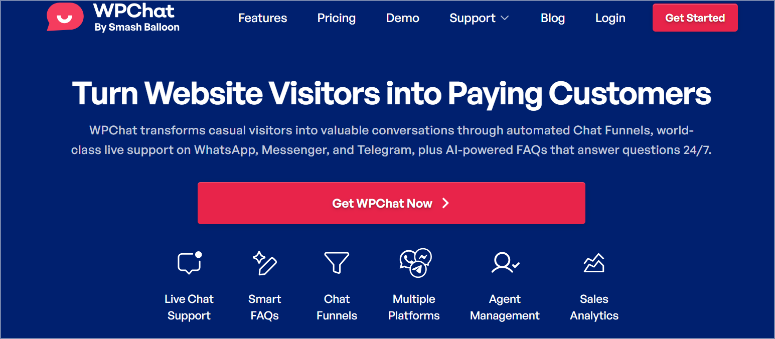
WPChat is the best chat plugin for WordPress because it connects your website visitors to your team through messaging apps you already use.
WPChat is more than just a chatbot, it acts as a bridge between WordPress and popular messaging platforms such as WhatsApp, Facebook Messenger, Telegram and Instagram.
The plugin comes from Smash the balloonthe team trusted by over 1.75 million websites for their social media feed plugins and Instagram integration tools.
This track record is important when adding communication tools to your website.
Why the WPChat approach works
This is what most chat plugins miss: people don’t want another platform to check this.
Traditional live chat forces visitors to use an unknown widget. WPChat connects them through apps that they check more than 50 times a day anyway.
Additionally, conversations continue even when visitors close your website. With regular live chat, the conversation ends as soon as they leave your website.
Remember that your customers already use WhatsApp and Messenger. WPChat makes it easy for them to reach you there.
Now that you understand what WPChat is, I’ll look at it in detail so you can see if it’s right for you.
Installation and setup
WPChat offers a free version available on WordPress.org. So all you need to do to get started is go to your plugin repository and install it. But before you download it, you should understand what you are getting.
What the free WPChat version offers:
- 1 agent profile (only you)
- Up to 10 FAQs
- 10,000 Smart Search AI tokens
- WhatsApp, Facebook Messenger, Telegram, Instagram support
- 3 customizable themes
- Basic analysis
- Global visibility controls (show on all pages or none)
Why you probably want Pro:
The free version works well for testing. But 10 FAQs quickly disappear when you run a real business.
In addition, you only rely on one agent. This means no team support, no backup when you’re offline, and no workload balancing.
I’m concentrating on that WPChat Pro In this review you can see everything it can actually do. The features that make simple contact forms worth considering.
Getting started with the Pro version
Step 1: Purchase and download
Go to wpchat.com and click the “Download WPChat Now” button.
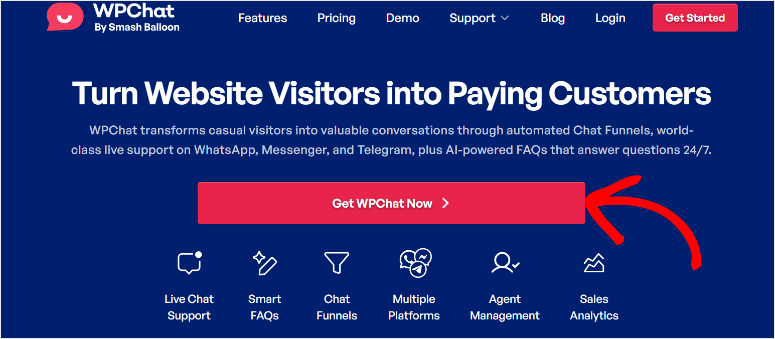
You will see three pricing tiers: Basic, Plus and Elite. Choose the one that fits your business size (I’ll go into the pricing details later).
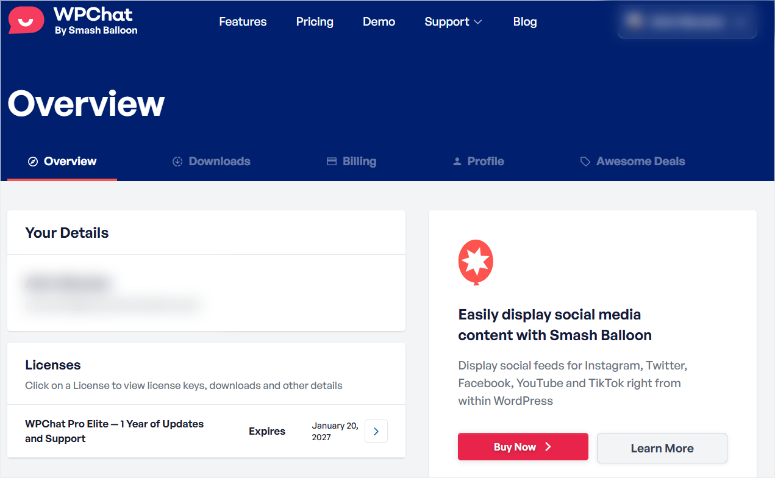
After purchasing, you will land in the WPChat dashboard.
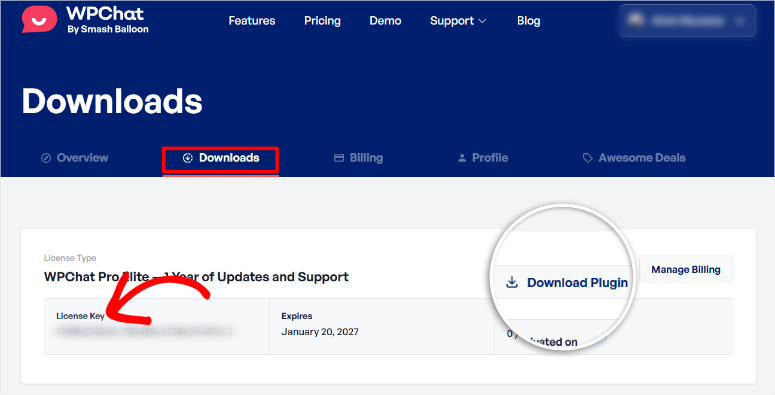
Navigate to Downloads Tab. Do two things on this page:
- Download the plugin file
- Copy your license key; You will need this in about 2 minutes
Install WPChat
Installing WPChat works like any WordPress plugin. Go to your WordPress dashboard and navigate to Plugins » Add plugin » Upload plugin.
Then upload the WPChat file you just downloaded, click “Install Now” and then Activate.
If you need detailed installation help, check out our complete guide on how to install a WordPress plugin.
Setup wizard walkthrough
This is where WPChat becomes impressive.
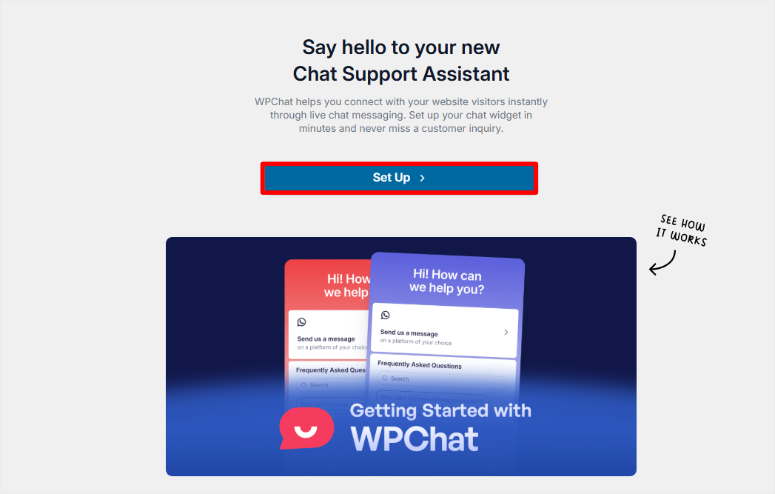
Once you activate the plugin, you will automatically be redirected to a setup wizard. No searching through menus or guessing about what to configure first.
Simply click the Setup button to get started and the wizard will walk you through four quick screens.
Screen 1: Enter your phone number
On the first screen you will be asked for your WhatsApp phone number. This is necessary because visitors will be redirected there if they want to contact you via WhatsApp.
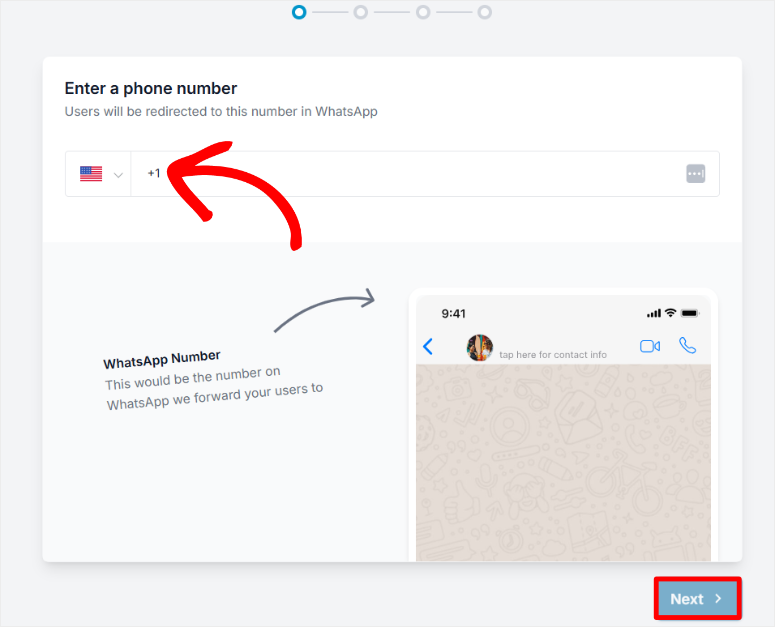
Note that you don’t need to add a WhatsApp API or anything else to get started. Simply plug in and get started, ideal for beginners.
Screen 2: Choose your topic
Next, choose a topic. You have three options:
- Basic (clean and simple)
- Night (dark theme)
- Pastel (soft colors)
The preview updates immediately so you can see exactly how the chat widget will look on your website.
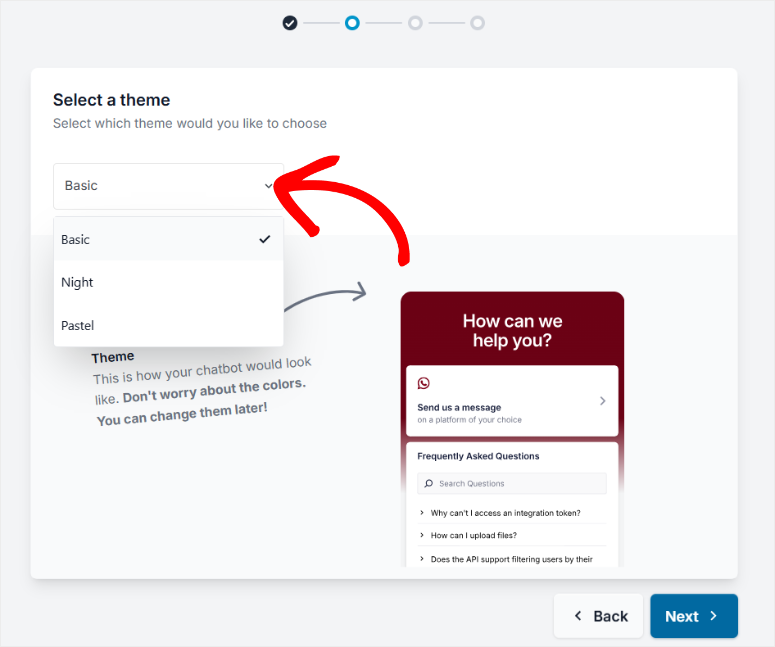
Don’t stress this decision. You can change the themes later in the customizer.
Screen 3: Configure visibility
Now decide where the chat widget will be displayed.
You can view it on:
- All pages (recommended for most websites)
- Only certain pages
- Specific categories
- Starred posts
- Custom post types
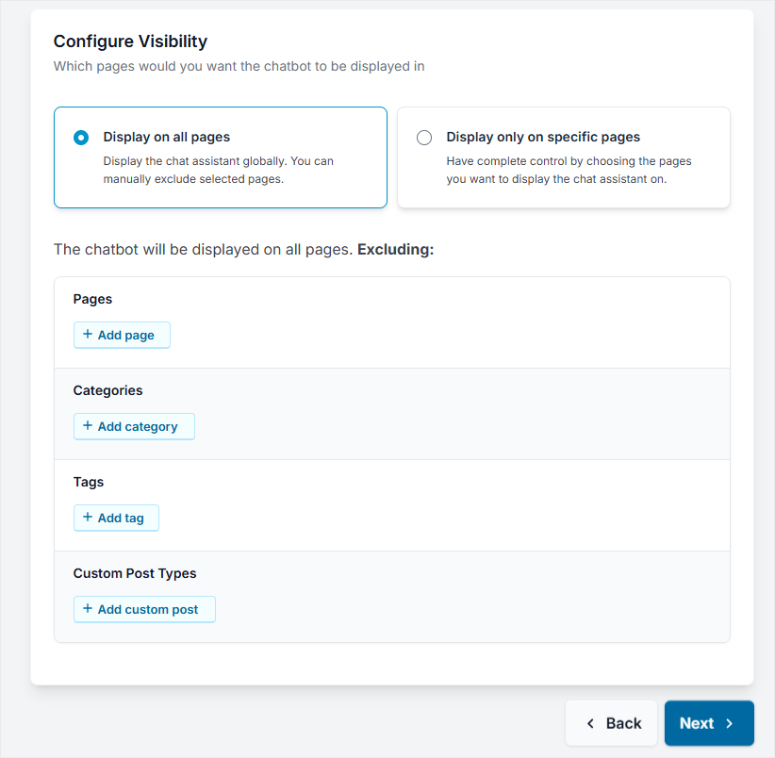
I recommend starting with “all pages” and later excluding specific pages if necessary.
Step 4: Activate your license
Do you remember the license key you copied earlier? Paste it on the final screen of the setup wizard. Click “Activate” and then click “Activate and Complete Setup.”
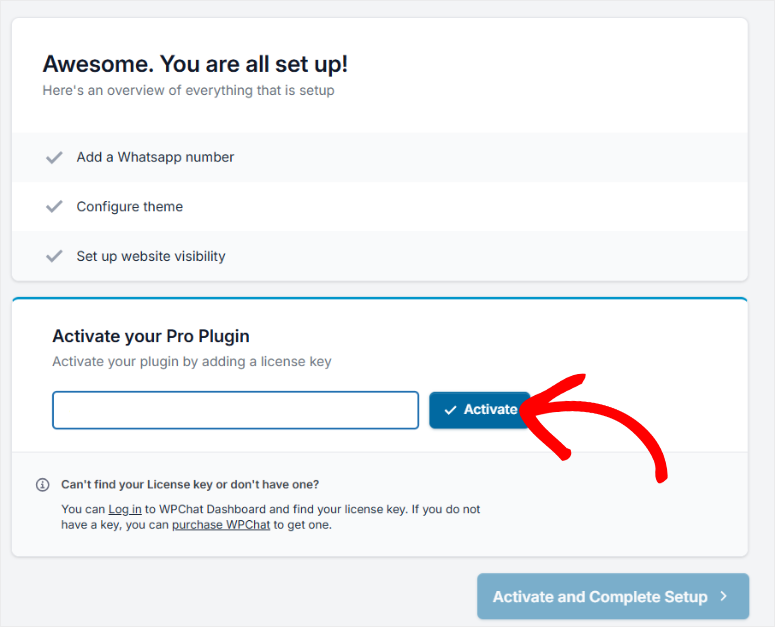
That’s it. Your chat widget will go live immediately.
Total time? Under 5 minutes. I’ve tested dozens of chat plugins and this is the smoothest setup I’ve ever experienced.
Customization and ease of use
A good chat plugin needs to be easy to use for two groups: your team and your visitors.
WPChat gets to the point of both.
To personalize your chat widget for your brand and audience, navigate to WPChat » Customizers from your WordPress dashboard.
Live preview system
WPChat’s customizer uses a split-screen approach that makes customization hassle-free.
The left sidebar gives you all the customization options. On the right sidebar you will get the live preview which will update immediately.
This saves you from having to refresh the page and estimate what the changes will look like.
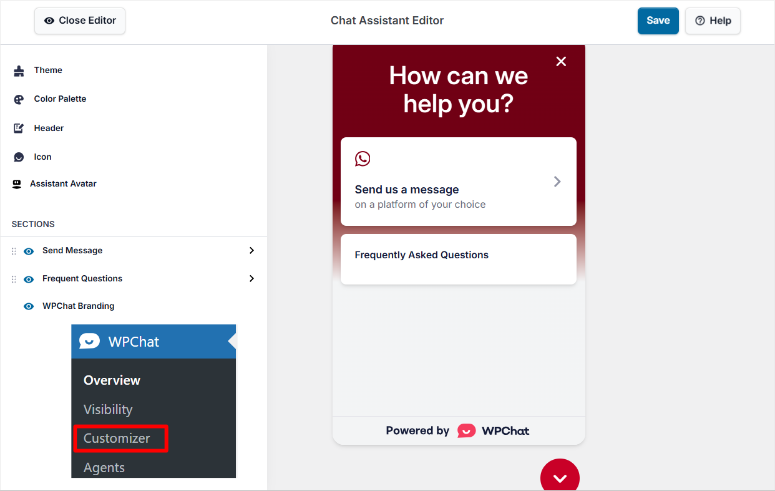
You see exactly what visitors will see when you make changes. This saved me hours compared to plugins where I had to save, update, check the frontend, go back and repeat.
Theme customization
Remember the three topics from the setup wizard? You can switch between them at any time here.
Simple, night or pastel – choose what suits your website needs. Again, the preview updates immediately so you can compare them side by side.
Color palette options
WPChat offers platform-specific default colors that make sense:
- WhatsApp: Green theme (matches the app)
- Messenger: Blue design (familiar Facebook blue)
- Telegram: Light blue
- Instagram: Purple/Pink Gradient
But you don’t get stuck with default settings. You can customize the colors to perfectly match your brand.
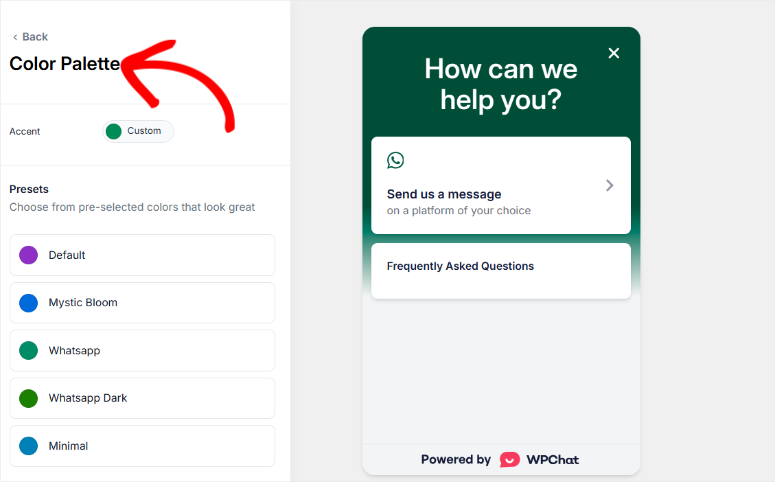
I changed mine to match my SEO company’s brand colors and it took about 30 seconds.
The standard headline is “How can we help you?”
Nice but generic.
You can change it with a simple text input to match your brand voice. I use “Let’s Chat About Your SEO Goals” on my website.
Chat icon selection
WPChat offers several pre-made chat bubble icons to choose from. The only limitation here: you cannot upload your own custom icon. You need to select their preset options.
Not a dealbreaker, but worth mentioning if you need perfect brand consistency right down to the chat bubble design.
Assistant avatar
This is where you can add personality.
You can upload a custom avatar with your face, logo or mascot. At the same time, you can choose from WPChat’s standard avatar options.
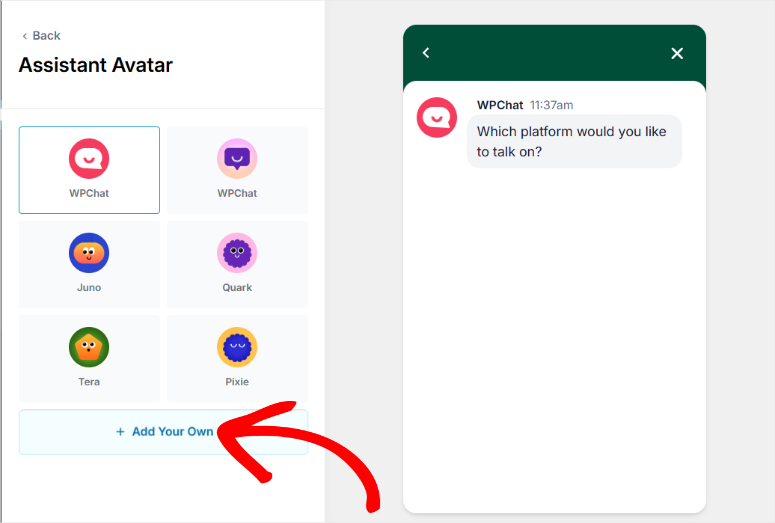
I use my headshot so visitors see a real person and not a faceless support bot.
Section switches
WPChat gives you quick controls to show and hide different sections:
Send Message Section:
- Customizable heading
- Customizable subheading
- Eye icon = One-click power on/off
Frequently Asked Questions Section:
- Toggle the entire FAQ section on/off
- For full customization, click “Go to Frequently Asked Questions.”
WPChat branding:
- Free version: Branding remains
- Pro version: Remove “Powered by WPChat” with one click
To customize the Send Message section, replace the placeholder heading and subheading with your own text.
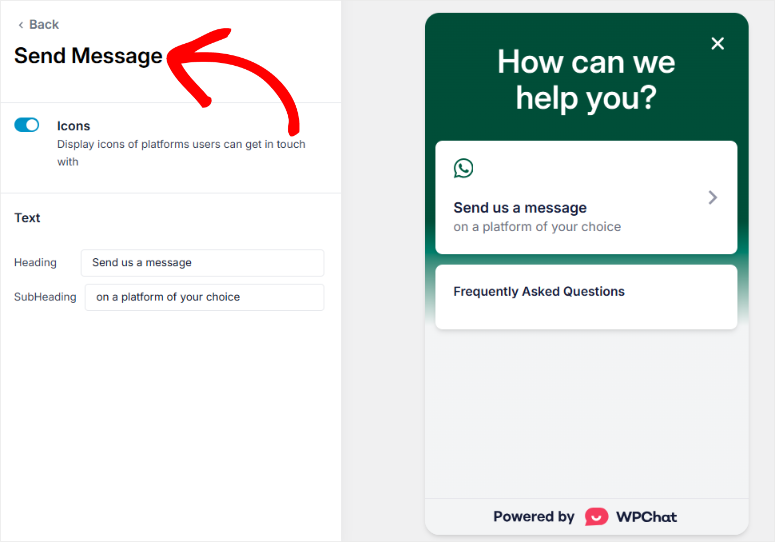
Mine says “Questions about SEO?” with the subheading “I will respond within 10 minutes during business hours.”
This sets expectations and builds trust from the moment they land on your website.
Set up frequently asked questions
The Frequently Asked Questions section deserves special attention because it is one of WPChat’s most powerful features.
You can access it in two ways:
- WPChat » Customizer » Go to Frequently Asked Questions tab
- WPChat » Frequently Asked Questions Menu (direct access)
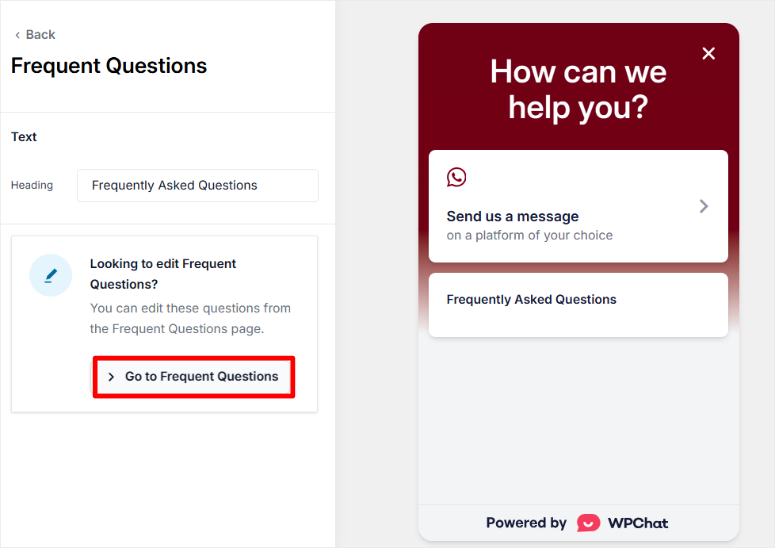
I’ll cover the FAQ setup in detail in the Features section, as it’s more than just a customization; It’s automation that saves hours of support time.
Why individualization is important
A chat plugin is easy to use when it is intuitive for both your team and your audience.
WPChat’s customizer lets you brand the widget in minutes, and the live preview ensures no surprises. Additionally, the toggles make it easy to show and hide sections depending on your business needs.
I’ve seen chat plugins with 47 settings spread across 8 different menu pages. WPChat keeps everything in one clean customizer interface.
That’s the difference between actually customizing your chat widget and giving up after 10 minutes of frustration.
WPChat features
WPChat offers powerful features that convert casual visitors into engaged customers. Here’s what sets it apart.
Automated FAQ system
It’s not uncommon for a website visitor to have questions at 2 a.m. while your support team is sleeping. WPChat’s FAQ system answers questions 24/7 without human intervention.
Why this feature is so special:
But that’s what makes it valuable in the long run: every new question you receive becomes a future automated answer. This allows you to automatically build your knowledge base with AI once and it works forever.
Additionally, it significantly reduces the workload of your support team.
The repetitive questions like “Do you offer refunds?” “What’s your turnaround time?” is processed automatically, so your team can focus on complex problems that require actual human judgment.
How to set it up:
You have two paths to the FAQ builder:
- WPChat » Customizer » Go to Frequently Asked Questions tab
- WPChat » Frequently Asked Questions Menu (I use this)
Once you get there, click “Add Question.”
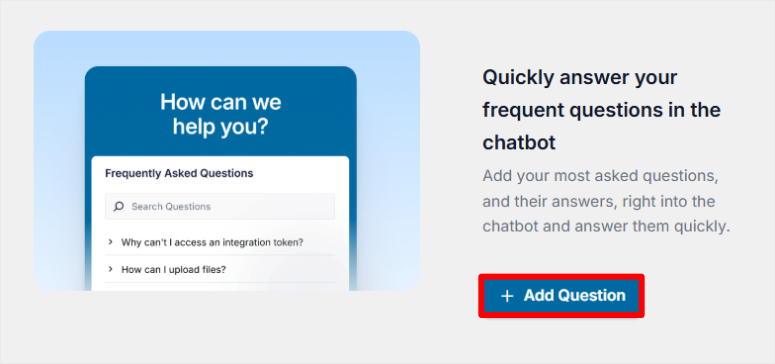
The FAQ Builder uses the same split-screen approach as the Customizer:
This means you enter your question, answer and optionally an image in the left field. You can then see what you create in the live preview in the right pane.
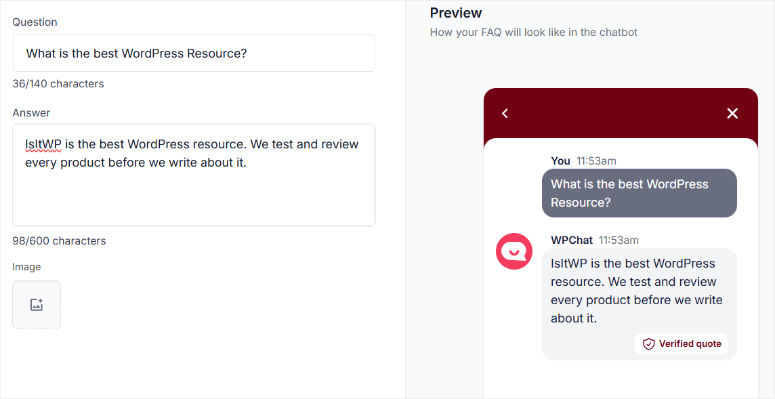
After you add your first question and click Save Changes, a new tab will appear at the bottom for adding additional questions. Keep adding until you’ve covered your most common requests.
I started with 15 FAQs. Six months later, I’m at 43. Every time someone asks something new, I add it to the system.
Managing your FAQ library:
Now to manage your FAQ library, exit the FAQ Builder and you will see all your questions listed. Then click the Preview button to see what all FAQs look like together in one view.
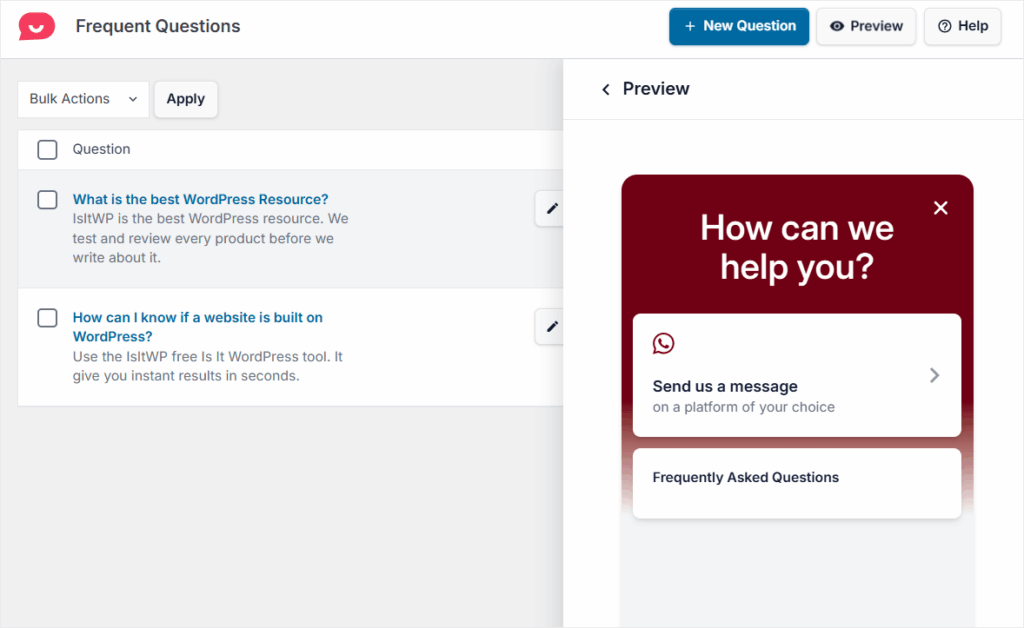
At this point you can edit or delete questions at any time. I update mine monthly depending on what customers are actually asking.
Intelligent search AI
Here lies the problem with traditional FAQ systems: visitors need to know the exact keywords you used.
If they type “money back” but you specified “refund policy,” they won’t get any results. This makes it one of the most frustrating experiences users can have on a website.
Why Smart Search AI works:
WPChat’s Smart Search AI automatically matches visitor queries to your FAQ content. It works as you type and suggests relevant answers even if they use different words than you.
The AI improves over time as your FAQ library grows. Think of it as building a long-term resource – every question you add makes the system smarter.
My testing experience:
I tested Smart Search AI on my SEO company site with actual customer queries. When someone types in “How long does it take” they pop up my FAQ about project timelines, even though the real question is “What is your typical turnaround time?”
The AI tries to understand intent, not just match keywords. It greatly reduces the “no results found” frustration.
You can enable or disable Smart Search with one click on the Frequently Asked Questions page. Turn it on when you have tokens available and turn it off when they run out.
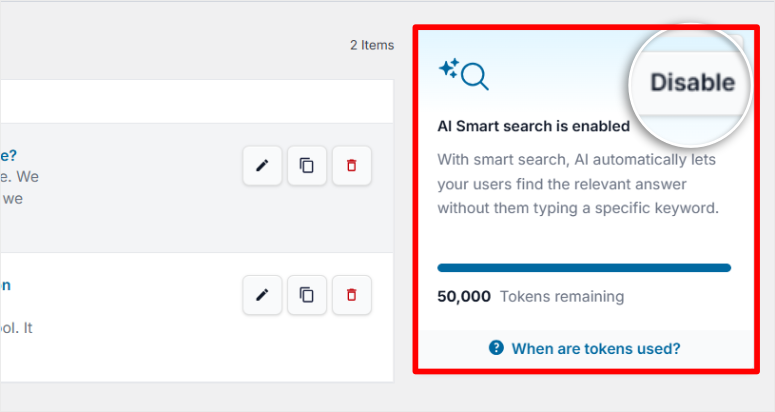
Keep this in mind: AI quality depends on the quality of your FAQ library. Garbage in, garbage out. Write clear, comprehensive FAQs and the AI will work beautifully.
Multi-agent support
Single agent support works well if you are a solopreneur. It collapses as soon as you hire help or need support.
WPChat’s multi-agent system adds a human touch with photos, names, and specific contact information for each team member. Customers see real people, not a faceless “support team”.
Why this feature is so special:
WPChat naturally distributes the workload across your team, ensuring different agents manage different platforms.
For example, Sarah manages WhatsApp, Mike takes care of Facebook Messenger and Jessica takes care of Telegram inquiries outside of business hours.
Set up agents:
Navigate to WPChat » Agents and click “New Agent”.
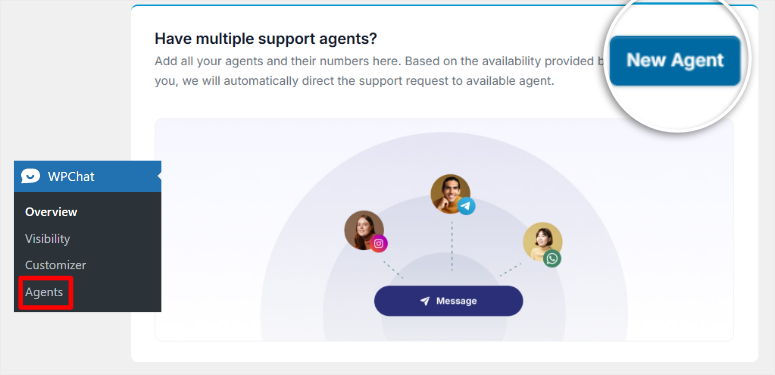
You need three things:
- Profile picture (headshot works best)
- Agent name
- Contact details for each platform they serve
Add their WhatsApp number, Telegram username, Facebook Messenger ID and Instagram username. You don’t have to fill all the platforms; Only assign those that each agent will actually manage.
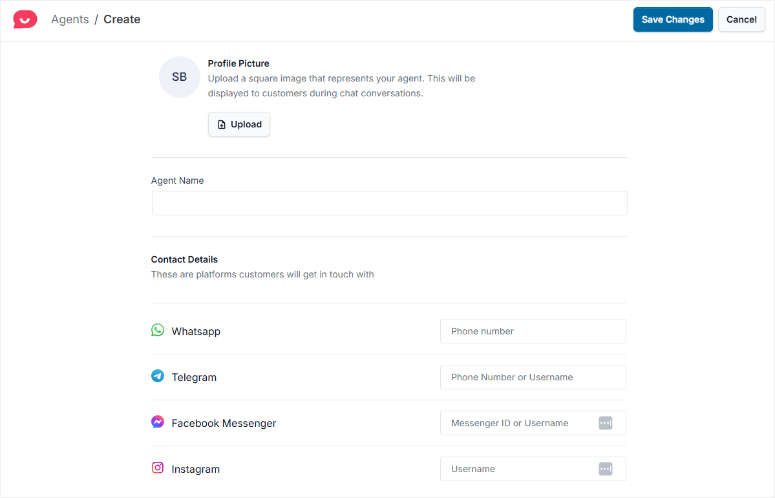
Setup takes less than 2 minutes per agent, without complicated APIs or technical configuration.
Platform mapping:
This is where WPChat gets really clever: you can assign specific agents to specific platforms. All you have to do is Edit their profiles.
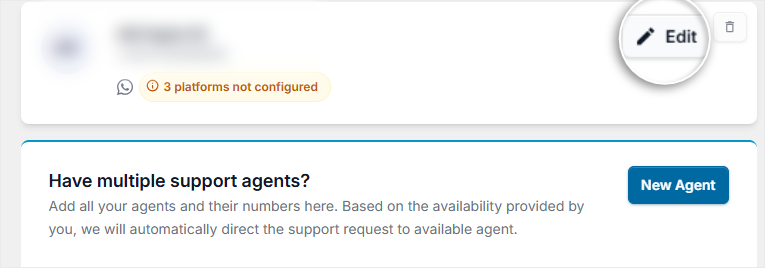
Sarah hates Instagram but loves WhatsApp? No problem. She only handles WhatsApp requests. Mike takes Instagram.
This naturally distributes the workload and creates clear accountability. You know exactly which team member conducted which conversation.
Detailed agent settings:
However, you can ensure that your support team responds to inquiries even more specifically. Click Agent Settings at the top right of the agent screen to display advanced controls.
You can:
- Set working hours per agent
- Enable/disable specific messaging platforms
- Choose a replacement agent during non-business hours
- Automatically redirect visitors when agents are offline
- Disable out-of-hours contact options
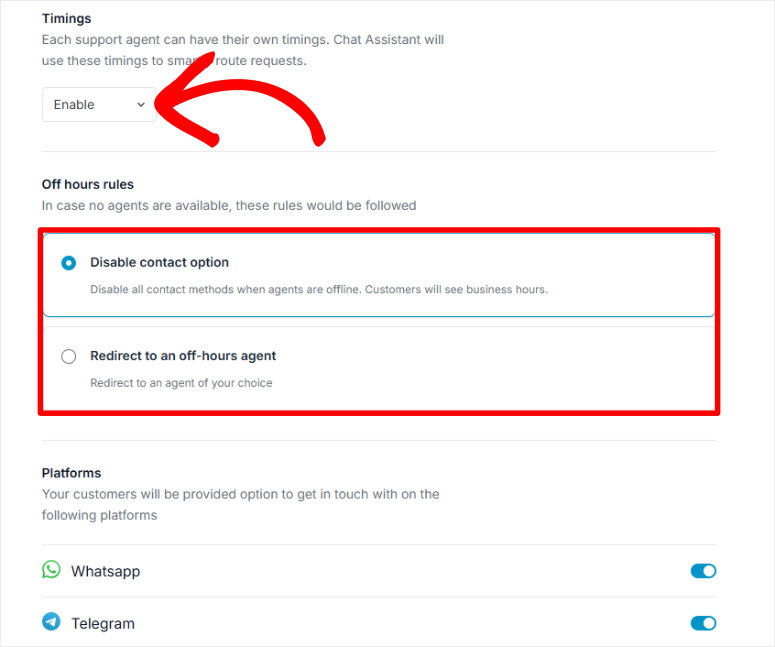
I have mine set so that after-hours inquiries only occur in FAQ mode. No one will be woken up at 3 a.m., but visitors will still receive instant answers from the knowledge base.
Chat funnel
Imagine if every visitor who clicks on your chat widget already knows what service they need, what their budget is, and when they want to start.
That’s what chat funnels do. You qualify leads before human contact.
Why Chat Funnels Are Helpful for Businesses:
Your support team will receive all important information in advance. Stop spending 15 minutes asking basic questions. You jump straight to help or automatically forward it to the right department.
I use chat funnels to separate “just browsing” visitors from serious buyers. It saves my team hours of conversations every week that lead to nothing.
In short, chat funnels create a guided, multi-stage conversation. Think of it as a smart assistant that asks a few questions to understand what the customer needs before connecting them with a real person.
Use cases:
- Support triage: New ticket vs. existing customer
- Sales qualification: Budget framework, schedule, specific requirements
- Service selection: Which department is processing your request?
- Product interest: Which product category they are exploring
Setting Up a Chat Funnel:
Navigate to WPChat » Chat Funnels and click “New Funnel”.
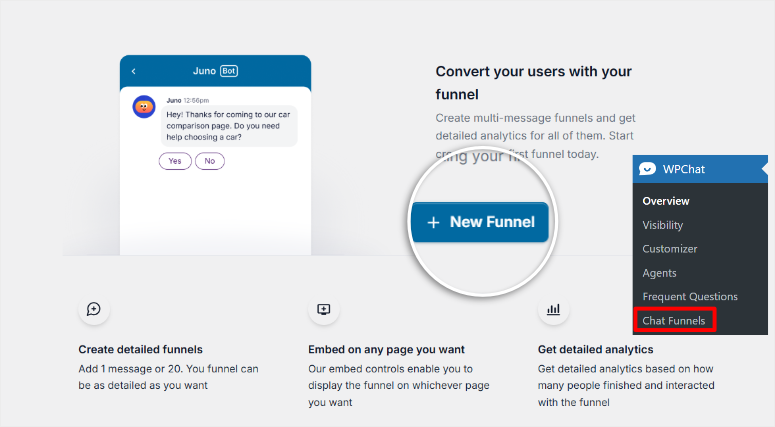
Give your funnel a meaningful name. I use names like “SEO Service Qualifier” or “Support Ticket Triage”.
Now build the conversation:
- Message tab: Enter your question and optionally add an image.
- Options tab: Set up response options and route them to the appropriate agent.
Then use the pencil icon to customize the “Options” so that they are clear and understandable.
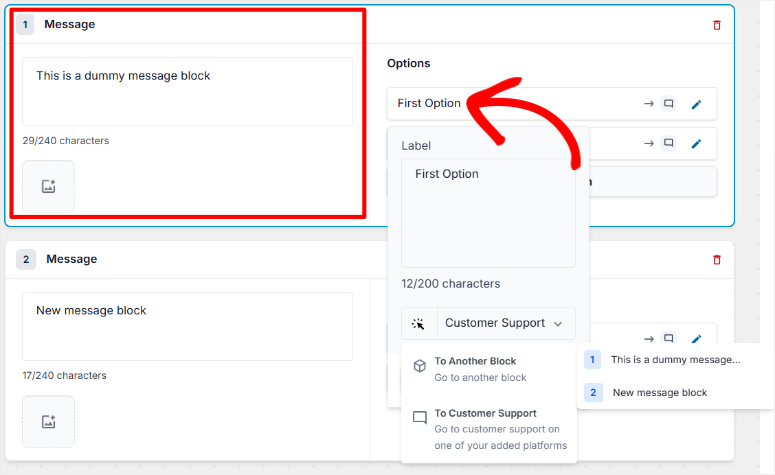
Multi-stage funnels:
Would you like to ask several questions before redirecting? Click Add Message Block.
You can build funnels with as much detail as you need. I have a 4-step funnel for SEO service requests that takes into account budget, timeline, current rankings, and previous SEO experience.
And of course, the preview window on the right shows exactly what the conversation flow will look like for visitors.
When someone goes through my SEO qualification funnel, I already know if they’re a good fit before I even respond. This alone has saved me dozens of hours on unqualified leads.
Analytics dashboard
One of the biggest challenges in customer support is knowing what actually works.
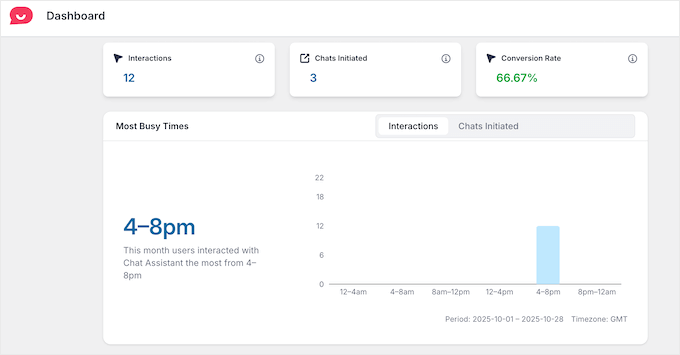
Are people getting help? What are they asking? Which agents are overwhelmed? When do the most inquiries come? WPChat’s analytics dashboard answers these questions in a simple and clear way.
Accessing WPChat analytics is very easy. The analyzes appear directly in your WordPress dashboard. No separate login required.
Key metrics tracked:
Overall performance:
- Total interactions (how many people opened the chat)
- Chats initiated (how many messages actually sent)
- Conversion rate (interactions that led to conversations)
- Selecting the date range (compare different time periods)
Agent performance:
The dashboard breaks down the statistics per agent. See which team members handle the most conversations, response patterns, and workload distribution.
This is useful for managing your team and identifying who may need more support or training.
Time insights:
WPChat also tracks when visitors most frequently interact with your chat widget. This allows you to see peak chat times and busiest days. You can use this data to optimize your personnel planning.
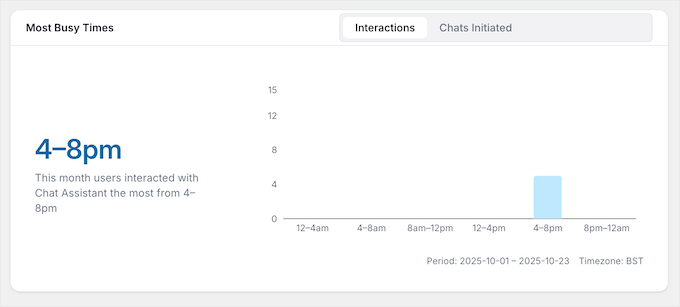
I found that my main chat time is between 2:00 p.m. and 4:00 p.m. EST. Now I make sure someone is available during these times instead of guessing when I need to be online.
If you are interested in deeper user behavior analysis, I also recommend checking out the best heatmap plugins to see where visitors click and scroll on your website.
Additional features
Beyond the five main features, WPChat offers several other features worth mentioning:
Multiplatform integration:
All four major messaging platforms function from a single dashboard:
- WhatsApp (primarily for most companies)
- Facebook Messenger
- telegram
You manage everything via WordPress. No switching between apps or platforms.
For deeper integration with these platforms, learn how to set up SMS and WhatsApp notifications.
Mobile responsive design:
The chat widget works seamlessly on all devices. No separate mobile configuration required.
I tested it on iPhone 12, Samsung Galaxy, iPad and various Android devices. Perfect display on all.
Performance optimized:
WPChat uses lightweight code with asynchronous loading. This means that your page will not be blocked from rendering.
I ran GTmetrix testing before and after installing WPChat. No impact on page loading speed. The widget loads in the background without slowing down your website.
Advanced visibility controls:
Beyond the basic All Pages or Specific Pages options, the Pro plans let you target:
- Specific categories
- Starred posts
- Custom post types
- Page-level controls (show on homepage but hide at checkout)
Documentation and support
AI-powered chatbot support
Here’s what I love: WPChat practices what they preach.
As you would expect from a chat plugin company, WPChat uses an AI-powered chatbot on its website for instant support.
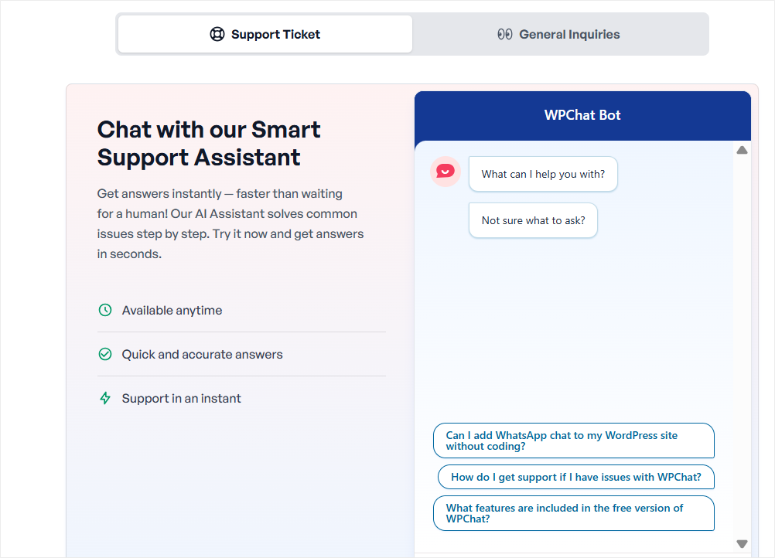
I tested the chatbot with setup, pricing, and troubleshooting questions. It provided accurate answers with expandable links leading to detailed documentation.
Plus, the chatbot works 24/7, so users get instant answers instead of waiting hours for email replies.
Support ticket system
For problems that the chatbot cannot solve, WPChat offers a clean support ticket system.
The form uses an accordion design that keeps it simple and straightforward:
- Free Plan Users: General Inquiry Form
- Paid plan users: Priority access to ticket sales
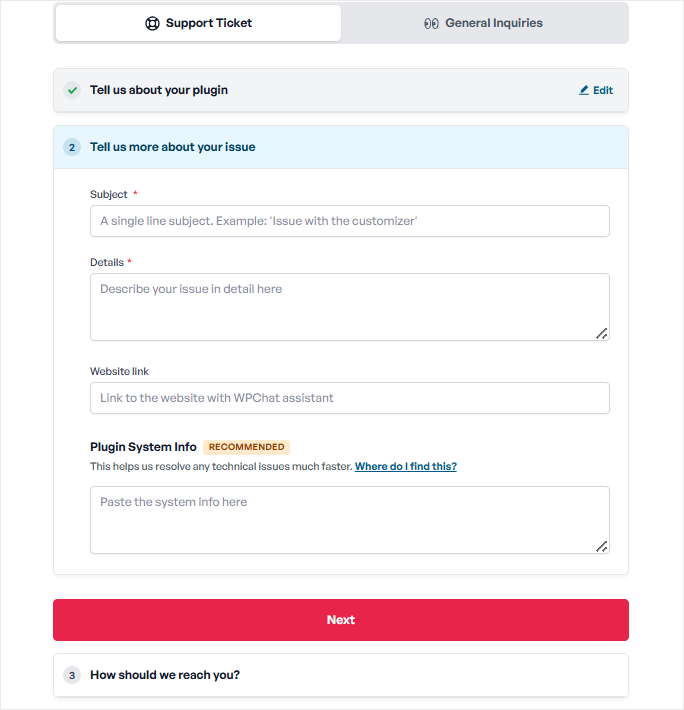
I submitted a ticket about custom visibility settings and received a response within 4 hours with screenshots showing exactly how to configure them.
Priority support for paid plans isn’t just a marketing pitch. They actually react faster.
Help center organization
WPChat’s Help Center uses a three-tab system: How-tos, References, and Support. This allows for clear navigation so you can easily find what you need.
Documentation sections:
- Getting Started (for first time users)
- Tutorials on frequently asked questions (FAQ management)
- Funnel Setup Guides (Chat Funnel Configuration)
- Analytics documentation (understanding your data)
- Advanced Features Section (Power User Content)
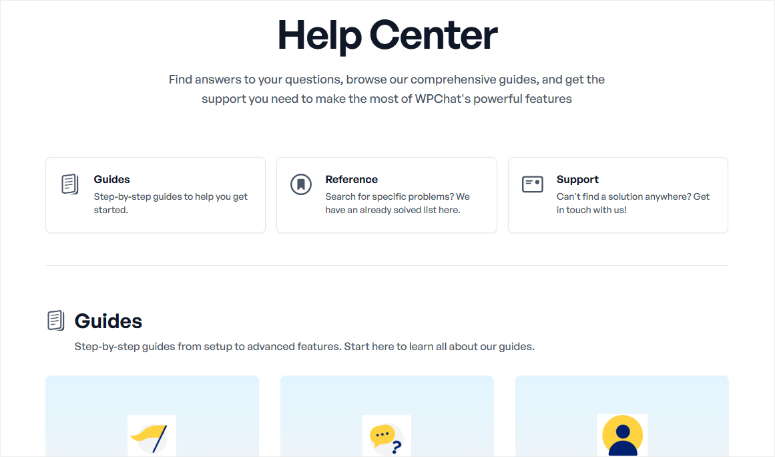
In addition, the resources in each section are organized chronologically. This makes it easier to follow step by step rather than jumping around randomly.
Documentation quality:
The articles use simple language that is perfect for beginners. No unnecessary jargon or assumption of technical knowledge.
Each guide includes:
- Screenshots show exactly what you will see
- Videos going through processes
- GIFs demonstrating clicks and navigation
- Step-by-step instructions
To start, I used the “Setting Up Your First Chat Funnel” guide. The screenshots matched exactly what I saw in my dashboard, so there is no confusion about which button to click.
WPChat Pricing
WPChat offers pricing tiers for different company sizes. Here’s what you get with every plan.
Free plan
What’s included:
- 1 site
- 1 agent profile
- 10,000 Smart Search tokens
- Up to 10 FAQs
- WhatsApp, Messenger, Telegram and Instagram support
- 3 customizable themes
- Basic analysis
- Standard email support
Best suited for: Solopreneurs test chat features before committing to paid plans.
My opinion: The free version is good for testing the workflow. But you’ll quickly outgrow 10 FAQs. I reached this limit in a week.
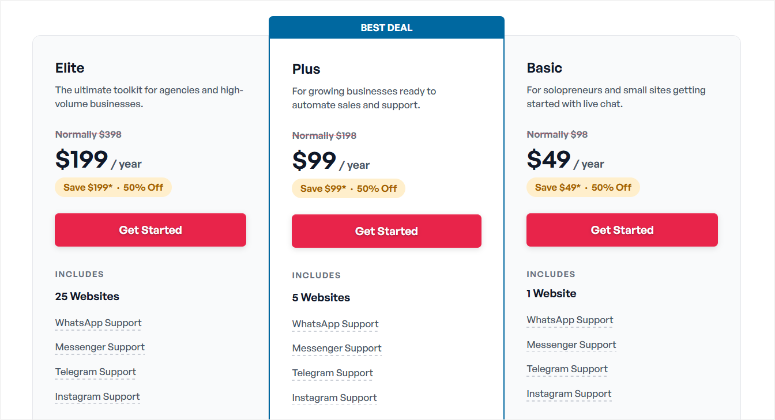
Basic – $49/year
What’s included:
- 1 site
- Up to 5 agents
- 10,000 Smart Search tokens
- Up to 30 FAQs
- All messaging platforms
- Configurable agent working hours
- Custom brand colors
- 3 topics
- Advanced visibility controls
- Basic analysis
- Standard support
Best suited for: Small companies with small support teams (2-3 people).
My opinion: Solid entry point if you need multiple agents but don’t need advanced analytics. 30 FAQs covers most small business knowledge bases.
Plus – $99/year ⭐ Most Popular
What’s included:
- 5 sites
- Up to 10 agents
- 25,000 Smart Search tokens
- Up to 100 FAQs
- Unlimited chat funnels
- Remove WPChat branding
- Advanced analytics (conversion rates, peak times, agent metrics)
- All basic functions
- Priority support
Best suited for: Growing businesses that manage multiple locations or require comprehensive analytics.
My opinion: For most companies, this is the sweet spot. The analyzes alone justify the upgrade. In addition, 100 FAQs offer you the opportunity to build a serious knowledge database.
I use this plan for my SEO company. Advanced analytics showed me that 60% of my requests come between 4 and 8 p.m. I adjusted staffing based on this data.
Elite – $199/year
What’s included:
- 25 sites
- Unlimited agents
- 50,000 Smart Search tokens
- Unlimited FAQs
- Unlimited chat funnels
- All plus features
- Priority support
- Ideal for high volume agencies and businesses
Best suited for: Agencies that manage customer sites or large companies with extensive support needs.
My opinion: Overkill for most small businesses. If you manage no more than 10 websites or manage a large support team, Plus is sufficient.
14-day money-back guarantee:
Every plan includes a risk-free trial period. Try WPChat on your live site for two weeks. If it doesn’t work for your business, you’ll receive a full refund.
No questions asked.
My recommendation
For most small business owners: Plus ($99/year) hits the sweet spot.
You will receive enough FAQs to build a solid knowledge base. You can use analytics to track and optimize performance. Support for 5 websites means you can use it on your main website as well as landing pages or side projects.
Start with the free plan if you want to test the workflow. However, plan to upgrade within the first month if you’re serious about using chat support.
The annual pricing is refreshing compared to competitors who charge $15-30 per month per agent. With WPChat, you pay for the software, not the size of your team.
pros and cons
► Advantages
Well-known messaging platforms
- WPChat uses apps that visitors already trust – WhatsApp, Messenger, Telegram and Instagram. No pressure to create accounts or learn new interfaces.
- Additionally, conversations continue even when visitors leave your website. They can respond hours later from their phone. With traditional live chat, the conversation ends when your website closes.
Quick setup
- Setup takes less than 5 minutes with the guided wizard. I’ve tested plugins that required two hours of configuration and still didn’t work properly.
- With full visual customization, no coding is required. If you can fill out a form, you can set up WPChat.
Performance
- Lightweight code with no impact on site speed. I tested this thoroughly using GTmetrix on three different websites.
- It won’t load at the same time as your page, meaning it won’t block your page from rendering. Your website stays fast even with the chat widget active.
Automation features
- The automated FAQ system, available 24/7, is a game-changer. It significantly reduces repetitive questions without requiring your team to be online all the time.
- The intelligent AI search automatically matches visitor queries. Your FAQ library will become more valuable over time instead of remaining unused.
Trusted developer
- Built by Smash Balloon, the team trusted by 1.75 million websites. They have developed popular social feed plugins that have proven to be reliable for years.
- This track record is important. You’re not betting on an unknown developer possibly abandoning the plugin next year.
Goodwill
- Chat funnels automatically qualify leads, saving you a huge amount of time on basic questions. I save 10-15 minutes per sales call because the leads arrive pre-qualified.
- Routes customers to the correct agents as needed. No more “let me move you” conversations.
Prices
- Offers a free version to get you started.
- Affordable annual pricing with three tiers so you can choose one that fits your budget. No per-agent pricing like competitors that charge $15-30/month per team member.
- The 14-day money-back guarantee eliminates the risk. Test it in your real company before committing.
Mobile friendly
- Responsive design works perfectly on all devices. I tested it on iPhone, Android and iPad – flawless on all three.
- No separate mobile configuration required. It just works.
► Disadvantages
Limitations of the free version
- Limited to 10 FAQs in the free plan. That sounds like a lot until you start building your knowledge base. I reached the limit in my first week.
- Only 1 agent profile. No team support, no backup when you’re offline.
- Just basic analysis. You see interactions but miss the deeper insights that help optimize performance.
Adaptation limitations
- The custom chat bubble icon cannot be uploaded. You’re stuck with WPChat’s preset icons.
- For most companies this isn’t a problem, but if you need perfect brand consistency down to every design element, it’s worth considering.
WPChat alternatives
WPChat is not the only chat solution for WordPress. Here are other options worth considering.
Traditional live chat plugins
Different approach:
While WPChat connects visitors through messaging apps they already use, traditional live chat plugins create embedded chat windows directly on your website.
Popular options:
When to choose traditional live chat:
- You want chat history to be saved in your WordPress dashboard
- You don’t want to rely on third-party messaging platforms
- You need enterprise-level features like chat routing and canned responses
- You need advanced automation and AI that go beyond basic FAQs
The compromise:
With traditional live chat, everything stays in one place. But conversations end when visitors close your website.
With WPChat, conversations continue on WhatsApp or Messenger. Visitors can respond hours later using their phone.
For a full comparison, see our roundup of the best live chat software plugins compared. We also have a guide to setting up WordPress live chat for free if you want to test out basic chat features first.
Contact form plugins
Simpler alternative:
If instant messaging isn’t critical to your business, contact forms provide asynchronous communication that’s easier to manage.
Popular options:
Advantages:
- No real-time support required
- Easier to manage for small teams
- Less time spent on support
- Good for companies with limited support capacity
Disadvantages:
- Slower response times (hours instead of minutes)
- Less appealing to visitors
- You may miss urgent requests
- No flow of conversation
I used contact forms for years before switching to WPChat. Forms are great for non-urgent businesses like consulting firms where response time doesn’t determine conversions.
Check out our comprehensive guide to the best contact form plugins for WordPress to explore form-based alternatives.
Customer service platforms
Complete Support Solutions:
Helpdesk tools like Help Scout, Intercom, and Freshdesk offer comprehensive customer service tools that go beyond simple chat.
Features include:
- Ticketing systems with workflows
- Knowledge bases with articles
- Email management integration
- Team collaboration tools
- Advanced reporting and analysis
- Multi-channel support
When to choose these:
- You need a comprehensive customer service suite
- You manage a high volume of tickets (over 100 per day)
- You want unified support via email, chat and telephone
- They have a dedicated support team with specific roles
Which alternative makes sense?
- Choose traditional live chat if: You need chat history in WordPress and you don’t mind conversations ending when visitors leave your website.
- Select contact forms if: You don’t need instant responses and prefer to manage requests asynchronously.
- Choose full-service platforms if: You run a large support operation and need ticketing, knowledge bases and team workflows.
- Choose WPChat if: You want to meet customers on messaging apps they already use, need quick setup, and want conversations to continue after visitors leave your website.
That’s it for my WPChat review. Now if something is unclear, take a look at the frequently asked questions below.
FAQs: WPChat Review
How is WPChat different from traditional live chat plugins?
Traditional live chat plugins create embedded chat windows on your website where conversations take place in the browser. WPChat takes a different approach by connecting visitors to your team through messaging apps they already use – like WhatsApp, Facebook Messenger, Telegram, and Instagram. The main benefit is that conversations continue even if the visitor closes your website. With traditional live chat, the conversation ends as soon as the person leaves your website.
Can I use WPChat with multiple messaging platforms at the same time?
Yes. WPChat supports WhatsApp, Facebook Messenger, Telegram and Instagram at the same time. You can assign different agents to different platforms so that visitors can choose their preferred method of communication. For example, one agent might handle WhatsApp while another manages Facebook Messenger requests. This flexibility ensures that you don’t exclude anyone who doesn’t have a specific platform.
What happens if all my support staff are offline?
WPChat does this with detailed agent settings that you configure in the dashboard. You can set it up in two ways: either disable all contact options and show visitors business hours, or route to an after-hours agent who handles requests outside of business hours. The FAQ system works 24/7, regardless of agent availability, so visitors get instant answers to frequently asked questions even when your team is offline.
Do visitors need a WhatsApp account to contact me?
Yes, if you want to contact you via WhatsApp, WhatsApp must be installed. However, WPChat supports multiple platforms, so visitors can choose the messaging app they already use. This flexibility means you won’t exclude anyone who doesn’t have a specific platform. Most people already have at least one of these apps installed on their phone.
Can I see chat analytics on my free WPChat plan, or is it Pro only?
The free plan includes basic analytics. You can see the total number of interactions and chats initiated. However, advanced analytics such as conversion rates, peak times, agent performance metrics, and busy time charts are only available on Plus and Elite plans. For most businesses, the free plan’s basic analytics are enough to get started before upgrading and understand whether WPChat is working for your audience.
Final Verdict: Is WPChat Worth It?
Absolutely. WPChat solves a fundamental business problem: your customers already use WhatsApp, Messenger, Telegram and Instagram and constantly read their messages.
They don’t check their email every five minutes and wait for your reply.
By meeting customers on platforms they actually use, WPChat turns abandoned conversations into closed deals.
WPChat eliminates the friction between “interested visitor” and “paying customer”. When communication occurs through apps that people already trust and use every day, they actually respond.
Beyond chat support, building a high-converting WordPress site requires the right combination of tools that work together. These resources will help you optimize the customer journey from the first visit to the final sale.
The right chat plugin is just one part of a conversion-optimized WordPress site.
Combine WPChat with payment flexibility, trust signals, and proper tracking to create a customer experience that actually converts browsers into buyers.