
A few years ago I opened what I thought was the perfect online shop. It had a nice design, fast loading and clear products.
Then after the first week I checked the analysis of my cart abandonment rate. It was 73%.
I couldn’t figure it out. People added items to their carts, started checking out, and then left.
After talking to customers, I realized the truth. I only accepted credit cards: no PayPal, no digital wallets or alternatives.
A customer told me, “I wanted to use PayPal, but you didn’t have it. So I found another site that did.”
Research confirms it: Rigid payment options are one of the top reasons for shopping cart abandonment. When customers don’t see their preferred payment method, they leave the company.
Think about it. If you only accept bank transfers, will someone sign up for a new payment method just to shop with you? Not if your competitor offers PayPal, Apple Pay and credit cards.
The solution? Give your customers the choice!
In this guide, I’ll show you three easy methods to help users choose their preferred payment gateway. Each setup takes 15 to 25 minutes and the impact on conversions can be felt immediately.
Let us fix your checkout before you lose another sale.
What you need before we begin
Before we dive into the three methods to add multiple payment options to WordPress, let’s make sure you have everything ready.
You need:
WordPress basics:
- Active WordPress website
- Administrative access to your dashboard
Payment Gateway Accounts:
Installed plugin:
- One of these plugins: WP Simple Pay, WPForms Pro or Easy Digital Downloads
- I will focus on configuring the payment options rather than installing the plugins (I will post instructions for the installation processes for each plugin).
Time investment:
- 15-25 minutes per method
- All three methods are beginner-friendly
Each method handles the setup differently. That’s why I’ll walk you through the specific requirements as we move forward.
We also start each method in test mode. This allows you to practice without making real payments.
I’ve created a quick table of contents below so you can jump to any method you want.
Ready? First, let’s start with the simplest option.
Method 1: Use WP Simple Pay for multiple Stripe payment options
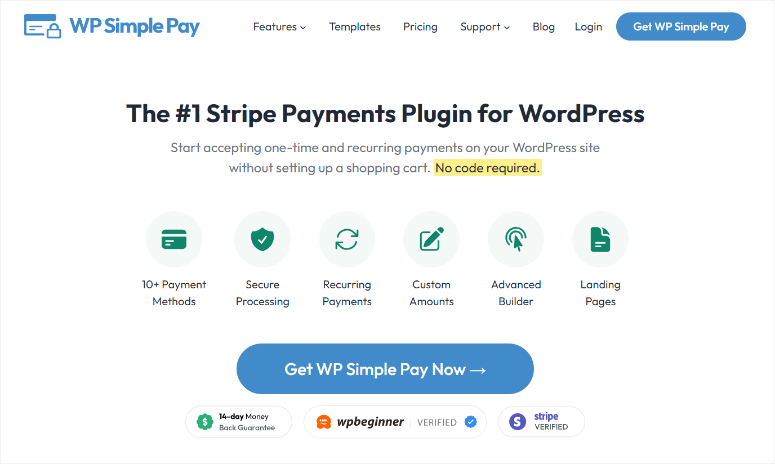
WP Simple Pay is the easiest way to process Stripe payments in WordPress. The setup wizard will walk you through everything in less than 10 minutes.
⚠️ Here’s the crucial caveat: WP Simple Pay only works with Stripe.
This means you cannot offer PayPal and credit cards at the same time. If customers ask about PayPal, you’re out of luck with this plugin.
But there is good news! You can avoid using it Scary Automator Connect PayPal separately. But that adds some complexity.
Anyway, check out my Uncanny Automator review to learn how you can use it to connect different apps and web applications.
If PayPal is your top priority, you can integrate it directly WPForms or Easy digital downloads.
But through this single Stripe connection, you can offer your customers a surprisingly wide range of payment methods, including:
- Credit and debit cards
- Apple Pay
- ACH bank transfers
- Google Pay
- “Buy now, pay later” options (Klarna, Afterpay, Affirm)
- Pay cash via app
Activating these options does not require any technical knowledge. You simply check the boxes next to each payment method you want. That’s it.
For more information, see my full WP Simple Pay review.
In this sense, WP Simple Pay is best for businesses that are committed to Stripe and want the absolute easiest setup process. If that’s you, let’s get started.
Step 1: Check your Stripe connection and enable test mode
First of all, this free version of WP Simple Pay You can also accept Stripe payments, but only through separate forms and a Stripe checkout page.
You can access WP Simple Pay from your WordPress plugin repository.
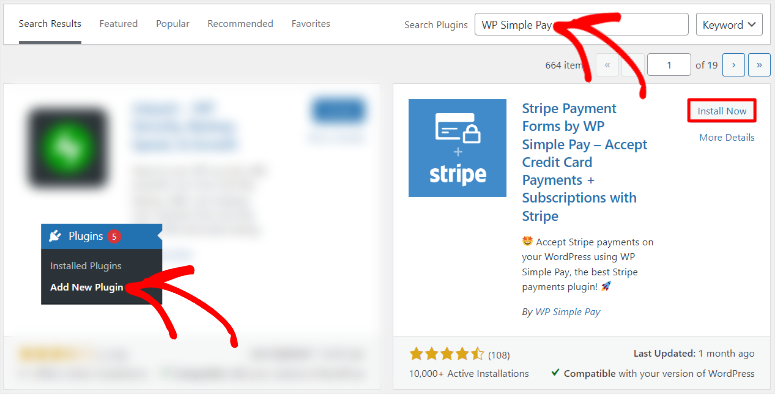
While that’s great, the main idea of this tutorial is to give your users options in one place.
With WP Simple Pay Pro, you collect payments directly on your website, combine multiple payment options into one form, and provide a smoother checkout experience.
That’s why we’re using the Pro version of WP Simple Pay for this tutorial.
Before enabling multiple payment methods, you must ensure that WP Simple Pay is fully set up and connected to Stripe. This ensures that your forms work properly and payments are processed smoothly.
Here are step-by-step instructions for installing and setting up WP Simple Pay.
If you skipped the wizard, go to WP Simple Pay » Settings » General » Advanced to run it now.
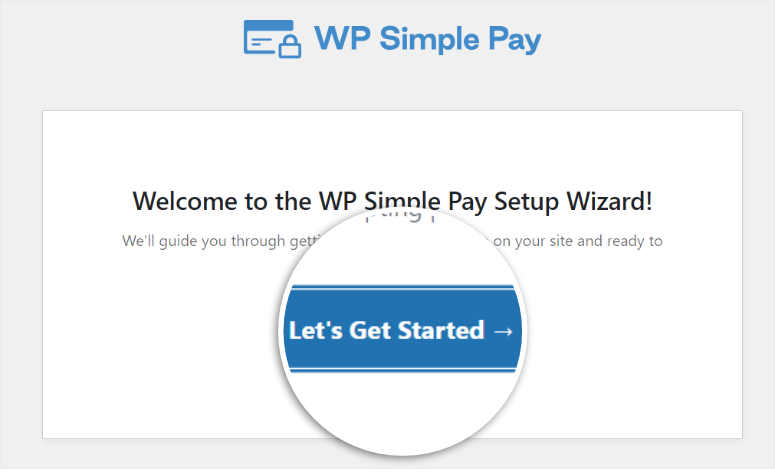
There is no heavy work required as the WP Simple Pay assistant manages the Stripe connection automatically.
All you need to do is click the “Connect to Stripe” button in the setup wizard and then add your Stripe information.
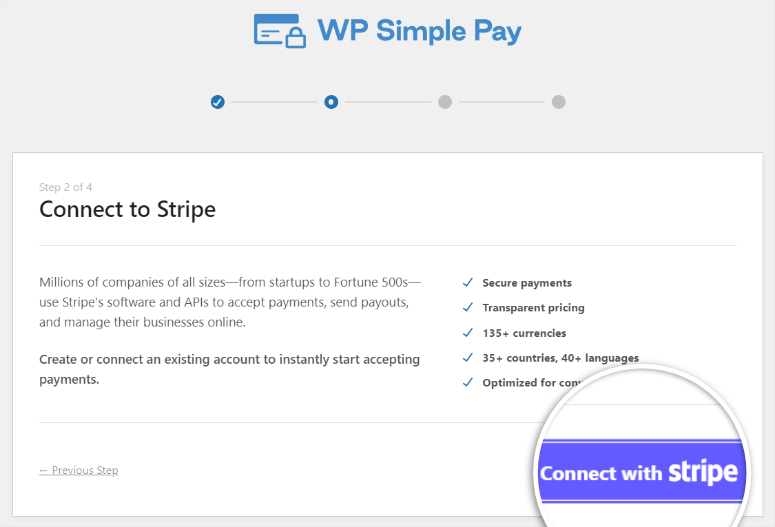
Now let’s check if everything works.
In your WordPress dashboard, go to WP Simple Pay » Settings » stripes.
You should see a connection status that says “Connected” as well as your Stripe account email address.
If you don’t see this, click the blue “Connect to Stripe” button and log in to your Stripe account. The plugin handles all the technical authentication for you.
Here is the crucial step: Turn “Test Mode” ON.
This is incredibly important. In test mode you can activate different payment methods and processes fake test payments without asking for real money. This way you can safely practice the entire checkout flow.
To set this up, scroll down stripes Tab where you checked the Stripe connection. In the “Test Mode” section, enable it using the checkbox.
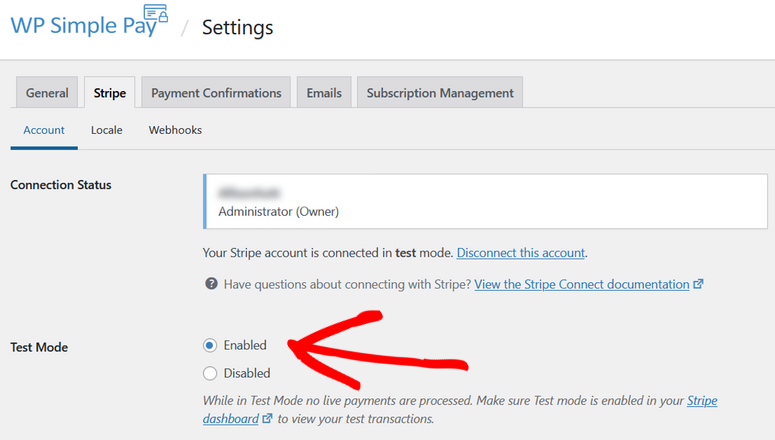
They switch to Live mode later after you’ve tested everything. But leave it in test mode for now.
The Test Mode switch should now show as enabled with a green indicator.
Perfect. Your Stripe connection is ready.
Step 2: Create your payment form
Now let’s create the actual payment form that customers will use.
Go to WP Simple Pay » Add new. You’ll see a template library with over 70 pre-built options. These templates cover common scenarios such as donation forms, event registration, and product payments.
For this tutorial, let’s start simple. Select the “Payment Form” template. This will give you a basic form that you can customize.
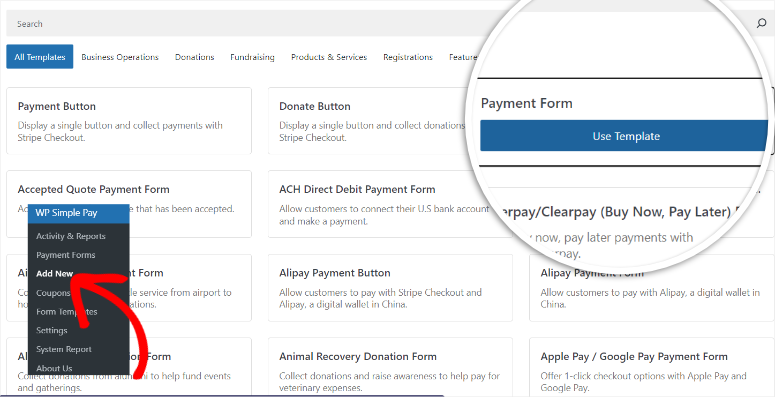
Once selected, WP Simple Pay will create your form and open the form builder.
Here’s what you’ll see:
On the left you’ll find form settings organized into tabs. On the right, you’ll see a live preview that shows exactly how your form will appear to customers.
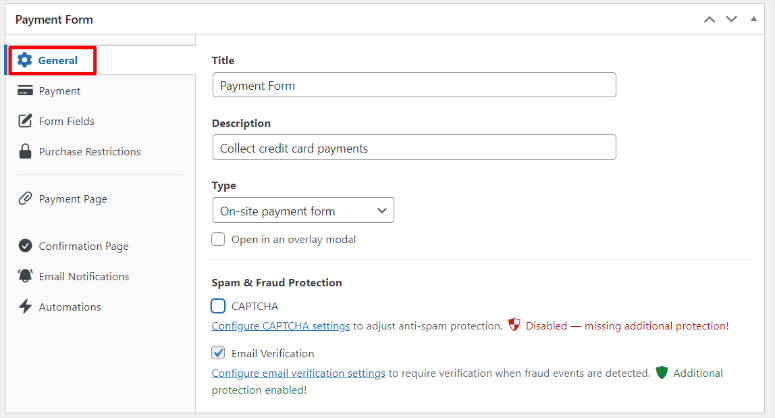
Start with that Generally Click the tab and give your form a name at the top. Something like “Product Payment Form” or “Service Fee Payment” works well. This name is just for you; Customers won’t see it.
Then under “Description” indicate what the form is for. When you’re done, go to the drop-down menu and select the type of form you want to create.
Finally, set up your spam and fraud protection by enabling CAPTCHA and email verification.
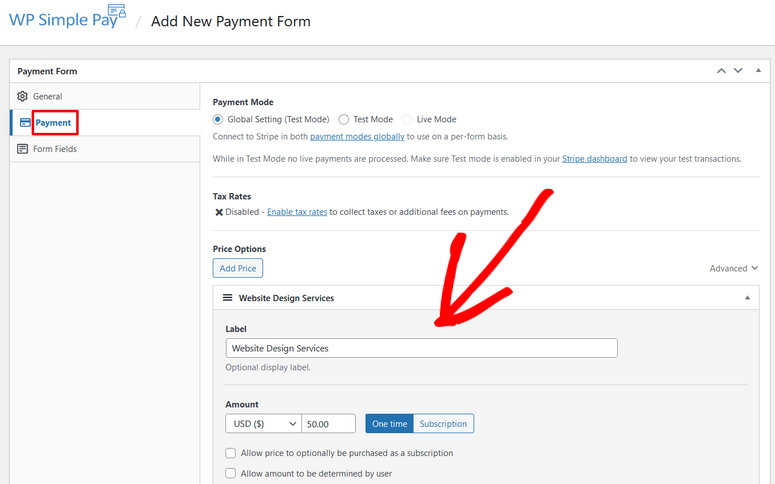
Next, scroll down to the Payment tab in the left sidebar.
First, add a “label” that will appear next to the amount to be paid.
Then enter your price under “Amount”. You can set a fixed amount like $50.00 or choose “Custom” to allow customers to enter their own amount. For most products and services, fixed amounts work best.
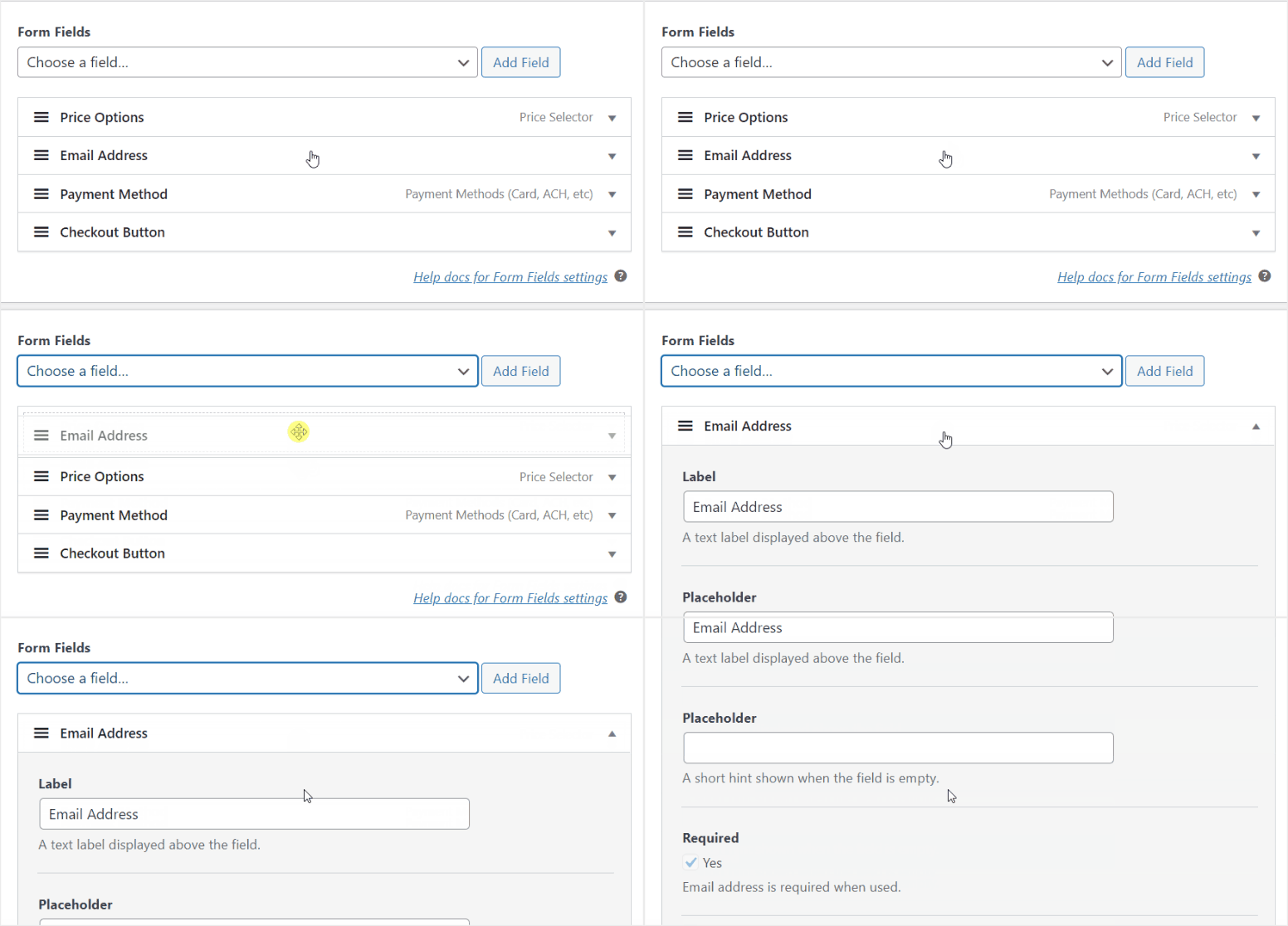
When you’re done, go to Form fields Click the tab to customize your form fields. Since we are using the Payment Form template, you should already see fields like:
- E-mail address
- Pricing options
- Payment method
- Checkout button
You can change their order by dragging and dropping. Or delete and add fields.
At this point your form should be ready. But with this tutorial, we’ve covered the basics of how to customize your WP Simple Pay form. More customization options can be found here.
When you’re happy with your creation, click Save in the top right corner.
Your basic payment form is ready. Now comes the fun part: activating multiple payment methods.
Step 3: Enable multiple payment methods
This is where WP Simple Pay really shines. Activating additional payment methods takes approximately 30 seconds per method.
While still in your form builder, go to the Payment tab and scroll until you find the following Payment methods. Here you will see a long list of payment options that you can choose from.
Use the checklist to enable the different payment methods Stripe can process. Plus, you can drag and drop them to move your prioritized payment methods to the top.
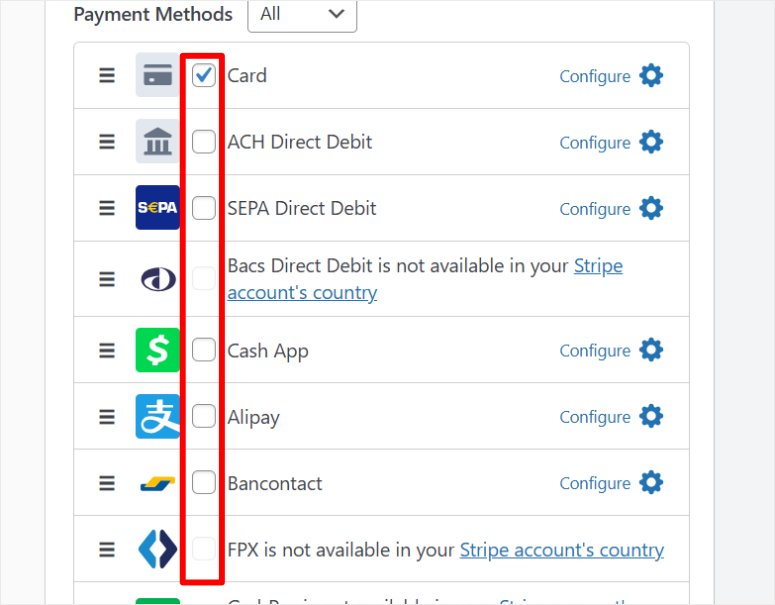
For example, you can enable card payments, which are enabled by default. This allows you to accept payments from Visa, Mastercard, etc.
Mobile wallets allow you to receive payments from Apple Pay and Google Pay. Additionally, you get other options like ACH direct debit, Cash App, Alipay, SEPA direct debit and many more.
My recommendation for most companies is to start with this Card payments And Mobile wallets. These cover 90% of customers immediately.
When you’re done, click Save. That’s it. You have just activated multiple payment options.
Step 4: Publish your payment form
Your payment form is ready. Now let’s publish it live on your website. But first you want to make sure the form is ready and working properly.
To do this, click on “Preview” Click the button in the form builder to see exactly what your form will look like. This will help you identify any layout issues or check that all of your payment options are displayed correctly.
If it looks perfect, choose that “Publish” Click the button at the top right of your form builder.
Now you have two options to publish your payment form. You can either add it to an existing page or create a special payment form. I’ll walk you through both!
Posting on a special payment page
WP Simple Pay can automatically create a standalone payment page for you. This is the fastest way to make your form live.
After clicking Publishgo to the “Payment Page” tab on the far left of your form builder. Here, use the “Enable a dedicated payment page” checkbox.
At this point, WP Simple Pay generates a distraction-free payment page with an embedded form.
This page focuses solely on checkout with no sidebars, navigation menus, or other elements that could distract customers from completing their purchase.
But you can also customize it to better suit your website. You can customize the permalink to be more relevant to the form. Edit the color scheme, add your logo, display a title, description and footer.
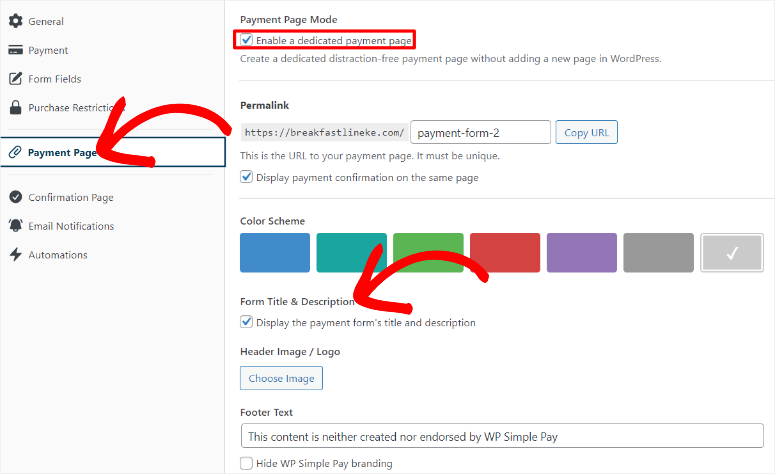
Here, too, you can always use the “Preview” button to see how your changes will appear on the live page.
Add the form to an existing page
You may not want your own payment page. You may prefer to embed the form into your existing product page, service page, or checkout page. WP Simple Pay makes this easy with two methods.
Using the WP Simple Payment Form Block
If you are familiar with the WordPress block editor, this is the fastest method. Open the page where you want to add your payment form. Click on + Icon anywhere on the page to add a new block.
In the search box that appears, enter the following: “Simple WP Payment Form” and the block will appear in the results. Click on it to add the block to your page.
The block appears with a drop-down menu. Click on the drop-down menu and select the payment form you just created.
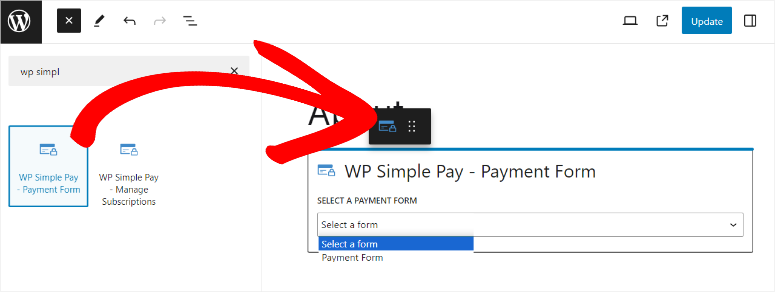
The form immediately appears in the preview and shows all activated payment methods.
When you’re happy with the placement, click “Update” top right of the page editor. Your form is now available on this page.
Using the form shortcode
The shortcode method works great if you use a page builder or prefer working with shortcodes. This is also useful if you want to quickly add the same form to multiple pages.
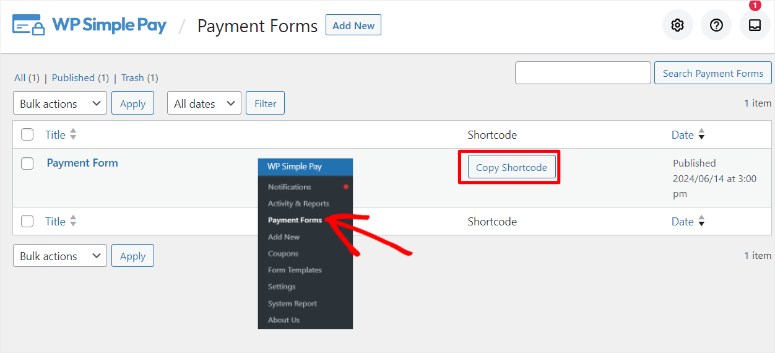
Go to WP Simple Pay » Payment forms in your WordPress dashboard. You will see a list of all your payment forms.
Find the form you just created and look for the shortcode column. It shows something like (wp_simple_pay id="123"). Click to copy this shortcode.
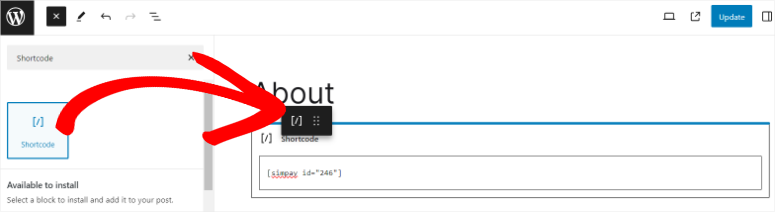
Now open the page where you want to display your form. In the page editor, click + Icon to add a new block. Search for “Shortcode” and add the shortcode block to your page.
Paste your copied shortcode into the block. The form does not appear in the editor preview, but on the live page.
Click “Update” to save your changes and visit the live page to view your payment form with all working payment options.
Switch from trial mode to live payments
Remember that you are currently still in test mode. Your form is online but only processes test payments.
Before you can accept real money from customers, you need to switch to live mode. So, go to it WP Simple Pay » Settings » stripes in your WordPress dashboard.
Find them “Test mode” toggle at the top of the page. Toggle it from Enabled to Disabled. The switch should change color to indicate that Live Mode is active.
Click “Save settings” at the bottom of the page.
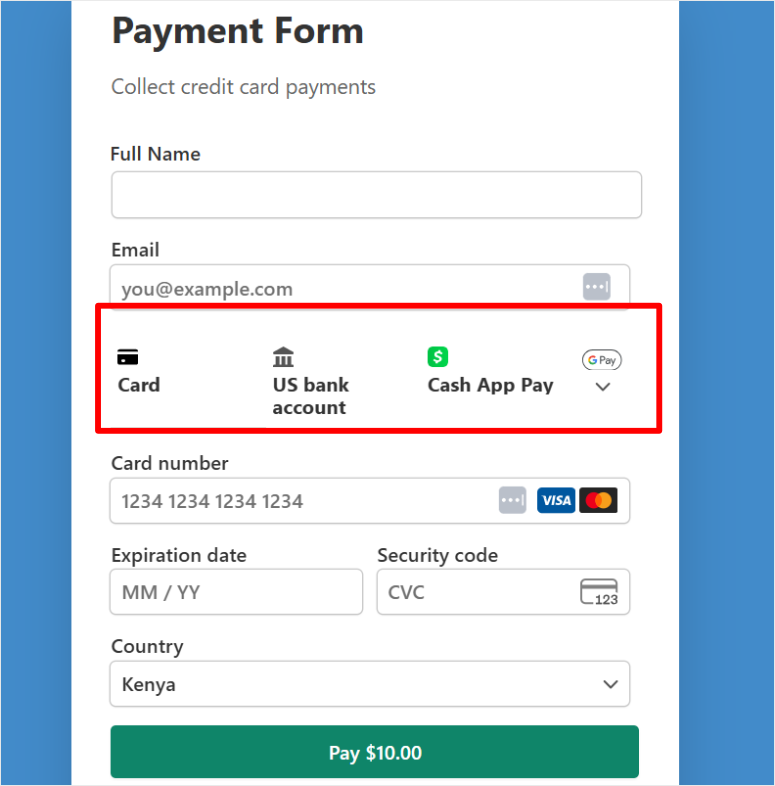
That’s it. Your multiple payment options are now active and accepting real payments via any methods you enable, such as credit cards, Apple Pay, Google Pay, ACH, Buy Now Pay Later, or Cash App Pay.
Check out the screenshot below to see an example.
Who should use WP Simple Pay?
WP Simple Pay is perfect if:
- You are solely beholden to Stripe. You don’t need PayPal or other payment processors. Stripe’s ecosystem gives you everything you need.
- You want the easiest setup possible. The checkbox approach means no technical knowledge is required. If you can check a box, you can activate a payment method.
- They accept one-time or recurring payments. Service fees, product purchases, donations, event tickets and more.
Now that that’s out of the way, let’s look at Method 2 of accepting multiple payment methods with WPForms.
Method 2: Use WPForms to combine multiple payment gateways
WPForms is the only option on this list that allows you to combine Stripe and PayPal payments on the same form.
This is huge!
Your customers can choose between PayPal and credit card at checkout. A form. Multiple gateways. Complete flexibility.
Additionally, WPForms uses conditional logic to control which payment options are displayed based on factors such as purchase amount, customer location, or form selection.
For more information, see my detailed WPForms review.
For example, you can use this to view Authorize.net for orders over $500 and PayPal for smaller amounts. Or for international customers, only show PayPal. The choice is yours!
This level of control makes WPForms perfect for:
- General payment collections such as donations, event fees and service payments
- Forms that require flexible payment routing
- Companies where customers strongly prefer PayPal
- Situations requiring payment gateway rules
But I should point this out WPForms requires the Pro license to access multiple payment features. The free version only includes Stripe and Square payment features.
In addition to regular Stripe and Square fees, there is a 3% fee per transaction. While this is great, it doesn’t give your users the ability to choose the most convenient payment options.
But you can definitely start with it free version of WPForms from your WordPress repository and update as your payment options grow.
Let me show you how to combine PayPal, credit cards and other payment options with WPForms.
Step 1: Connect your payment gateways
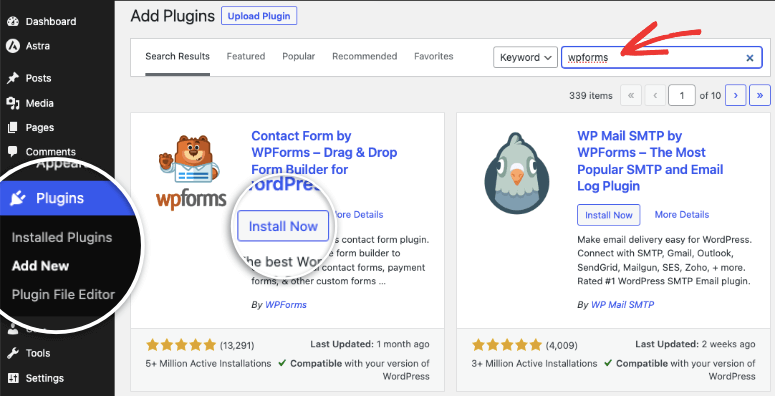
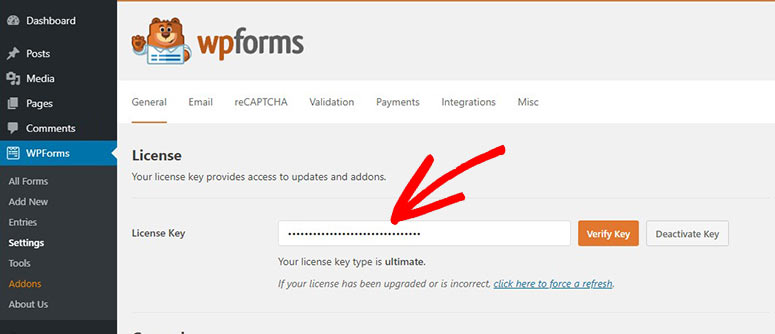
First, you need to purchase, install, and set up WPForms before you can proceed. Then check whether your license is activated under WPForms » Settings » General.
Without an active Pro license, you won’t see any payment gateway options in your settings.
For a full breakdown, check out this post on installing and setting up WPForms.
Once set up, you’ll first need to activate the add-ons you need to receive payments on your forms.
So go to next WPForms » Add-ons in your WordPress dashboard. On this page you can either search or scroll until you find the PayPal Commerce add-on.
You also get the PayPal Standard add-on, but it limits you to redirecting users to the PayPal website. With PayPal Commerce you have more control over your checkout page.
Then also search for the Stripe Pro add-on and Authorize.net and make sure you install and activate all the payment add-ons you need.
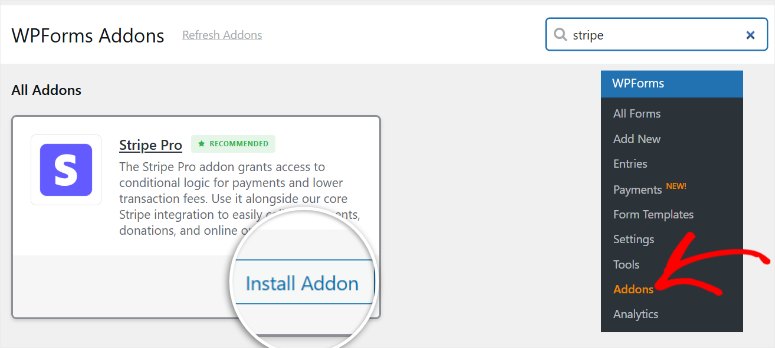
After the setup process is complete, we connect your payment gateways.
In your WordPress dashboard, go to WPForms » Settings » Payments. Then click the “Get Started” button on this page.
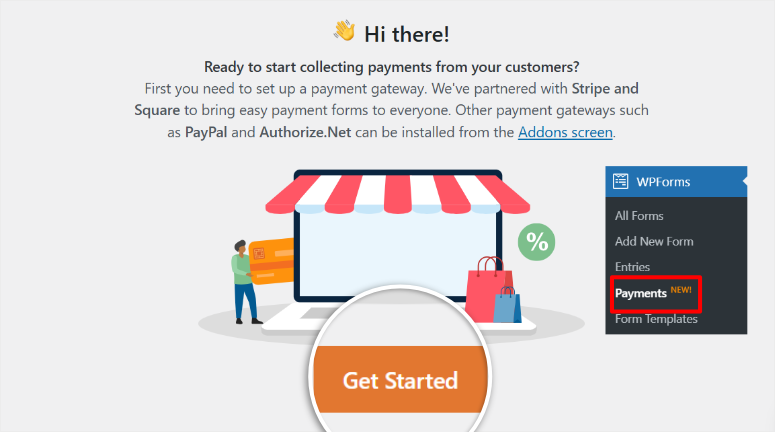
On the next page, you’ll see tabs at the top for different payment processors: Stripe, PayPal Commerce, Authorize.net, and Square. This depends on the payment addon you have activated.
Now I’ll show you how to connect Stripe payments in WPForms.
The good news is that the process is the same regardless of which payment option you choose to use. So whatever we do with Stripe, use the same process for the others.
At the top you will see a switch for “Test Mode”. Switch it up TO. The switch should turn blue.
Now go to the Stripe section of the page and turn on the “Test Mode” button. This allows you to initially test the payment gateway without live transactions. Then select the Connect to Stripe Button.
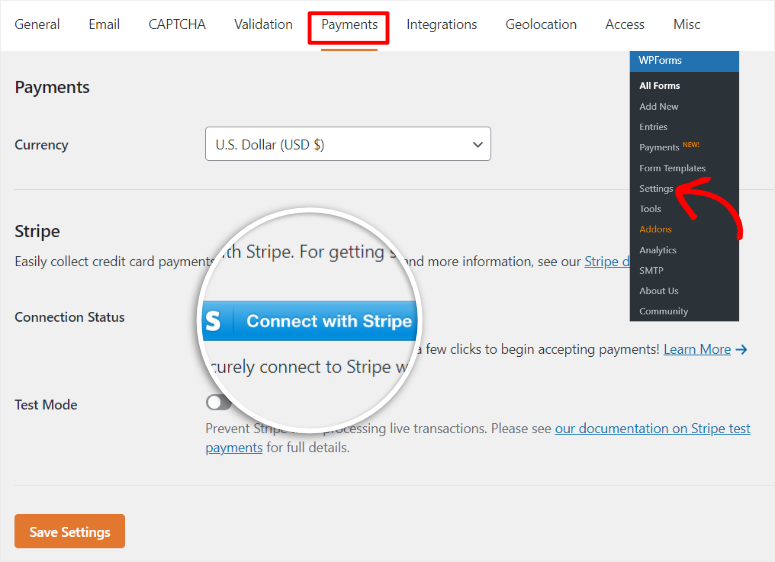
A new window will open asking you to log in to your Stripe account. Enter your Stripe email address and click Send.
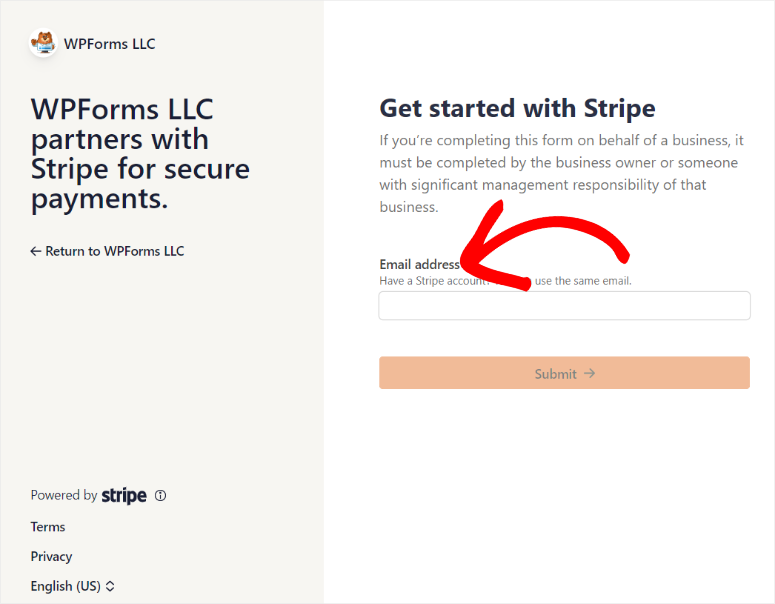
On the next page, Stripe will guide you through all the steps quickly and easily. Just follow the wizard. In the final step, Stripe asks WPForms for permission to access your account. Click “Connect.”
The window will automatically close and you will be back in WordPress. You should now see “Connected” with a green checkmark next to your Stripe account email address.
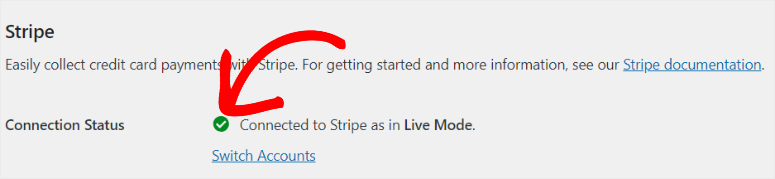
Perfect. Strip is ready. Now follow the same steps to set up the other payment gateways so you can add them all in one form.
Step 2: Create your payment form
Once this is done, go to WPForms » Add new. On this screen, WPForms will show you a template library with over 2,000 options.
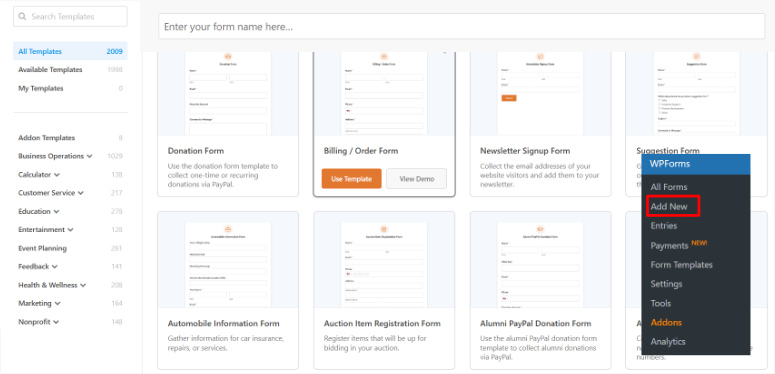
For payment forms, look for templates labeled “Payment Form,” “Donation Form,” or “Order Form.” While you can choose any template you like or start from scratch and add the payment options, starting with a template makes it easier.
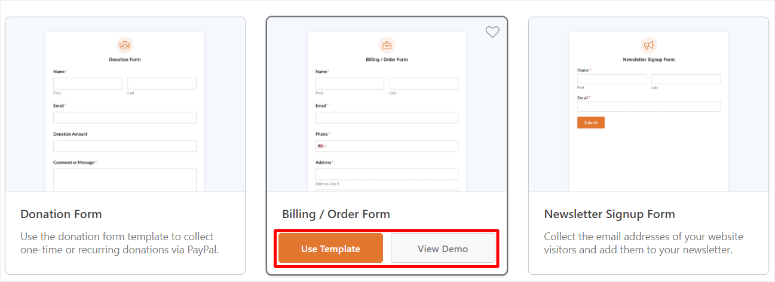
For this tutorial I chose “Invoice/order form.” This will give you a clean starting point. Click “Use Template.”
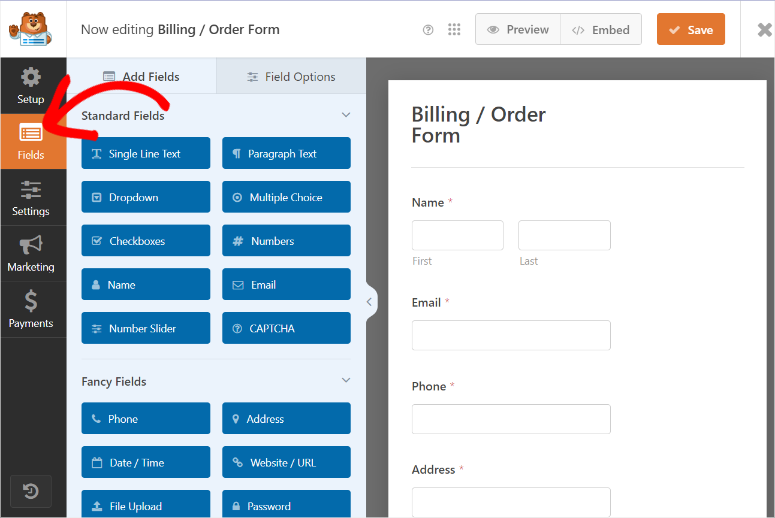
The WPForms drag-and-drop builder opens. On the left you will see the available form fields. On the right is your form preview.
The template already contains:
- Name field
- Email field
- Payment field (this is the important one)
You can add more fields by dragging them from the left pane onto your form. Common additions include:
- Telephone number
- Message/Comments
- Product selection drop-down menus
You can experiment and develop the perfect form for your business. If you need more information, check out this article on customizing WPForms.
Step 3: Configure multiple payment options
This is the most important step when adding multiple payment options. So take a closer look.
That’s what we use WPForms conditional logic.
So instead of showing all the payment options at once and cluttering up the form, we allow the user to first select the payment option they want.
Then, depending on the option, WPForms uses conditional logic to extend the payment option.
First we need to add the fields that contain the payment options. To this we add one multiple choice field in the form.
Select the Fields tab on the left and go to Standard Fields. Then drag and drop the file multiple choice On the form, enter where you want your payment options to appear.
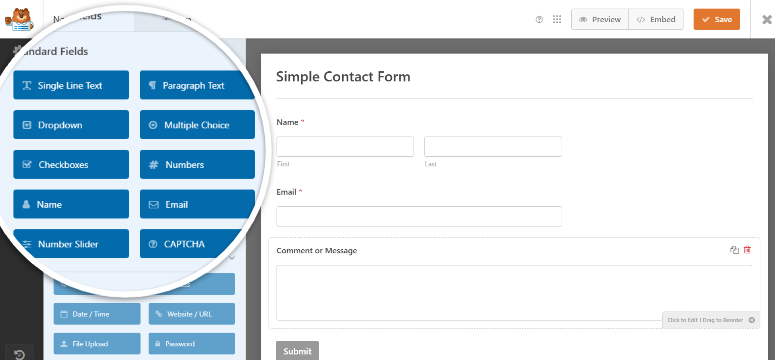
Then after adding, click on the multiple choice box in the preview area on the left to open its settings on the right.
As you can see in the screenshot below, the labels are generic and contain placeholders like “First Item”. We need to adjust this to show payment options instead.
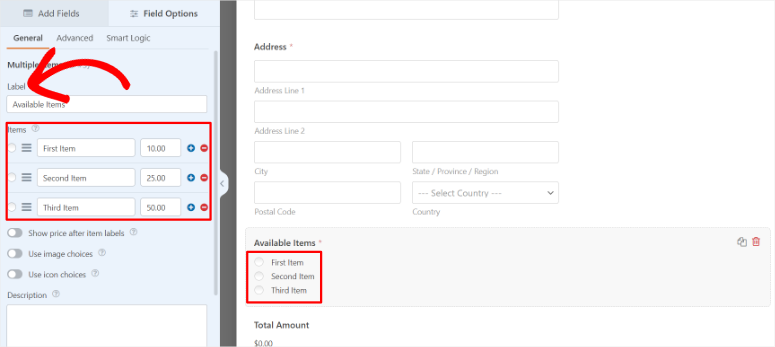
To edit the names of the fields, simply type in the text bars under Label and Selection. If you look at the preview screen to the right, you should see duplicates of these names.
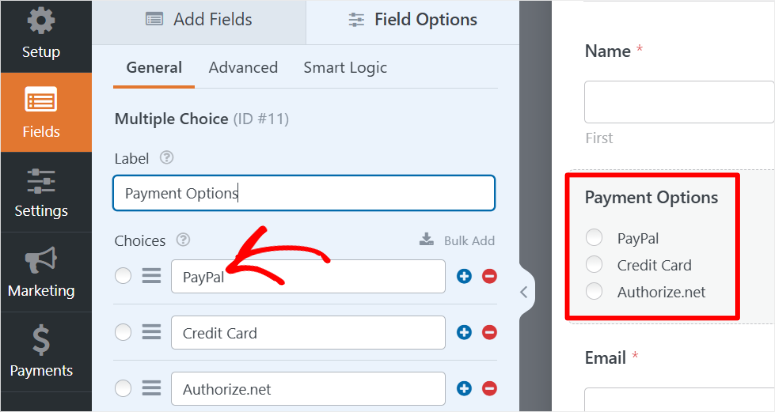
When you’re done, make sure to use the toggle button at the bottom of the screen to set this field to “Required.” This way, users will have to fill out the payment details before submitting the form.
Step 4: Add payment options with conditional logic
Before adding payment fields to your form, you must activate and configure each payment gateway. This tells WPForms which payment processors should be available on your form.
Go to in your form builder Payments Leftmost tab.
A list of available payment gateways appears here. Depending on which gateways you have connected via add-ons, you will see options for Stripe Credit Card, PayPal Commerce, Authorize.net, and others.
Since activating the entire payment gateway requires a process, we use Stripe.
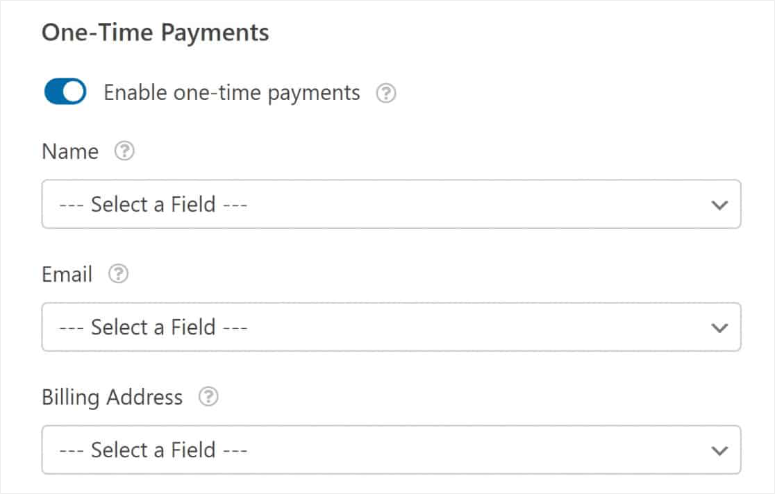
Select Stripe to open more options, then enable the “Enable one-time payments” toggle.
Note that there is also a button to set up recurring payments; To do this, read this guide.
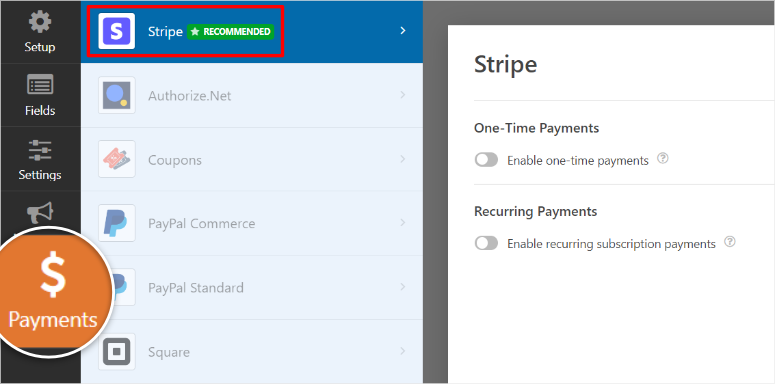
After that, “Enable One-Time Payments” expands further options so you can map form fields to the payment information that Stripe requires.
This ensures that customer data flows correctly from your form to Stripe’s payment processor.
Look for that “E-mail” Field mapping. Click the dropdown menu and select the email field from your form. This tells Stripe which field contains the customer’s email address.
Do the same for the Name field, Billing Address field, etc.
As mentioned, the configuration process for PayPal Commerce, Authorize.net, and all payment gateways is the same as what you just did for Stripe.
For each gateway, click to expand its settings. Map the email field by selecting your form’s email field from the drop-down list and add a payment description that tells customers what the fee is for.
Once all your payment gateways are activated and configured, you can add the actual payment fields to your form.
So how do you actually add payment fields in WPForms?
Go back to the “Fields” Click the tab on the left side of your form builder and scroll down to “Payment fields” Section.
The payment options you just activated will appear in the Payments tab. Drag and drop the Stripe Credit Card field into your form preview, directly below multiple choice Field you created.
The Stripe payment field will appear on your form with input fields for card number, expiration date and security code.
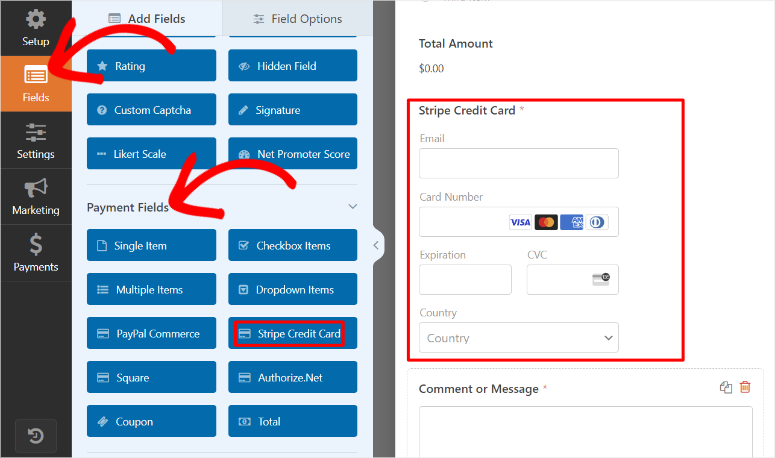
But right now it is visible to everyone at all times. We need to hide it until someone selects “credit card” among the payment options.
To do this, click on Stripe credit card field in your form preview. The field settings will open in the left pane. Go to the Smart Logic tab and use the toggle key to enable it Enable conditional logic.
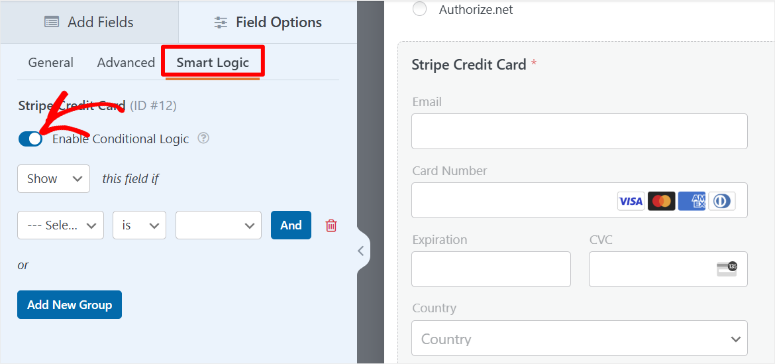
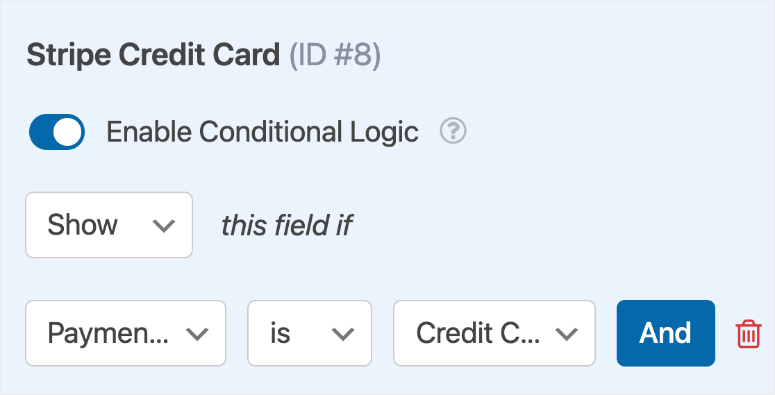
Now you can set the rule when this field is displayed. The interface displays drop-down menus where you create your condition.
Set it up like this:
- Show this field If
- Payment options
- Is
- Credit card
This is what WPForms tells us: “Show the Stripe payment field only when someone selects “Credit Card” among the payment options.”
Now repeat the exact same process for PayPal Commerce, Authorize.net or any other desired payment gateway.
For each payment gateway:
Go to “Fields” On the PayPal Commerce or Authorize.net tab, drag the payment field from the Payment Fields section onto your form below the previous payment field.
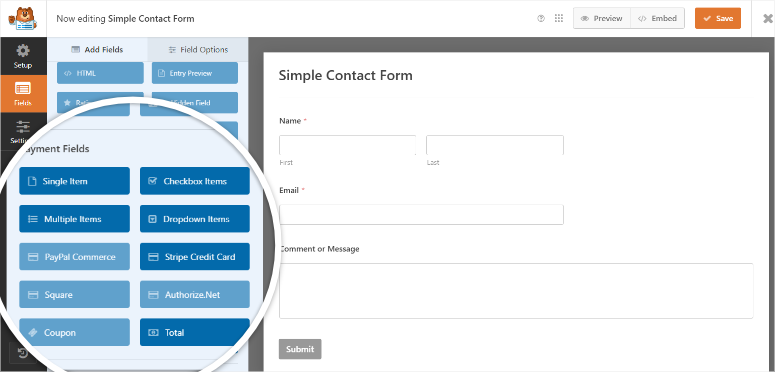
Then click in the newly added field “Intelligent logic” Symbol. Switch “Activate conditional logic” to ON.
Finally, set up the conditional rule to only show this specific payment field when the corresponding option is selected in your multiple choice field.
Once you add conditional logic to all payment fields, you will get a smart form that only displays the relevant payment option based on customer selection.
At this point, your form is ready to go live!
Step 5: Test and publish
Your form is ready with multiple payment options and smart conditional logic. Now let’s publish it live on your website.
Click in the top right of your form builder “Embed” Button. A popup will appear showing you four different ways to add your form to your website. Let’s go through each option.
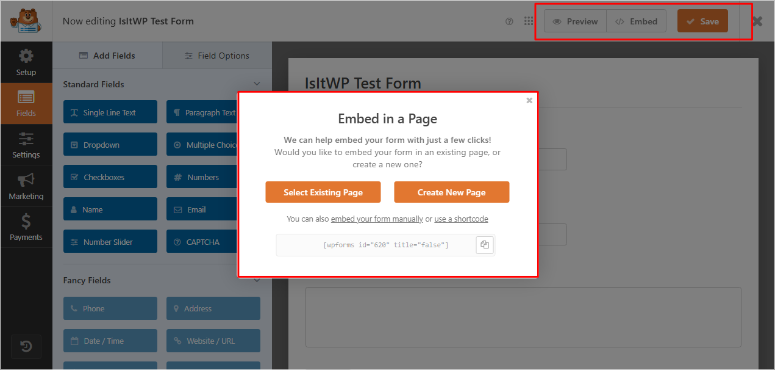
Let me briefly explain each method for publishing forms with WPForms.
Embed on an existing page
This is the fastest method if you already have a checkout page, product page, or service page where you want to collect payments.
In the embed popup, click “Select existing page.”
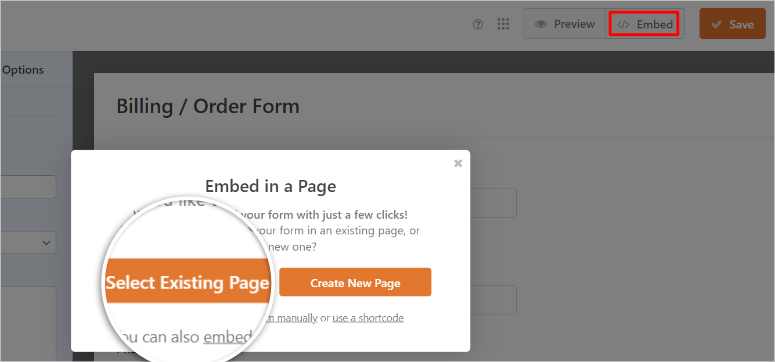
A list of your existing pages will appear. Find the page where you want your payment form and click on it “Let’s go!” next to it.
WPForms opens this page in the WordPress editor. Now you have full control over where you place your form.
Click on Plus + Icon somewhere on the page where you want your payment form to appear. In the search box, enter the following: “WPForms” and select the WPForms block.
The WPForms block appears with a dropdown menu. Click on the drop-down menu and select your payment form. The form will appear exactly where you placed it.
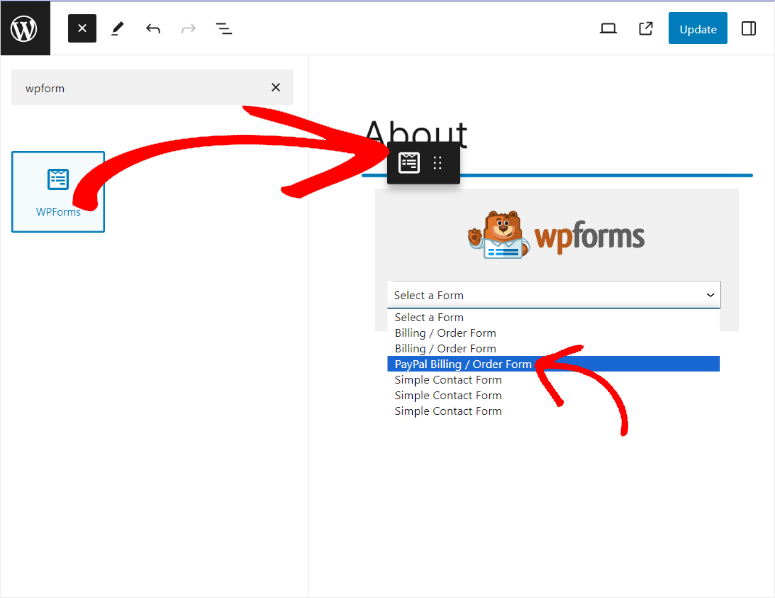
When you’re happy with the placement, click “Update” top right to bring it to life.
Create a new page
If you want your own payment page, this option will automatically create one.
In the embed popup, click “Create a new page.” Then name the form on the next page and select “Get Started!”
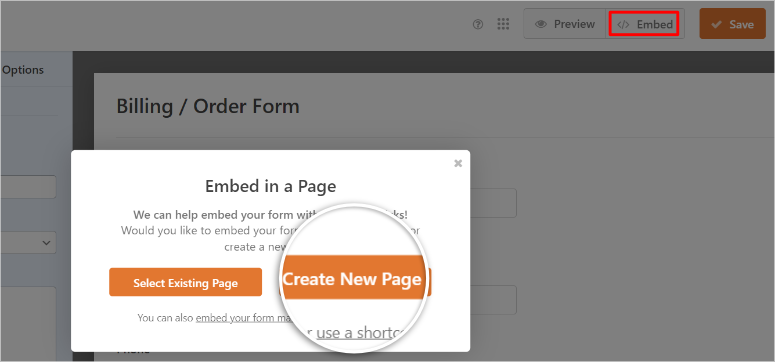
WPForms creates a new page with your payment form already embedded. The page editor will then automatically open with your form.
Your payment form is now on its own page. WPForms provides you with the page URL so you can link to it from anywhere on your website.
Use the shortcode
The shortcode method works great if you use a page builder like Elementor, Divi, or Beaver Builder. It’s also useful if you want to quickly add the same form to multiple pages.
In the embed popup you will see a shortcode that looks like this: . Click on “Copy” button next to it.
Now open any page or post in your WordPress editor. Add one Shortcode block wherever the form should appear. Paste your copied shortcode into the block.
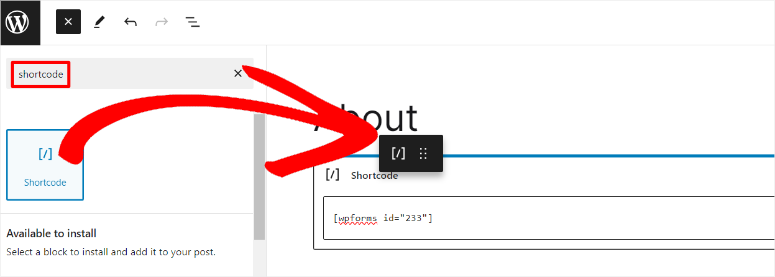
The form doesn’t show up in the editor preview, but it shows up perfectly on the live page. Click “Update” or “Publish” to bring it to life.
Add through widgets
Open any page or post where you want to add your payment form. and click Plus + Icon to add a new block.
Then scroll down to find the “Widgets” section and search WPForms in the widgets list and click on it.
The WPForms widget appears with a dropdown menu. Click on the drop-down menu and select the payment form you just created. The form will appear in your editor.
Click “Update” or “Publish” to bring it to life.
Switch from trial mode to live payments
An important final step: your payment gateways are still in test mode as of step 1. To make it live, go to WPForms » Settings » Payments in your WordPress dashboard.
For each gateway you have enabled (Stripe, PayPal, Authorize.net), click on the appropriate tab and toggle “Test mode” To OUT OF. And finally click “Save settings” after each one.
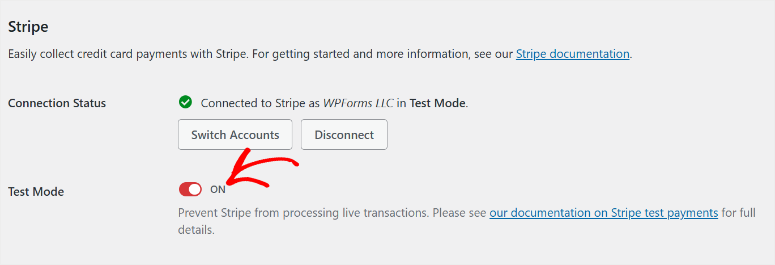
Your form now accepts real payments across all your enabled gateways.
Visit your live page where the form is embedded. Select different payment options from the drop-down menu to verify that each is displayed correctly and that the conditional logic works as expected.
Your customers can now choose their preferred payment method and complete purchases through your WordPress site.
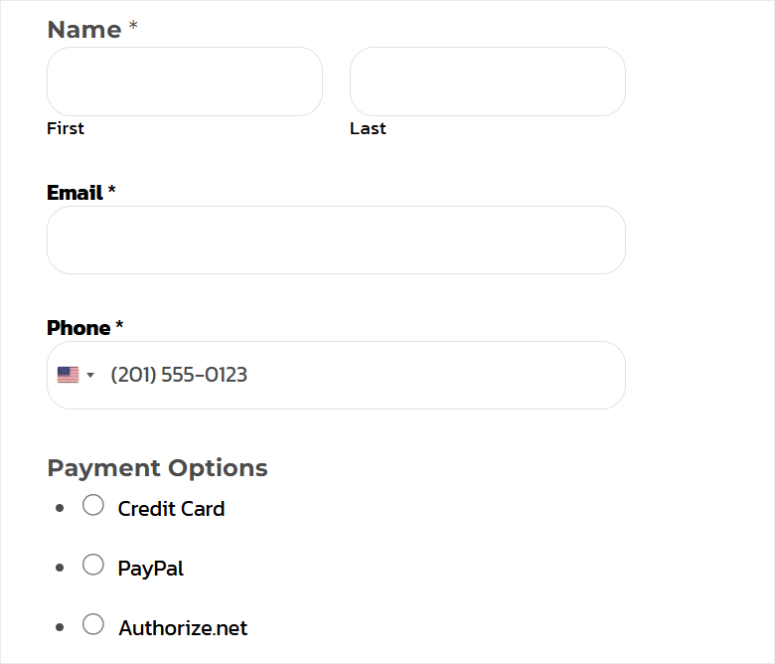
Check out the example multiple payment form we created for this tutorial.
Who Should Use WPForms?
WPForms is perfect if:
- You need PayPal + credit cards on the same form. This is the killer feature of WPForms. No other form plugin makes this combination so easy.
- They collect payments through forms and do not operate a business. Donations, event registrations, service fees, membership payments – WPForms handles all of this beautifully.
- You need conditional payment forwarding. Show different gateways based on quantity, location or customer selection. This level of control is unmatched.
- You already use WPForms for other forms. If you already pay WPForms Pro for contact forms or surveys, adding payment forms makes sense.
For businesses that need maximum payment gateway flexibility in a forms-based system, WPForms offers just that. Just make sure the annual cost fits your budget.
Method 3: Use Easy digital downloads for multiple payment gateways
Easy digital downloads (EDD) is the hidden gem on this list as it is the best WordPress tool for selling digital products.
Plus, the free Easy Digital Downloads version supports multiple payment gateways without the need to upgrade.
You can offer Stripe + PayPal + Square at the same time without paying a single dollar to EDD. The only cost is standard payment processor fees, which are around 3% per transaction.
EDD is specifically designed to sell digital products such as creating courses, e-books, software and downloadable files. That’s where it really shines.
As a bonus, EDD can also process physical products thanks to built-in shipping capabilities and inventory management.
So if you sell digital courses in addition to physical workbooks, EDD manages both in one system.
For more information, see my full review of Easy Digital Downloads.
As mentioned earlier, the free version of Easy Digital Downloads supports multiple payment gateways. So you don’t need to upgrade to use this feature.
However, if you run a larger business, an additional 3% per transaction on top of Stripe’s standard transaction fees quickly adds up.
If you do $10,000 in sales per month, that’s more than $300 going to EDD and not your company.
Any paid plan completely eliminates this fee, allowing you to keep more of your sales while enjoying support for multiple payment gateways.
So start with the free version if you are a small business but upgrade as your business grows.
Now let me show you how to add multiple payment options with Easy Digital Downloads.
Step 1: Connect your payment gateways
Once you’ve decided which version to use, the first step is to install EDD. For Easy Digital Downloads Liteyou can quickly install it from your WordPress plugin repository.
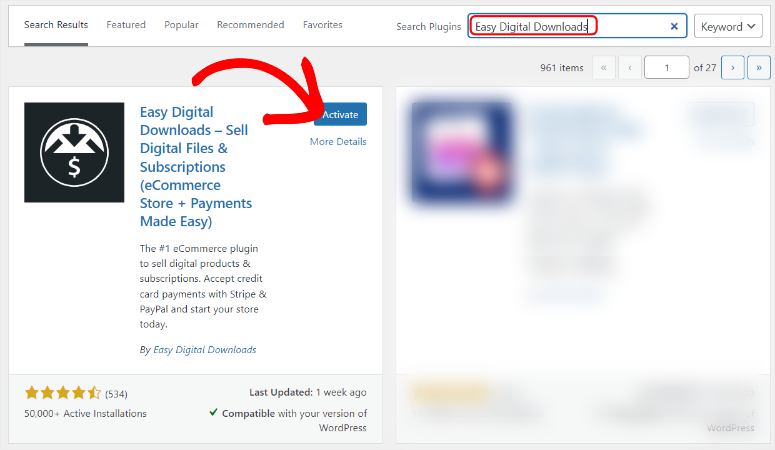
However, for this tutorial we will be using the Pro version of Easy Digital Downloads. You can Buy it and download it from the official website.
You’ll then need to complete the setup wizard, which will help you set your business location, currency, and email preferences. This ensures that payment gateways are working properly.
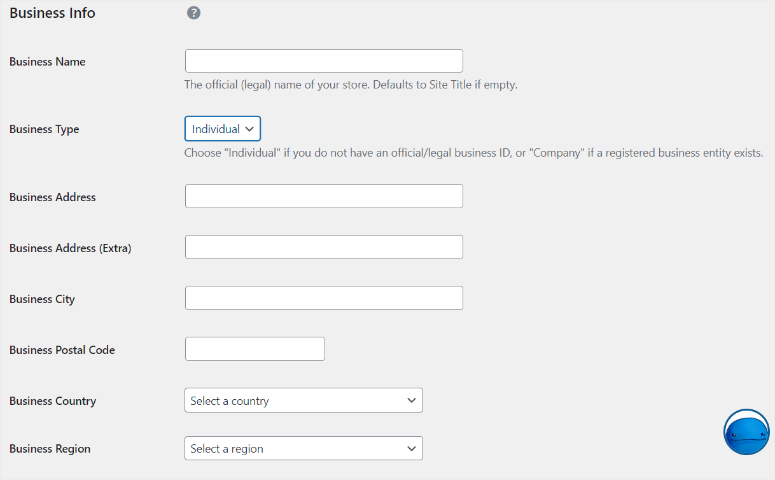
Now Stripe is the default payment gateway for Easy Digital Downloads. Therefore, you can also connect via the setup wizard to make things easier for you.
In this article you will learn how to install and set up Easy Digital Downloads.
Now let’s connect your payment processors.
Easy Digital Downloads has significantly streamlined the payment setup process. Now all you need is a Stripe account, EDD will do the rest via the Stripe Payment Element feature.
This modern approach allows you to offer multiple payment methods such as credit cards, digital wallets, bank transfers and buy now, pay later options through a single Stripe connection.
To unlock this, go to Downloads » Settings » Payments in your WordPress dashboard. Below the large Payment tab menu, use the submenu to navigate to the different payment gateways.
Ideally, you should have Stripe connected to the wizard. If not, navigate to stripes Click the Payments tab and select Off. Connect to Stripe.
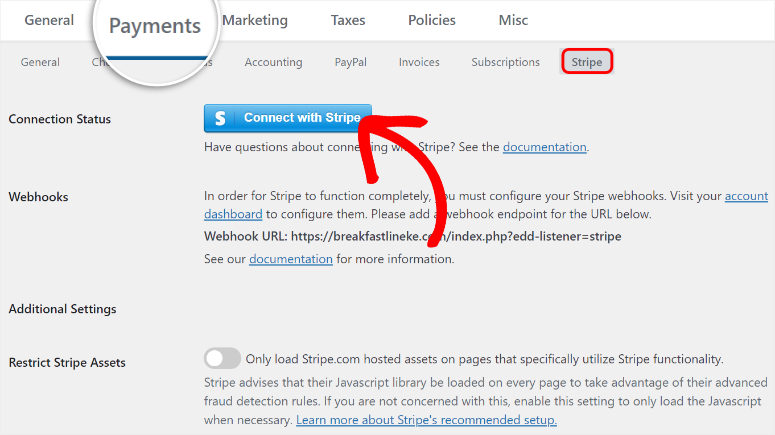
Then, on the next screen, enter your Stripe email address and click Submit.
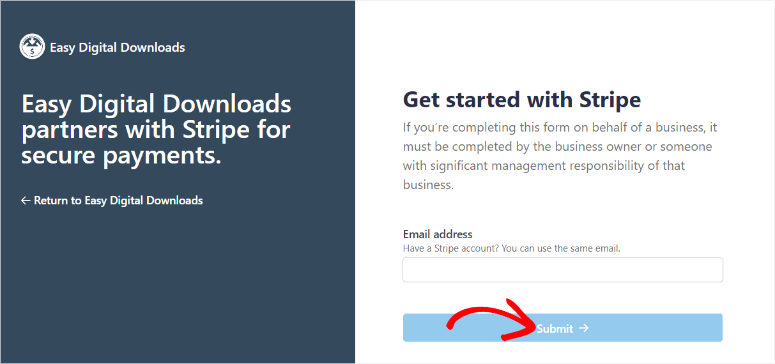
Once you’ve done this, Stripe will guide you through a quick sign-up process. After that, you will be redirected back to your WordPress site and the connection checkmark will indicate that the connection was successful.
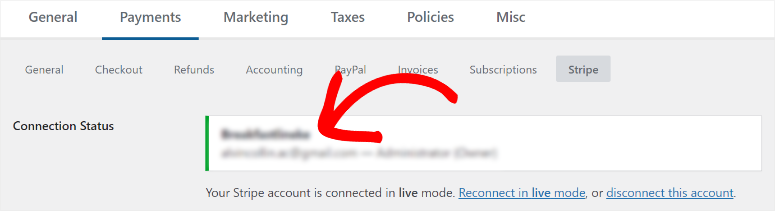
Next, we set up multiple payments via the Stripe payment element.
To do this, in the Stripe tab, scroll down to the Payment Methods section. You’ll see toggle buttons for different payment options:
- Map (Credit and Debit Cards) – enabled by default
- Apple Pay / Google Pay (mobile wallets)
- ACH debit (bank transfers)
- Buy now, pay later (Afterpay, Klarna, Affirm)
- Pay cash via app
Check the boxes of all payment methods you want to offer. I recommend starting with at least card and mobile wallets (Apple Pay/Google Pay) to cover most customers.
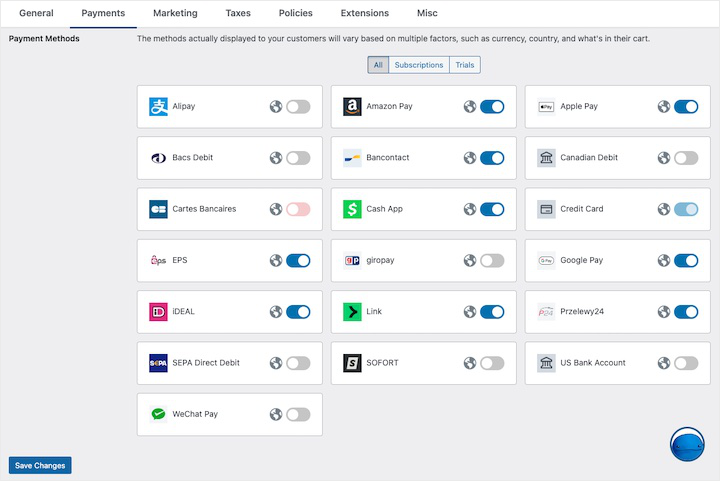
When you enable each payment method, customers will see these options at checkout based on factors like currency and location. Click “Save Changes” at the bottom of the page
Connect PayPal
While Stripe Payment Element handles most payment methods, many customers still prefer PayPal. Let’s add it as a separate gateway option.
Still on Downloads » Settings » Payments On the PayPal page, select the PayPal submenu. Then click on “Connect with PayPal”.
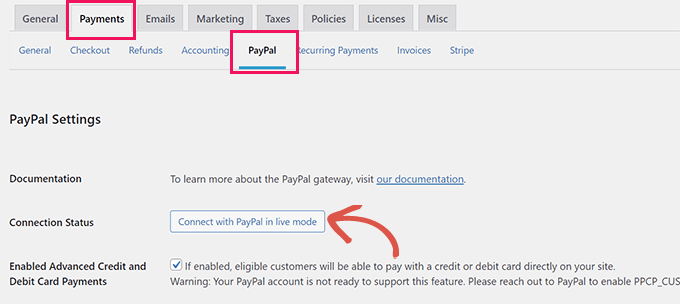
A PayPal window will open asking you to log in to your PayPal business account. Enter your PayPal credentials and click “Login”.
If you only have a personal PayPal account, don’t worry. During this process, PayPal will ask you to upgrade to a business account. The upgrade is free and takes about 2 minutes.
PayPal then asks Easy Digital Downloads for permission to process payments through your account. Finally select “Connect.”
The window will automatically close and you will be back in WordPress. You should see “Connected” with a green checkmark and your PayPal account email address, just like you do with Stripe.
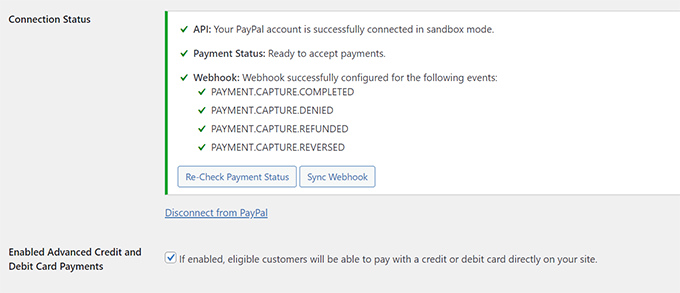
Perfect. PayPal is now connected and ready.
Step 2: Activate your payment gateways
After both Stripe and PayPal are connected, you will need to activate them in order for them to appear at checkout.
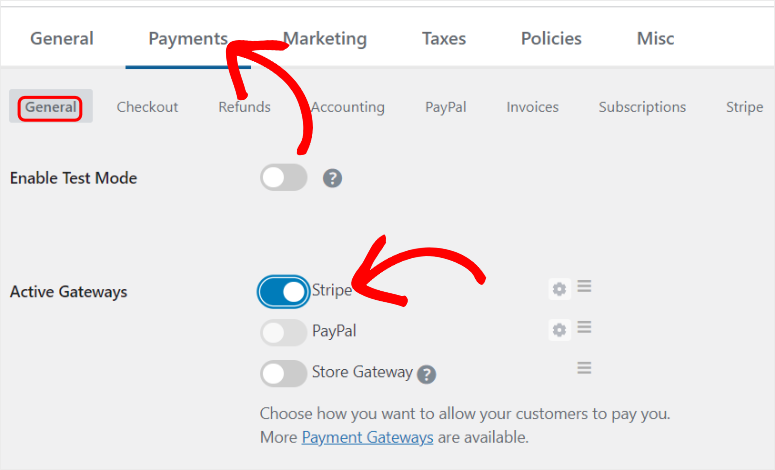
To do this, scroll down to the same payment settings page “Active gateways” Section.
You will see toggle switches for the following payment gateways. All you have to do is turn it on:
- stripes
- PayPal standard
- Store Gateway (for manual/offline payments)
You can see it under the switches “Default gateway.” This dropdown menu controls which payment option is pre-selected when customers checkout.
I usually hire stripes as the default setting as it keeps customers on your website and offers the widest choice of payment methods. However, you can choose PayPal if most of your customers prefer it.
You can then use the toggle buttons below to display different payment symbols.
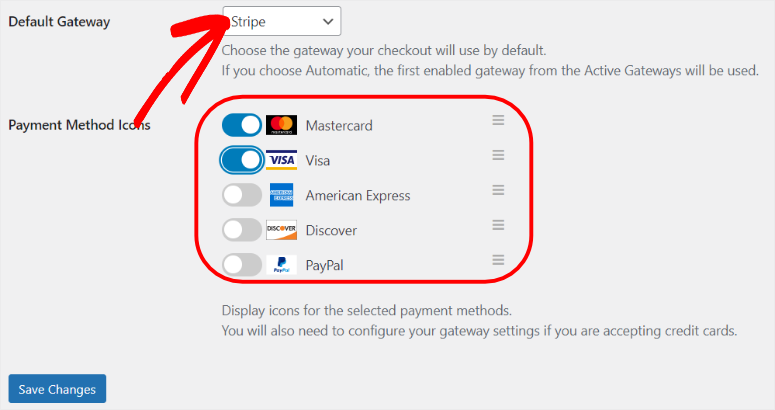
Click “Save Changes” at the bottom of the page. That’s it, your payment gateways are set up. Next, let’s see how to add the payment gateway options to our checkout page for simple digital downloads.
Step 3: Customize your payment form and checkout page
Now that your payment gateways are connected, let’s set up how customers see and interact with these payment options at checkout.
Important: To ensure you can customize and preview your checkout, you need at least one product in your store.
If you haven’t created a product yet, read this guide to creating and selling digital products with Easy Digital Downloads before continuing with this step.
Easy Digital Downloads automatically creates a checkout page for you when you install the plugin.
However, you want to customize the look of the payment form and make sure the checkout experience fits your brand.
Configure the payment form style
First, let’s control how the payment options are displayed to customers in the checkout form.
Go to Downloads » Settings » Payments » Stripe and scroll down to find that “Payment Method Style” Drop down menu.
You will see two layout options:
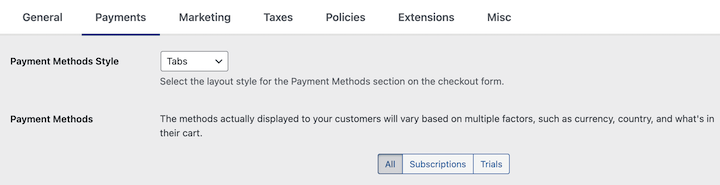
For me the tabs layout works great if you have 2-4 payment methods. It displays all the options at once so that customers can easily see their choices as shown in the screenshot.
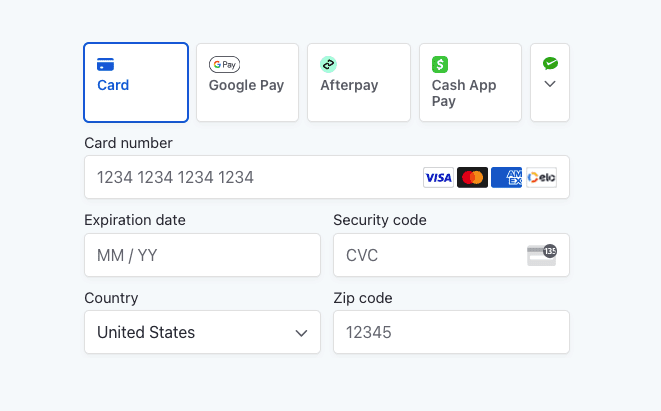
The accordion layout works better if you have many payment methods enabled. This keeps the form cleaner as customers can only expand the payment option they want to use.
Once you have selected the style you want, click “Save Changes” at the bottom of the page.
Customize the billing address fields
While you’re on the same Stripe settings page, you’ll see: “Display the billing address” Settings.
These control which address fields appear on your checkout form. Depending on your product type, you can require full addresses, just zip codes, or hide address fields completely.
For most digital products, a simple email address and zip code are sufficient. However, if you need full addresses for tax purposes or customer information, you can request them here.
The more detailed checkout customization options can be found below Downloads » Settings » Payments » Checkout.
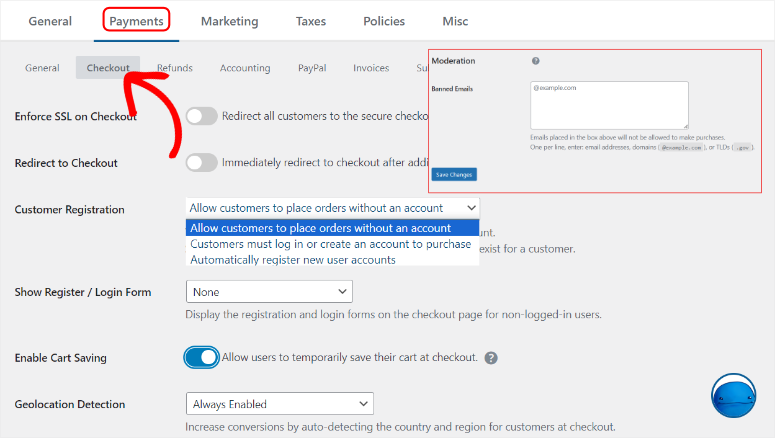
There you can customize individual address fields, add custom fields, or adjust field requirements.
At the moment the default settings work fine. We keep things simple.
View and customize your checkout page
As mentioned, Easy Digital Downloads automatically created a checkout page during setup. Let’s make it look good.
Go to Pages » Checkout in your WordPress dashboard.
The page opens in the WordPress editor. You’ll see that EDD checkout block already placed on the page. This block will display your entire checkout form, including the payment options you just configured.
The checkout block handles everything automatically, such as product details, customer information fields, and payment options. You don’t need to add anything else to make it work.
However, you can customize the overall design and appearance through your WordPress theme settings.
Go to Appearance » Customize in your WordPress dashboard.
Your theme’s customization window will open. Depending on your topic, you’ll find options for:
- Change the colors to suit your brand
- Customize fonts and typography
- Change the layout spacing
- Customize button styles
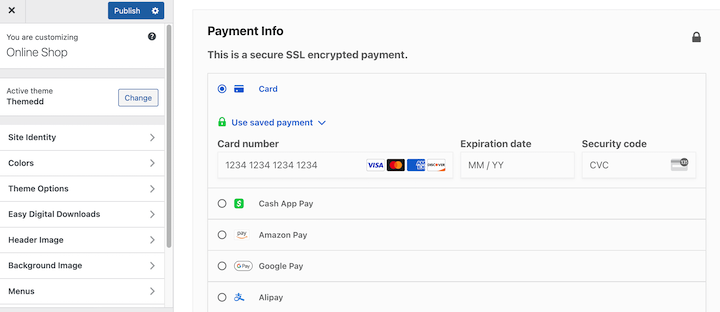
Note that these changes affect your entire website, not just the checkout page. Make adjustments until your checkout looks professional and fits your brand.
When you’re happy with your form, click “Publish” to save your theme customizations.
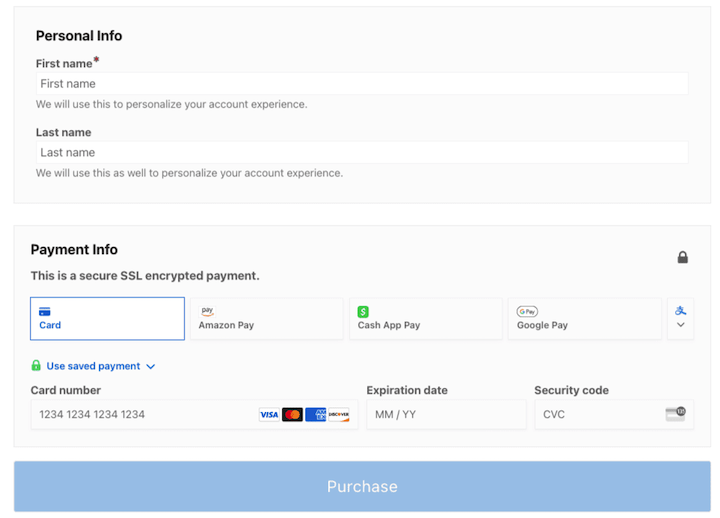
That’s it! Now your users can choose the payment method they want to use with just one click. Check out the screenshot below to see an example of what the EDD form looks like for multiple payment gateways.
Who Should Use Easy Digital Downloads?
Easy Digital Downloads is perfect if:
- They mainly sell digital products. Downloads, courses, e-books, software, templates – everything customers download after purchase. This is EDD’s sweet spot.
- They also sell some physical products. EDD includes shipping and inventory capabilities so you can sell digital courses alongside physical workbooks or merchandise in one system.
- You want multiple payment gateways without having to pay for a plugin. The free version supports Stripe + PayPal + Square at the same time. No plugin costs beyond standard processor fees.
- They value uncomplicated interfaces. Products work like WordPress posts. The learning curve is minimal if you have already used WordPress.
- You may need subscriptions later. Get started for free with one-time payments. Only switch to recurring payments if your sales justify it.
Great! I just showed you three easy ways to offer your users payment options in WordPress. But how do you choose the best solutions for your needs?
Choose the right method for your business
You have seen three ways to add multiple payment options to WordPress. Now let’s find out which one suits your needs.
The decision depends on three main factors: which payment gateways you need, what you sell and your budget.
Here’s a quick comparison:
| Special feature | WP Simple Pay | WPForms | Easy digital downloads |
|---|---|---|---|
| Payment gateways | Just stripes | Stripe, PayPal, Authorize.net | Stripe, PayPal, Square (+ 70 extensions) |
| Combine PayPal + Stripe | No ❌ | Yes ✅ | Yes ✅ |
| Free version available | Yes ✅ (limited) | Yes ✅ (but no payments) | Yes ✅ (completely multiple gateways) |
| Minimal cost for multiple options | $49.50/year (Pro) | $199.50/year (Pro) | FREE |
| Setup time | 10 minutes | 15 minutes | 20 minutes |
| Best for | Stripe-only company | Form-based payments | Shops for digital products |
| Recurring Payments | Yes ✅ (Pro plans only) | Yes ✅ (Pro plans only) | Yes ✅ (Pro plans only) |
| Conditional logic | No ❌ | Yes ✅ | Yes ✅ |
| Physical products | No ❌ | No ❌ | Yes ✅ |
| Difficulty level | Easiest | Simply | Light-Medium |
Now you know how to set up multiple payment options in WordPress using three tools and know which one suits your needs. If something is unclear, check out the frequently asked questions below.
FAQs: How to set up multiple payment options in WordPress
Can I use multiple payment plugins at the same time on the same website?
Yes, but I very much NOT recommend it. Running multiple payment plugins creates conflicts and confuses customers. Choose a method that suits your business and stick with it. If you need to switch later, deactivate the old plugin completely before activating the new one.
Do I need business accounts with Stripe, PayPal and Square?
Personal accounts initially work fine. Upgrade to business accounts once you process more than $1,000 per month. Business accounts offer lower fees, better fraud protection, and professional branding. Most processors can be upgraded with just a few clicks.
Which payment gateway has the lowest fees?
Stripe and Square are at 2.9% + $0.30 per transaction. PayPal Standard costs 3.49% + $0.49. Stripe ACH (bank transfers) is the cheapest at 0.8% and a cap of $5. However, choose based on what your customers actually use, not just fees.
Can customers save payment methods to speed up checkout?
Yes with WP Simple Pay and WPForms via Stripe. Customers enable “Save Payment Method” to make future purchases with one click. This feature requires the Recurring Payments extension for Easy Digital Downloads. Stored methods only work within a gateway.
Can I offer payment plans or installments?
Yes. Activate Afterpay, Klarna or Affirm via Stripe (works with WP Simple Pay and Easy Digital Downloads). Customers choose to pay in installments during the checkout process. They are paid upfront while the gateway collects money from customers over time. Easy Digital Downloads also offers custom payment plans with the Recurring Payments extension.
Do I need an SSL certificate to process payments?
Yes, absolutely necessary. Without SSL, payment gateways will not connect and customers will see security warnings. Most hosts offer free SSL certificates through Let’s Encrypt. Enable it in your hosting dashboard or use the Really Simple SSL plugin. All payment processors require HTTPS.
Should you allow multiple payment options on your WordPress site?
Absolutely!
Remember that not all your customers are the same. Some people trust credit cards. Others only use PayPal. Many people prefer Apple Pay on their mobile phones.
If you force everyone through a single payment gateway, choose them. And they will choose to shop elsewhere.
Research confirms this. Rigid payment options are consistently one of the top reasons for shopping cart abandonment. It’s not about your preferences. It’s about eliminating friction in the purchasing process.
The good news? Adding multiple payment options takes 15-25 minutes using each of the three methods I covered. The setup is easy. The effect is immediate.
Give your customers the choice. Watch your conversion rate improve.
Want to expand your WordPress payment setup even further? Check out these helpful guides:
These resources will help you optimize your payment system, increase conversions, and provide your customers with an even better checkout experience. Choose the one that fits your next business goal and start implementing it today.