


I’ve tested almost every social media platform over the years to grow businesses through ads. Facebook, Instagram, TikTok – you name it, I ran campaigns on it.
But Pinterest? Pinterest is different.
Unlike platforms where ads compete with friends’ posts and viral content, Pinterest users come specifically to discover and plan purchases.
They are actively looking for products to purchase, planning weddings, remodeling kitchens, and shopping for their next purchase.
This is why I love Pinterest ads.
The platform works incredibly well for visual products. If you sell home decor, fashion, food, or anything people can see and imagine owning, Pinterest delivers quality traffic that actually leads to conversions.
But where it really shines is with Pinterest PPC ads. It works long after your campaign ends as users organically save and reshare your Pins.
The problem is tracking. Without proper analytics, you’ll be left guessing which pins will drive sales and which will waste your budget.
From experience, I can tell you that setting up Pinterest pixel tracking through Google Analytics 4 requires managing both the Pinterest tag and the Conversions API.
It’s technical, time consuming, and easy to mess up.
In this article, I’ll show you how to easily track Pinterest ads with MonsterInsights. No coding required. No complicated dual tracking setup.
But if you want to use the manual route, I’m also there for you. I’ll also show you how to track Pinterest ads through Google Analytics 4.
Here’s exactly what we’ll cover:
- All data is visible via your WordPress dashboard
- How to set up Pinterest ad tracking without touching the code
- The easy way to view Pinterest campaign performance in WordPress
- Which pins increase sales compared to just save and click?
- How to track both the tags and conversions API automatically
How to Track Pinterest PPC Ads in WordPress

Now, to fully show you how to track your Pinterest ads, I’ll walk you through both the manual method using Google Analytics 4 and a plugin, MonsterInsights.
So you can use the table of contents below to see the steps at once or jump to any section you want to read.
We’ll start with that.
Manual way to track Pinterest ads with GA4
Tracking Pinterest through Google Analytics 4 is more complex than manually connecting GA4 to TikTok because Pinterest requires two separate tracking methods.
For browser-based tracking you need the Pinterest tag. You also need the Pinterest Conversions API for server-side tracking.
Both work together to capture conversions that would escape browser tracking alone. Let me explain to you what it’s all about.
The standard manual setup method
Step 1: Get the Pinterest tag code
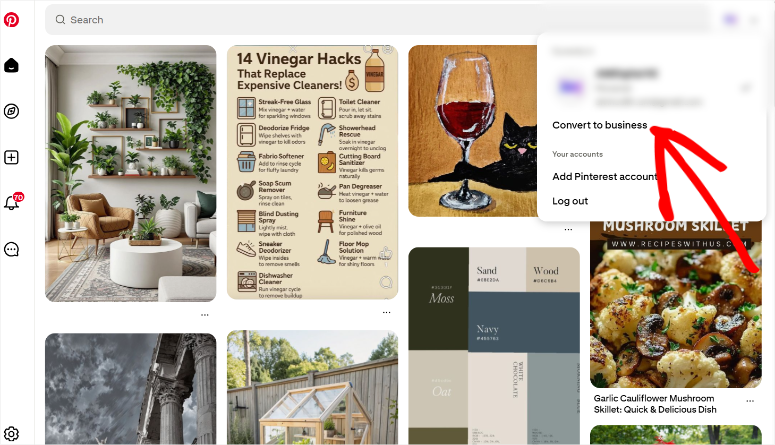
First you need one Pinterest Business Account. This process is very simple. All you need to do is go to your personal account profile and click “Convert to Business.”
Next, log in to your Pinterest Business account Ads.pinterest.com and enter the basic information such as currency, ad account name and country.
Next, navigate to Show » Conversions » Pinterest tag » Tag Manager via the top menu.
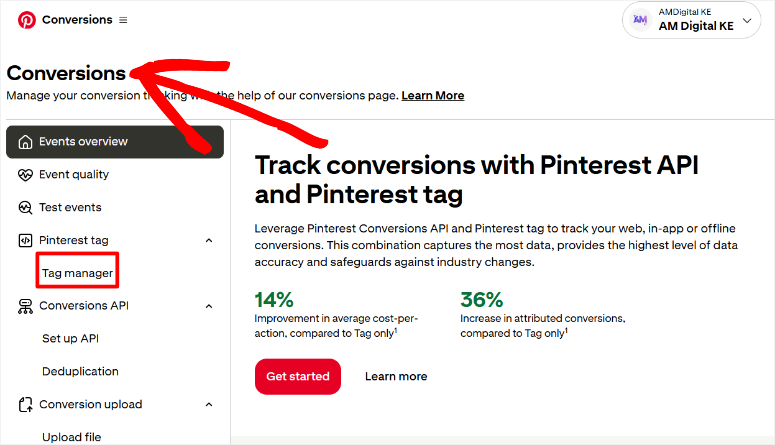
Now click on Install the Pinterest tag Click the button to start the setup wizard.
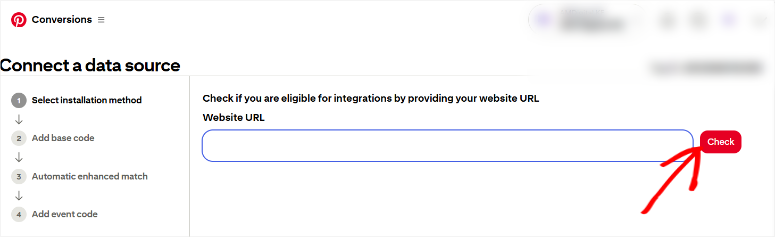
On the first screen, Pinterest will ask you to check if you’re eligible for integrations. Enter your website URL in the field provided and click Check.
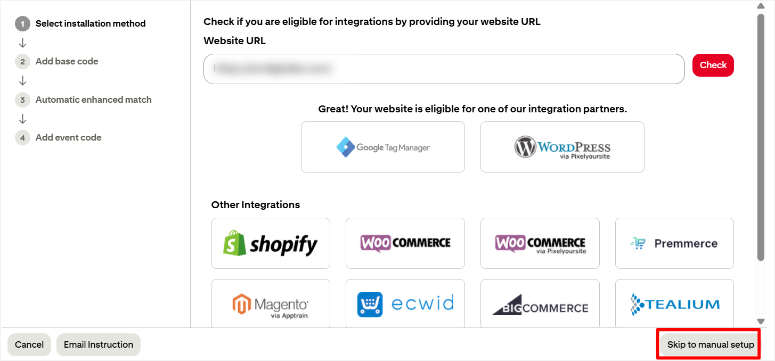
Pinterest checks your website and, depending on the type of website you have, automatically provides you with options to help you connect your data source. But for this tutorial, we will “move to manual setup.”
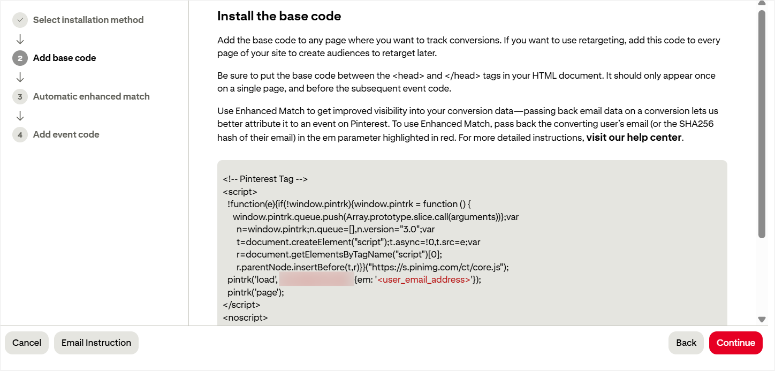
Then Pinterest will display your base code on the next page. This is the tracking code that you need to add to every page on your website.
Copy this entire block of code and make sure you get everything from the opening tag to the closing tag. Keep this code handy. You’ll need it in just a minute.
On the next screen, Pinterest will display event code options. This is typically where you add specific tracking codes for actions like purchases, “add to cart,” and page visits.
The manual installation method would require you to copy each event code and add it to the specific pages or actions on your website where you want the tracking to occur.
For example, the checkout event code must be placed on your order confirmation page. The “Add to Cart” event code appears wherever customers can add items to their cart.
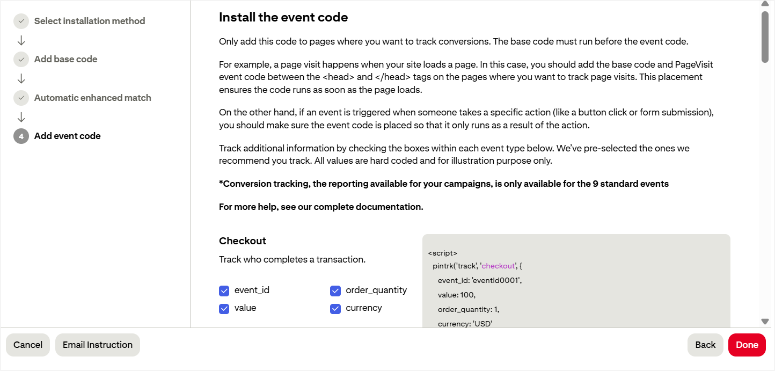
Once you have completed the wizard by clicking CompletedYour Pinterest tag is created. But remember – you only created the tag. You still need to install it on your website.
Step 2: Install the Pinterest tag code
This is where it gets technical.
You need one Google Tag Manager account to continue. If you don’t already have one, you’ll need to create one at tagmanager.google.com first.
Create a custom HTML tag in GTM (Google Tag Manager). This tag contains the Pinterest base code that you copied earlier.
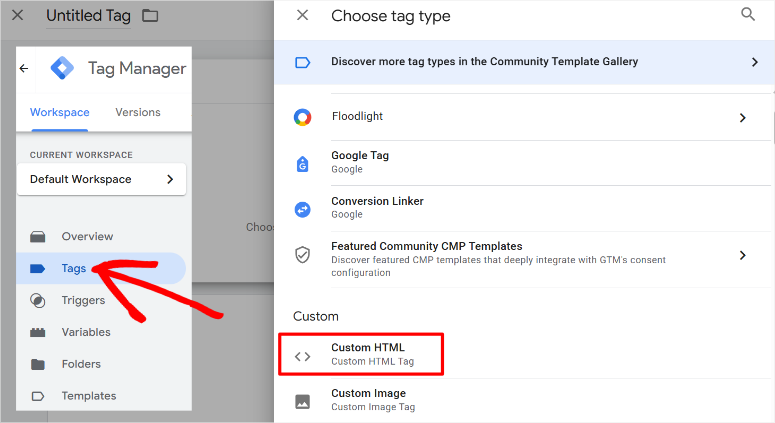
Next, configure triggers to fire this tag on all pages of your website. Remember: Incorrect trigger settings mean your tracking won’t work.
Next, manually add each individual event code to the appropriate pages as mentioned earlier.
Just a reminder: the checkout event takes place on the thank you page. The Add to Cart event requires JavaScript to fire when the button is clicked. Each requires careful placement and testing.
The most important thing here is tag sequencing. Therefore, your base code must fire before event-specific tags. If you specify the order incorrectly, proper tracking will not occur.
A simpler semi-manual option:
If you want to use the manual method but want to avoid the complexity of Google Tag Manager, WP Code offers a middle ground solution as the best Google Tag Manager plugin.
WPCode is a code snippets plugin that allows you to insert the Pinterest tag into your website without editing theme files or learning GTM.
You still need to manage event code setup and event API configuration manually, but WPCode handles the base code injection part safely.
The good news is that even the free version of WPCode can help you connect Pinterest to your WordPress site and add manual tracking events.
Let me show you!
Once you have installed WPCode Lite, go to Code snippets » Header and footer.
Here, paste the Pinterest base code you copied earlier into the header section and click Save. This will add the Pinterest tag globally, so you don’t have to add it to every page.
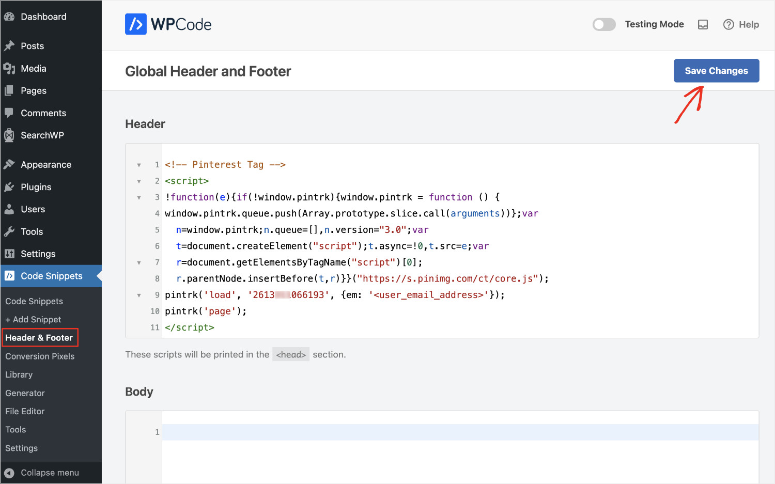
However, this only installs the Pinterest base tag.
You still need to manually add event codes to specific pages and test each event separately. WPCode does not handle these parts automatically.
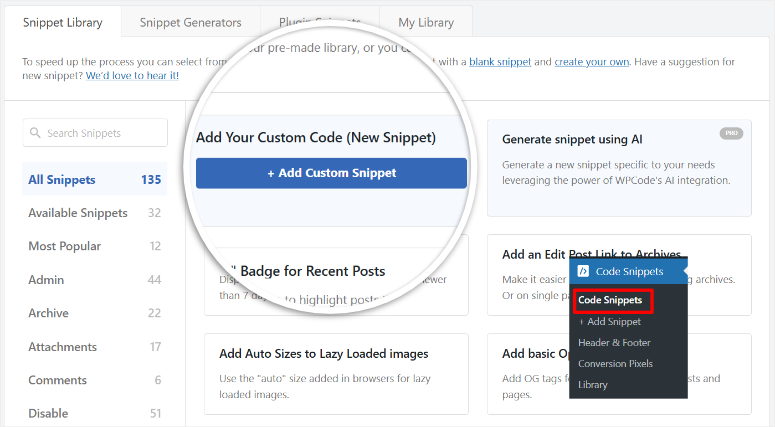
However, you can add the codes manually by going to again WPCode » Add Snippet. Select here + Add custom code.
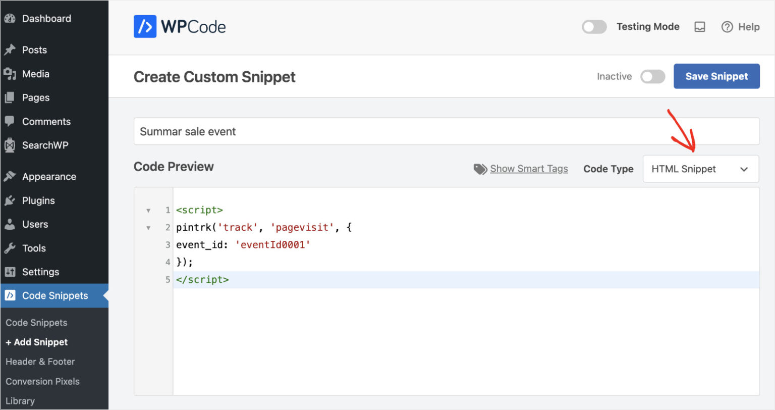
Then make sure you select HTML snippet from the dropdown. Next, paste each Pinterest event tracking code into the code preview area.
Remember that you need to do this separately for each code displayed on Pinterest.
When you’re done, scroll to the bottom of the page, where WPCode will place the code throughout the site by default. But that’s not what we want; We want it to be placed on specific pages.
Instead, you use conditional logic to tell WPCode to place the code only on the desired page.
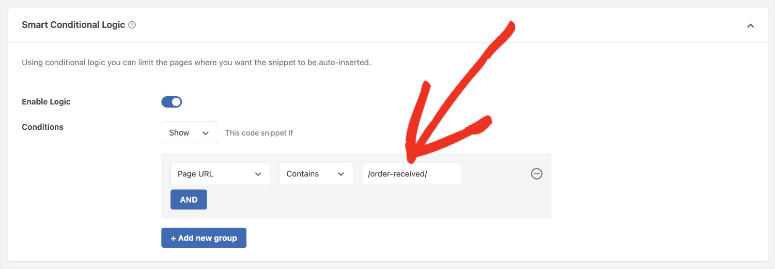
That’s it! You’ve now added Pinterest base code for the entire site and event codes on individual pages. To see how to use this snippet plugin, check out my WPCode review here.
Easy Automated Method (Plugin) – Track Pinterest Ads with MonsterInsights
Here’s what you’re actually signing up for using the manual approach:
Even though WPCode makes code injection easy, manual Pinterest tracking quickly becomes overwhelming. You manage multiple moving parts that all need to work together perfectly.
Manual setup takes experienced developers at least 5-8 hours. If you study on the side, expect two to three days of frustration.
Most companies hire developers for $100-$200 per hour and spend $500-$1,600 on initial setup alone.
Then you’ll pay again when Pinterest updates its tracking specifications.
There is an easier way to do all this automatically.
use MonsterInsights to track Pinterest PPC ads

MonsterInsights Automatically completes the Pinterest tag and conversion API setup.
It automatically installs the Pinterest tag throughout your website and inserts the code in the right place without you having to touch the theme files.
In addition, Conversions API integration occurs at the same time, which is very difficult to set up manually. This helps you configure server-side tracking without requiring any programming knowledge.
This dual tracking approach captures 20-30% more conversions than the manual tag-only process we discussed.
This is because browser-based tracking (Google Manager tag process) misses conversions from users with ad blockers or strict privacy settings.
The Conversions API catches these missed conversions through server-side transmission.
Additionally, event tracking with the manual tagging approach often results in deduplication. This can lead to incorrect analyses.
MonsterInsights handles event_id logic, which effectively prevents double counting between tag and API.
Let me show you how to use MonsterInsights to properly track Pinterest ads.
Step 1: Get your Pinterest credentials (Tag ID, API, etc.). Ad account ID)
First, you need to access your Pinterest tag. Register for this Pinterest Ads Manager through yours Pinterest Business Account.
Then navigate to Show » Conversions » Pinterest tag » Tag Manager.
Then click the “Install Pinterest Tag” button on the next screen.
On the next page, your tag ID should appear as a 13-digit number next to your tag name. Copy this full number.
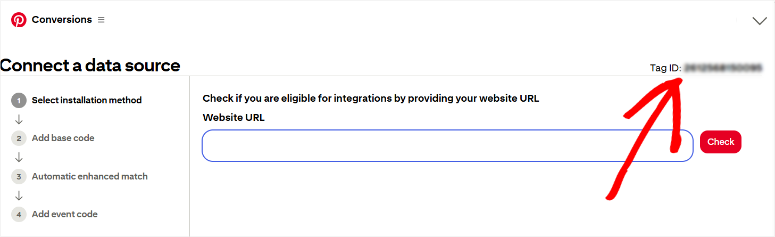
Now navigate to Set up API under “Conversions API”.
Under the “Generate conversion access token” heading, look for your ad account ID. It appears in parentheses next to your business account name.
Click on Generate new token Click the button to create a 13 digit number.
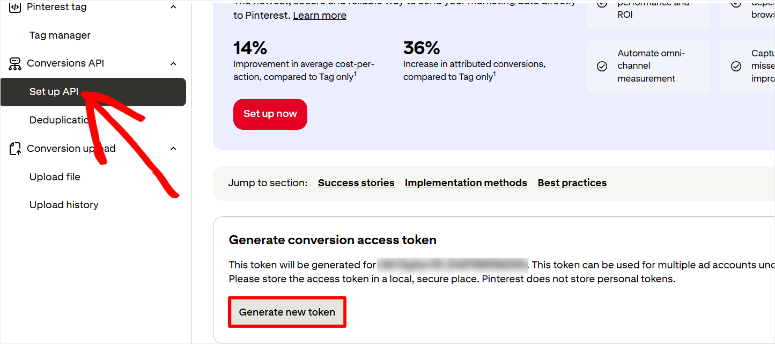
This is your conversion access token. Now copy it and paste it somewhere safe, such as a text file.
Pinterest only displays this token once. So if you close this screen without copying it, you will have to generate a new token and start over.
Finally, you’ll need your Pinterest ad account number. This is very easy to find. Simply select the profile drop-down menu at the top right of your Pinterest advertising account.
This should work on every page you are on. Then you should see yours in the drop down list Ad account ID under the Advertising account Tab. Copy this too.
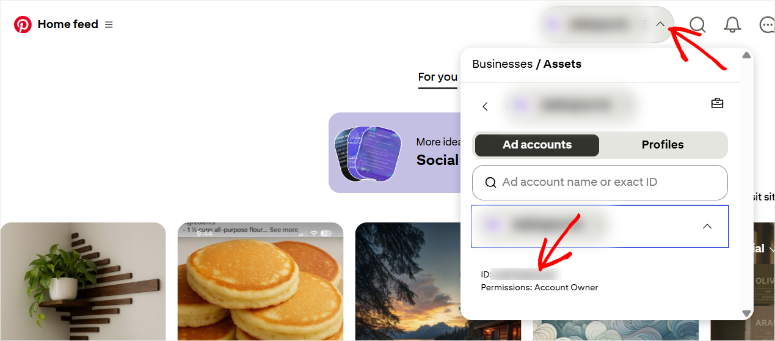
Have all three credentials ready. The next step is to add it to MonsterInsights.
Step 2: Add Pinterest to MonsterInsights
Now you need one MonsterInsights Pro Account and set up plugin in WordPress before proceeding. Although MonsterInsights offers a free versionYou cannot track Pinterest ads on this.
To learn how to purchase and set up this analytics plugin, check out my MonsterInsights review.
Once MonsterInsights is ready, you need to get the PPC tracking add-on. To do this, go to Insights » Add-ons in your WordPress dashboard.
Then use the search function or scroll until you find the PPC tracking addon. Here install and activate the plugin using the toggle key.
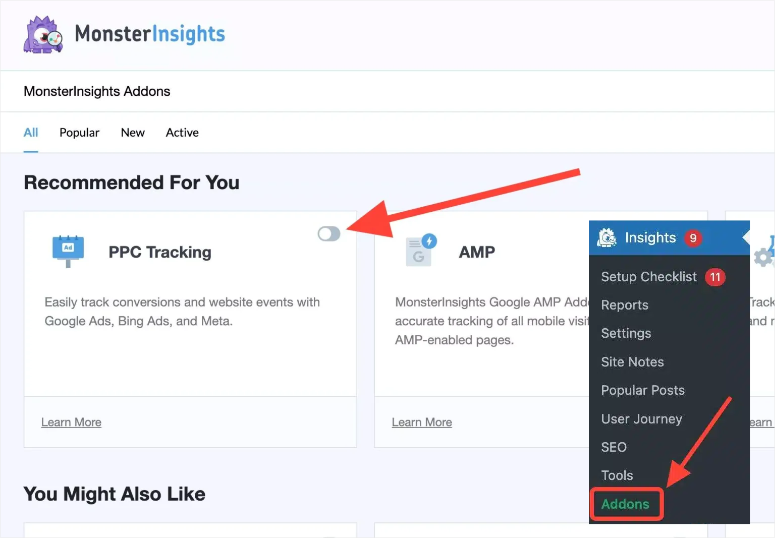
After that, the next step is to connect Pinterest ads to your WordPress dashboard. So go to it Insights » Settings » Conversions in your WordPress dashboard.
Scroll down the page until you find the “PPC Ads Pixel Tracking” section.
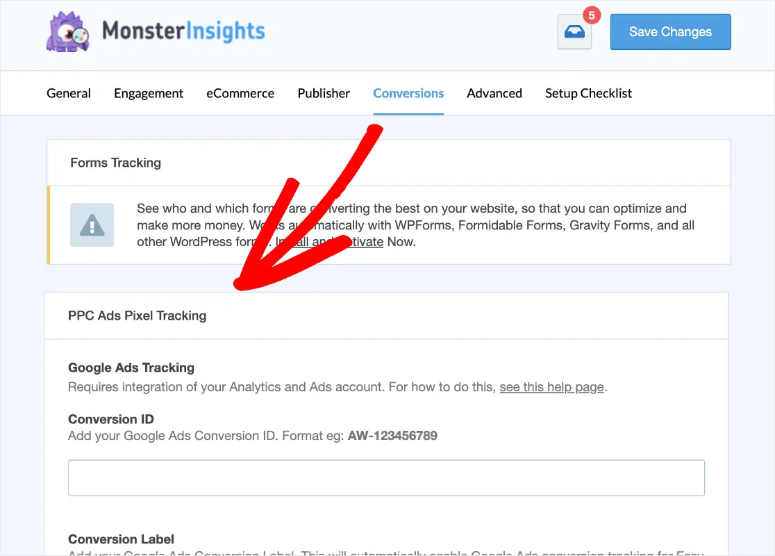
Keep scrolling to find the “Pinterest Ads Tracking” fields. You will see three empty text fields. Fill out the following here:
- Pinterest tag ID: Insert your 13-digit tag ID here.
- API token: Insert your conversion access token. Make sure you include the entire string without any extra spaces.
- Ad Account ID: Paste your 13-digit code.
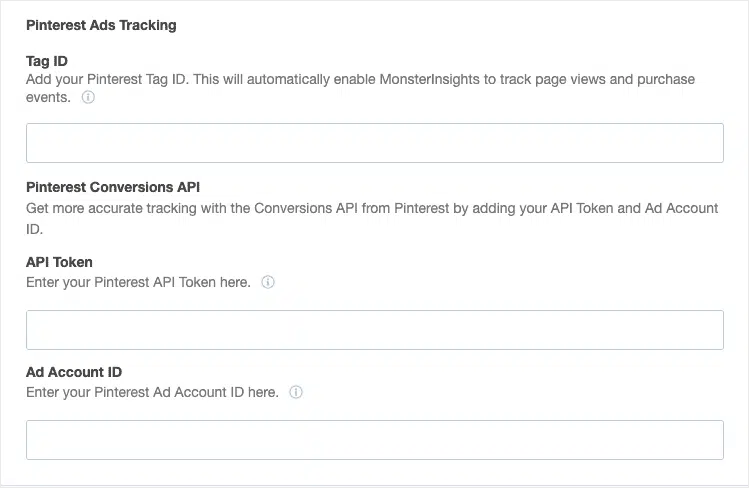
For full functionality, all three fields must be filled out. The tag ID alone allows for limited tracking. The complete set enables double integration via both Pinterest Tag and Conversions API.
Click save Changes at the top or bottom of the page.
That’s it. You can now track Pinterest PPC ads with MonsterInsights without touching the code.
Understand your Pinterest ad reports
Your Pinterest campaign data flows into the same MonsterInsights reports as your other social media advertising campaigns. Check out how to track TikTok ads to understand what I mean.
Everything lives in one dashboard. You no longer have to switch between Pinterest Ads Manager and Google Analytics to compile performance data.
So how do you access your Pinterest ad reports in MonsterInsights?
Navigate to Insights » Reports » Traffic » Campaigns in your WordPress dashboard.
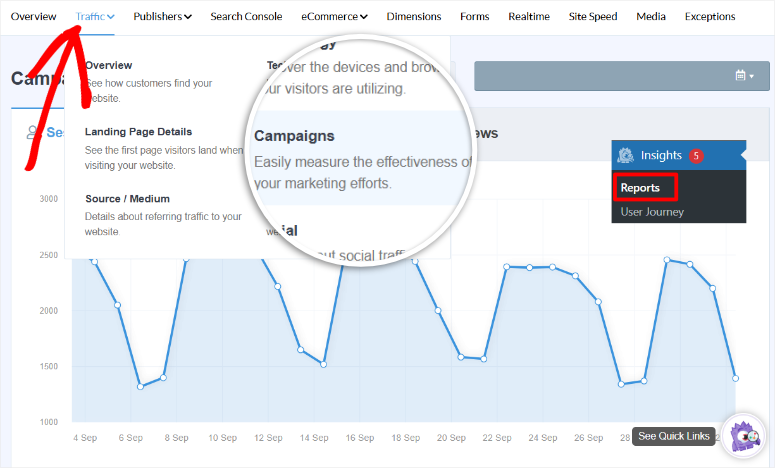
Pinterest campaigns appear in this report along with your other marketing efforts. But just like TikTok, Pinterest campaigns also show up as “referral” traffic by default.
To ensure it appears on Pinterest, you need to add UTM parameters to your ad links.
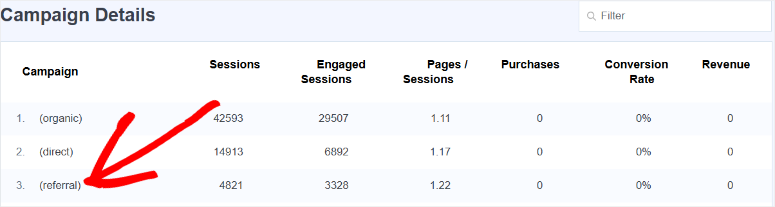
How do you add UTM parameters to your Pinterest ad links in MonsterInsights?
All you have to do is leave Insights » Tools » URL builder in WordPress. Fill out the form here with these values:
- Website URL: The landing page for your Pinterest ad.
- Campaign source: Type “pinterest” in lowercase. Consistency is important here.
- Campaign medium: Enter “paid” or “ppc”. Choose one and use it across all Pinterest campaigns.
- Campaign name: Use a descriptive name like “spring_collection” or “holiday_sale_2025”.
- Campaign content (optional): Test different pin designs using values like “carousel_v1” or “video_pin”. This will help you figure out which creative formats work best.
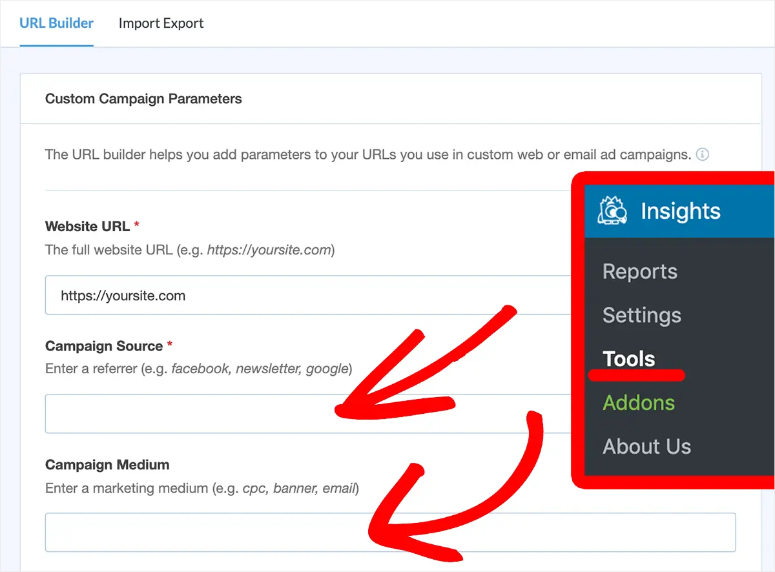
Click “Generate” to create your tracking URL. Next, copy and paste the entire URL into your Pinterest ad campaign settings.
From this point on, your Pinterest advertising traffic will appear under “Pinterest” in your MonsterInsights WordPress dashboard.
Important Pinterest metrics
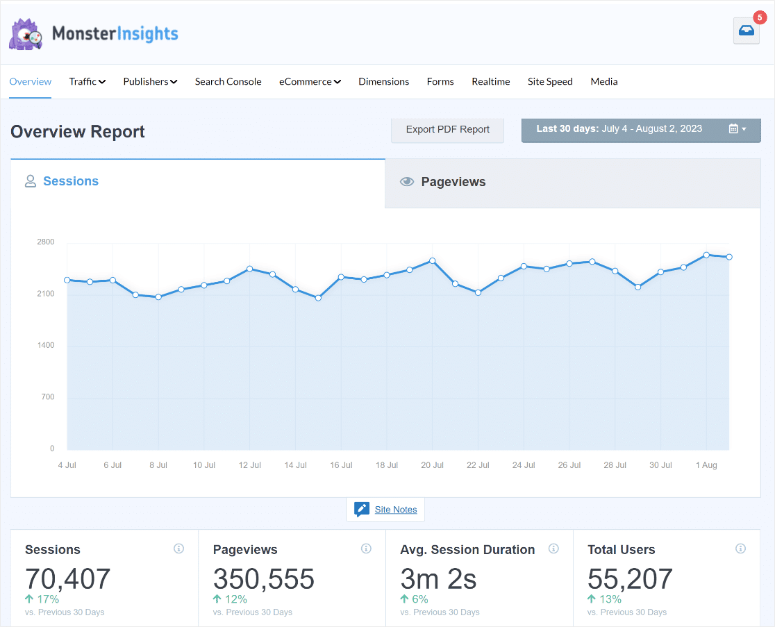
The MonsterInsights campaign report shows the same metrics for Pinterest as for TikTok:
- meetings View how many people clicked on your Pins and visited your website.
- Conversions View how many visitors completed purchases or other goals.
- revenue Displays the total dollar amount generated. This only appears if eCommerce tracking is enabled.
- Conversion rate tells you what percentage of Pinterest visitors actually buy. Higher rates mean your targeting matches your product offering.
Event tracking overview
MonsterInsights automatically tracks multiple Pinterest conversion events:
- PageVisit events Fire every time the page loads. These check whether your Pixel is working.
- AddToCart events is triggered when customers add products to their shopping cart.
- Box office events Track when users start checking out.
- Buying events Record completed transactions with complete sales data.
All of this happens automatically once you enter your Pinterest credentials. No manual event configuration required.
The unique advantage of Pinterest
Pinterest has over 450 million monthly active users worldwide. But the number that really counts is this – 85% of Pinterest users say they use the platform to plan new purchases.
Think about it for a second.
When someone searches for “kitchen organization ideas” on Pinterest, they are planning on purchasing storage containers. Or if they are looking for a “summer wedding guest dress”, they are ready to buy.
Additionally, Pinterest content has a much longer lifespan than other platforms. A Pin you create today can drive traffic for months or even years.
Compare that to Instagram posts and feeds that disappear within a few hours.
Additionally, users visit Pinterest with the intent to purchase. They aren’t there to watch funny videos or argue in comments. Instead, they are there to discover products and make purchasing decisions.
Which companies benefit the most from Pinterest ads?
Pinterest works incredibly well for visual products and services. Top eCommerce stores get some of the best results, especially in these categories:
What many companies overlook, however, is that Pinterest also works for B2C service companies with visual appeal. Interior designers, photographers, and consultants are all successful on Pinterest.
If your business can be explained or presented through images, Pinterest deserves your attention.
This is how Pinterest ads work
Pinterest offers different ad formats for different goals:
- Standard pins are single-image ads that appear in users’ feeds and search results. These look like regular pins, but contain the words “Promoted”. Users can save them to their own boards, giving you free organic reach beyond paid advertising.
- Video Pins Autoplay as users scroll through their feed. These attract attention and show products in action. Video ads typically cost more but deliver higher engagement rates.
- Carousel Pins This allows you to display 2-5 images in a single display. Users swipe through to see different products or different angles of the same product. These are great for showcasing product collections or step-by-step instructions.
- Shopping pins Sync directly with your product catalog. They display current prices and availability and take users directly to checkout. These convert particularly well because they eliminate friction in the purchasing process.
Why Pinterest PPC Ads Work
Pinterest ads are successful for three main reasons:
- First, Users are in a planning and purchasing mentality. They expect to see products and don’t get annoyed by advertising like they do on other platforms.
- Second, The pens circulate for a long time after your campaign ends. Users save Promoted Pins to their boards, where they continue to generate organic traffic for free.
- Third, Pinterest has less competition as Facebook and Instagram. Fewer advertisers means lower cost per click and better ad placement.
When it comes to visual products, Pinterest often delivers better ROI than any other paid social platform. But just like TikTok, you need proper tracking to know what’s actually working.
Congratulations! You can now track your Pinterest PPC ads through Google Analytics 4, formerly Universal Analytics, a manual approach, and also MonsterInsights, the simpler automated approach.
If something is unclear, check out the frequently asked questions below.
FAQs: How to track Pinterest ads on WordPress
Do I need a Pinterest Business account to track ads?
Yes. You need a Pinterest Business account to access Ads Manager and create your Pinterest tag. The account can be created for free at ads.pinterest.com. Personal Pinterest accounts cannot serve ads or generate tracking tags.
Can I track Pinterest ads with the free version of MonsterInsights?
No. The free version does not include the PPC tracking add-on required for Pinterest tag and conversion API integration. You need MonsterInsights Pro, which includes tracking for Pinterest, TikTok, Facebook, Google Ads, and other platforms.
How long does it take for Pinterest tracking data to appear in reports?
After setup, wait 24 to 48 hours for initial data to populate. Google Analytics processes data with built-in delays. Real-time reports show some activity faster, but full campaign reports require the entire wait time.
Why does Pinterest need both the Tags and Conversions API?
The Pinterest tag tracks conversions via browser cookies, but ad blockers and privacy settings block 20-30% of this tracking. The Conversions API sends conversion data directly from your server and captures the conversions missed by browser-based tracking. Using both together gives you complete conversion transparency.
Can I track organic Pinterest pins or just ads?
MonsterInsights tracks all traffic from Pinterest, including paid ads and organic Pins. However, without UTM parameters, Pinterest traffic appears as referral traffic rather than organized campaign data. Also use UTM tags on organic pins for detailed tracking.
Do I need Google Tag Manager if I use MonsterInsights?
No. MonsterInsights handles all code injection and conversions API configuration automatically. You don’t need Google Tag Manager, WPCode, editing theme files, or manually inserting code. Simply paste in your three Pinterest credentials and MonsterInsights will do the rest.
What is the difference between Pinterest Tag and Pinterest Pixel?
Pinterest now officially calls it “Pinterest Tag,” although some people still refer to it as “pixel.” It’s the same thing: the tracking code that monitors visitor behavior on your website after they click on your Pinterest ads.
Can I use the same Pinterest tag for multiple websites?
No. Every website needs its own unique Pinterest tag. If you have multiple websites, create a separate tag for each in Pinterest Ads Manager. This keeps your conversion data separate and accurate per website.
Final Verdict: Should I Track Pinterest Ads on WordPress?
Absolutely yes, especially if you sell visual products.
Pinterest users actively search for things to buy, making them higher quality than casual social media scrollers. Without tracking, you’re guessing which pins are converting and which are wasting money.
MonsterInsights simplifies Pinterest tracking by automatically processing both the tag and conversion API. You’ll see exactly which campaigns are driving sales, which pins are performing best, and what your true cost per conversion is.
Curious what else you should pursue?
Tracking Pinterest ads is just the start of understanding your website’s performance.
These related guides help you monitor every aspect of visitor behavior, from cart abandonment to button clicks, giving you a complete overview of how users interact with your content after discovering your Pins.