
I’ll never forget the morning I woke up to dozens of panicked emails.
Every single one of my subpages was down. Gone. A failed plugin update had damaged my entire multisite network overnight.
I jumped into my best backup solutions and then realized that only the main site was backed up. Not the network tables or the subsites. Just one of twelve websites.
I spent three days building everything from scratch, from customer pages to content to user accounts. Everything!
I learned the hard way:
WordPress multisite backups are fundamentally different from regular WordPress backups. If you miss one component, you lose everything.
In this guide, I’ll show you two ways to secure your multisite network. Firstly, the manual method so that you understand what it is all about.
Then the plugin method, which now allows me to protect my entire network in minutes instead of hours.
What you need before we begin
Before we dive into securing your multisite network, let’s make sure you have everything ready. This saves you from having to cancel in the middle of the process.
Entry requirements:
- You will need Super admin access to your WordPress multisite network. This is different from regular admin access. Super administrators can manage the entire network, not just individual websites.
- You also need Access to your hosting control panel (cPanel, Plesk or similar). Here you will find the file manager and phpMyAdmin.
For the manual method:
- FTP client like FileZilla or hosting file manager access
- phpMyAdmin access via your hosting control panel
- Enough storage space on your computer for large files – your backup could be several GB in size
For the plugin method:
- For this tutorial we will use Duplicator Pro – you will need a license
- Important: The free version does NOT support multisite
- Ability to network activate plugins (super administrator permission)
Time estimates:
What awaits you in terms of time is the following:
- Manual backup: 1-2 hours for your first attempt (30-60 minutes once you are experienced)
- Duplicator Pro setup: 15-20 minutes one-time setup
- Duplicator Pro backup: 5-30 minutes depending on network size (or automated while you sleep)
Skill level:
- Manual method: intermediate level. You should be familiar with FTP and databases.
- Duplicator Pro: Beginner-friendly. His assistant will guide you through everything.
Ready? Let’s start by understanding exactly what makes multisite backups so special.
Understand what you are securing
The thing about WordPress Multisite is that it is much more complex than a normal WordPress site.
Think of it like an apartment building instead of a single-family home. Everything is connected via ONE database and shared files. This means you can’t just save a piece and call it done.
What you are actually securing:
- ONE database of data for ALL your websites (no separate databases)
- Network tables that track which websites exist (wp_blogs, wp_users, wp_site)
- Individual site tables for each subsite (wp_2_wp_3_wp_4_* etc.)
- All WordPress files (themes, plugins, core files)
- Media uploads for each subsite (separate folders: uploads/sites/2/, uploads/sites/3/, etc.)
- Configuration files (wp-config.php and .htaccess)
The critical point: If you miss even one component, your backup won’t work. Are you losing the network tables? WordPress doesn’t know that your subpages exist. Skip a subsite’s uploads folder? All her pictures disappear.
This is why regular backup plugins often fail with multisites. They are not designed for this structure.
How to Secure WordPress Multisite
As mentioned earlier, I will show you both the manual and plugin methods of backing up your multisite. This allows you to choose the option that suits your needs.
Below is a table of contents so you can jump to either method or step you want to read more about.
With that out of the way, let’s start with the manual method so you can see exactly what’s happening behind the scenes.
How to back up your multisite manually
Let me be honest upfront: backing up a multisite manually is complex and can easily damage your website.
However, it’s important that you understand the basics so you know what’s happening behind the scenes when you use a plugin. I do not recommend this method for beginners.
If the manual method makes sense:
- Your budget is tight – it’s free, except for your time
- A one-time backup is required before migrating servers
- You want to know how Multisite actually works
- Your backup plugin is broken and you need an emergency backup
The manual process consists of two parts: backing up files AND backing up the database. You need both. One without the other is useless. So the manual process will be a two-part tutorial.
Let’s start with the files.
Part A: Backing up files manually
Step 1: Access your file manager 5 minutes | Go to your WordPress files
First, log in to your hosting control panel. This depends on your hosting provider. So it could be cPanel, Hostinger Dashboard, SiteGround, etc. For this tutorial I’m using Bluehost.
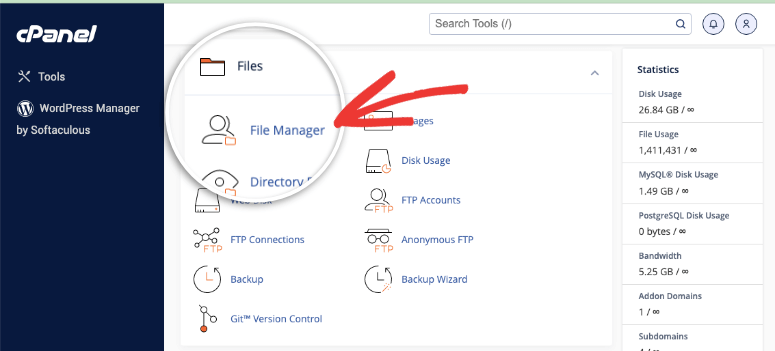
In your cPanel, select “File Manager” and let it open in a new tab.
Step 2: Find your WordPress root directory 2 minutes | Find the correct folder
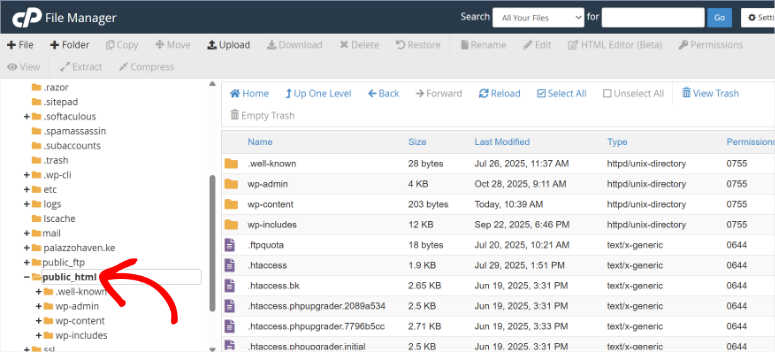
In the file manager you will see a list of folders on the left. Select here “public_html.” This is your WordPress root directory where everything is located.
You know you’re in the right place when you see folders like this:
- wp admin
- wp content
- wp-includes
- wp-config.php
- htaccess
Understand what is here:
The wp content The folder is huge. It contains:
- /uploads/ – Main page media files
- /uploads/sites/2/ – Media files from Site 2
- /uploads/sites/3/ – Media files from Site 3
- /uploads/sites/4/ – Media files from Site 4 (and so on)
Each subsite gets its own upload folder. You need ALL of them.
Other than that you have wp-config.php, which contains your database connection details and multisite settings. This file is critical.
The .htaccess The file contains multisite rewrite rules. Without it, your URLs will not work after recovery.
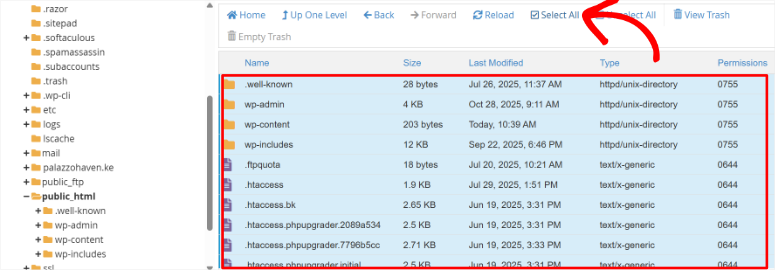
Step 3: Select “All Files”. 1 minute | Prepare for compression
Click inside the public_html folder to view its contents.
Now select EVERYTHING. You can:
- Press Ctrl+A (Windows) or Command+A (Mac).
- Or click the “Select All” checkbox at the top.
It’s important to make sure you select everything within public_html, not public_html itself. After that, all files and folders should appear highlighted.
Step 4: Compress the files 5-60 minutes | Create a downloadable backup
When everything is selected, click “Compress” button at the top of the page.
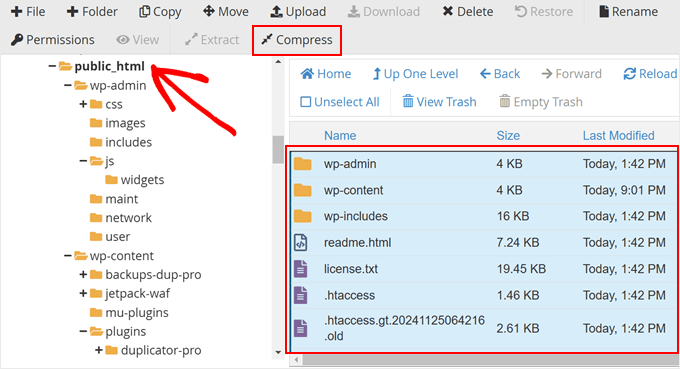
Next, a popup will appear asking you to select the compression format. Choose Zip archive as this is the most compatible format. Then click “Compress Files” at the bottom of the popup.
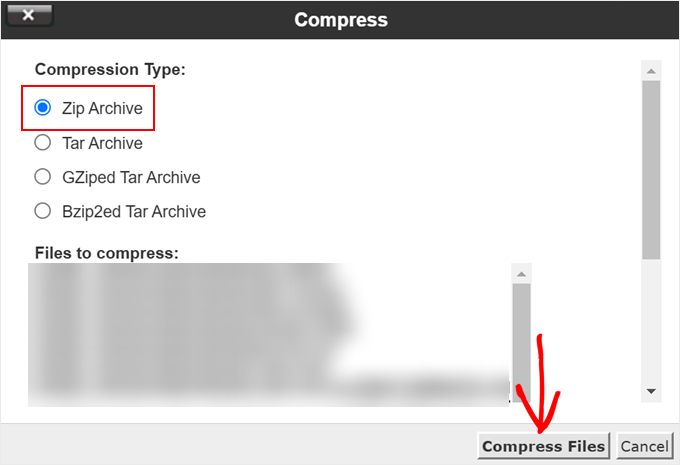
Now wait. The file manager compresses everything into a ZIP file.
How long this takes depends on the size of your network:
- Small network (under 1GB): 2-5 minutes
- Medium network (1-10GB): 10-30 minutes
- Large network (10GB+): 30 minutes to 2+ hours
Do not close your browser during this process. Instead, use the progress bar to see how long it takes.
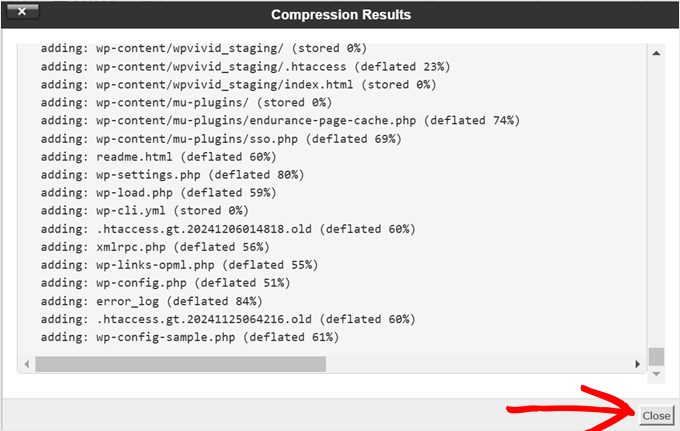
When the process is complete, a pop-up will appear saying “Compression result” and a success message. Click “Close”.
Step 5: Download your backup Varies | Save to your computer
Now your new ZIP file will appear in the public_html folder. Right-click it to select it and select it Download from the options you see.
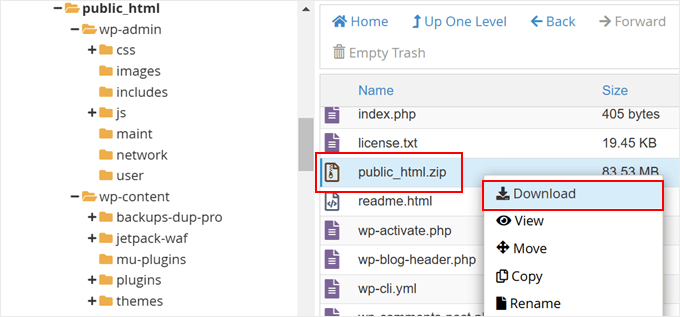
Your browser will then download the file. This may take a while if your backup is large.
⚠️ Pro tip:
I recommend that you save the file to a special backup folder on your computer and include today’s date in the folder name. Something like: Multisite-Backup-October-2025
Once the download is complete, you’re halfway there.
👉Alternative method: Using FTP
If you want, you can use an FTP client like FileZilla instead of the file manager.
All you need to do is connect to your server using your FTP credentials. You can get this from your hosting provider.
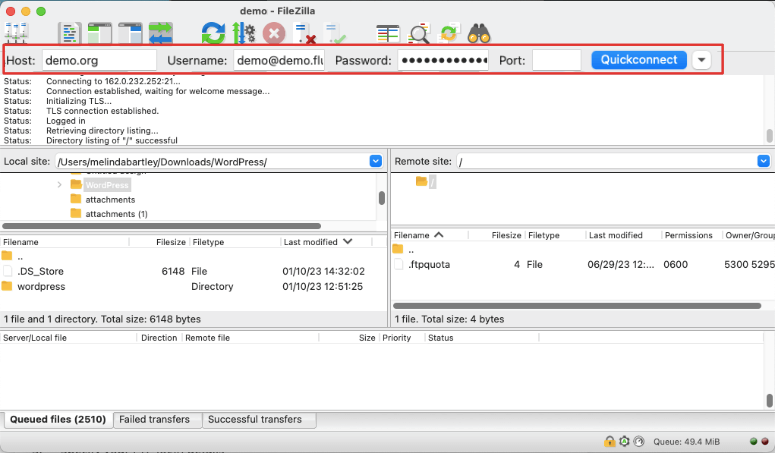
Then navigate to public_html on the right (Server). On this page, select a location on the left (your computer). Right-click the public_html folder and select “Download.”
FileZilla transfers all files directly to your computer. This takes longer than downloading a compressed file, but some people prefer it.
Part B: Backing up the database manually
Now to the second critical part: your database. Remember that your database contains ALL content for ALL sites on your network.
Step 1: Access phpMyAdmin 2 minutes | Open the database manager
Go back to your hosting control panel.
Seek “phpMyAdmin” in the databases section. Depending on your hosting provider, it may also be under Advanced or Tools. Click on it to open phpMyAdmin in a new browser tab.
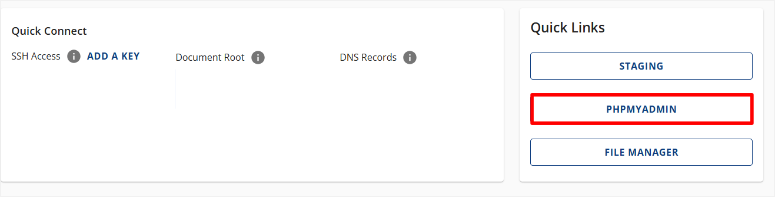
Step 2: Identify your database 1 minute | Find the right database
In the left sidebar of phpMyAdmin you will see a list of databases. Just so we’re on the same page, your WordPress database is usually called something like this:
- username_wordpress
- yourdomain_multisite
- wp_multisite
👉Not sure which one? How to check:
Open your “File Manager” again and search wp-config.php File in public_html. Then right-click it and select View or Edit.
Look for this line:
define('DB_NAME', 'database_name_here');
Whatever is in the quotes is your database name.
Step 3: Select your database
Back in phpMyAdmin, click on your database name in the left sidebar and all your database tables will appear in the main area.
Scroll through and make sure you see Multisite Tables:
- wp_blogs
- wp_site
- wp_users
- wp_posts (main page)
- wp_2_posts (Page 2)
- wp_3_posts (Page 3)
If you see these, you’ve come to the right place.
Step 4: Export the database 5 minutes | Create database backup
Click at the top of phpMyAdmin “Export” Tab.
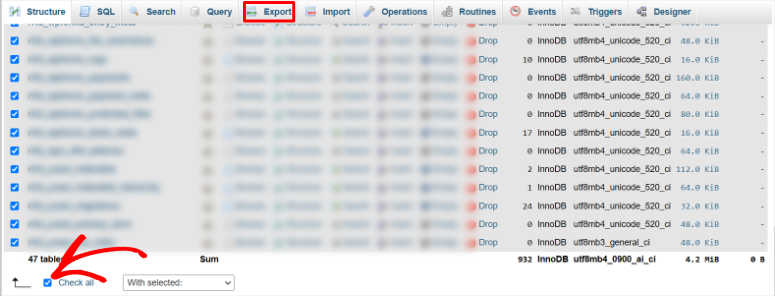
You will see two export options:
- Fast (uses default settings)
- Custom (more control)
Important settings to configure:
- Format: Leave “SQL” selected (that’s right).
- Tables: By default, all tables are selected. That’s what you want. Don’t disable anything.
Once you confirm everything is correct, select “custom” by clicking on the corresponding radio button.
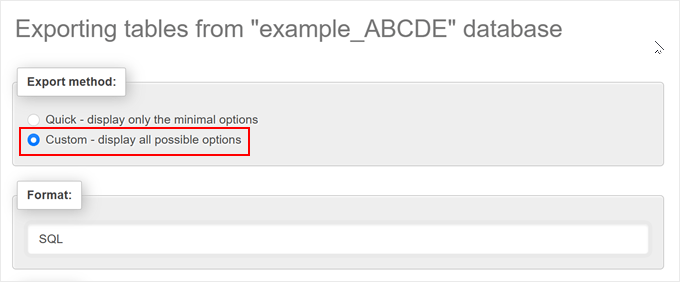
Next, scroll down and make sure ALL of your multisite tables appear in the list. Then switch from “Show output as text” to “Save output to a file.”
Confirm on this pageThis is me:
- The file name template is displayed. You can add today’s date:
multisite_db_2025-10-30 - Compression: Find the drop-down menu and select it “gzipped” or “zipped”. This is important because it reduces a 10GB database to 1-2GB. Always compress.
- Advanced options: Look for a checkbox that says “Add DROP TABLE”. Check this box.
- This makes the restore cleaner because old tables are removed before new ones are imported.
Leave everything else at default settings.
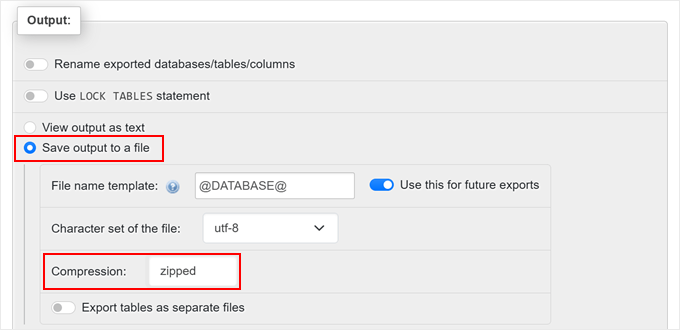
Step 5: Download database backup 30 seconds to 5 minutes | Final database step
Once the file is ready, scroll to the bottom of the export page and click “Export” Button.
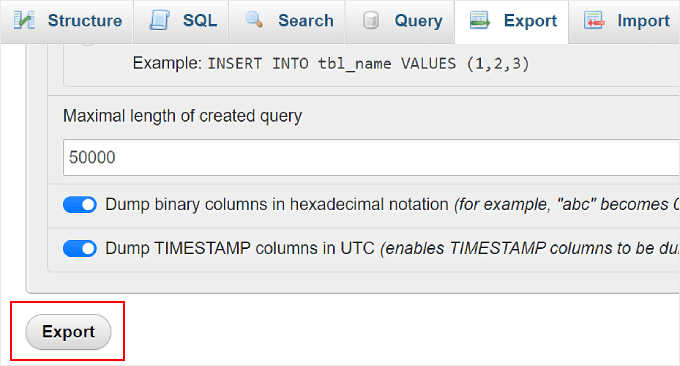
Once this is done, phpMyAdmin will process your request. This takes a few seconds to a few minutes depending on the database size.
Your browser will automatically download the compressed file and name it something like this: multisite_db_2025-10-30.sql.gz
Save this file in the same folder where you saved your file backup.
Great! Now you have both parts of your backup. At this point you should have your manual multisite backup ready. To make sure you have everything, use the checklist below.
Manual method: Verification checklist:
Before you consider your backup complete, make sure you have the following:
✅ Compressed ZIP file of all downloaded WordPress files
✅ Database SQL export (compressed) downloaded
✅ wp-config.php included in the file backup
✅ .htaccess included in file backup
✅ All uploads/sites/folders included
✅ Both files are saved in the same folder on your computer
As you can see above in the step-by-step guide to manually backing up your multisite, the process is challenging.
I used to back up my website manually, and despite my years of experience, it was still overwhelming. I switched to Duplicator Pro and can now backup any site or multisite in minutes.
Now let me show you the method I actually use…
How to Secure a WordPress Multisite with a Plugin – Duplicator Pro
Duplicator Pro is the most powerful backup plugin for WordPress. In fact, this is more than just a backup plugin. Duplicator Pro can do so much more while keeping everything simple.
What makes it beginner friendly:
- The wizard-based setup walks you through everything
- Automatically recognizes all your subpages (no manual table search)
- One-click recovery when disaster strikes
- Disaster recovery URL that works even if your website is completely down
- Integrated cloud storage (Dropbox, Google Drive, Amazon S3, OneDrive)
- Scheduled automatic backups (daily, weekly, monthly)
As you can see, it is designed for beginners, so anyone can backup and restore their website in minutes. For a full breakdown, see my Duplicator Pro review.
Well, as already mentioned, the free version of Duplicator NOT supports WordPress Multisite.
But you can use this plugin to easily migrate, transfer or clone, backup and restore your single site, either locally or via a cloud solution of your choice.
You can access it free version of Duplicator from your plugin repository before opting for the Pro version.
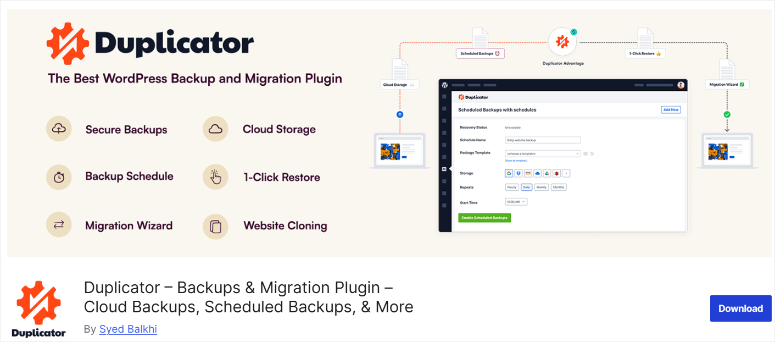
Now let me show you how to use Duplicator Pro to backup your Multisite.
Step 1: Install Duplicator Pro
While the plugin has different levels of premium version, you can choose one depending on your needs Duplicator Pro, starting at $199/year and includes 5 locations.
However, the reality is that Duplicator Pro pays for itself in time saved and disasters avoided.
In addition, the complex multisite structure is processed automatically. You don’t need to know which tables to backup or where subsite uploads are stored. Duplicator Pro does everything for you.
Now before you do anything else, you must purchase this backup plugin. It is a simple process and all you need to do is go to the Duplicator homepage and click on it Get started.
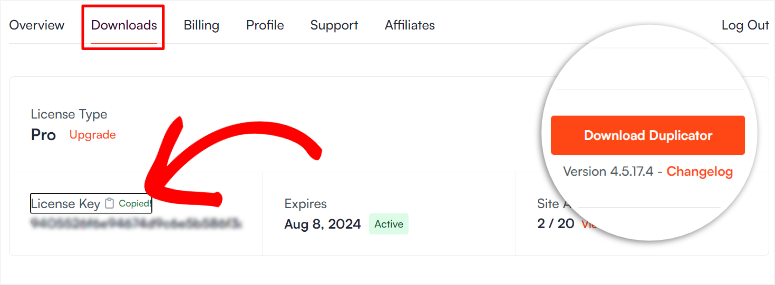
After purchasing, go to your Duplicator Pro dashboard and navigate to “Downloads.” Download and copy the duplicator file here License key; You will need it later to activate the Pro version.
Next, go to your WordPress dashboard and install it like any other plugin. If you encounter difficulties, here are instructions on how to install plugins.
Regular activation will only activate it on your main page. So you need to use the license key you copied earlier to continue with the Pro version.
If you need help, here is a detailed guide on how to install and activate Duplicator Pro.
Step 2: Create your first backup
10 minutes | Your complete network backup
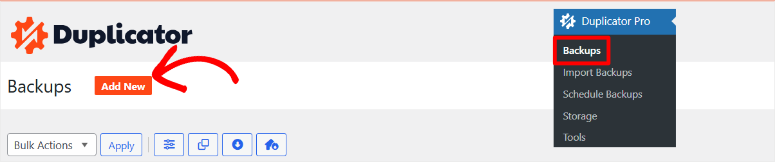
To create your first backup, you will need to navigate to “Backup Creation”. So go to in your WordPress dashboard Duplicator Pro » Backups.
Then click “Add new” Click the button above to open the backup wizard.
At the top you will see a field where you can give your backup a name. Give it a meaningful name with today’s date:
MainNetwork-October-2025-Full
Pro tip: Duplicator Pro supports dynamic tags that automatically add information to your backup names. You can use tags like:
- (Domain) – Your site domain
- (Month) – Current month
- (Year) – Current year
This way, each backup is automatically dated without you having to enter it manually.
When you’re done, scroll down and choose a save location. By default, backups are stored on your local server. This works, but it’s not ideal because if your server goes down, your backups will crash too.
The better option is to connect to cloud storage.
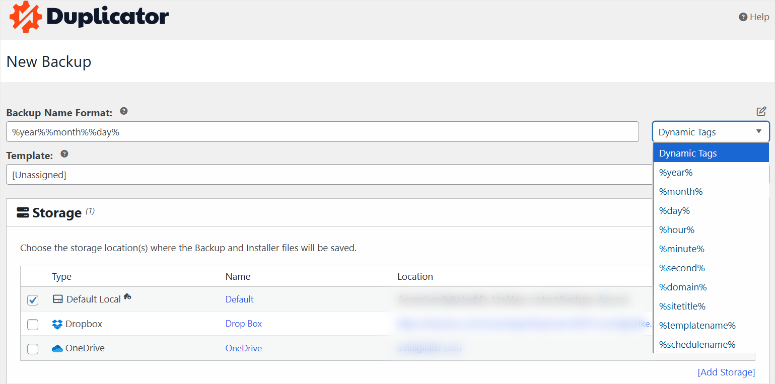
Click “Add storage” and choose your preferred service:
- Dropbox
- Google Drive
- OneDrive
- Amazon S3
- FTP/SFTP
- And more
Follow the instructions to connect your account. Duplicator Pro will guide you through the authorization process.
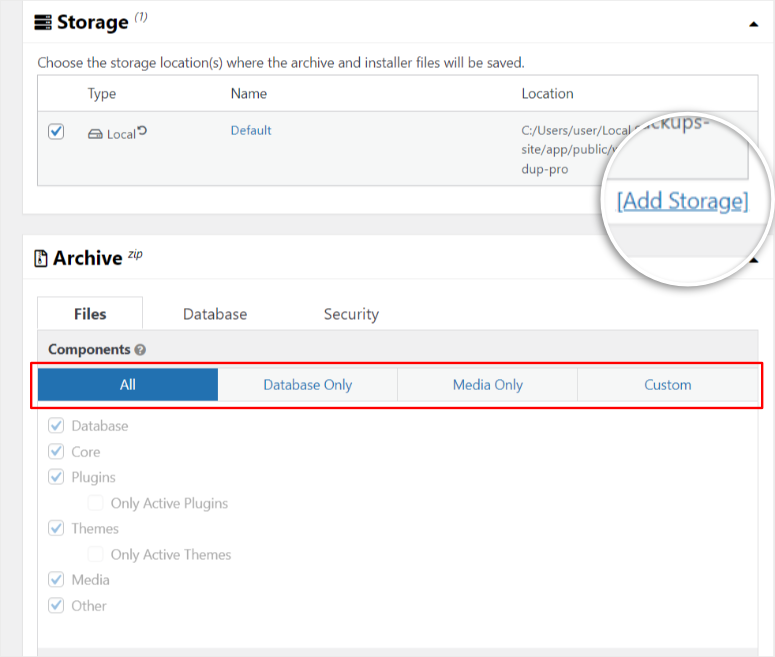
The best course of action is to choose BOTH local storage AND cloud storage. This will automatically give you two copies.
⚠️ Configure backup settings (3 important tabs)
Now comes the important part. Three tabs appear at the top of the Backup Wizard.
A. FILTER tab
This controls what is included in your backup.
Backup type:
- Full website backup (everything – recommended for first backup)
- Media-only backup (uploads folders only)
- Database-only backup (database tables only)
Choose “Full Website Backup” currently.
File filter:
Below you can activate filters to exclude certain files.
Common things to rule out:
- Cache files (they are automatically recreated)
- Log files (usually not required)
- Temporary files
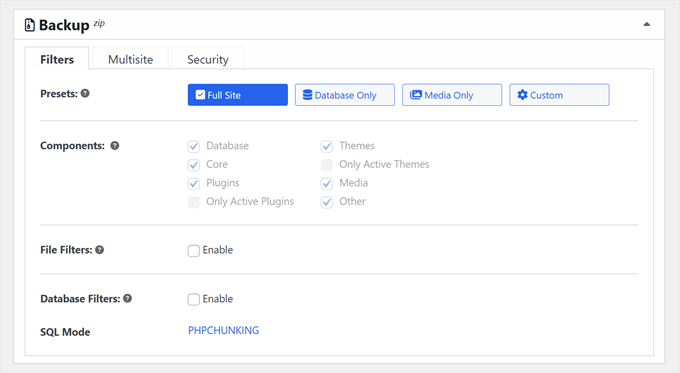
My recommendation for beginners: Do not enable filters on your first backup. Back up everything so you have a complete copy.
You can experiment with filters later once you know what you can safely exclude.
B. MULTISITE Tab (The Game Changer)
Then click on “Multisite” Tab.
This is where the magic happens. This tab is unique to Duplicator Pro and is specifically designed for multi-site networks.
You will see a list of ALL subsites in your network:
- Site 1 (main page) – yourdomain.com
- Site 2 – subsite1.yourdomain.com
- Site 3 – subsite2.yourdomain.com
- Page 4 – subsite3.yourdomain.com
By default, ALL sites are included in the backup. That’s what you want.
But here’s the cool part: If necessary, you can exclude specific subsites.
When would you exclude a subsite?
- Inactive or archived subpages that you no longer need
- Test subsites you created for development
- Very large subpages that you want to secure separately
To exclude a site, simply move it from the Included Subpages box to the Excluded Subpages box.
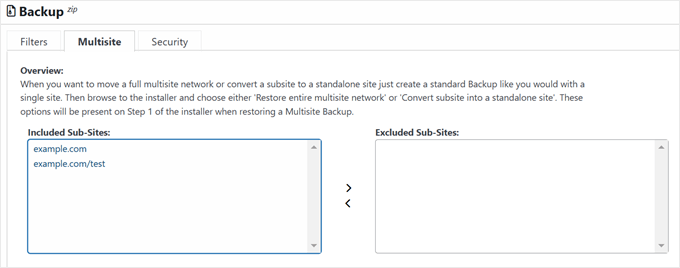
Warning: Be careful here. If you accidentally exclude an active site, it will not be included in your backup. Read this carefully before continuing.
The same applies here: leave everything there for your first backup.
C. SECURITY tab.
Then click on “Security” Tab. This tab allows you to add additional protection to your backup files.
Password protection:
You can request a password to open the backup file. Anyone who downloads it will need the password to extract it.
Encryption:
Enable AES-256 encryption to protect your backup data. This is important if your backup contains:
- Customer payment information
- User’s personal information
- Sensitive business information
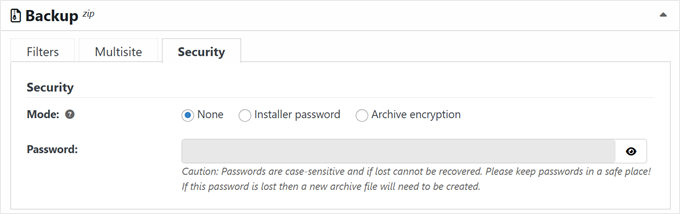
My recommendation:
- E-commerce websites: Enable both password and encryption
- Membership Sites: Enable both
- Basic Blog Networks: Password protection is enough
- Personal Projects: Optional
You can skip this for now and come back to it later.
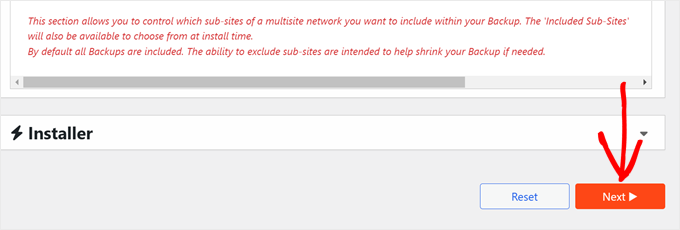
Finally, review the installer settings and select “Next” at the bottom of the page. The next screen shows the installation settings. These control how the recovery process works.
For beginners: Leave all default settings unchanged. They are configured correctly for most situations.
Once you have confirmed everything, click Next again.
Scan before backup
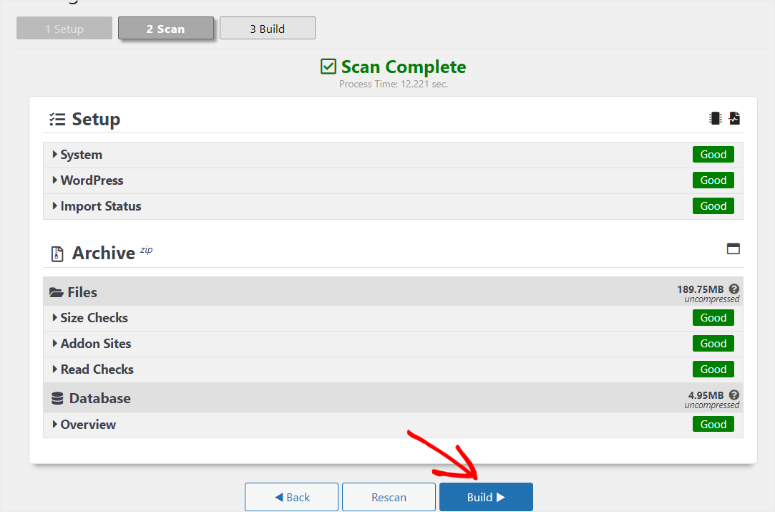
Now Duplicator Pro will perform an automatic pre-backup scan across your entire multisite network. This step checks for potential problems before starting the backup.
You will see a scan results page with status indicators:
- “Good” with a green check mark – No problems, you can continue safely
- “Observe” with an amber warning – Check this out, but usually not critical
- “Warn” with an orange alert – you should investigate this before proceeding
If you see a warning, click the arrow next to it to view details and recommendations.
Make sure you Pay close attention here so that you can identify problems before your backup fails. It’s better to know now than two hours after the backup process begins.
If everything is marked “Good” or slightly “Note”, click the “Create” button at the bottom of the page.
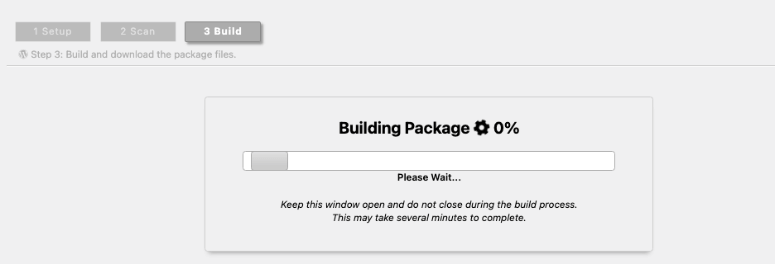
Now wait. Do not close your browser.
Time estimates:
- Small networks (1-10 locations): 5-30 minutes
- Medium networks (10-100 locations): 30 minutes to 2 hours
- Large networks (100+ sites): 2+ hours
The best part is that you will see a progress bar showing the backup construction. When the process is complete, a success message will appear.
Download backup files
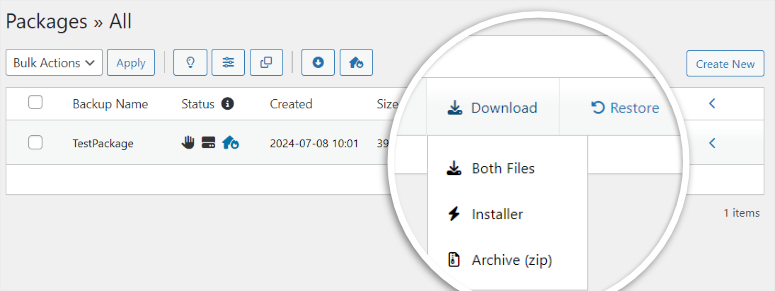
Once the packages are created, navigate back to Duplicator Pro » Backups. Here you can see your new backup with today’s date at the top.
On the right side of the backup, click “Download” and select “Both files”.
This downloads:
- The archive file (.zip or .daf format) – This is your actual data
- The installation file (.php file) – This takes care of the restore
Important: To restore you need BOTH files. Keep them together.
Remember to save both files in a safe place on your computer. This way you can easily access it in an emergency.
Now you’re probably asking yourself: “Why download locally even though I have cloud storage?“
Again, it’s all about safety. If you ever lose access to your WordPress dashboard (site crashes, unable to log in), you can manually upload these files via cPanel or FTP to restore your site.
Step 3: Set up disaster recovery
5 minutes | Emergency access when WordPress is unavailable
This is one of my favorite features of Duplicator Pro because it can save you when your entire website goes down and you can’t access the dashboard.
What is that?
A special restore URL that allows you to restore your website even if WordPress is completely broken.
Most backup plugins require dashboard access to restore. But what if your dashboard doesn’t work? You’re stuck.
Duplicator Pro’s disaster recovery provides you with a backdoor.
How to set up disaster recovery with Duplicator Pro
On yours Duplicator Pro » Backups On the page you will find your completed backup. Select here Disaster recovery icon. It looks like a lifebuoy or lifebuoy.

Next, a popup will appear explaining what Disaster Recovery is. Click “Set Disaster Recovery”.
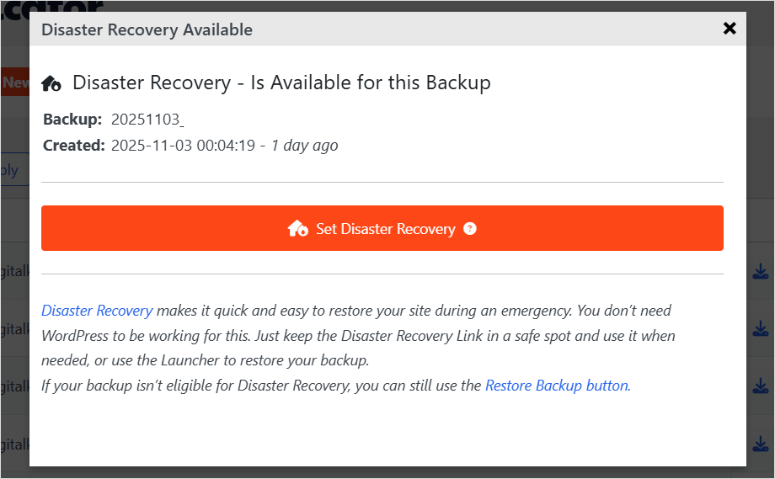
Now you have two options:
Option 1: Copy the recovery link
Duplicator Pro generates a special URL for this backup. Copy it and save it somewhere safe:
- A password manager like 1Password, LastPass, Bitwarden and so on
- Secure note taking app
- Encrypted file on your computer
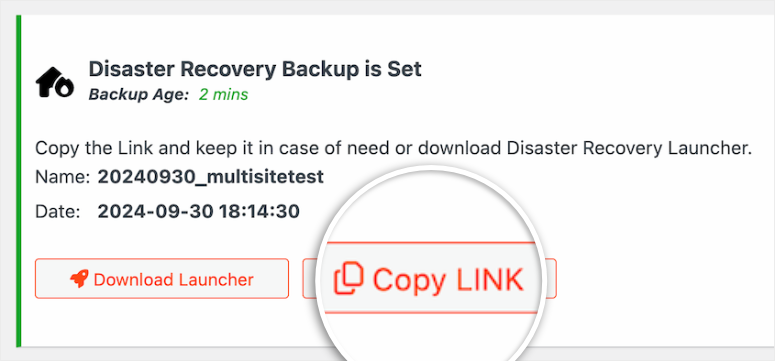
Option 2: Download the launcher file
Click Download Launcher to save the file to your computer.
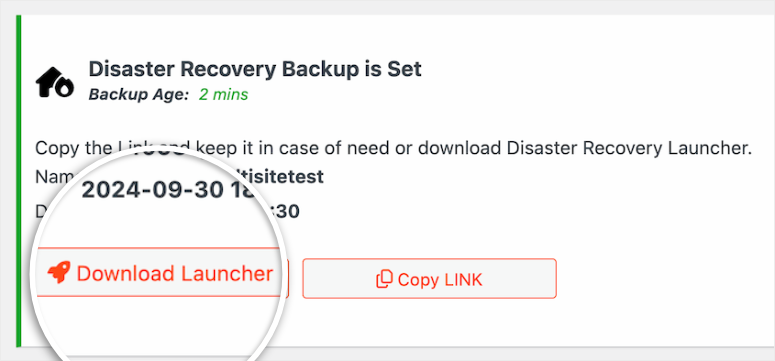
If disaster strikes, just open this file and it will guide you through recovery.
Both the link and the saved file work the same way. All you need to do is paste the recovery URL into your browser OR open the launcher file.
After that, Duplicator Pro will load a step-by-step recovery wizard that will work even if your site is unavailable.
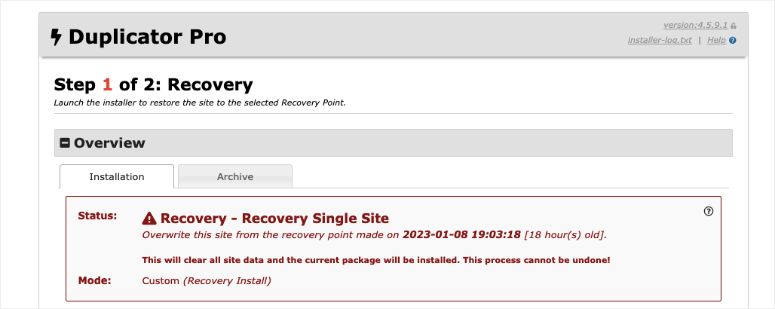
Here is a step-by-step guide to recovering your website with Duplicator Pro.
Congratulations! At this point you can now backup your multisite with Duplicator.
But I also want to show you how to make sure you never experience a site disaster again because you don’t have the latest backup.
To help you with this, Duplicator Pro allows you to set up automated and scheduled backups. I’ll show you how to set up both.
Step 4: Automate and schedule your backups
10 minutes | Set it and forget it
This backup and restore plugin allows you to schedule backups to run automatically without lifting a finger.
Why automate?
Because it’s easy to forget about manual backups. Life gets hectic. You skip a week. Then something breaks and your last backup is three weeks old.
Automation eliminates the human factor and errors. It ensures that your backups happen easily.
How to create an automated schedule with Duplicator Pro
First, navigate to Duplicator Pro » Schedule backups and click “Add New” at the top.
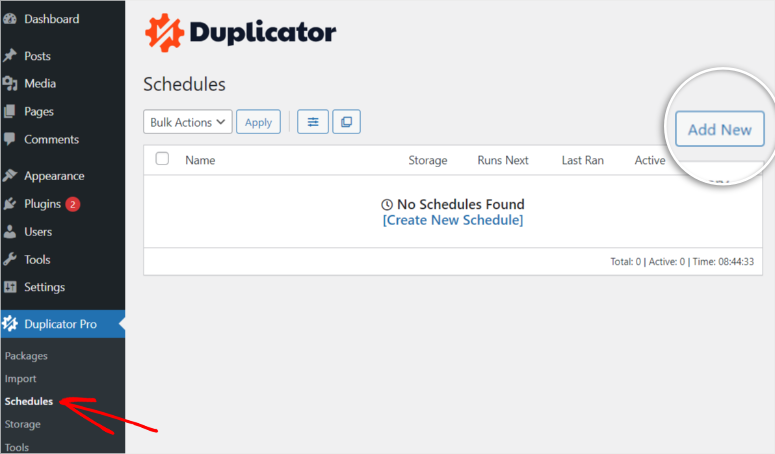
On the next page, name your scheduled backup and give it a meaningful name like: Daily Network Backup or Weekly Full Backup
Select backup template:
Do you remember the backup settings you configured previously (filters, multisite settings, security)? Duplicator Pro saves these as templates. So choose which template to use for this schedule.
The “Standard” template includes everything (files, database, all subpages).
Select storage location:
Choose where to store automatic backups:
- Local server (fastest recovery)
- Cloud storage (disaster protection)
- Both (recommended)
You can send backups to multiple destinations at the same time. I send mine to a local server AND Google Drive.
Set backup frequency:
This is important. Choose how often backups run:
- Hourly – For busy networks or e-commerce with frequent transactions
- Daily – Default recommendation for most multisite networks (that’s what I use)
- Weekly – For networks with low traffic that rarely change
- Monthly – For stable networks with minimal updates
My recommendation: Daily backups for active networks. Weekly if your network is mostly static.
Select start time:
Choose when you want the backup process to begin.
⚠️ Important to know:
Scheduled backups require website traffic to be triggered. They don’t exactly run on a timer.
What this means is that if you schedule a backup for 6 a.m. but your site doesn’t receive visitors until 10 a.m., the backup will actually start at 10 a.m.
In this sense it is The best practice is to schedule during low traffic times. I schedule my backups between 2 and 3 a.m. when your site is less busy.
In short: Avoid scheduling during peak hours as backups take up server resources.
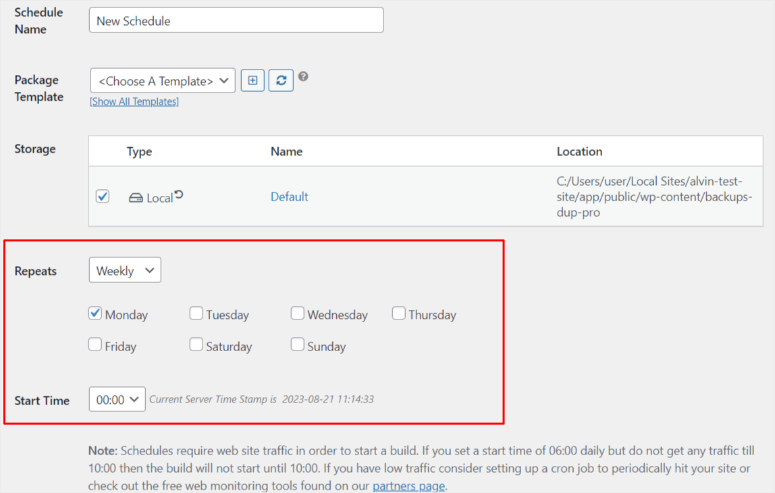
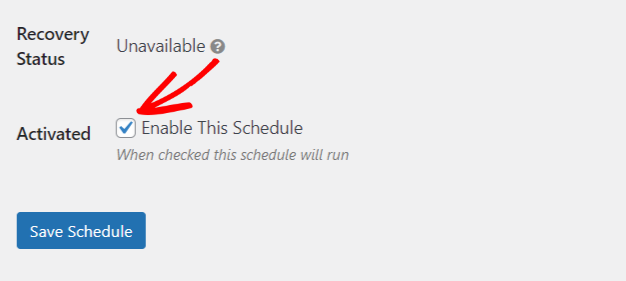
Once everything is set up, check the box next to “Activate this schedule”. Then click “Save Schedule” at the bottom.
Completed. Your backups will now run automatically.
Pro tip: You can create multiple schedules with different frequencies. For example:
- Daily database-only backups (fast, captures content changes)
- Weekly full backups (complete network backup)
Step 5: Restore from backup
15-30 minutes | When you need to recover
You may need to restore a backup. For example, a plugin may break your website, you may have to revert changes, or unfortunately, disaster may ensue.
Here is the time to restore:
How to quickly restore your website with Duplicator Pro
First, navigate to Duplicator Pro » Backups and locate the backup you want to restore.
I recommend you choose the latest version as everything is already backed up there. However, you can choose any backup.
Then click the “Restore” button next to it.
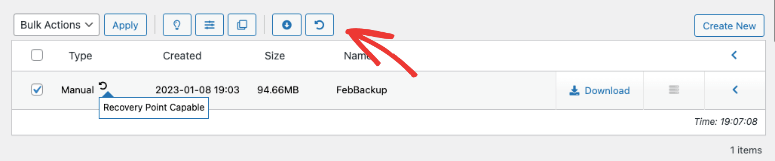
Next, a popup will appear with details about the archive and installation files.
Read the warnings carefully:
- What is included in this backup?
- What is being overwritten?
- Any special notes
Then check the box that says: “I have read and accept all conditions and notices.” When you’re done, click “Restore restore point”.
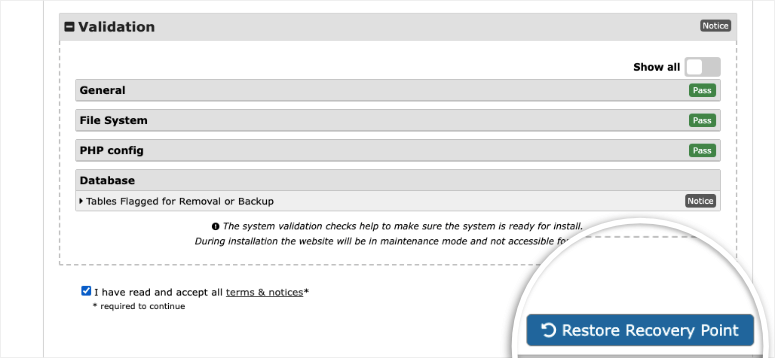
A second popup will appear asking you to confirm your database settings. These are usually correct so you can just click on them “OK”.
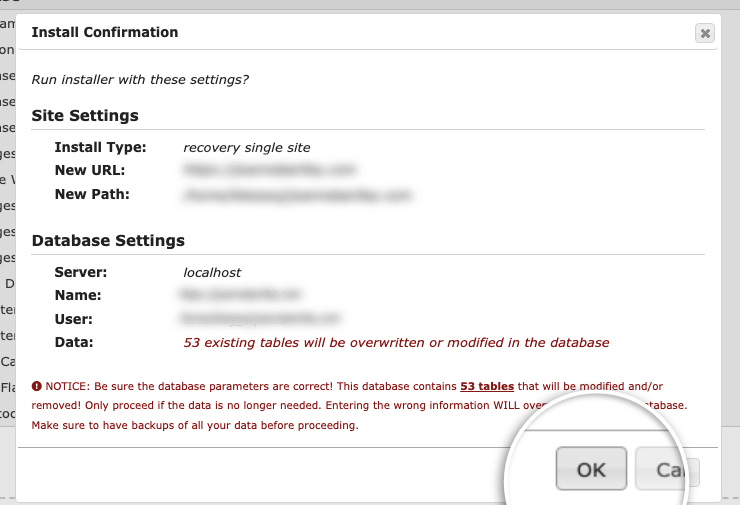
Duplicator Pro will then:
- Upload the backup files
- Extract the archive
- Import the database
- Replace current files
- If necessary, update the URLs
This will take 15-30 minutes depending on the backup size.
Post-restore cleanup
When the restore is complete, a cleanup screen will appear. Check the box here: Automatically delete installation files after login (recommended for safety reasons).
Then click on “Admin Login” to be redirected Duplicator Pro » Tools.
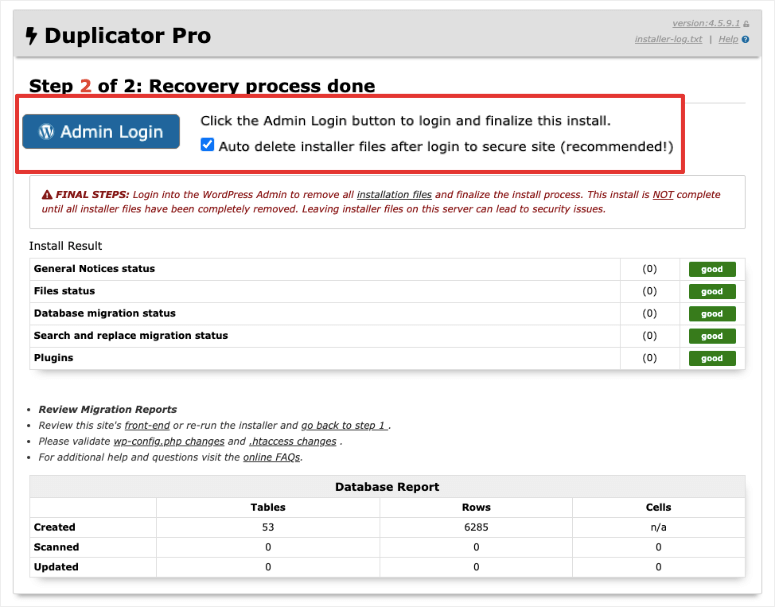
Here you can see recommended cleanup actions:
- Delete installation files
- Remove backup orphans
- Clear the build cache
Click the buttons to complete the cleanup.
Final Verification:
- Visit your main page and two to three subpages to make sure everything loads correctly.
- Test logging in with your administrator account.
- Check if media files are displayed properly.
That’s it. You can now restore your WordPress multisite network with a plugin or manually.
Which method should you use? – Quick table
I’ve created a quick table comparing the manual and plugin methods for securing your WordPress multisite.
| When should the manual method be used? | When should Duplicator Pro be used? |
|---|---|
|
|
Common Mistakes to Avoid – Quick Table
Let me save you from the painful lessons I learned the hard way. Check out the quick table below.
| ❌ Critical errors | ✅ Success habits |
|---|---|
| ❌ Using plugin without checking multisite support Always check before installing. Free Duplicator and WPvivid Free do not support multisite. |
✅ Use a multi-site compatible backup solution Duplicator Pro, UpdraftPlus Premium or BlogVault. Check support before purchasing. |
| ❌ Only databases OR only files are backed up Both are required. One without the other is useless for recovery. |
✅ Automate your backups Set it up once, then forget it. Manual backups can easily be skipped. |
| ❌ Store backups only on the same server If the server crashes, the backups also crash. Always store off-site. |
✅ Store backups in multiple locations Local server, cloud storage and personal computer. Follow the 3-2-1 rule. |
| ❌ Never test recovery If you never test, you won’t know if backups work. Test monthly. |
✅ Test recovery monthly Select the first Saturday of every month. Takes 30 minutes. Ensures backups work. |
| ❌ No protection against major changes WordPress updates, new plugins, theme changes. Save ten minutes now days later. |
✅ Always create a backup before making changes Do this automatically. Before you update anything, create a backup. No exceptions. |
| ❌ Forget wp-config.php and .htaccess Critical multisite configuration files. Without it, recovery will fail. |
✅ Document your backup procedures Note your processes, locations and disaster recovery URLs. |
I hope you enjoyed reading about how to secure your multisite on WordPress. If something is unclear, check out the frequently asked questions below.
FAQs: How to Secure WordPress Multisite
Do I really need Duplicator Pro for multisite WordPress backups?
Yes, the free version of Duplicator does NOT support WordPress Multisite. For multisite backups you must use Duplicator Pro. The free version of Duplicator Pro allows you to backup and restore a single site either locally on your PC or to cloud storage.
How often should I back up my multisite network?
At least daily backups for active networks. Every 12 hours for e-commerce or high-traffic websites where you constantly process orders and registrations. Weekly backups work for low-traffic networks that rarely change. Additionally, always create a manual backup before making major changes such as WordPress updates or plugin installations.
Can I back up just a subsite instead of the entire network?
No. With Duplicator Pro you can exclude certain subpages from a backup. However, you cannot back up a single subsite independently because they all use the same database tables. The network tables (wp_users, wp_blogs, wp_site) are shared by everyone. Securing a site without the network infrastructure will not work.
What if I can’t afford Duplicator Pro for multisite backup?
Use the manual method temporarily as a stopgap solution. It’s time consuming (1-2 hours per backup), but it works and costs nothing but your time. Set a goal to upgrade to Duplicator Pro within 3-6 months. Time savings and reliability should be a priority in your budget.
How long do backups take?
Manual backups: 1-2 hours of active work each. Duplicator Pro: 15-20 minutes initial setup, then 5-30 minutes per backup depending on network size (or automated overnight while you sleep). Small networks (1-10 locations) secure the fastest. Large networks (100+ sites) can take more than two hours even with Duplicator Pro.
What happens if my backup fails halfway?
With manual backups, you start from scratch. Use Duplicator Pro to check scan results before creating. The pre-backup scan detects most problems before they cause errors. Common problems include server timeouts (switching to DupArchive format) or insufficient disk space (use cloud storage instead).
Can I restore my multisite to a different domain or server?
Yes, Duplicator Pro does this automatically during recovery. It updates all URLs and paths for you. This is called migration. Manually restoring to a different domain requires searching and replacing in the database, which is complex and error-prone. Another reason why Duplicator Pro is worth it.
Do backups slow down my website?
During the backup process, yes, easily. Your server compresses files and exports databases, which consumes resources. For this reason, you should consider automated backups during low traffic times, such as: B. between 2 and 3 a.m., plan. Visitors don’t notice any slowdown during the day because backups run overnight.
Final Verdict: Should I Back Up My Multisite WordPress?
Absolutely, yes.
Your multisite network is like a home. In the event of a disaster, all locations are paralyzed at the same time. Without backups, you lose everything.
Here’s what I know now: Manual backups take 1-2 hours each time. Duplicator Pro takes 15 minutes once and then runs automatically while you sleep.
You can start with the manual approach but switch to the easier and faster plugin method as you grow.
My advice is to set up your backups today and test them monthly. Most importantly, store WordPress backup files in multiple locations. This way you have a backup of your backup.
A good backup could save you hundreds of hours and prevent data loss.
Your future self will thank you.
Resource Hub
Now that you know how to secure your WordPress multisite, here are more tutorials to help you maintain and protect your network:
These guides will help you maintain a healthy, secure, and optimized multi-site network that is easy to back up and restore.
The better you protect and maintain your websites now, the easier disaster recovery will be.