
Building a WordPress website from scratch used to take weeks and cost thousands of dollars.
You hire a designer, wait for mockups, watch them code custom templates, and hope the result is what you want.
But here’s what’s changed: AI can now create a complete, functional WordPress site in minutes, not weeks.
I’ve tested three different methods for building WordPress sites with AI, and each of them will get you to a live site faster than you think possible.
By the end of this guide, you will understand which method best suits your situation.
You can create your own website using the approach that makes the most sense for your budget and technical comfort level.
What you will learn:
- How to Build a Complete WordPress Site with AI in Under a Minute
- The difference between page builder AI, hosting provider AI and plugin-based AI features
- Which method works best for your budget and skill level
- How to customize AI-generated websites without writing a single line of code
- Where to add AI features to an existing WordPress site for targeted improvements?
Key insights
- I’ll show you three different methods for building WordPress sites with AI. Each solves the problem of setup time and design complexity
- I cover SeedProd for speed, hosting providers for all-in-one setup, and WordPress plugins for adding AI to existing websites
- Make the crucial adjustment step visible: AI creates your foundation, but you retain full control to make it truly yours
- I’ll walk through the complete workflow for each method so you can have a published WordPress site in under an hour
What we will achieve in this tutorial
Once you’ve gone through this guide, you’ll know how to use artificial intelligence to create a fully functional WordPress website.
Your website is live, customizable and ready to add your content. There is no programming required as every step is a click away, from initial setup to final customization.
The beauty of AI-powered website creation is that it does the heavy lifting: layout, initial text, color schemes and basic design elements are created in seconds.
Your job is simply to review what the AI creates and make it your own by customizing it.
Check out the GIF below to see an example of a WordPress site built entirely with AI.
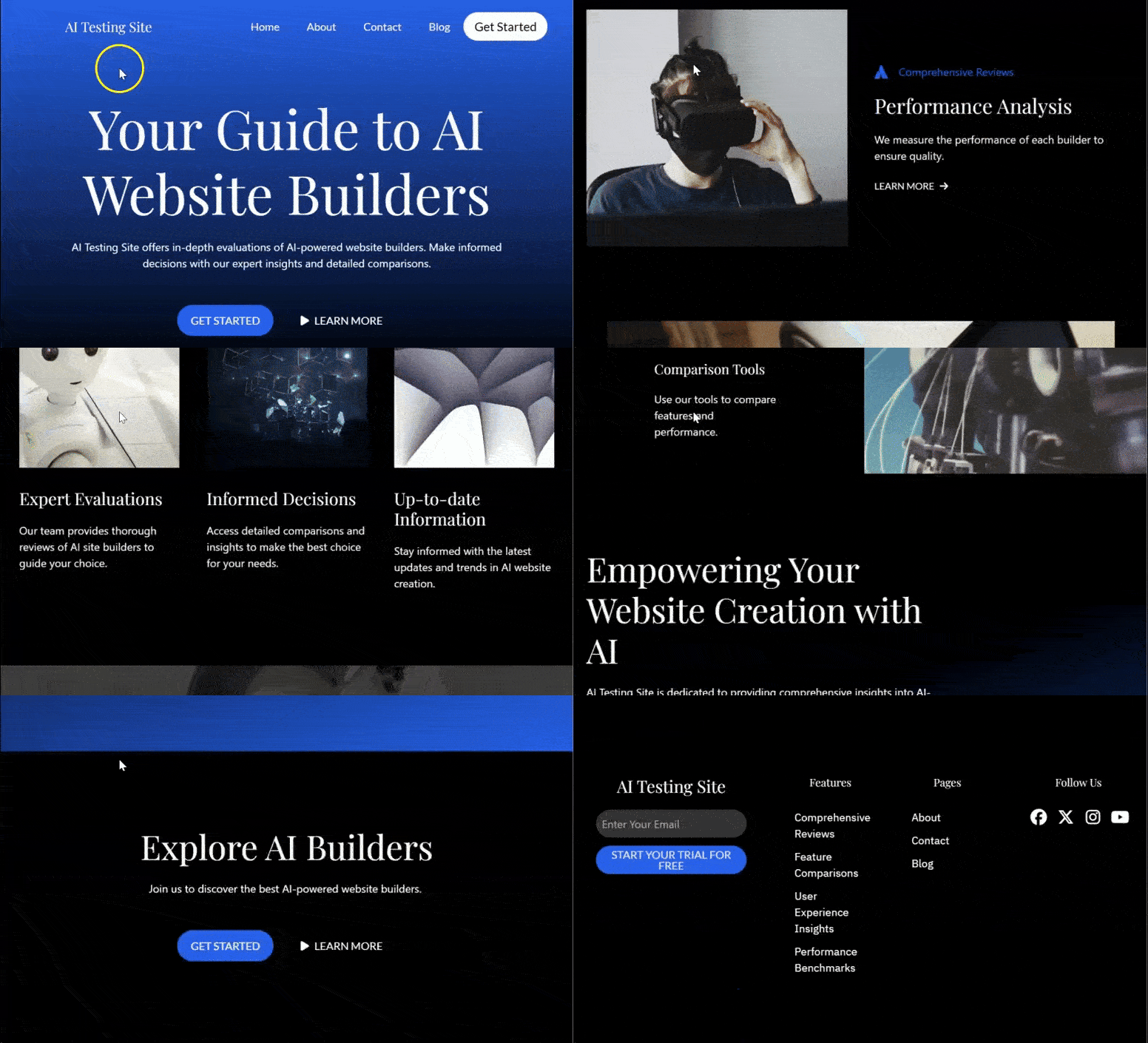
A ready-made WordPress website homepage built with AI, content ready and fully customized
What you need before we begin
Skill level: beginner
Time to completion: 30-45 minutes per method (60-90 minutes if you want to try all three)
Before we begin, here’s what you should know.
If you’re completely new to WordPress, don’t worry, we’ll walk you through every step and you won’t have to touch any code or deal with server settings.
Each method handles hosting and WordPress installation differently, which is actually one of the biggest advantages of these approaches.
Some methods include hosting, while others assume you already have a working WordPress site. No matter which route you choose, you will end up with a functioning website.
Quick comparison: All four methods
Here’s a quick overview of the four approaches so you can decide which best suits your needs:
| Special feature | Seed Prod | Divi | Bluehost | Hostinger |
|---|---|---|---|---|
| Ease of use | ⭐⭐⭐⭐⭐ Very simple | ⭐⭐⭐⭐ Intermediate | ⭐⭐⭐⭐⭐ Very simple | ⭐⭐⭐⭐⭐ Very simple |
| Prices | Try for free starting at $39.50/year | Starts at $89/year | Starting at $2.99/month | Starts at $2.69/month |
| Best for | Speed and free tests | Maximum design control | All-in-one setup | Budget hosting + AI content |
| main feature | Complete website in 60 seconds, free trial | Advanced page builder, design flexibility | Full website upon registration, including hosting | AI content generator for posts/pages |
| Time to Live site | ~20 minutes (if you have hosting) | ~30 minutes | ~15 minutes | ~20 minutes |
| Hosting included | ❌ No (you buy it separately) | ❌ No (you buy it separately) | ✅ Yes (included) | ✅ Yes (included) |
| WordPress required | ✅ Yes (but try it for free first) | ✅ Yes (required) | ✅ Yes (preinstalled) | ✅ Yes (preinstalled) |
| Adjustment | AI or drag and drop | Advanced drag and drop | AI or drag and drop | AI content + manual pages |
Breakdown of method comparison
Choose Seed Prod If: You want to find the fastest way to a fully AI-generated website and try it for free before paying for hosting. You are ready to purchase hosting separately.
Choose Divi if: You want maximum design flexibility and plan to build multiple locations. You are happy with a more feature-rich page builder and can purchase hosting separately.
Choose Bluehost if: You want everything in one place; Hosting, domain and a full AI site builder – all at sign up. They prefer simplicity over customization options.
Choose Hostinger if: You want budget-friendly hosting and plan to generate individual posts and pages using AI instead of a completely pre-built website. You build your website one page at a time.
How to create a WordPress website with AI
Now that you have an overview of everything you need, how much time it will take you, and what each method offers, let’s start diving into each method.
I’ve created a table of contents below so you can see all the steps at a glance. You can also click any link below to jump to this section.
Method 1: AI Page Builder (Easiest and Fastest)
The easiest way to create a WordPress site with AI is with a page builder.
These tools allow you to describe what type of website you want and the AI will generate all the layout, design and starter content for you in seconds. Then adapt it to your vision.
Seed Prod: Complete AI website in under 60 seconds (plus free trials)

Seed Prod is specifically designed for creating WordPress-first sites. If speed is a priority for you and you want to test an AI-generated website for free before committing to hosting, I recommend this method.
What impressed me is that you can create a complete, fully functional AI website in under 60 seconds on SeedProd’s proprietary platform. No WordPress is required yet.
Then test it, customize it, and only when you’re happy with it do you need to install WordPress and import your theme.
Also, AI site generation is completely free to test (you can create up to 3 sites), but to import your theme into your own WordPress site, you need the Pro version.
You can check out the full SeedProd review if you want to learn more about what it offers beyond AI site generation.
Step 1: Go to SeedProd’s AI Site Builder (no WordPress required yet)
Open your web browser and visit the official SeedProd website. Then select “Create my website with AI for free now” on this page. This will redirect you ai.seedprod.com.
This is SeedProd’s standalone AI platform. It is completely independent of WordPress.
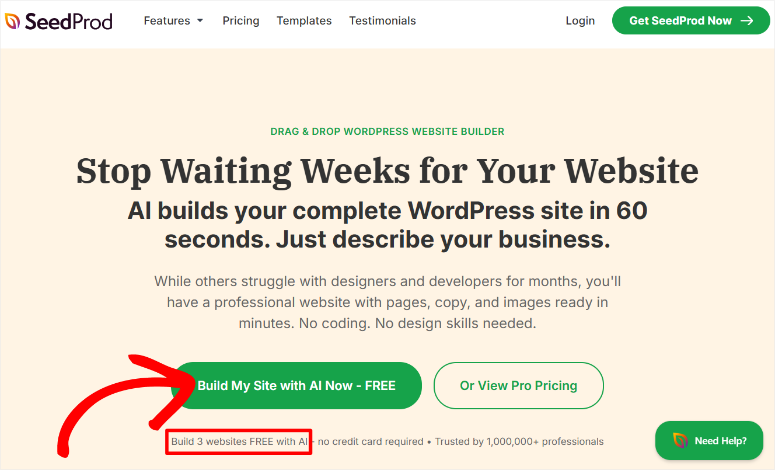
You can create a free account using just your email address. With this free account you can build up to 3 full websites with AI, completely free, no credit card required.
Once you have entered your email address, click the “Continue” button to get started.

SeedProd’s AI site builder at ai.seedprod.com. Free to try out
Step 2: Describe your company to the AI
After that, you will land on the dashboard of your AI sites. Then select “Create a site with AI” on this page.
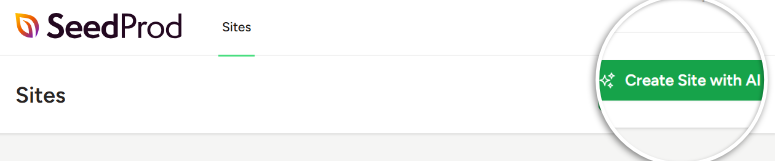
On the next screen, SeedProd asks you for your company name and a brief description of what you do.
Here you need to be as specific as possible. The more detail you provide about the AI, the better the result.
Instead of “I have a business,” try something like “I’m a freelance copywriter who specializes in SaaS companies” or “I run a local dog training business in Denver.”
Tell the AI what you offer and who you serve.
After that, you can choose colors, but we’ll leave it at that Select “My Colors.” reviewed to fully automate the process of creating a website using AI.
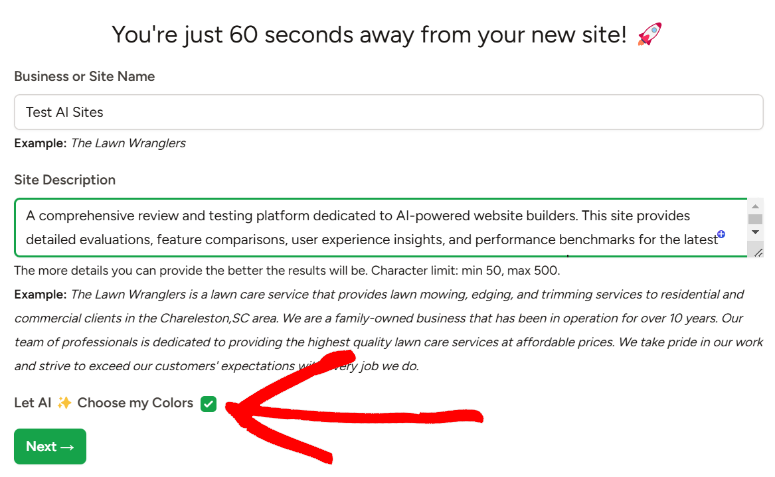
Describe your business to lead AI. Be specific
Step 3: Let the AI generate your entire website
After you submit your description, SeedProd’s AI takes effect. You can monitor the process using the progress bar that appears. This will also help you identify any errors.
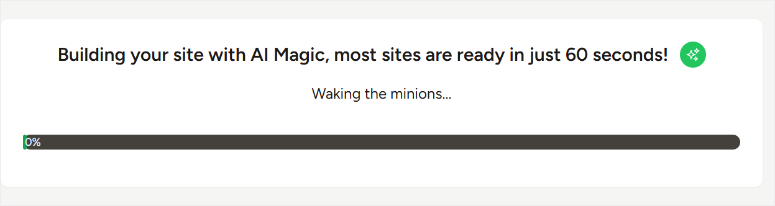
A complete website will appear in about 60 seconds. My website took 32 seconds to build with SeedProd’s AI. Then simply click on the link that appears to be redirected to the website you just created.

Here’s the advantage: As you can see, you can now actually visit and test this website.
SeedProd gives you a live preview of your AI-generated website, and you can click around, see how it looks on different devices, try out the contact form, and everything else.
This is a fully functional website that you can test before investing in WordPress or hosting.
If you like it, great, move on to the next step. If you want to see different options, you can tell the AI to regenerate and try again. Still completely free.
On the website I created, I had a homepage, an about page, service pages, a contact page and a footer.
The layout was professional, the text is written, images are inserted and colors are selected. All in less than a minute.
When I first saw this I was really impressed. The AI understood my business description and created something that actually looked like a real website and not a template.
Check out the GIF below to see the website I built using AI.
Your complete AI-generated website appears in seconds
Step 4: Export your AI-generated design
Once you’re happy with your AI-generated site, export the theme files so you can later import them into your own WordPress site.
In the SeedProd dashboard, look for the WordPress icon (it looks like a “W”). Click on it to access a temporary WordPress admin panel for your generated site.
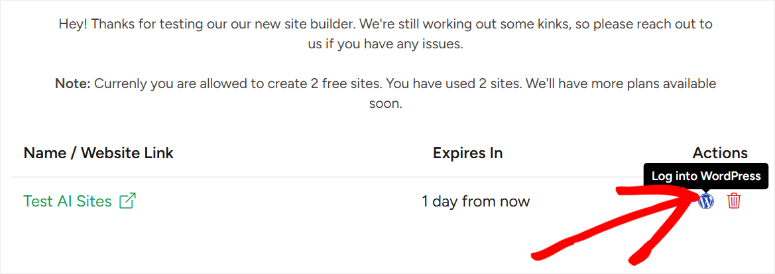
From there, navigate to SeedProd » Import/Export and click Export theme files. This will download a file to your computer. This is your theme, ready to import into your WordPress.
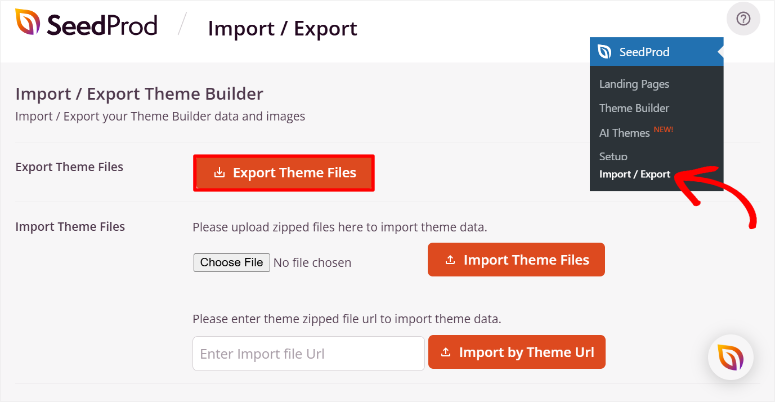
Export your theme files from the SeedProd dashboard
⚠️ Note: You don’t have WordPress yet. You’re just downloading the files for later. That’s why SeedProd is so smart. You test everything before you buy hosting.
Step 5: Set Up WordPress (Now That You’re Ready)
After you’ve tested your AI-generated website and are confident in its design, it’s time to set up WordPress.
Get hosting and a domain from any WordPress compatible host like Bluehost, DreamHost, SiteGround or any other provider. To help you get started, I’ll compare the best hosting providers for beginners here.
Most hosts perform WordPress installation automatically, so you’ll have a blank WordPress site running on your domain within a few minutes.
Step 6: Install SeedProd plugin and import your theme
Next you need to buy one SeedProd Pro License to access the import function. The Pro version allows you to import your AI-generated theme from the previous steps.
Once you have purchased SeedProd Pro, log in to your account, download the file and copy the license key. You need it to activate the Pro version.
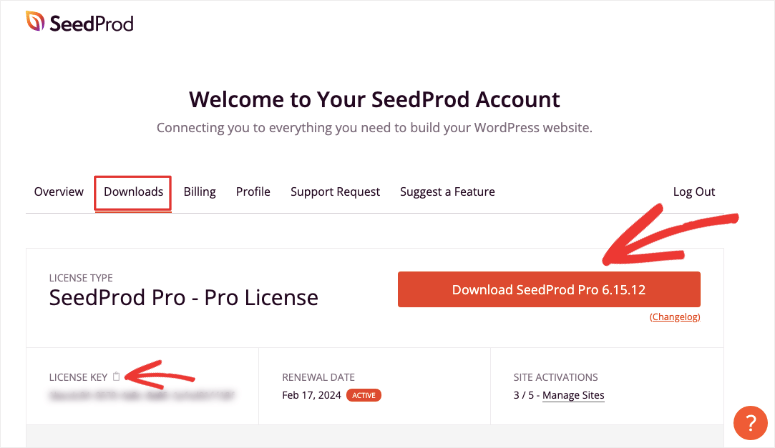
Then go to your WordPress site and install and activate SeedProd like any other plugin. If you encounter any problems, here is a step-by-step guide on how to install plugins.
You will also find instructions for installing SeedProd here.
Once setup, you will be asked to log in with your SeedProd account (the same one you used at ai.seedprod.com).
Then go to SeedProd » Import/Export in your WordPress dashboard and upload the theme files you exported in step 4.
Click Import theme files. SeedProd installs your entire AI-generated theme onto your WordPress site.
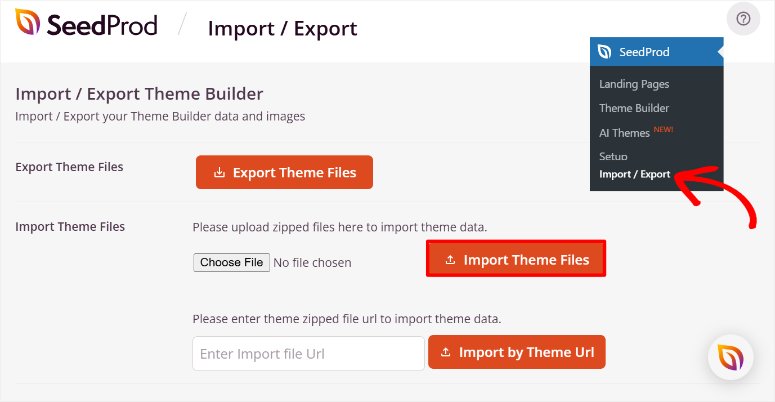
Import your AI-generated theme into WordPress
Step 7: Customize further with AI or use drag and drop
Now your AI theme is in WordPress and here is the powerful part: You are not bound by what the AI generated. You have two options for customization.
Option A: Use SeedProd’s AI tools for further refinement.
Go to SeedProd » Theme Builder » Edit Theme.
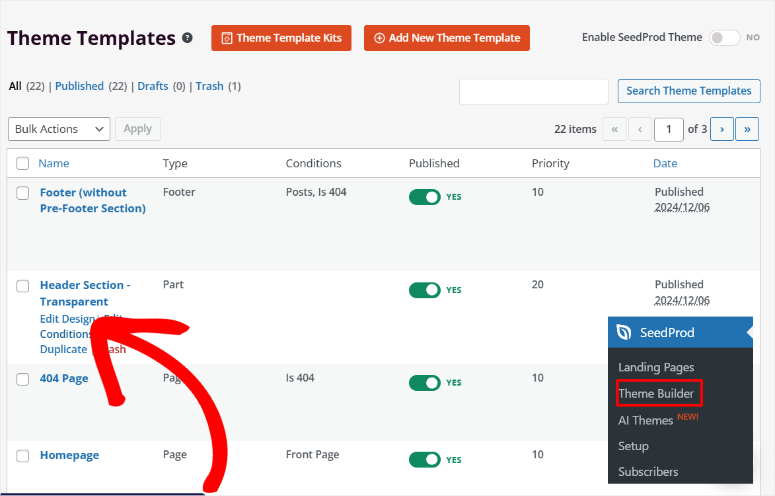
Here you can ask the AI to rewrite sections, change design direction, regenerate certain pages, or adjust colors.
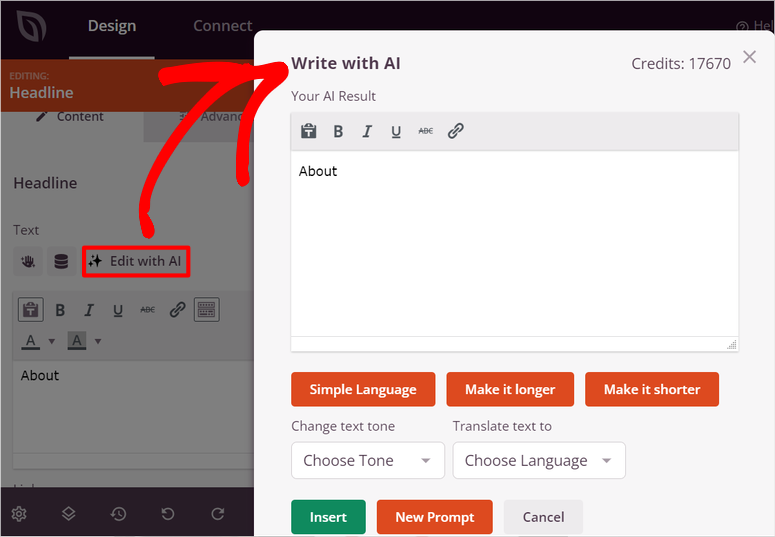
If you don’t like the AI’s copy of a particular section, select it and ask the AI to rewrite it in a different tone. They take AI in new directions and still benefit from its speed.
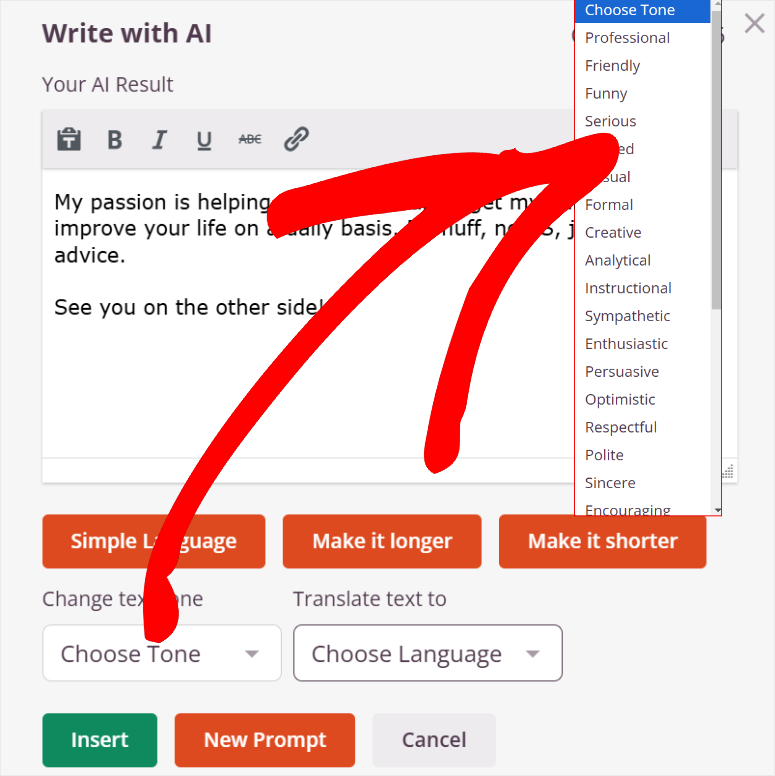
For a full breakdown of how to customize your custom theme with AI, click here.
But you can not only change or adapt the content, but also the images with AI. They use the same process as with content. Select the image you want to adjust.
Then click the “Add with AI” button.
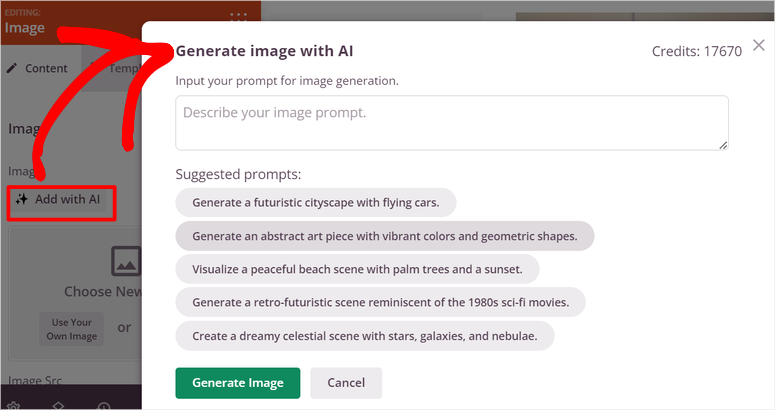
Here’s a complete breakdown of how to create WordPress images with AI.
Option B: Use the traditional drag-and-drop builder.
Open the page editor and customize it manually. Change colors, move blocks, add your own images, rewrite text exactly how you want, and adjust fonts and spacing.
Everything can be edited by dragging, dropping and clicking.
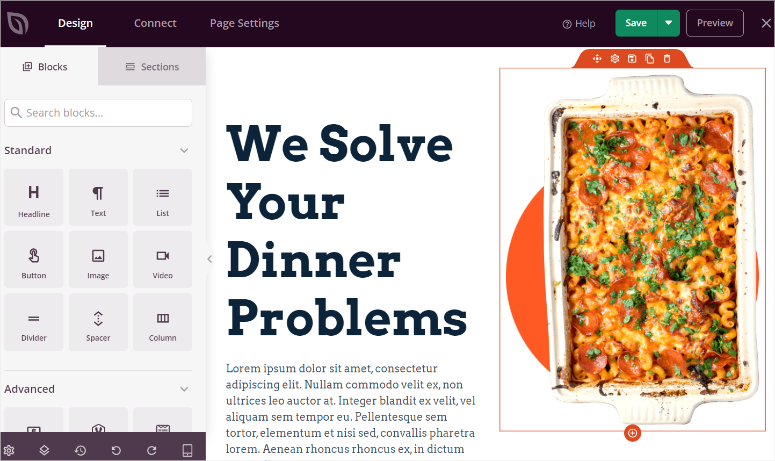
Most people combine both approaches. You can use AI to refine the headline and body text, then drag and drop to adjust the colors and add your logo. You are always in control.
Step 8: Add or edit your content
Your website now has the AI structure and starting content. This is where you really make it yours.
Go through each page and replace the generic text with your actual business information, actual photos, and actual services or products.
Update the contact information to yours. Customize forms with the information you actually want to collect.
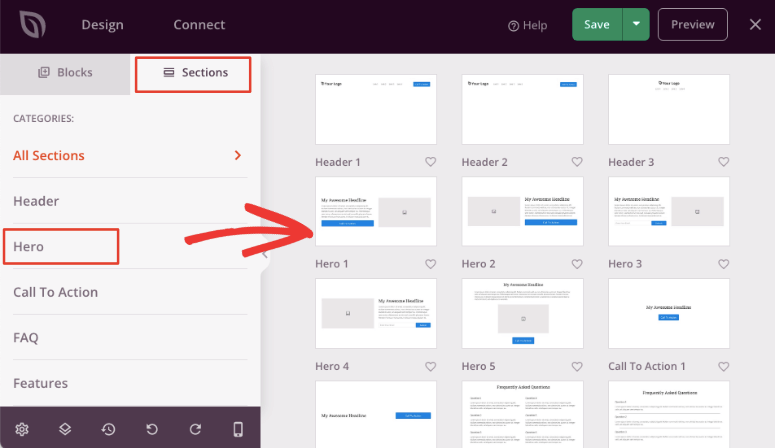
You don’t have to rewrite everything from scratch; The structure and copy of the AI give you a template. Keep what works, change what doesn’t.
AI has laid a solid foundation; You just make it authentic to your company.
Step 9: Publish your website
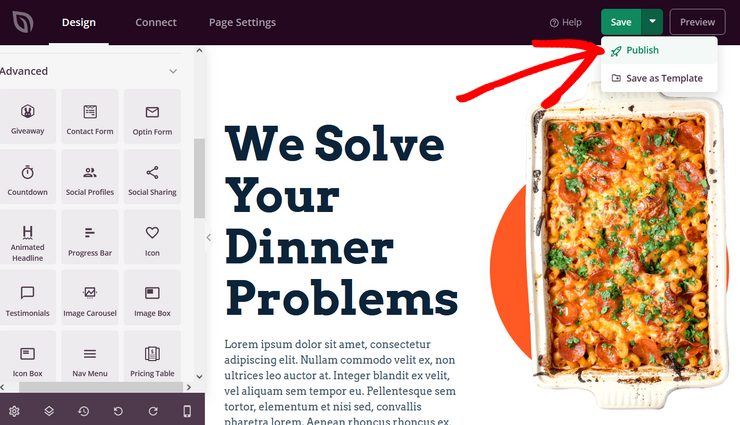
Once everything looks and sounds right for your business, click Save and Publish It. Your website is now online under your domain. People can visit, click around, fill out forms, and interact with anything you’ve created.
⚠️ Quick Check: Visit your live site from an incognito browser window. Click through the pages, test any forms, and view them on your phone. Everything should work smoothly.
Divi: Page Builder with AI site generation
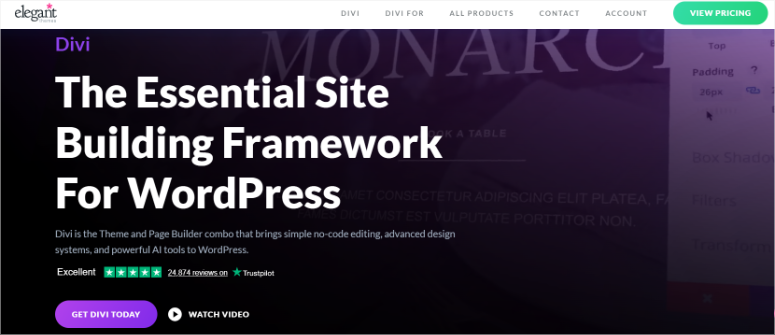
Divi’s Quick Sites feature brings AI to the builder experience. Divi is owned by Elegant Themes and powers millions of WordPress sites.
It offers more complex features, but the AI component makes it easier to get started.
Divi Quick Sites generates a complete website, just like SeedProd, but then you customize it in Divi’s full-featured page builder.
If you think you want to create multiple websites or need serious design customization later, Divi could be your tool.
You need to install WordPress first, just like SeedProd. Once WordPress is running, you will find the Divi path here.
Step 1: Install and activate Divi
Now you can purchase the Divi Page Builder either as a standalone plugin that only comes with the Visual Builder. This can help you design individual pages or an entire website with AI.
However, we want to show you how to use AI to create an entire website with custom themes. Therefore, for this tutorial we will be using the Divi Theme & Page Builder plan.
First, visit Divi’s official website and purchase a plan. Then go to your Divi dashboard and select Account » Product Downloads.
Download the theme ZIP file to your PC here.
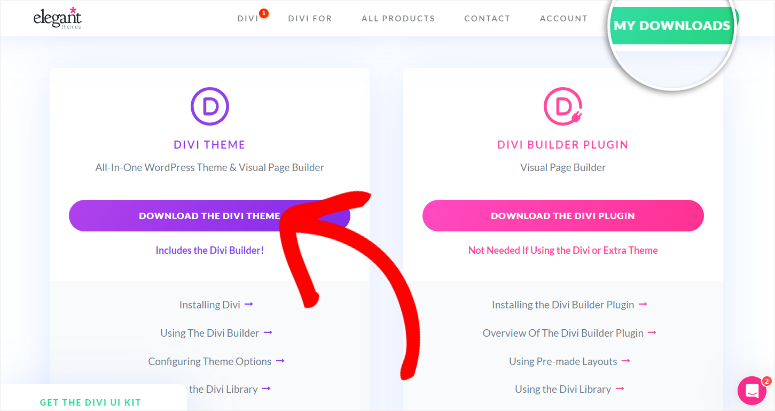
Then go to your WordPress dashboard and navigate to Appearance » Upload theme. Install and activate Divi Theme & Page Builder like any other.
Remember: If you only purchase the page builder, install it as a plugin.
Once installed, Divi will ask you to log in to your account to connect it to WordPress. This will also create a new key in your Divi account.
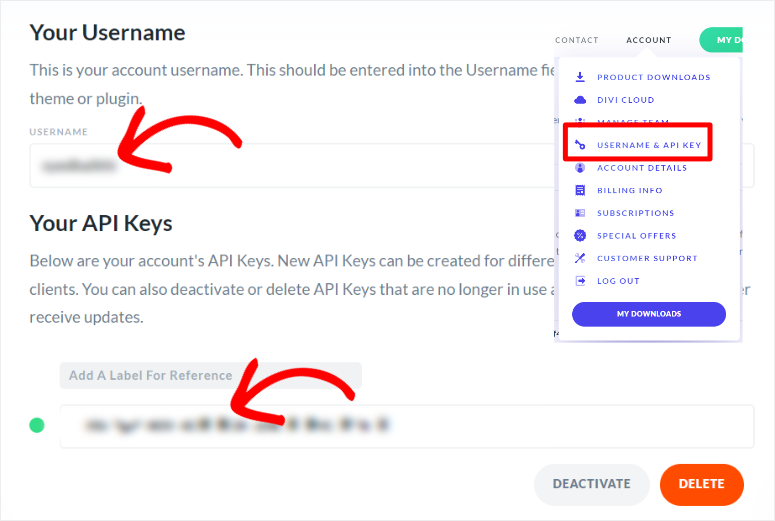
That’s it, you are ready to use Divi.
Step 2: Use AI to build your website
Next go to Divi » Dashboard and select “Create new site”.
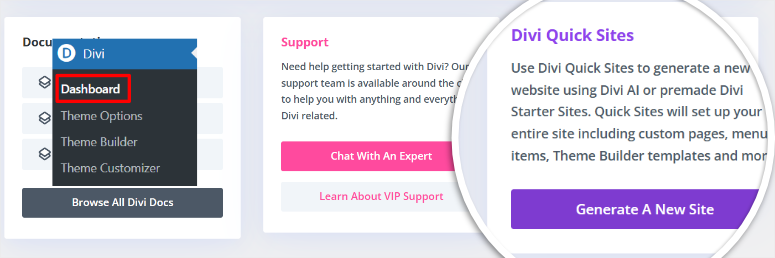
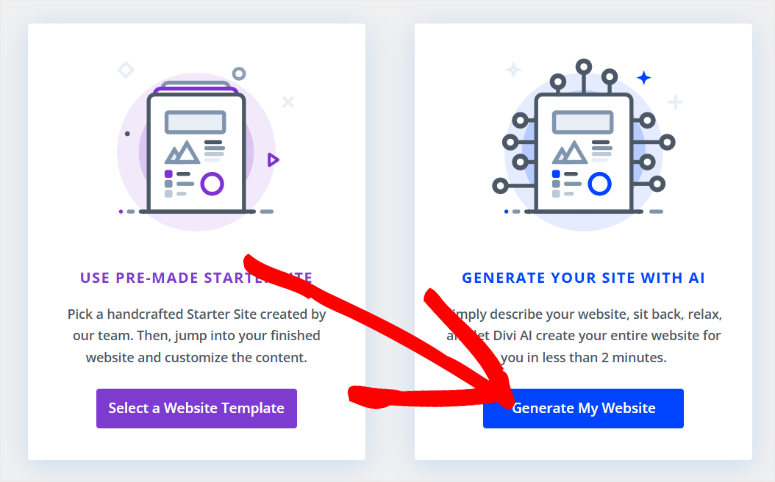
On the next page you will have the option to create a website using the “Choose a website template” option.” However, for this tutorial we will select “Generate my website”.
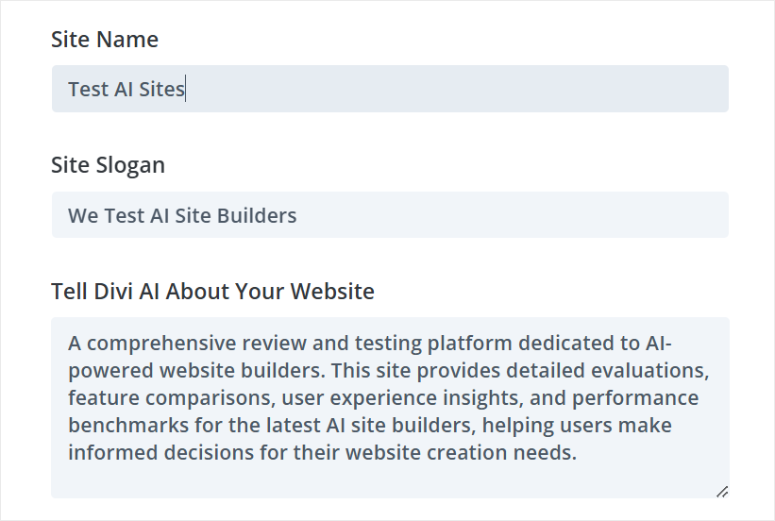
Then, in the next popup, enter the site name, site tagline and enter your site’s description in Divi AI.
Tip: If you want a better description to import into Divi AI, we recommend using ChatGPT. Tell ChatGPT about the website you want to create and a suitable description will be created.
After pasting your website description under “Tell Divi AI about your website,” scroll to the “Ecommerce” section. Check “Install and configure WooCommerce” here if you want to create an AI eCommerce store.
Then go to “Images” and use the checkboxes to choose between “Use stock images” to ensure your website is built faster with AI. If you plan to insert your own photos, check the “Use placeholder images” box.
But for our website we will choose “Generate images with AI”. Since creating AI images requires more computing power, it takes more time to create the website with this option.
However, this ensures that our website is built entirely with AI, which is the main goal of this tutorial.
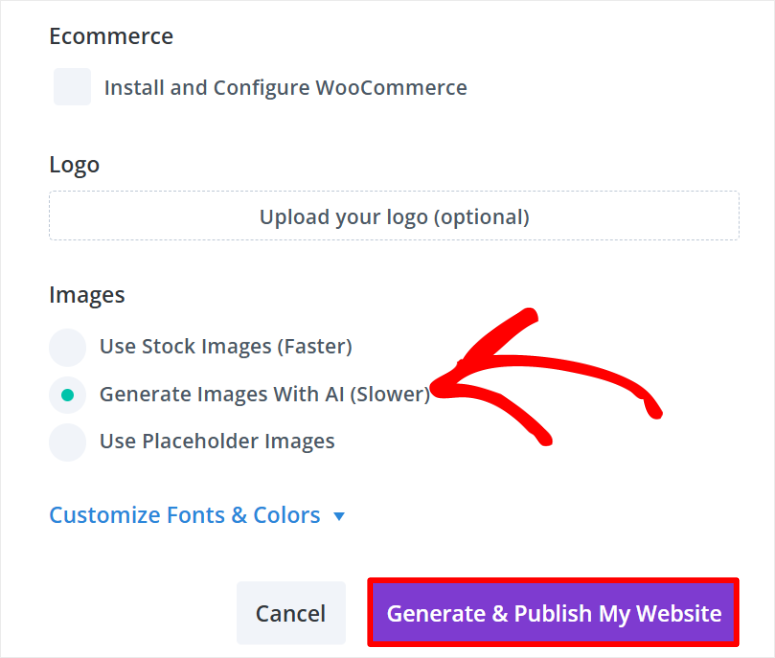
Finally, click “Generate and publish website”.
Give Divi AI a few minutes to create your website. Once the process is complete, Divi will reload the page and give you the opportunity to view your new AI-built WordPress site.
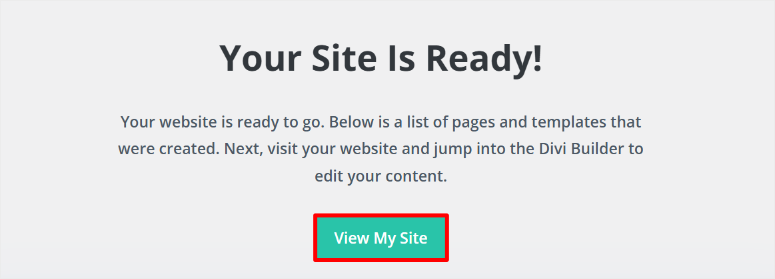
It’s that simple.
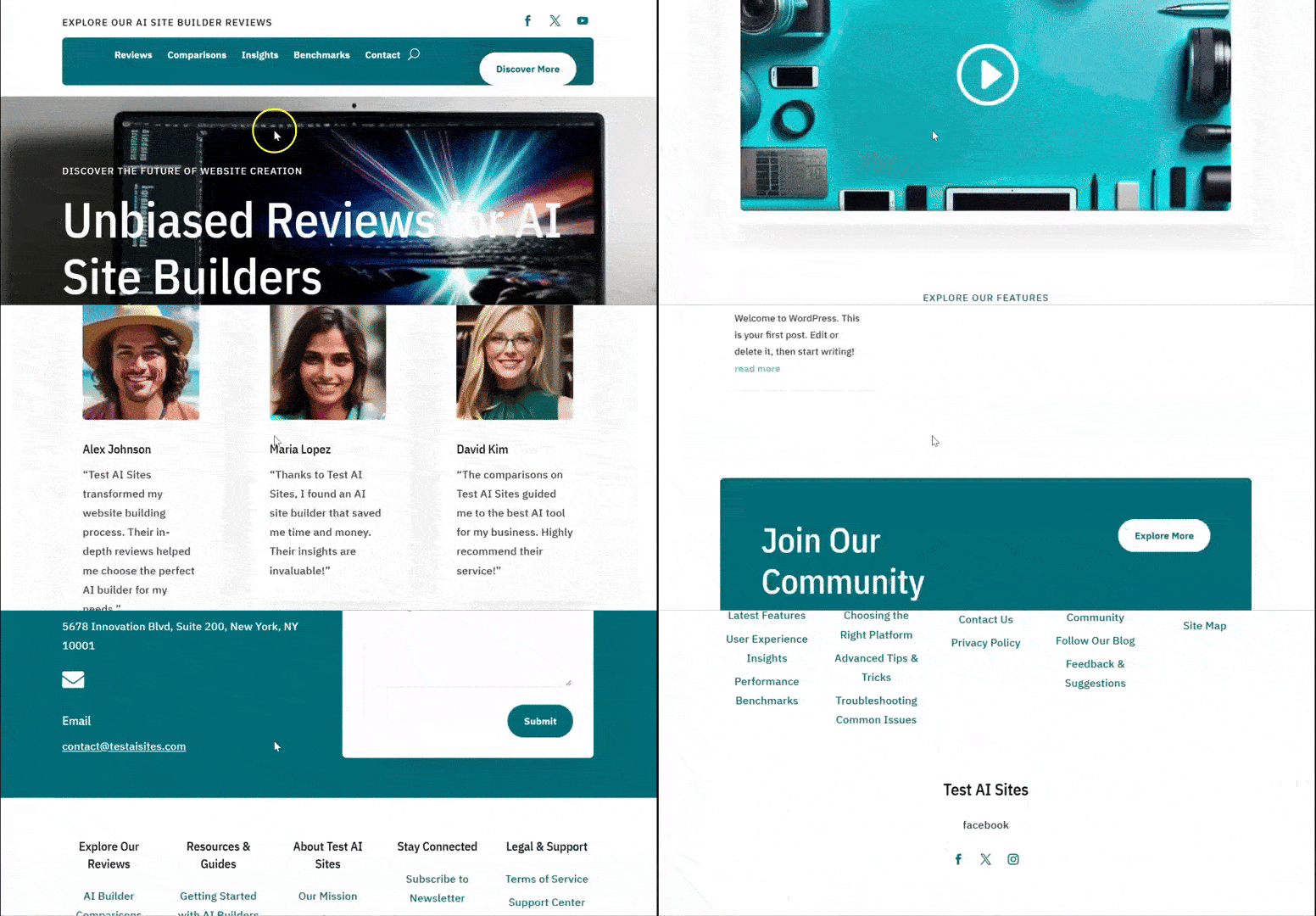
Each website will be different depending on the description you have provided to Divi AI. For example, Divi created multiple pages and page sections according to the description we provided for our AI site.
It automatically embeds a YouTube video, which requires some programming experience. In addition, service, review, blog and community forum pages were created.
Divi AI also designed page sections like a contact form, footer notes, header, social media icons, and more.
Each link takes us to a well-filled page with already filled page modules, content and images. For example, Divi Ai has generated first-hand reviews, star ratings, quotes, an FAQ section, and more.
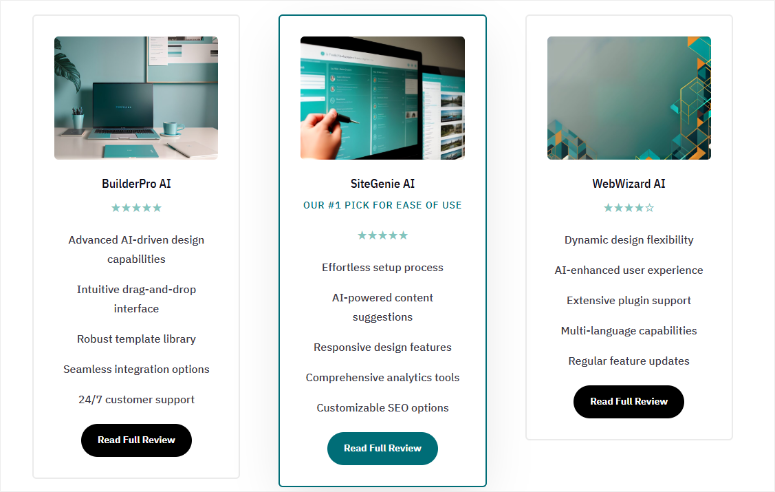
That’s it! You can now create an AI website with Divi. Now you can customize the pages and theme to your liking.
Step 3: Customize the AI WordPress site
Just like SeedProd, Divi allows you to customize the theme files to add global and site-wide changes. Or simply customize the pages to add unique designs for individual pages. We’ll walk you through both.
To customize your AI-generated theme with this site builder, head to Divi » Theme Builder.
Here you can use the Divi Theme Builder to customize the overall layout of the site with a drag-and-drop interface. Every part of the theme is neatly laid out on this page, so you can quickly choose what you want to change.
You can personalize the default website template, all category pages, all author pages, 404 page, all posts and search results. If the theme is missing a site section, Divi allows you to create one by selecting “Add New Template.”
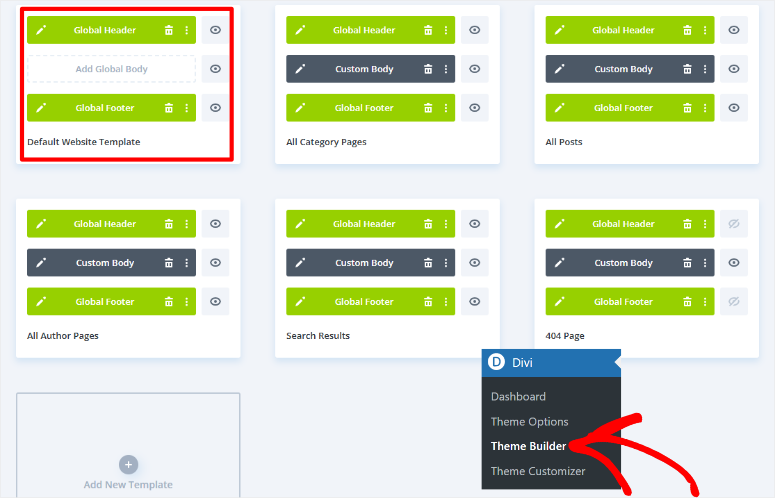
You use the same process to customize each of these topic sections using Divi. But for our tutorial we will adapt this Global header in the “Standard Website Template”.
This allows the same header to appear on all pages of your AI site.
To do this, hover over the tab so that you can drag and drop the different sections to a new position. You can delete the subject area by selecting the trash can icon if you don’t want it.
To customize the theme panel, select the pencil icon to open the drag-and-drop builder.
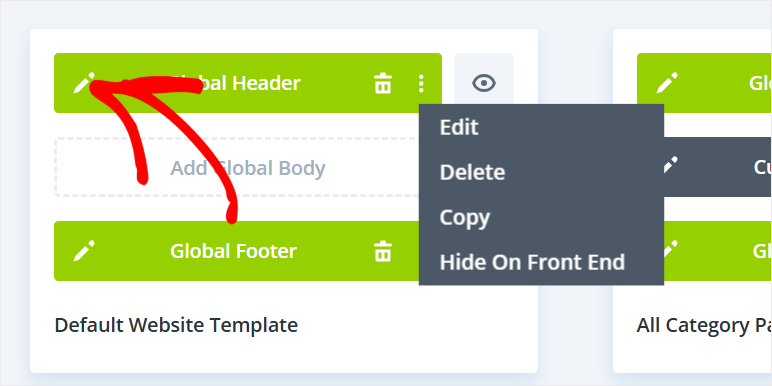
Since we are only customizing the global header, this is all that will appear in the visual builder, making it easier for you to edit.
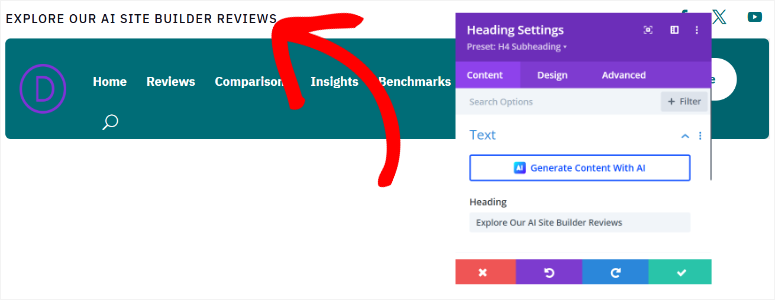
Divi allows you to edit the content of the page by selecting the text section and typing whatever you want. Additionally, you can use AI to customize any content you want.
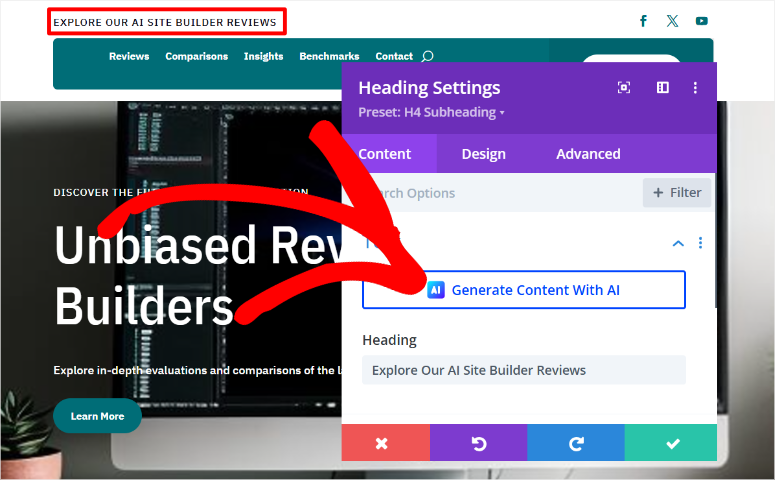
To customize a module in the theme pane, select it to open a settings popup. Here you can adjust the text color, font style, font size, spacing, and more. You can also add links to the text or buttons to the section.
To add a new section, select it Plus (+) Icon under the head area. You can add the section from your library or use AI to generate it.
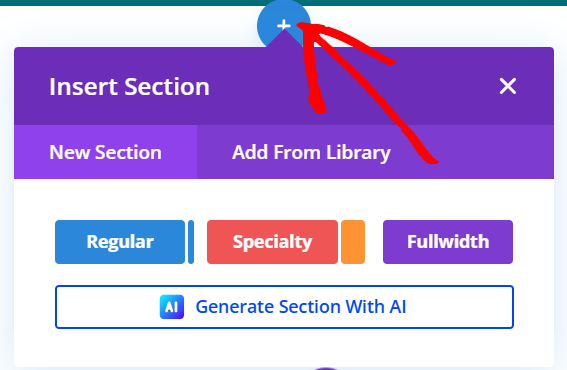
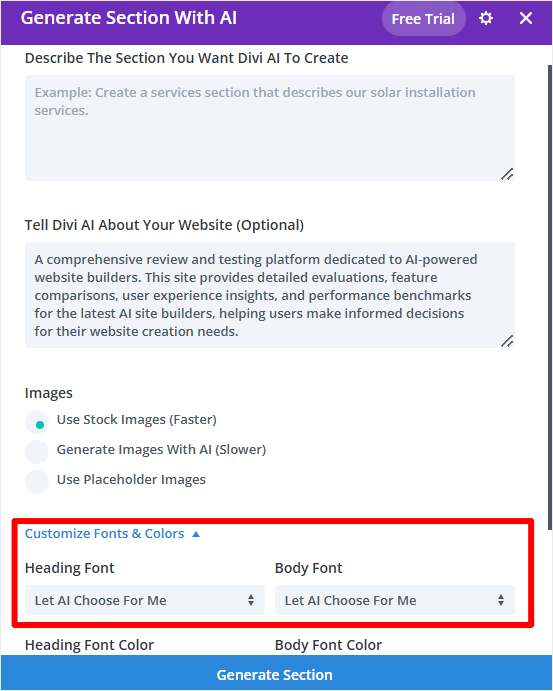
Again, you provide Divi with a detailed description to generate the desired section. But since Divi has already built an AI website for you, it has started learning what you need.
At this point, go to “Customize fonts and colors” and select “Let AI choose for me.”
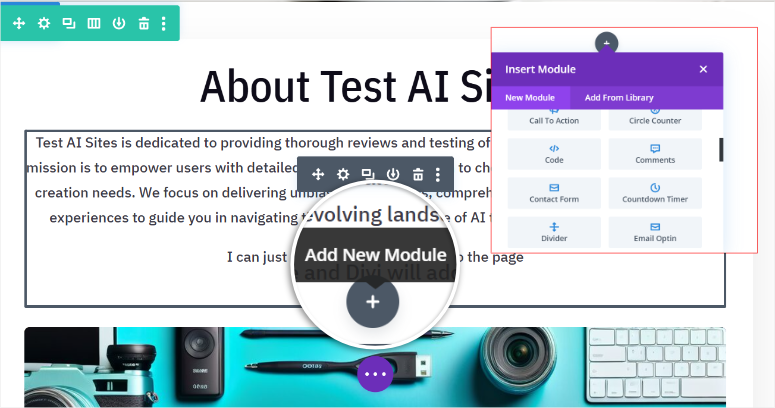
Once you have created a new section, you can use the plus sign (+) again to add modules to it. You can add modules like call-to-action, blog, comments, contact form, countdown timer and more.
When you’re happy with the design changes, click Save at the bottom of the page to apply them to your site.
Next, let’s look at how to customize a page with Divi.
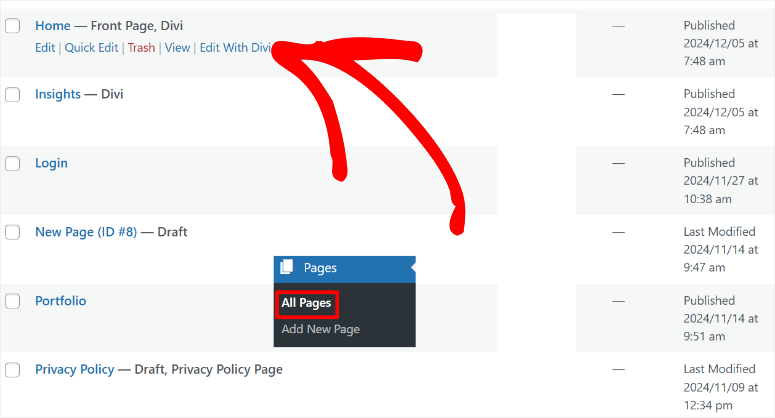
To do this, go to Pages » All pages in your WordPress dashboard. Here you will find a list of all the pages that Divi AI generated during the website creation process.
Let’s edit the homepage for this tutorial. To do this, go through the list of pages and find the page labeled “Home – Home, Divi”.
Then hover over it and select “Edit with Divi” to open the drag-and-drop page builder.
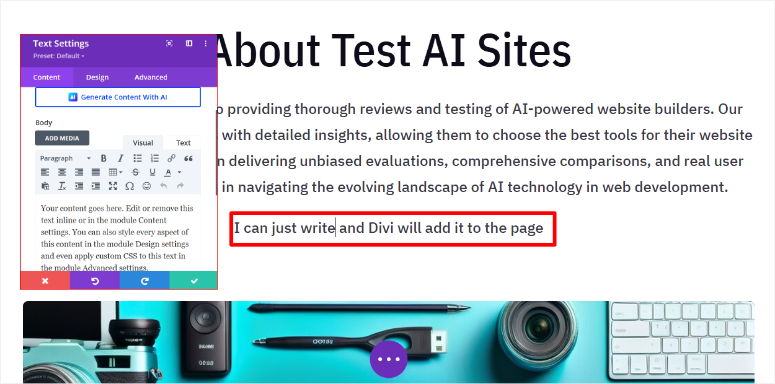
For consistency, use the same process to edit your pages as you did when customizing topic sections. So you use the plus sign (+) to add new modules. You can then edit them via the settings pop-up window when you select a module on the page.
Here, too, you can add content manually or generate it with AI. Additionally, you can regenerate the AI images created during site creation.
Check out this article on creating AI images in WordPress to learn more.
When you’re happy with your page changes, use the Save button at the bottom of the page to make them live.
That’s it. With Divi you can now build a complete WordPress site with AI. You can also customize it by combining Divi AI features with the drag-and-drop builder.
Method 2: Hosting Provider with Built-in AI (All-in-One Setup)
If you don’t have hosting yet and want the easiest experience possible, some hosting providers include AI site builders directly in their setup process.
You purchase hosting, choose your domain, and instead of a blank WordPress install, you’re guided through an AI site builder that creates your site as part of the hosting setup.
This approach is great because it combines hosting, domain registration, WordPress installation, and website creation into one streamlined process.
You don’t need to install any plugins or mess with WordPress settings. Everything happens in the hosting company’s interface.
Bluehost: AI site builder on signup

Bluehost’s AI site builder is integrated into the WordPress hosting login. When you purchase a Bluehost hosting plan, you get instant access to AI Builder.
The Bluehost approach is great if you’re starting from scratch. You sign up for hosting, get a domain, let the AI create your website and you’re done.
This means no separate plugin installation and no confusion with WordPress settings.
You can read the full Bluehost review to see what else the hosting includes. If you want to save money, check out our Bluehost coupon.
Step 1: Choose your Bluehost plan and domain
First, you need to purchase a hosting plan from Bluehost. If you don’t have a domain, don’t worry. You can also get a free domain with the IsItWP coupon.
Next, visit Bluehost’s official website and find a plan that’s right for you.
Next, log in to your Bluehost account and go to Hosting » Add Site.
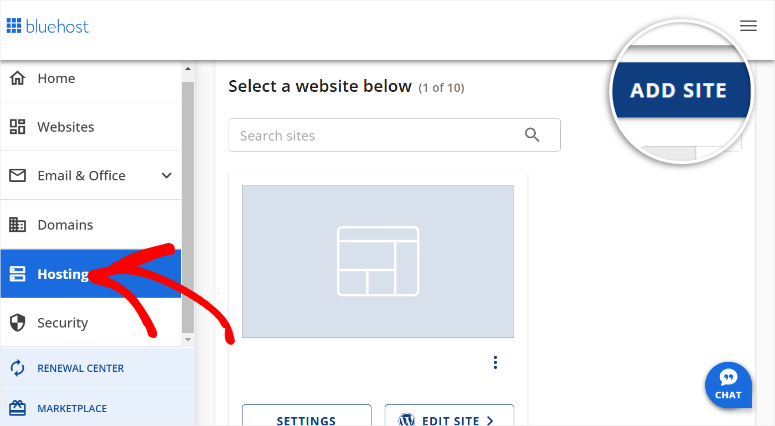
Next, add your domain and choose a site title for your website. Click Next to proceed to the next step.
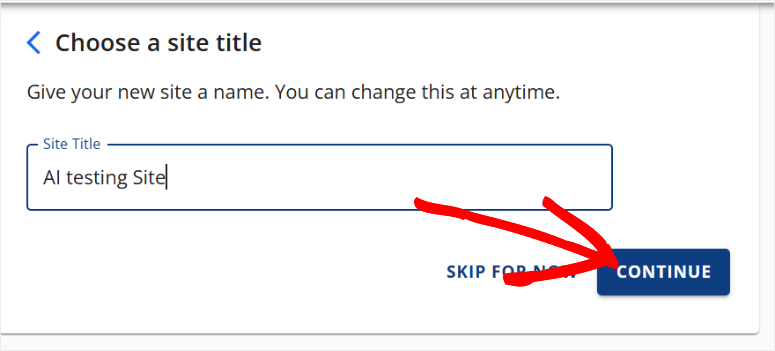
Step 2: Access the AI Site Builder during setup
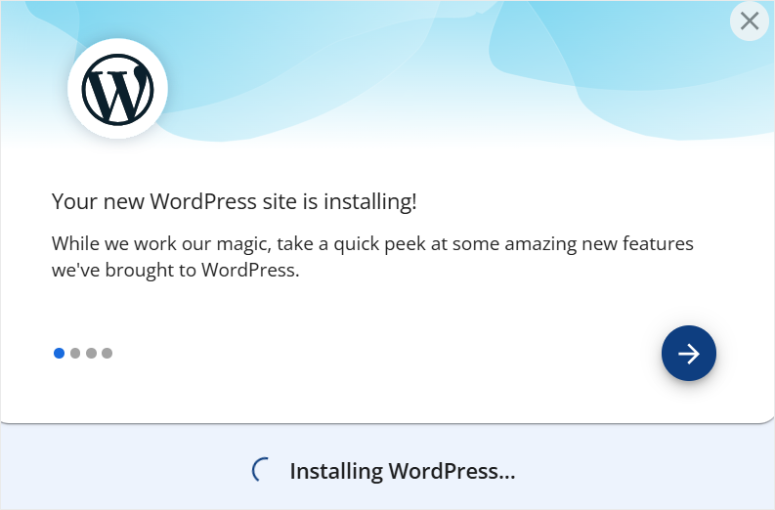
Next, enter your domain name, click “Next” and let Bluehost install WordPress.
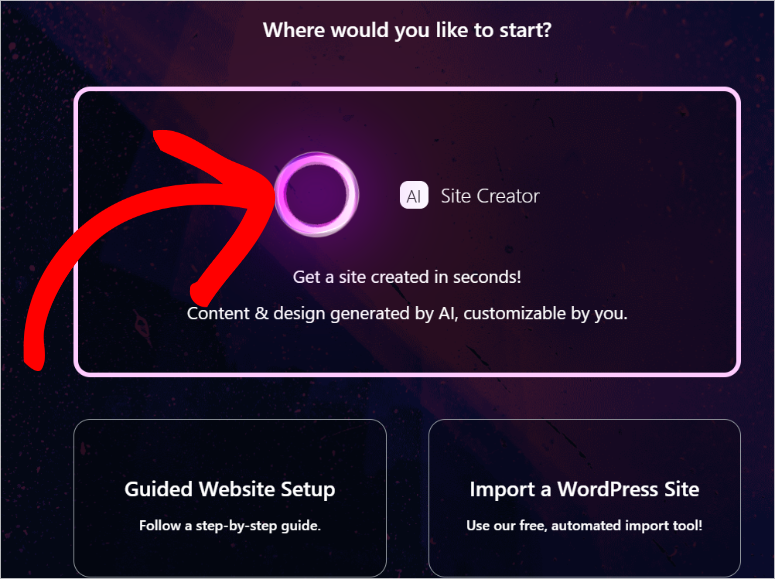
On the next screen, select AI Site Creator to start the website generation process.
Step 3: Tell the AI what type of website you are building
We will be using the AI site description again for this Bluehost tutorial.
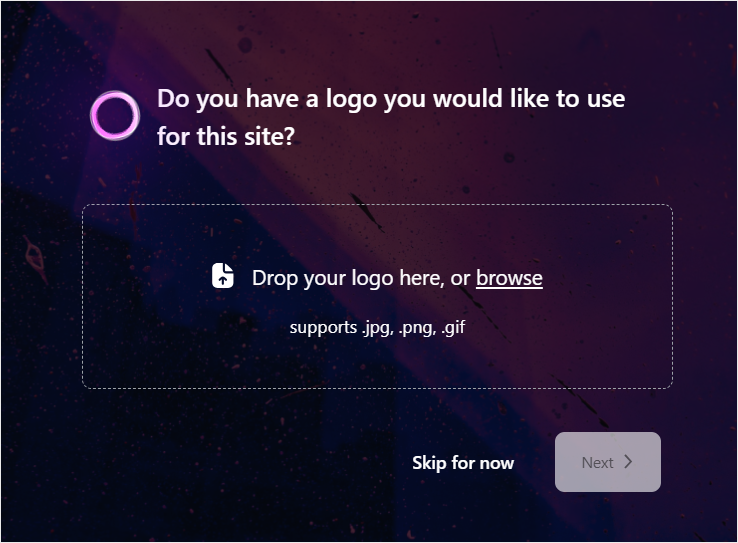
If you have a logo, upload it on the next page and select Next.
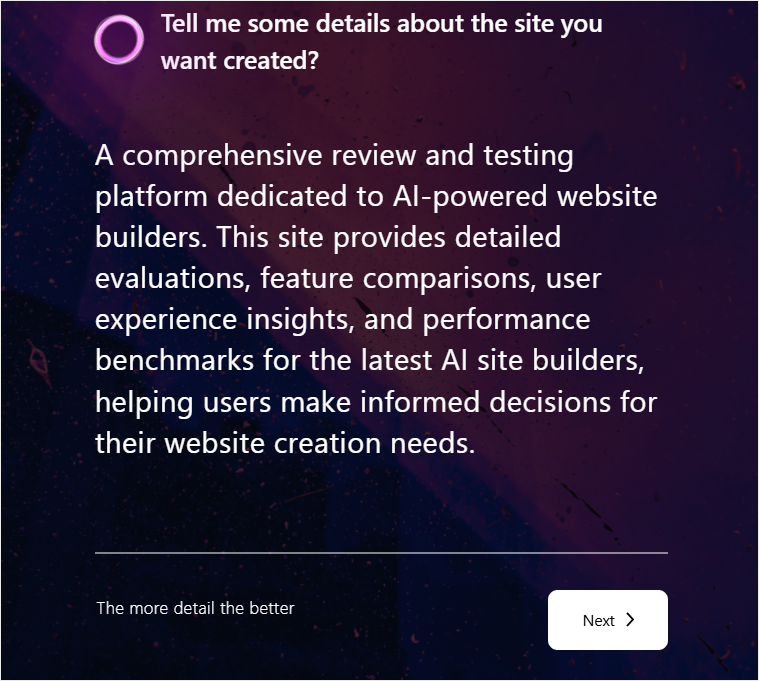
On the next page, describe the website you want to build in the text area. Again, we use the description we used above to ensure consistency.
When you’re done, click “Next” to begin the AI site creation process.
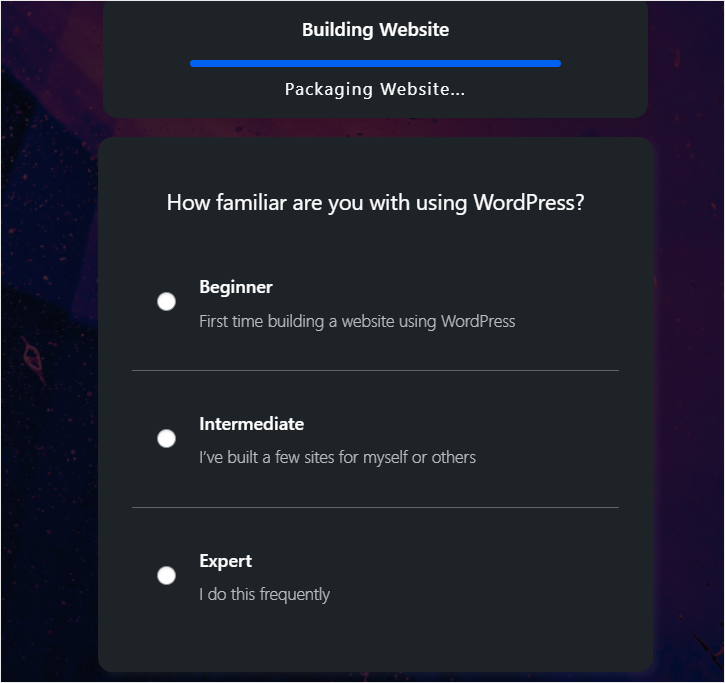
As your website is generated in the background using AI, you let Bluehost know that you are familiar with WordPress using checkboxes. You can choose between beginner, intermediate and expert.
Step 4: Choose from the generated theme options
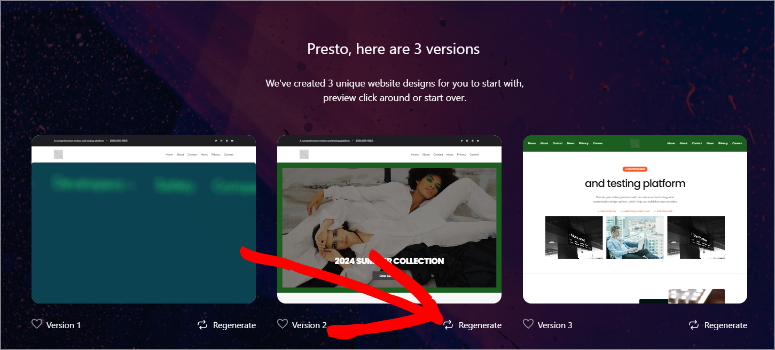
Now Bluehost will generate three versions of the AI website based on the description you provided. If you don’t like any of the options, select the Regenerate button under the version.
Step 5: Customize colors, text and layout
After you choose a theme, you can start customizing immediately.
Change the colors to reflect your brand, edit the text to make it more specific to your business, and adjust the layout if necessary. Customization is done in Bluehost’s Visual Builder. Drag and drop, click to edit, all visual.
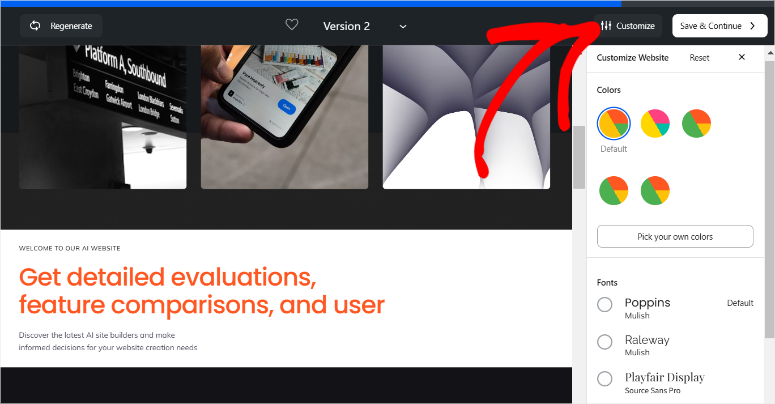
You can also further refine the design using Bluehost’s AI tools or use traditional drag-and-drop editing to make precise adjustments. You are in control.
Step 6: Confirm and activate
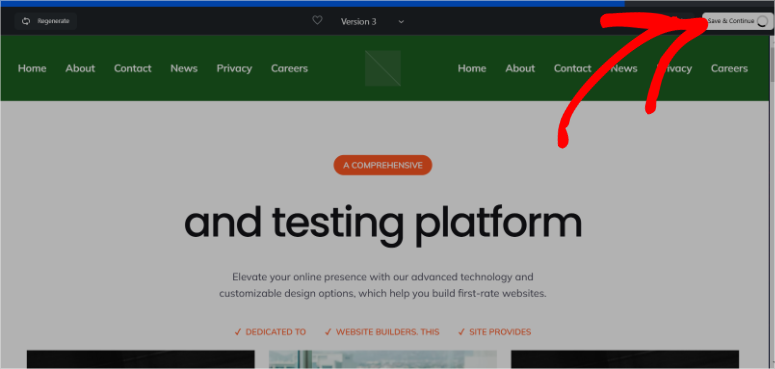
After selecting an option, click “Save and Continue” to complete the site creation process.
The AI-built website Bluehost was pretty nice too. The header included “Home,” “About Us,” “Service,” “Contact,” “Demo,” and “Getting Started.”
It generated AI content for the website. But unlike the other two options above, it used stock images instead of AI images.
Social media icons and links to the site’s pages were also included at the bottom.
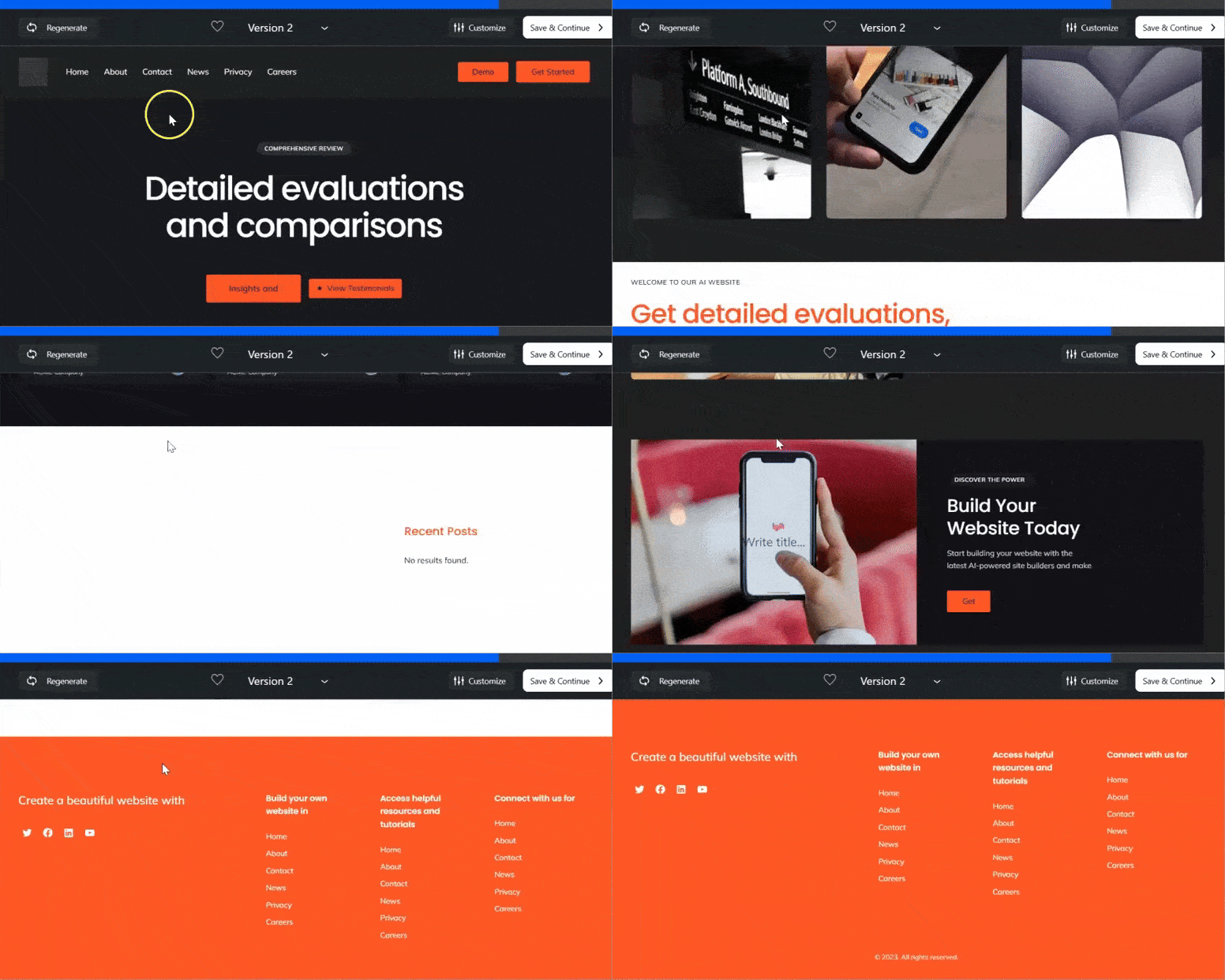
When you’re happy with your Bluehost AI website, click Save to go to your new WordPress dashboard.
At Bluehost, important plugins such as WPForms, OptinMonster, Jetpack, Yoast SEO and more are pre-installed when you install WordPress.
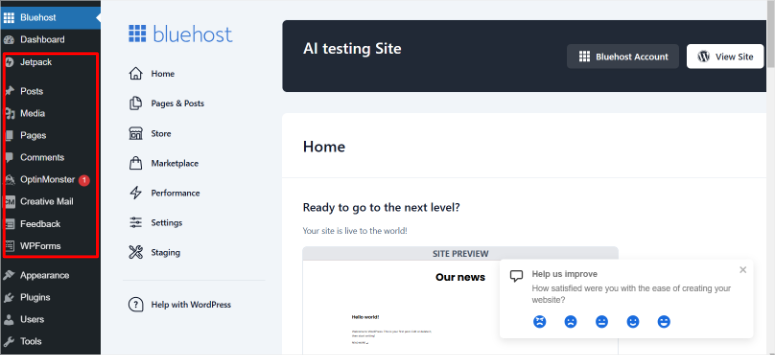
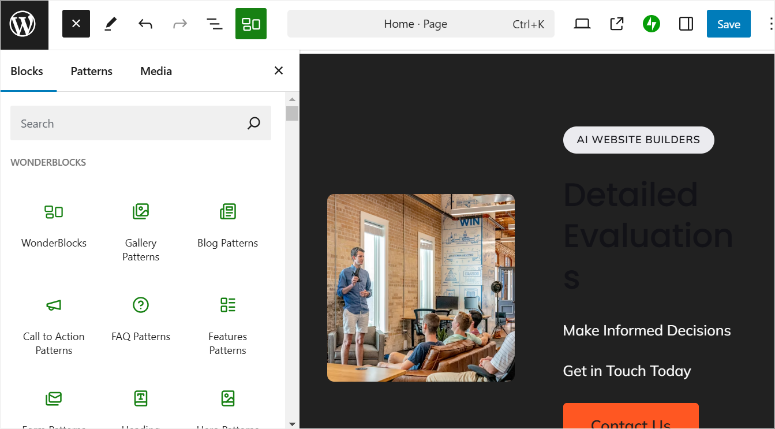
Plus, Wonder Blocks come pre-installed so you can customize the AI pages to suit your needs. However, if you are more familiar with other page builders like SeedProd, Divi, Thrive Architect, and others, you can install them too.
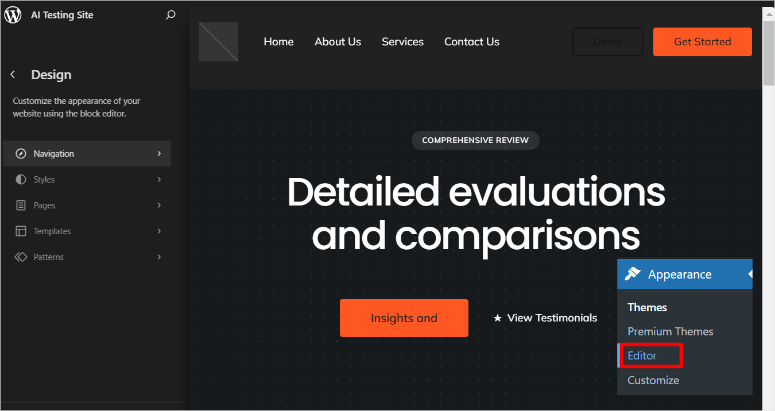
To edit the topic, go to Appearance » Editorwhich will take you to the default WordPress theme editor. Here you can change navigation, styles, pages, templates, patterns and more.
⚠️ Quick check: Your website is now online under your domain. Visit it from your phone or desktop to check that everything looks and works correctly.
Hostinger: WordPress hosting with AI Content Generator
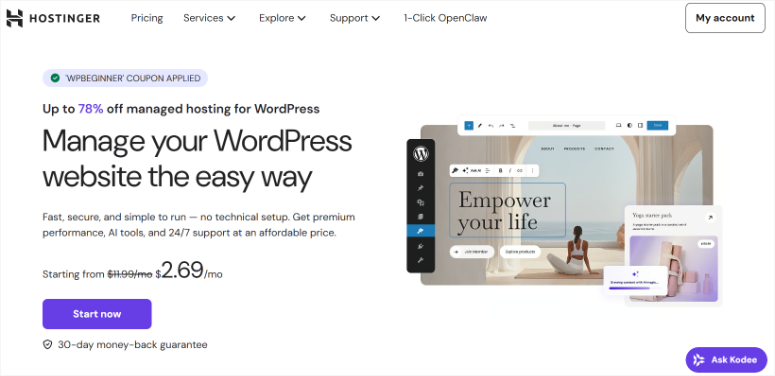
Hostinger is a hosting provider that integrates WordPress with a built-in AI content generator.
Unlike the full site builders in Bluehost or SeedProd, Hostinger’s AI tool is designed to help you create individual pages and posts after installing WordPress.
It’s great if you want hosting at a budget price and prefer to build your website’s structure manually while getting AI assistance with the content.
For more information about the hosting features, check out my Hostinger review.
After setting up WordPress on Hostinger, access the AI content generator from your WordPress dashboard. Here’s how to use it to create AI-powered pages and posts.
Step 1: Access the Hostinger AI Content Generator
In your WordPress dashboard, search for “Hostinger” in the left sidebar menu and click on it. Then select “Generate Content” under the “Onboarding” tab. This will open Hostinger’s AI-powered content generator.
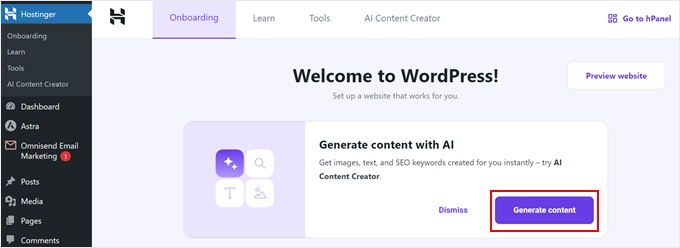
Access Hostinger WordPress AI Assistant from your dashboard
Step 2: Choose your content type
The first step is to decide what you want to create. Choose whether you want to create a post or a page.
Posts are great for blog content and news, while pages are better for static content like services, information, or contact information.
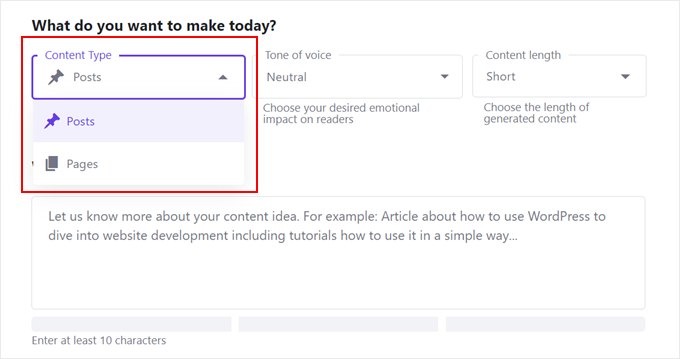
Choose between creating a post or a page
Step 3: Choose the Tone of Voice
Next, select the tone you want the AI to use when writing.
You can choose between neutral, formal, trustworthy, friendly or funny. Choose the tone that best suits your brand voice. You can select multiple shades if you want the AI to mix different styles.
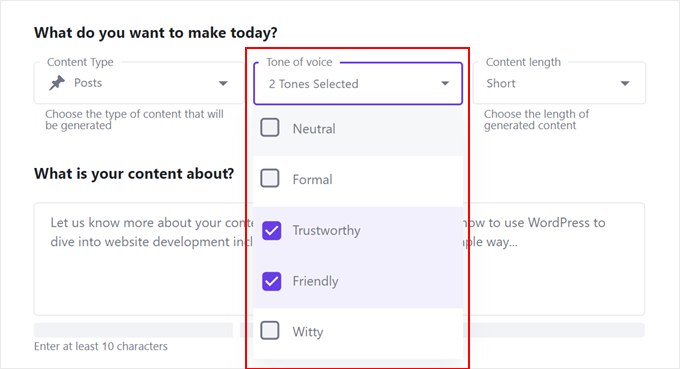
Choose the tone of voice for your AI-generated content
Step 4: Specify the content length
Choose how long you want the content to be: short, medium or long.
This helps the AI understand the depth and detail you need. A “short” post is good for quick updates or announcements, while a “long” post is better for comprehensive instructions or detailed service descriptions.
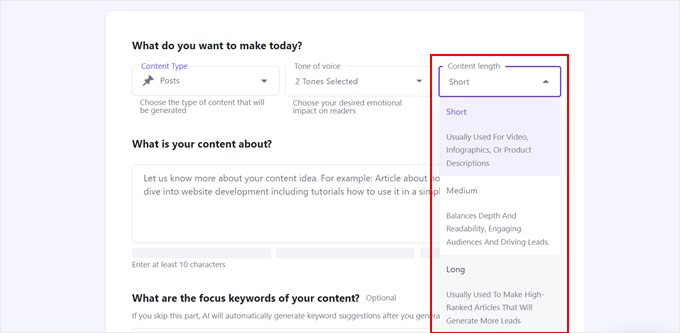
Choose the length of your content
Step 5: Write your content description
Now describe what you want the AI to create. Be specific about the topic, what information you want to include, and who it is intended for.
For example: “Create a page about my dog training services in Denver and mention puppy training, obedience classes, and behavior issues.” The more detailed you provide your information, the better the result will be.
You can also add keywords that you want the AI to naturally integrate into the content.
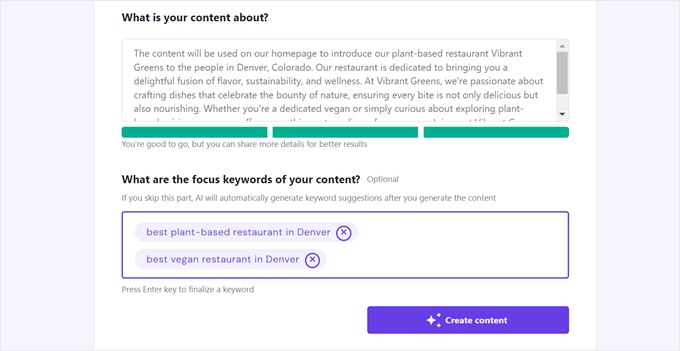
Describe what the AI should generate
Step 6: Review the generated content
The AI generates complete content including headline, featured image, meta description and body text. Check what was created.
If you like it, continue editing. If you want something different, you can regenerate with customized parameters.
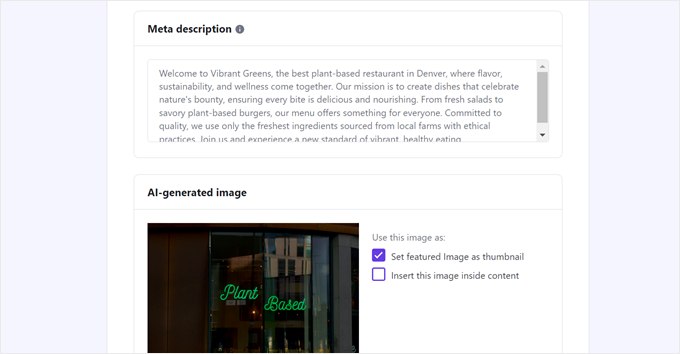
Check the meta description and AI generated image
Step 7: Edit and Customize in WordPress
Click “Edit as Draft” to open the content in the WordPress block editor.
Here you can refine the AI-generated text, adjust the formatting, add or remove sections, upload your own images, and tailor everything to your exact needs.
The AI has done the initial heavy lifting, and now you make it perfect for your website.
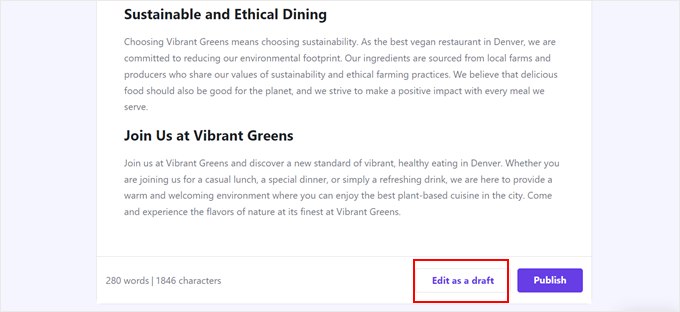
Edit the AI-generated content in WordPress
Step 8: Publish
When you’re happy with the end result, publish the post or page.
It will go live on your website immediately. You can repeat this process for every page and post you need to create, building your entire AI-powered website page by page.
That’s it. You can now create AI with a page builder or through your host provider. But sometimes you don’t want to build the entire website with AI.
You just want to use AI to create very specific functionality on your WordPress site. We’ll discuss that next.
Bonus: Build your WordPress site in sections with AI-powered plugins
What if you already have a WordPress site or prefer to build it manually but still want to use AI?
AI WordPress plugins can add intelligence to certain parts of your website, such as: B. Your SEO, your forms and your analytics without the need for a full website builder.
This approach is perfect if you already run a WordPress site and want to make it smarter with AI, or if you prefer to create your site design manually but need AI assistance with certain functions.
AIOSEO: AI-powered SEO content optimization
AIOSEO uses AI to optimize your content for search engines.
Instead of guessing whether your article is optimized for your target keyword, AIOSEO’s AI analyzes your content and tells you exactly what to add, remove or change to rank better.
When you write a new post or page, AIOSEO will appear in your editor with AI suggestions. In fact, it can even help you add AI-generated metadata to improve click-through rates.
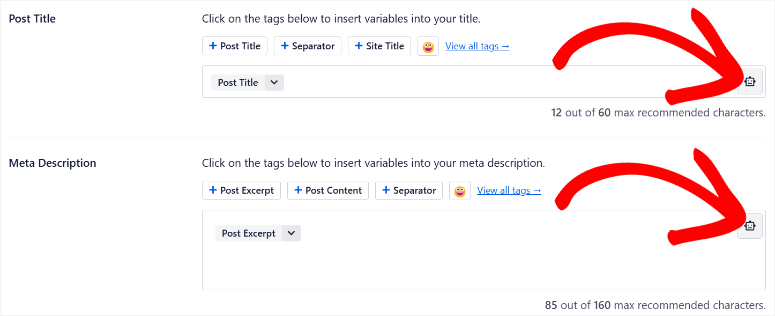
Write your content and the AI will tell you if you explained your topic well enough, used your keyword naturally, answered frequently asked questions, and more.
It’s like having an SEO expert review every page you write.
If you want to learn more about everything it can do, there is an AIOSEO review.
WPForms: AI-powered form creation
With WPForms you can easily create contact forms, survey forms and application forms. The AI component helps if you are not sure which form fields you need.
Tell the AI what type of form you want (“I need a contact form for my agency”) and it will generate the field suggestions for you.
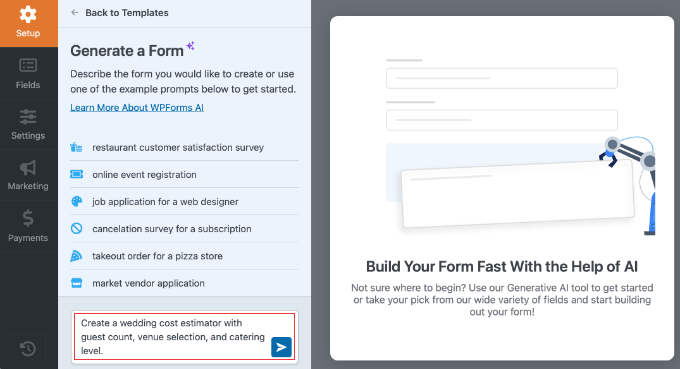
In short, you can simply create a new form and use AI Form Builder to describe what type of form you need.
WPForms suggests the fields and layout, and you can customize from there using the drag-and-drop builder.
The WPForms review provides detailed information about what is included in each plan.
MonsterInsights: AI Analytics Dashboards
MonsterInsights connects Google Analytics to your WordPress site and uses AI to generate actionable insights.
Instead of staring at raw analytics data, MonsterInsights’ AI tells you what your numbers mean and what you can do about it.
Once connected, MonsterInsights displays a dashboard in your WordPress admin showing your traffic, popular posts, visitor behavior, and AI-generated insights about what’s working on your site.
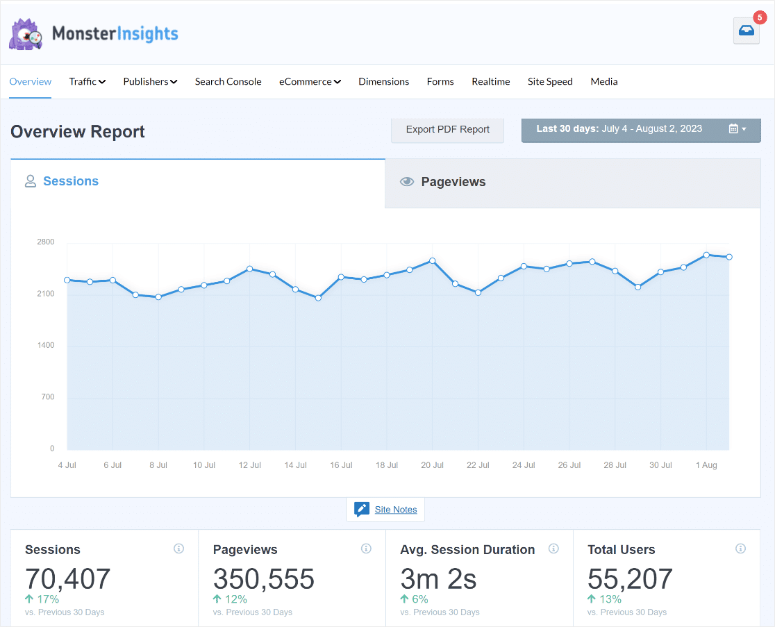
The MonsterInsights review explains what each plan offers.
Common problems and quick solutions
As much as I love AI site builders, they aren’t perfect. Here are the most common problems you might encounter and how to fix them.
Problem: My website looks different on my phone than on my desktop.
This is actually quite common and is usually not a serious problem.
Responsive web design means that the layout adapts to different screen sizes. Check that everything is still readable and the buttons are still clickable on mobile devices.
If something looks really broken (overlapping text, buttons off screen), you can adjust the layout in the page builder by switching to mobile view and adjusting elements specifically for phone screens.
Problem: I don’t like the AI-generated copy and it doesn’t sound like my business.
This is normal and expected. AI generates a starting point, not a final product.
Edit the copy directly in your page builder or post/page editor. Change headings, rewrite paragraphs, adjust tone. You own this website, make it sound like you.
The AI has done the hard part (structure and layout), and now you just make it authentic.
Problem: The AI didn’t generate pages for everything I offer.
If you are a consulting firm and the AI only created one “Services” page, but you want separate pages for each service type, add them manually.
Create new pages in Pages » Add New and either duplicate the existing page as a template or create it from scratch using the same page builder you’ve already learned.
Problem: My domain name isn’t connecting to the website or visitors are seeing an error page when visiting.
This usually means that your domain’s DNS settings have not yet been updated or are not pointing to your hosting server.
If you purchased your domain from the same provider as your hosting (e.g. Bluehost or Hostinger), this usually happens automatically.
If you purchased the domain somewhere else, you will need to update the DNS records to point to your hosting server. Check out your hosting company’s help documents or contact their support team.
This usually resolves itself within 24 hours.
Well done. You can now build and troubleshoot a complete WordPress website with AI using your preferred method. If something is unclear, check out the frequently asked questions below.
FAQs: How to Build a WordPress Website with AI
Can I customize an AI-generated website after it’s created?
Absolutely. Each method in this guide includes a page builder (SeedProd, Divi, or your hosting provider’s builder) that allows you to customize everything about the site. You can change colors, rearrange sections, rewrite text, add pages and remove pages. The AI has given you a starting point, but the site is completely under your control.
Do I own the website that the AI creates for me?
Yes. If you use SeedProd, Divi, or a hosting provider’s AI builder, you own the WordPress site, the domain, the content, everything. AI is just a tool to help you build faster. This is different from some AI website builders (like Wix or Webflow) where you don’t have full ownership of the website. With WordPress, you are always the owner.
Is AI-generated content good enough for my website or should I hire a writer?
AI-generated content is a good place to start. The structure and core ideas are solid. However, I recommend editing the text to fit your voice, adding specific details about your business, and making sure the tone is authentic. You don’t need to hire a writer to replace everything, but read through and personalize it. This is what makes your website stand out.
Can I use these AI methods with a WordPress.com site?
WordPress.com has some built-in AI features, but the methods in this guide (SeedProd, Divi, hosting AI builders) work with self-hosted WordPress.org sites, not WordPress.com. If you want to use these specific tools, you will need self-hosted WordPress. WordPress.com websites are easier to use but offer less control and customization options.
What if I want to hire a designer to further customize the AI site?
You can definitely do that. Hand your AI-generated website (based on SeedProd, Divi, or your hosting provider’s builder) to a designer who can take it from there. The site is already functional, so a designer will focus on fine-tuning the design, perhaps adding custom sections or optimizing for conversions. Starting with AI actually saves you money because the designer doesn’t have to start from scratch.
How much does it cost to create an AI website?
It depends on the method. SeedProd’s AI is free to try, but full access costs $99 to $199 per year. Divi costs around $89/year. Hosting providers like Bluehost and Hostinger cost around $2-12.99/month and include AI Builder. The WordPress plugins (AIOSEO, WPForms, MonsterInsights) have free versions with basic features and paid versions for around $99 to $299 per year. So you can create an AI site for as little as $3/month (hosting only) or invest more if you want additional features.
Can I switch between methods later? If I start with SeedProd, can I switch to Divi?
Yes, although it requires some work. Each builder stores your website content and design differently. So switching means you have to export your content and import it back into the new builder. Most WordPress sites use standard content formats, so export/import usually works pretty smoothly. Be sure to ask your property developer’s support team about the best option for migrating if you think you might want to switch.
Final thoughts
You have now learned three different methods for creating a WordPress site with artificial intelligence. SeedProd gives you the fastest path from idea to live site with incredible AI-first design.
Divi integrates AI into a more powerful page builder for those who want more design flexibility. Hosting providers like Bluehost and Hostinger offer you an all-in-one setup where everything happens in one place.
The most important thing to keep in mind is that none of these methods lock you into the initial output of the AI. Each of these gives you full control over customization.
The AI generates your foundation, your layout, your text, your design direction, and even your images, and then you take that foundation and make it your own.
Change colors, rewrite headings, add pages, adjust spacing, and add your actual information. This combination of AI speed and human customization is what makes these tools so powerful.
The WordPress ecosystem is evolving with AI capabilities and these tools are only getting better.
Whichever method you choose, you’ll now have a working WordPress site built in a fraction of the time it would have taken a few years ago.
Resource Hub
Explore these articles to deepen your WordPress knowledge and take your AI-powered website to the next level: