

I spent two hours writing a guide that I was proud of. Real research.
Clear structure. Good writing.
Published it. The traffic came.
People dropped out.
That surprised me.
I went back and read it with fresh eyes, like a first-time visitor would. And there it was. Just a link block at the top.
No styling. No visual weight. An unformatted list sits in the middle of my post like an inserted excerpt.
Readers skimmed it, shrugged their shoulders, and left. They couldn’t say what they would get.
I pulled out the plugin I had been using and set out to find something better. What I found surprised me.
Some plugins make this problem worse, not better.
These are the ones that actually work.
Key insights
- I’ll show you how to add a table of contents that looks designed, not bolted on
- I’m testing a plugin that creates a table of contents from within your SEO tool without the need for additional installations
- I’ll reveal which free plugin has the highest user rating of all dedicated TOC plugins with over 800 reviews
- I mention a plugin that doesn’t load JavaScript by default, which is worth knowing if you’re following Core Web Vitals
- I tested 7 options to find out what makes navigation actually feel like it belongs in your content
How I test WordPress table of contents plugins
🔍 Click here to see my testing methodology
This is exactly how I rate table of contents plugins:
- Visual integration: Does the table of contents look designed or pasted in? I test each plugin in a clean post and ask: Does this look like it belongs here, or did someone just put a list at the top of the article?
- Setup speed: How many steps are required from activation to a functioning, designed table of contents? A beginner shouldn’t need any documentation to get a usable result.
- Page Builder Compatibility: I test with Gutenberg, Classic Editor, Elementor and Divi. Most plugins claim to be compatible with all four. Only a few actually deliver.
- SEO awareness: Does the plugin output clean heading anchors? Is there an option to noindex TOC links? Can it be integrated into existing SEO tools?
- Performance footprint: I run GTmetrix before and after activation to see if the plugin loads scripts on every page or only where a table of contents actually appears.
- Design flexibility: Can you customize the table of contents to match your website design without having to write CSS? Does it automatically inherit your theme’s styles?
Tools I use:
GTmetrix: Testing page load and script impact per page
WordPress Playground: isolated activation tests without prior configuration
Why trust IsItWP?
At IsItWP, we’ve been the go-to source for the WordPress community since 2009, helping over 2 million users choose better plugins and tools. Unlike review sites that never actually use the products, we maintain active accounts, run real customer sites, and offer ongoing WordPress advice.
The best WordPress table of contents plugins in comparison
These plugins have been tested with Gutenberg, Classic Editor and Page Builder setups. For a deeper dive into the SEO side of these tools, I cover the entire landscape in my guide to the best SEO tools for WordPress. Here’s the quick comparison:
1. All in one SEO ⭐⭐⭐⭐⭐
Ideal for: WordPress website owners who already use All-in-One SEO and want their table of contents to be linked to their SEO score
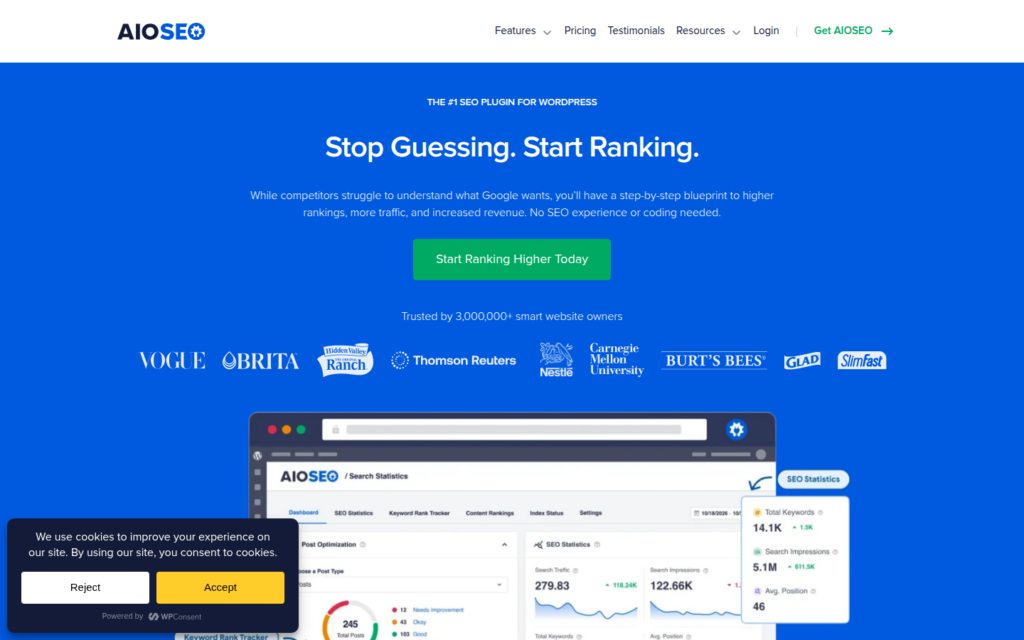
Why is All in One SEO one of the best table of contents plugins?
I finally corrected the article I mentioned, where readers only saw a block of links and left, using All in one SEOis the integrated TOC block. Not because I was looking for a TOC solution.
I already used All in One SEO for SEO anyway. The block was there the whole time.
This is what sets All in One SEO apart from all the dedicated TOC plugins on this list: The table of contents block can be integrated directly into your TruSEO content analysis. When you check your heading structure in the SEO metabox, your table of contents preview will be updated in real time.
You can identify heading hierarchy issues, such as: B. when H4 jumps directly below H2 before you publish a headline.
The block also allows you to hide individual headings from the table of contents without removing them from your content. So if you have a technical heading hidden in the middle of a section that you don’t want to clutter the navigation, exclude it with one click.
You can also drag and drop TOC entries to reorder them without touching your actual post structure.
One thing most reviewers miss: Before version 4.9.7, the table of contents block only listed the headings that were displayed after its position on the page. If you place it in the middle of the article, everything above it will be invisible to the table of contents.
This is now fixed. There is a switch to list all headings regardless of where the block is located.
It’s a small thing that has quietly broken many TOC setups.
The real point of friction here is the scope. All in One SEO is a complete SEO toolkit.
The admin panel has more than 40 menu items. If you enable it for the TOC block only, you’ll spend the first 20 minutes clicking through settings that have nothing to do with the table of contents.
This isn’t the right starting point for someone who just wants to add navigation to some posts.
🟢► Advantages
- SEO integration: The TOC block communicates directly with TruSEO. Heading hierarchy issues show up in the same place you check your on-page score.
- Hide individual headings: With one click you can exclude a heading from the table of contents without removing it from the article.
- Drag-and-drop reordering: You can visually reorder table of contents entries regardless of your actual heading order.
- Full page coverage: The update to version 4.9.7 means that the block will now accommodate ALL headings, not just those below where you placed the block.
- Performance intelligent charging: The TOC script is only loaded on pages where the block actually exists. No loss of performance for posts without a table of contents.
- Free version included: TOC Block is part of the free all-in-one SEO plugin. No paid plan required.
🔴► Disadvantages
- Scope overwhelming: The plugin’s 40+ menu items make it a poor starting point for someone who only wants a table of contents feature.
- Bundled dependency: Your table of contents depends on All-in-One SEO remaining active. Deactivate the plugin and all tables of contents on your website will disappear.
My verdict: All in One SEO is the right decision if you are already running it for SEO. The TOC block is quick to set up and is really useful, not only for navigation but also for checking your heading structure.
If All-in-One SEO isn’t already in your stack, choose Heroic Table of Contents instead and save yourself the setup hassle.
Compare All in One SEO to Yoast SEO for a full breakdown of both plugins side by side.
Prices: The free version includes the TOC block. Pro plans start at $49.60/year.
Check out my All in One SEO Free vs. Pro breakdown to decide if an upgrade makes sense for your website.
👉 Start here with all-in-one SEO
2. Heroic Table of Contents ⭐⭐⭐⭐⭐
Ideal for: Gutenberg-focused content creators who want a visually appealing, free table of contents without having to write a single line of CSS

Why is Heroic Table of Contents one of the best table of contents plugins?
The first thing I noticed when adding a Heroic TOC block was the style selection. Four presets, each clearly designed and visually different.
Not the kind of generic box you’d expect from a free plugin. I picked one and the table of contents seemed to belong in the article.
No CSS. No configuration. Completed.
The style presets alone are enough to set Heroic apart from most free competitors. But the feature I kept coming back to is the heading rename.
You can rename any heading in the table of contents without touching the actual content of the post. My article was titled “Step 3: Configure your WordPress REST API integration settings.”
It was useful in context, but terrible in a table of contents. With Heroic I can display it in the navigation as “Configure API Settings” without changing the heading on the page.
Now there is one technical thing you need to know when using Heroic in a full site editing theme: template mode.
When you add a TOC block to a page Template By default, instead of going directly to a post, the plugin tries to scan headings from the entire template, including navigation elements and widget areas.
Template mode (v1.2.5 and later) tells the block to only recognize headings within the actual content area of the post. If you skip this, your table of contents may list headings from your site’s header or sidebar.
It is now clearly labeled. But it’s the kind of setting you’d never find without troubleshooting.
The only real point of friction: If your theme uses a sticky navigation bar, anchor links can scroll the page to a position where the heading is hidden behind the navigation. There is no built-in offset setting to resolve this issue.
You need a small CSS snippet to add scroll padding. It’s a one-liner, but shouldn’t be necessary for a plugin otherwise it’s so sophisticated.
🟢► Advantages
- Four pre-built styles: Each preset looks intentionally designed. Choose one and send it. No CSS required.
- Heading rename: Change the appearance of a heading in the table of contents without affecting the actual content.
- Template mode: Works correctly in full-site editing templates without scanning incorrect headings.
- Built-in Collapse/Expand: Readers can completely hide the table of contents with one click, which is cleaner on mobile devices.
- Multiple TOC blocks per page: Add sub-tables of contents for different sections with very long content.
- Completely free: No paid tier, no upsells, no feature gates.
🔴► Disadvantages
- No sticky nav offset: Anchor links can land behind fixed navigation bars. Requires manual CSS correction.
- Track record of the small community: Only 5,000+ installs, less tested in edge cases than the alternatives with high install rates.
My verdict: Heroic Table of Contents is the cleanest free option for Gutenberg users who care about the look of their table of contents. If visual design is your main concern and you are not yet using AIOSEO, this is the right choice.
For websites based on Elementor or Divi, you’ll need Easy Table of Contents instead. Heroic does not extend to page builders.
Prices: Free. No paid version available.
👉 Start here with the Heroic table of contents
3. Joli table of contents ⭐⭐⭐⭐⭐
Ideal for: Bloggers and content creators who want their table of contents to match their brand’s design without having to write CSS
Why is Joli’s table of contents one of the best table of contents plugins?
Most TOC plugins offer you color pickers. Joli table of contents gives you a color palette system.
You define your accent color once. This single selection automatically styles about 90% of the entire table of contents: the border, the link color, the shift key, the hover states.
Adjust everything else at your own pace. However, the default result looks designed and non-standard.
This is the plugin I would reach for if the table of contents looking “out of place” is the main complaint. You set the accent color to match your site’s primary brand color, and the table of contents immediately recognizes that it’s intended. No link block was inserted into the content. Part of the article.
The v3 redesign also added a live preview window in the settings screen. Any change you make on the left will immediately be rendered on the right.
No more saving, reloading, checking, going back. The feedback loop that other plugins force you through is gone.
Here’s a detail worth knowing if you’re migrating from another TOC plugin: Joli has a built-in shortcode migration filter.
If you use your existing posts (ez-toc) from Easy Table of Contents or (lwptoc) From LuckyWP add a line to your functions.php and Joli will remap itself to your existing shortcode tag.
I migrated a blog with 200 posts from Easy Table of Contents to Joli without editing a single post. Most migration guides for other plugins involve finding and replacing shortcodes across your entire content database.
Joli does this at the plugin level.
One point of friction to note: A handful of users report that the shortcode displays nothing after activation without additional troubleshooting. It’s not common.
However, if you install Joli and the shortcode doesn’t produce anything, make sure auto-insert is enabled in Settings > Auto-Insert and your post type is selected.
This is usually done by the setup wizard. However, it can be accidentally skipped.
🟢► Advantages
- Color palette system: An accent color automatically stylizes 90% of the table of contents – the fastest way to a branded result.
- Live preview in settings: See every design change render instantly without saving and reloading.
- Onboarding assistant: Step-by-step setup on first activation, hard to miss.
- Shortcode migration: Map Joli’s shortcode to any existing tag with one line of code without the need for content changes.
- No jQuery: Conditional loading of CSS/JS. Scripts are only loaded where they are needed.
- Intelligent course recognition: Captures headings from third-party shortcodes and blocks that other plugins miss.
🔴► Disadvantages
- The shortcode may not be activated for all setups: Some users report that they have to manually enable auto-insert after the wizard: the shortcode won’t work until this is done.
- Settings per post type require Pro: If you need different TOC behavior for posts, pages, or custom post types, this is a paid feature.
My verdict: Joli’s table of contents is the best option if brand design is important to you. The color palette system is really smart.
The migration filter is a feature that should be present in every TOC plugin, but is not. For sites where every post belongs to the same post type and budget is a priority, the free tier covers everything most users need.
Prices: Free. Pro plans start at $39.99/year (floating table of contents widget, advanced auto-insert rules, collapsible headings).
👉 Start here with the Joli table of contents
4. LuckyWP table of contents ⭐⭐⭐⭐⭐
Ideal for: SEO-focused WordPress site owners who want a proven free plugin with the option to no-index TOC links
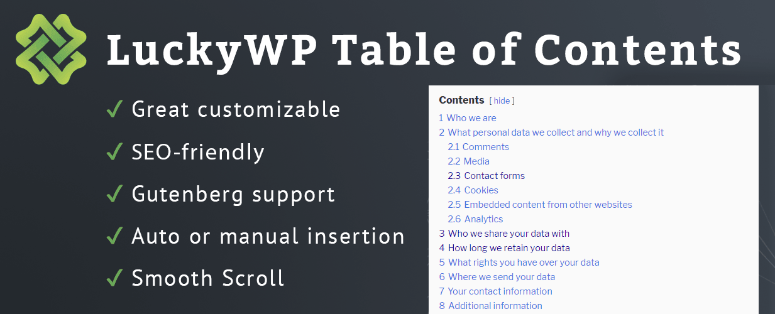
Why is LuckyWP’s table of contents one of the best table of contents plugins?
Most TOC plugins focus on the look of the table of contents. LuckyWP table of contents focuses on what it signals to search engines.
The standout feature here is the noindex wrapper. When enabled, all TOC anchor links will be included in one Tag that instructs search crawlers to treat the table of contents as navigation rather than linkable content.
This sounds like a niche SEO setting. But it solves a real problem on long-form content sites.
Here’s the problem: When Google crawls a post with a large table of contents, these anchor links can accumulate and register as low-quality internal link signals. The same heading text appears once in the body and once in the table of contents, as an anchor link pointing to an in-page target.
I’ve been running Screaming Frog crawls on high-authority, long-form blogs and noticed that TOC anchors are flagged as “near-duplicate link patterns.” The noindex wrapper tells the crawler: This is navigation, not recommended content.
LuckyWP is the only free TOC plugin that offers this by default.
Additionally, LuckyWP has the largest review base of any dedicated TOC plugin on this list, with 881 reviews at 4.9/5. Such a signal does not arise by chance.
The plugin works consistently across themes and setups, which is exactly what a free plugin needs to do.
Now I have to be honest about one thing: LuckyWP’s development has slowed down significantly. The last significant feature update was in 2020.
The plugin has been maintained with security patches and compatibility fixes. However, it has not been tested beyond WordPress 6.7.5.
It works. However, if you’re using WordPress 6.8 or 6.9, you’re technically outside the officially tested range.
🟢► Advantages
- Noindex wrap: The only free plugin that allows you to tell search crawlers to skip TOC anchor links, which is important for long SEO.
- Highest trust signal: 881 reviews with 4.9/5, the best proof of the reliability of all dedicated TOC plugins.
- No jQuery: Lightweight frontend without jQuery dependency since version 2.0.
- Pretty hash URLs: Generates clean, readable anchor slugs (e.g.
/post/#configure-settingsinstead of/post/#section-3). - Insert using multiple methods: Auto-insert, Gutenberg block, classic editor button, shortcode and widget work in any setup.
- RTL support + 32 languages: Completely internationalized.
🔴► Disadvantages
- Development stagnation: Not officially tested for WordPress 6.7.5 as of 2026. No new features since 2020.
- No visual style presets: The customization options are functional but limited compared to Heroic or Joli. You will receive color pickers, not designed themes.
My verdict: LuckyWP is the most proven free option if you’re more concerned with SEO than visual design. The noindex option alone justifies its place on this list.
However, I would look closely at the compatibility column. If the plugin stops receiving updates, Joli Table Of Contents is the cleaner upgrade path.
Prices: Free. No paid version available.
👉 Start here with LuckyWP’s table of contents
5. Simple table of contents ⭐⭐⭐⭐
Best for: WordPress sites built with Elementor, Divi or WPBakery where most TOC plugins generate empty tables
Why is Easy Table of Contents one of the best table of contents plugins?
I have installed three different TOC plugins on an Elementor based site. Two of them brought out empty tables. Simple table of contents was the only one who recognized all the headings correctly.
Here’s why. Most TOC plugins read the raw content of your post, the markup stored in the database, before WordPress processes it.
Elementor headings are not included in this raw content. They are in JSON-encoded widget data that is dynamically rendered when the page loads.
A plugin that reads raw content sees nothing.
Easy Table of Contents analyzes the rendered HTML output, the fully processed page after each shortcode and page builder widget is triggered. That’s why it works where others don’t.
For this reason, compatibility with Elementor, Divi, WPBakery, Classic Editor and Gutenberg is also explicitly listed. Each one has been specially tested. If you use both main builders, check out our deep dive on Elementor vs. Divi to see how they handle content markup.
Beyond page builder compatibility, Easy Table of Contents has the largest deployment scale of any dedicated TOC plugin here: over 600,000 active installs. This install base means it has been tested against a wide range of themes, caching plugins and site configurations.
There are two real points of friction. First, the Gutenberg block is a pro feature.
In the free version, you can automatically insert or use shortcodes, but you cannot manually place the table of contents using a block. If you build in Gutenberg and want block-level control, you’ll immediately hit the paywall.
Second, in October 2025, a user reported that the mobile TOC feature was not working for several months despite having a Pro subscription and no solution was found. The developer confirmed this, but referred to future updates. This is a real problem for anyone running a mobile-heavy website.
🟢► Advantages
- Page Builder Compatibility: The only free TOC plugin that reliably recognizes headings in Elementor, Divi and WPBakery.
- Migration tool: Built-in table of contents plus settings importer, easy to switch when you upgrade.
- Sidebar widget with sticky option: The table of contents can be contained in a sidebar widget that remains visible as the reader scrolls (free version).
- Postal check: Enable or disable the table of contents for individual posts in the post editor metabox.
- Actively maintained: Updated to WordPress 7.0 compatibility as of May 2026.
🔴► Disadvantages
- The Gutenberg block is only available for Pro: The free version cannot place the table of contents with a block, so you are limited to auto-insertion and shortcodes.
- Mobile Error Reported: Mobile TOC functionality was reported as broken in October 2025 and remained unresolved for months despite Pro subscribers reporting it.
My verdict: Easy Table of Contents is the choice for anyone building with Elementor, Divi or WPBakery. Point.
No other free plugin on this list handles page builder headings reliably. If you are on a Gutenberg-only website, Heroic or Joli will give you a better experience without encountering the pro paywall.
Prices: Free. Pro plans start at $49/year (Gutenberg block, Sticky TOC, AMP support).
👉 Start here with the simple table of contents
6. SimpleTOC – Table of Contents block ⭐⭐⭐⭐
Best for: Website owners with a focus on performance and site-wide users who want a table of contents that inherits the design of their theme and doesn’t add page weight
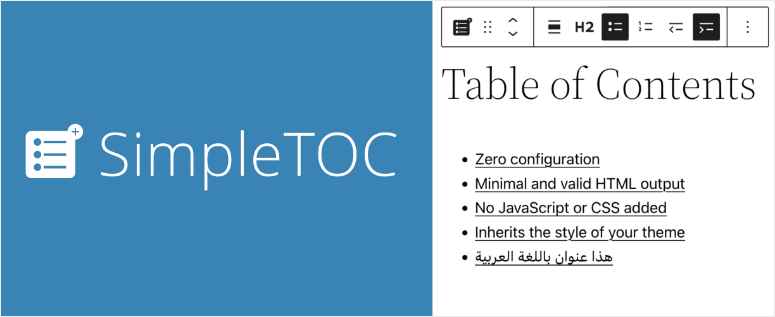
Why is SimpleTOC – Table of Contents Block one of the best table of contents plugins?
I ran GTmetrix on a post before and after I added one SimpleTOC Block. The Transfer Size metric did not move a single kilobyte.
This is because SimpleTOC does not load JavaScript or CSS by default. None.
The other plugins on this list, even the lightweight plugins, load at least some assets on every page that has a table of contents. SimpleTOC doesn’t load anything unless you specifically enable optional features like smooth scrolling or a box-style background.
For websites that are already working hard on page speed and Core Web Vitals scores, nothing here will be the deciding factor.
You can follow our ultimate guide to increase WordPress speed and performance and reduce even more weight from your pages.
The show/hide behavior works via the browser’s native function
HTML elements. This is a browser function, not a plugin function.
No JavaScript is required to show/hide. Just semantic HTML that modern browsers handle natively.
This means that SimpleTOC WCAG 2.2 Level AA is also immediately accessible.
The other thing that sets SimpleTOC apart: It automatically adopts your theme’s typography and link styles. Every other plugin on this list either loads its own CSS or requires you to override its default settings.
With SimpleTOC, the table of contents looks the same as the rest of your website.
Here’s the real limitation, and I won’t minimize it: SimpleTOC doesn’t have auto-insertion. You must manually add the block to each post for which you want a table of contents.
This is not a problem for a new website. For an existing website with 200 published articles, there is no mass application option.
The developer has specifically stated that this will not be added. This would affect the simplicity of the plugin.
That is a principle that I respect. But it makes SimpleTOC a non-starter for anyone with a large existing content library.
🟢► Advantages
- Default null JS/CSS: The only TOC plugin that contributes absolutely nothing to page strength unless you opt for optional features.
- Theme style inheritance: The table of contents automatically adapts to your site’s typography and link styles without the need for any CSS work.
- Native accessibility: Uses browser standard
- 5/5 WP.org Rating: 75 reviews, no one-star reviews, the cleanest satisfaction record of any plugin on this list.
- Extremely active development: Updated 18 hours before this study was compiled. Tested on WordPress 7.0.
🔴► Disadvantages
- No automatic insertion: Must be added manually to each post. No mass option. Not suitable for large existing content libraries.
- Very limited design control: No style presets, no default color customization. If you want a unique visual container, you need to use Gutenberg Group Blocks for styling.
My verdict: SimpleTOC is suitable for a specific type of website: Gutenberg-oriented, performance-optimized, with a well-designed theme whose styles the table of contents should adopt. If you are managing a small blog or starting a new one, this is exceptional.
If you have existing content that requires a TOC upgrade, choose Joli or Heroic instead.
Prices: Free. Open source.
7. CM table of contents ⭐⭐⭐
Best for: Developers who need to define table of contents sections using CSS classes or custom IDs instead of standard heading tags
Why is CM TOC one of the best TOC plugins?
Every other plugin on this list generates a table of contents by searching for HTML heading tags: H2, H3, H4. This works on 95% of WordPress sites. CM table of contents targets the other 5%.
If you are creating a custom post type where content sections are defined by CSS classes, div IDs or span tags rather than heading hierarchy, CM Table Of Contents is the only free plugin to handle this.
Think legal document archives, technical manuals, and custom knowledge bases where the structural logic is anchored in markups rather than headings.
I tested it on a website with a “legal document” post type. The custom div structure parsed cleanly, while every other plugin in this list either showed nothing or a confused heading list.
However, let me say directly who this plugin is intended for and who it is not intended for.
If you’re a regular WordPress user who writes blog posts with heading blocks, CM Table Of Contents doesn’t offer anything that Heroic or Joli can’t do better. The free version is very limited.
Collapsible tables of contents, floating sidebar table of contents, multiple tables of contents per page, and support for custom post types are all only available for Pro.
The WP.org rating of 3.3/5 reflects genuine user frustration: several reviewers report that the money-back guarantee listed on the product page requires that the developer be granted access to your site before a refund is considered.
The plugin also only has around 100 active installs, which is a very small user base relative to its age (2015). This means fewer edge cases are tested and a smaller community uncovers compatibility issues.
🟢► Advantages
- CSS class-based sections: Define TOC entries using div/span tags, CSS classes and IDs, the only free plugin that does this.
- Back to top button: Built-in customizable back-to-top arrow, which most TOC plugins skip entirely.
- Multi-column display (Pro): Long tables of contents can be displayed in two columns for better visual design.
- Included with the Setup Wizard: Recent versions have added a simple onboarding wizard for faster configuration.
🔴► Disadvantages
- Highly limited free version: Core features like collapsible table of contents, floating sidebar, and multi-table of contents require Pro. The free version feels like a demo.
- Customer service concerns: Several users report difficulty receiving refunds and unhelpful support responses. The WP.org rating of 3.3/5 reflects real tension.
My verdict: CM Table Of Contents solves a specific problem, CSS class-defined table of contents sections, that no other plugin addresses. If that is your situation, it is the right decision.
For any other use case, choose Heroic, Joli, or LuckyWP instead. The free version’s limitations and customer service make it a hard sell outside of this narrow scenario.
Prices: Free (limited). Pro plans start at $29/year.
👉 Start here with the CM table of contents
Also consider: Table of Contents Plus ⭐⭐⭐⭐
Table of Contents Plus is a legacy plugin from Syed Balkhi, the same team behind All in One SEO. It has more than 200,000 installs and a 4.4/5 rating from 159 reviews, but development has virtually stopped.
It has not been tested beyond WordPress 6.7.5 and received several security patches in 2024. A user reports that post excerpts were replaced with table of contents content, an unfixed edge case bug.
If you’re running a classic editor setup on an older WordPress installation and everything is currently working, there’s no reason to switch. For new websites, use everything else on this list.
Prices: Free
How to choose the best WordPress table of contents plugin for your website
The decision here is less about features and more about where your website is currently located.
If you have already installed All in One SEO: Do not install a second plugin. Enable the AIOSEO TOC block and configure it directly in the post editor. You already have the tool. Adding a separate TOC plugin just adds unnecessary plugin overhead.
If you’re building with Gutenberg and want the cleanest free option: Heroic Table of Contents is your first choice. Four style presets, heading relabeling, minify feature, all free and no CSS required.
If you want an on-brand design with a live preview tool, Joli Table Of Contents offers you the color palette system.
If your site is running Elementor, Divi, or WPBakery: Use the simple table of contents. It is the only free plugin that correctly parses page builder headings. The Gutenberg block is only available for Pro, but the auto-insert and shortcode options work well for page builder setups.
If you write long-form SEO content and track crawl efficiency: Add LuckyWP table of contents for noindex wrapping option. It tells Google that your table of contents is about navigation and not linkable content, a subtle but real signal on content-heavy blogs.
Note that development has slowed. Watch out for a possible switch to Joli if compatibility issues arise.
If you run a performance-optimized website and track Core Web Vitals: SimpleTOC does not add JavaScript and CSS by default. Nothing else on this list matches it.
The disadvantage is that there is no automatic insertion. You have to manually add the block to each post.
When working with custom content structures (CSS class-based sections): CM Table Of Contents is the only plugin with this feature. Be aware that the free version is limited and Pro support has mixed reviews.
All of these plugins have one thing in common: they do not replace a good heading structure. A table of contents shows what your H2s and H3s look like.
If your heading hierarchy is confused (H4 jumping below H2, levels skipped, headings that don’t really describe the section), a table of contents won’t fix that. This will only make the problem visible more quickly.
The only question that simplifies this decision: are you creating a new post from scratch or are you trying to add table of contents to hundreds of existing posts?
New Posts → Every plugin works well. Existing library → Avoid SimpleTOC and lean towards Joli or Easy Table of Contents, both of which are automatically inserted with minimal post-by-post effort.
FAQs: Best WordPress Table of Contents Plugins
Does a table of contents help with search engine optimization?
Yes, in two ways. First, TOC anchor links can generate sitelinks in Google search results, increasing click-through rates.
Second, a well-structured table of contents reflects a clear heading hierarchy that Google uses to understand page structure. For best results, use the noindex wrapping option in LuckyWP to prevent TOC links from producing thin internal link signals.
If you’re new to this area, learn why heading structure is important with the Complete WordPress SEO Guide for Beginners.
What is the best free WordPress table of contents plugin?
It depends on your setup. For Gutenberg sites, Heroic Table of Contents is the cleanest free option with designed presets.
For page builder sites (Elementor, Divi), Easy Table of Contents is the only reliable free choice. For maximum performance without page weight, SimpleTOC is unmatched.
All three are free and have no feature gates for their core functionality.
Can I add a table of contents in Elementor or Divi?
Yes, but only with Easy Table of Contents. Most TOC plugins read the raw post content and overlook the headings inserted by page builders.
Easy Table of Contents parses the rendered HTML output, meaning Elementor and Divi headings are correctly recognized. The other plugins on this list either produce empty tables of contents or some headings are missing from content created with the page builder.
Are table of contents plugins slowing down my website?
Most load some JavaScript and CSS. The effects are usually small.
SimpleTOC is an exception: it loads zero JS and zero CSS by default and uses browser-native HTML elements for all functions. All in One SEO’s TOC script is only loaded on pages where the block actually exists.
LuckyWP also removed jQuery in version 2.0. For speed-sensitive websites, track your WordPress website analytics and performance metrics before and after activation to check the real impact.
How do I add a table of contents to all my existing posts?
Use an auto-insert plugin. Both Easy Table of Contents and LuckyWP Table of Contents can automatically insert a table of contents into all posts of a selected type without you having to edit each one.
The Joli table of contents also has automatic insertion in the free version. SimpleTOC does not. To do this, the block must be manually added to each post.
Does the table of contents feature in All in One SEO require a paid plan?
No. The TOC block is included in the free version of All in One SEO.
You can add it to any Gutenberg post, hide individual headings, and reorder entries without a paid subscription. The Pro plan adds the full SEO toolkit (keyword tracking, redirect manager, schema generator), but the TOC feature itself is free.
Final Verdict: Should I use a table of contents plugin on my WordPress site?
Yes, and the difference between a good and a bad link is exactly what I described at the beginning: just a block of links or something that actually belongs in your article.
The plugins on this list solve this problem in different ways. Some solve it through visual design (Heroic, Joli).
Some solve the problem by integrating with tools you already use (All in One SEO). Some solve the problem by not loading anything and getting out of the way (SimpleTOC).
They all produce something better than the simple raw list that cost me readers.
WP.org reviews: All in One SEO – 4.7/5 · Heroic TOC – 4.7/5 · Joli TOC – 4.9/5 · LuckyWP TOC – 4.9/5 · Easy TOC – 4.4/5 · SimpleTOC – 5.0/5 · CM TOC – 3.3/5 · TOC Plus – 4.4/5
Your content deserves to be browsed, not scanned and abandoned. A well-placed, well-designed table of contents tells readers exactly what they’re going to get in three seconds, before they’ve committed to anything.
Choose one, install it today, and add it to your next long-form post. Setup takes five minutes. The impact on reader behavior is immediate.
Resource Hub: WordPress SEO and Content Navigation
Improve the way readers find and navigate your WordPress content with these related guides: