
My Elementor site was beautiful.
It was also slow. The CSS and JS files generated by Elementor were huge and I knew they were eating up my crawl budget.
So I installed WP Rocket to minimize everything. I read that it is one of the best WordPress caching plugins on the market.
That afternoon I opened my website and half the images were gone. Navigation links had disappeared. The slideshow was an empty box.
WP Rocket and Elementor had a conflict. Minification removed something that Elementor needed to render correctly.
The solution? A few lines of custom code to tell WP Rocket what to leave alone.
But I’m not a programmer. The idea of putting PHP directly into my site files scared me.
That’s where I found code snippet plugins. And this discovery has forever changed the way I manage WordPress.
Key insights
- I’ll show you which plugin has a built-in library of tested one-click snippets – so you never have to search for code online
- I mention a plugin that saves your snippets as files instead of database rows, meaning no additional database queries are required at runtime
- I’ll tell you the best free option if all you need to do is add tracking codes and pixels to your website header
- I tested 8 tools to find out which ones automatically detect errors before they crash your website
- I’m describing the only plugin that allows you to export snippets as a standalone WordPress client submission plugin
How to test WordPress code snippet plugins
🔍 Click here to see my testing methodology
Here’s exactly how I evaluate code snippet plugins:
- Error handling — I intentionally add broken PHP and before saving, check that the plugin detects the error, automatically disables the snippet and lets me back into the admin area without shutting down the site
- Snippet library quality – I’m looking for built-in, tested snippets that I can enable with one click – Google Analytics, disable XML-RPC, SVG uploads – without sourcing the code elsewhere
- Conditional logic — I’m testing the “Mobile Only” and “Specific Pages” rules to make sure they fire correctly on the frontend
- Code type support — I check that PHP, JS, CSS and HTML are all processed and that I can mix types in a single snippet
- Performance expense — I run GTmetrix on a test site before and after activation to measure any frontend or admin slowdowns
- First snippet experience — I measure how long it takes from installation to the active execution of the snippet on the website, without any prior knowledge
Tools I use:
- GTmetrix – Front-end performance benchmarking
- Query Monitor – Tracks database queries, particularly useful for FluentSnippets comparisons
Why trust IsItWP?
At IsItWP, we’ve been the go-to source for the WordPress community since 2009, helping over 2 million users choose better plugins and tools. Unlike review sites that never actually use the products, we maintain active accounts, run real customer sites, and offer ongoing WordPress advice.
The best WordPress code snippet plugins in comparison
Code snippet plugins cover a wide range, from simple header/footer script injectors to full snippet managers with conditional logic and cloud libraries. The following table focuses on the features that are most important when deciding to install.
For context on site performance and reducing plugin bloat, our guide to the best speed optimization plugins for WordPress covers the big picture.
1. WP Code ⭐⭐⭐⭐⭐
Best for: Non-developers who want a pre-built snippet library and secure code management
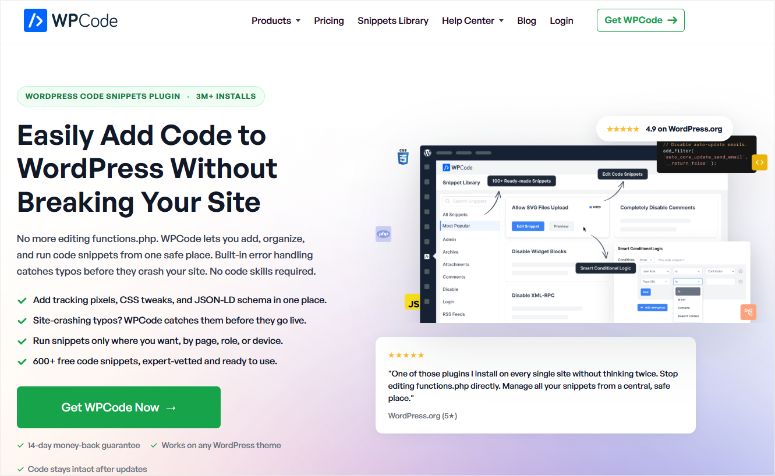
Why is WPCode one of the best WordPress code snippet plugins?
Here’s what actually solved my Elementor + WP Rocket problem. I didn’t have to google the PHP fix, paste it into the functions.php file and hope for the best. I’m open WP CodeI searched for “WP Rocket” in WP Rocket’s built-in snippet library and found an expert-reviewed snippet designed specifically for page builder conflicts.
One click. Active.
This is the standout feature that earned WPCode the top spot on this list: a library of over 100 tested snippets covering the most common WordPress customizations.
You can enable the best WordPress analytics plugins like Google Analytics, disable XML-RPC, allow SVG uploads, and add schema markup without touching a single line of code yourself.
In fact, the code generators in WPCode create ready-to-use schema markups for products and articles, which is something most best SEO tools don’t give you as a one-click snippet in WordPress.
Additionally, the conditional logic system is more intuitive than any other plugin I’ve tested.
Do you want to load a script only on mobile devices? On certain pages? Only for logged in users? You set these rules with dropdowns, not code. Even the free version includes conditional logic that often hides the competition behind paid plans.
What I noticed about the admin interface. It has grown significantly since the early days of Insert Headers and Footers. There are more menu items, more settings, more upselling prompts.
If you only need to insert one tracking pixel, the added complexity can seem overwhelming at first. Allow 10 minutes to get oriented before your first snippet.
My experience with WPCode
During 60 days of testing on three WordPress sites, I enabled 14 snippets – tracking pixels, schema markup, WooCommerce customizations, and the minification fix that triggered all of this.
The error handling surprised me. I intentionally inserted a syntax error in a PHP snippet.
Before saving, WPCode marked the error inline. This meant I couldn’t activate broken code at all. Once a bad snippet came through, it was automatically disabled, leaving a clear error log pointing to the exact line. The site never went down.
One real point of friction: WooCommerce-specific insertion locations – like “after cart total” or “before checkout” – are locked behind the paid Plus plan ($99/year).
I tested this on a website running one of the best WordPress eCommerce plugins, expecting free flexibility, and quickly hit the wall. If you run a store and need snippet placement in WooCommerce templates, budget for Pro.
🟢► Advantages
- One-Click Snippet Library: I enabled 6 common customizations (Google Analytics, disable comments, SVG uploads) in under 3 minutes – no code search required.
- Error validation before saving: WPCode flagged my broken PHP before I could activate it. This is the only plugin on this list that detects errors at the save step and not the activation step.
- Conditional logic in the free tier: I set device-specific and site-specific rules without upgrading. Most alternatives exclude this behind paid plans.
- Code generators: I created a complete schema markup snippet using the generator without writing a single character of JSON-LD.
- Over 3 million active installs: This install number means more community snippets, more tested fixes, and more help available when you’re looking for solutions.
- Multi-site cloud library: I saved snippets to WPCode Cloud and deployed them to three websites without retyping anything.
🔴► Disadvantages
- WooCommerce Placements are only available for professionals: The free tier does not allow snippets to be inserted into specific WooCommerce template locations. Shop owners will quickly hit this wall.
- The admin interface has become more extensive: The current dashboard is significantly busier than the old “Insert Headers and Footers” plugin. First-time users may need a few minutes to find what they’re looking for.
My verdict: WPCode is the right choice for anyone who wants to add custom code without having to search for it. The snippet library consolidates a typically multi-step process (find code → copy → paste → test) into a single click.
If you run a store and need WooCommerce-specific placements, upgrade to Plus. For everyone else: The free version does more than most websites will ever need.
Prices: Free. Paid plans start at $49/year (Basic, 1 Site). Plus $99/year (5 sites) adds conversion pixels and WooCommerce placements.
👉 Get started with WPCode here
Ideal for: WordPress users who want the easiest, most familiar snippet management experience
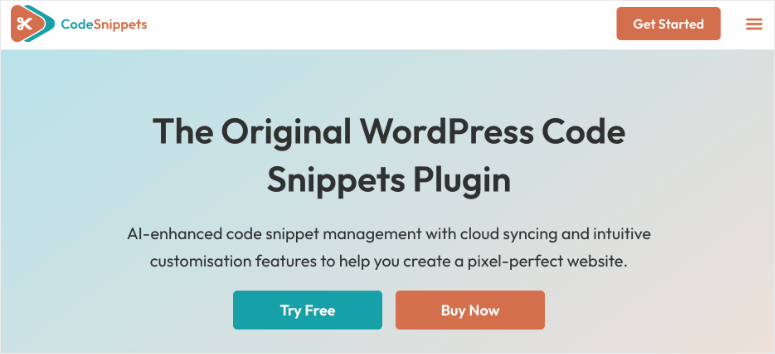
Why is Code Snippets one of the best WordPress code snippet plugins?
The desk. That’s why this is here.
Code snippets manages your custom PHP, CSS, JavaScript and HTML just like WordPress manages plugins. Each snippet has an on/off switch, a name and a description.
If you’ve ever activated or deactivated a plugin, you already know how to use code snippets. This zero learning curve interface is the reason why it already has over a million active installs.
Each snippet lives on its own isolated line. You can tag them, export them as a PHP file for sites where you don’t use the plugin, and even browse a community repository, Code Snippets Cloud, where public snippets are available for download.
I found a snippet to remove the default WordPress emoji scripts in about 90 seconds, tested it on a staging site and it worked perfectly.
Here’s what most reviewers don’t say: Code Snippets has a documented pattern of plugin updates breaking live sites. In late 2024 and early 2025, several major version updates caused crashes for users who did not back up.
This is why the best WordPress backup plugins belong on every website that runs code snippets. Treat each update the same as a major WooCommerce release.
If you’re serious about protecting your WordPress site, test updates in staging before pushing them into production.
My experience with code snippets
I added my first snippet – disabling the Gutenberg block editor for certain post types – within 2 minutes of installing the plugin. No documentation required. The interface is so familiar.
When testing, I specifically checked Safe Mode. I inserted a fatal error in a PHP snippet. The Safe Mode URL worked. I grabbed it /wp-admin/?safe_mode=code-snippets and was able to disable the broken snippet without leaving the website offline. Solid throwback.
What I noticed during testing: The cloud integration occasionally took 5-10 seconds to load community snippet search results. It wasn’t consistent, but on slower connections it felt more like a hang than a strain. Not a dealbreaker, but worth mentioning if you rely on cloud snippets during live client sessions.
🟢► Advantages
- Plugin-like toggle interface: I enabled and disabled snippets using the exact same mental model as I use when managing WordPress plugins. There are no new concepts to learn.
- Export to PHP: I generated a standalone PHP file from my snippets for a submission site where the client didn’t want a snippet manager installed.
- Over 1 million active installations: The large install base means more community tested snippets, more forum answers, and more tutorials specific to this plugin.
- Multisite support: I enabled snippets network-wide on a multisite installation without requiring separate configuration per subsite.
- Tag-based organization: I tagged snippets by feature (Performance, Tracking, WooCommerce) and filtered them immediately – important when managing 20+ snippets.
- Code Snippets Cloud: Accessing the community repository allows me to search for common snippets without leaving the plugin interface.
🔴► Disadvantages
- Update history includes website crashes: Several major version updates in 2024-2025 have brought down live sites – always back up updates and test them in staging before applying them in production.
- Support resolution rate: Only 2 out of 5 current support issues have been resolved in the last two months – slower than WPCode’s 12 out of 12 rate.
My verdict: Code Snippets is installed millions of times. The switching interface removes the only mental hurdle that prevents people from editing functions.php. This makes snippets feel safe and manageable.
The caveat: Update hygiene is more important here than with WPCode. For users who want the level of control over WPCode, choose Product 1. For everyone else who just wants a clean, familiar layer of management, Code Snippets is excellent.
Prices: Free. Code Snippets Pro starts at $39/year (single site). Lifetime license available for $897.
👉 Start here with code snippets
Best for: Marketers adding tracking scripts, ad codes, and conversion pixels with device targeting in the free tier
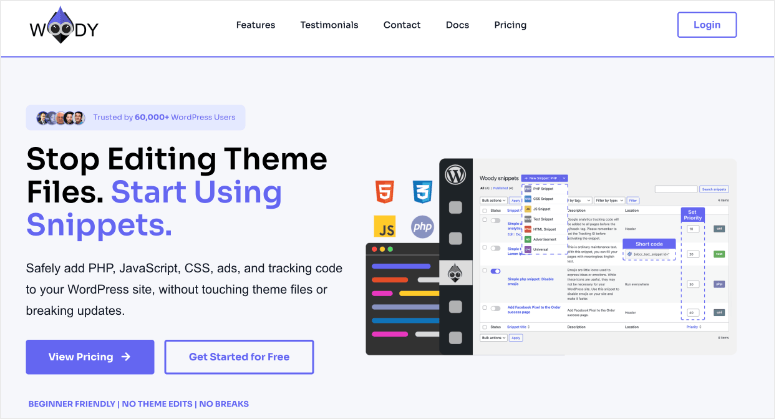
Why is Woody Code Snippets one of the best WordPress code snippet plugins?
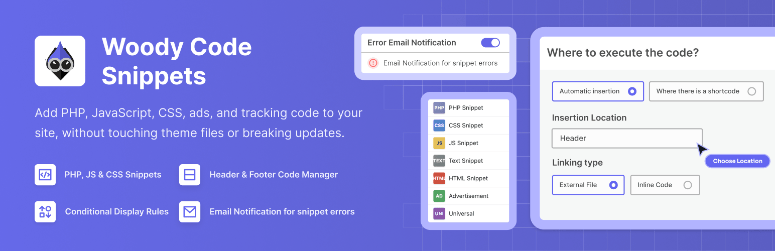
Woody code snippets has a snippet type that no other plugin on this list offers: Universal Snippets. You write PHP logic, HTML output, CSS styling and JS behavior in a single snippet entry. Every other plugin breaks these down into four different snippets.
The free tier includes device-specific conditional logic (desktop only / mobile only), which most WordPress page builders often charge additional fees for in their display conditions add-ons. For those who add advertising code, tracking pixels or banner ads that only appear on certain devices, this is a real advantage for free users.
Woody also includes a special “ad snippet” type designed specifically for ad network code and banners. The placement options are unusually detailed for a free plugin. For the kind of precise targeting that the best WordPress plugins for affiliate marketers typically require, Woody’s free tier is an outlier.
The only thing worth mentioning is that Woody was acquired by Themeisle in October 2025. Stable company, but the product roadmap under new ownership is still being defined. Some users have also reported persistent pop-ups with review nags that reappear after dismissal.
My experience with Woody code snippets
I tested Woody’s conditional logic with a Facebook pixel, which should only fire for non-admin users on the desktop. Setting the conditions took about 4 minutes. That’s more steps than WPCode, but still no code required.
The code editor has solid syntax highlighting and line numbers. I ran a GTmetrix test before and after activating two JS snippets and the impact was negligible – 0.1s on LCP across three runs.
A micro-friction: Adding a second condition required understanding that Woody uses OR logic between condition groups, not AND. Allow an additional 5 minutes when setting up conditions with multiple rules.
🟢► Advantages
- Universal snippet type: I combined PHP logic + HTML output in one snippet. No other free plugin on this list supports this.
- Device targeting in the free tier: I set “desktop only” rules without upgrading. For most alternatives, this is a paid feature.
- WooCommerce placements in the free tier: I included a tracking pixel before the individual product summary without requiring a paid plan.
- Type of ad snippet: Code specifically designed for ad networks with clearer labeling than generic HTML snippets.
🔴► Disadvantages
- Review nagging pop-up won’t close: Several users report that the verification request constantly reappears, which is a real UX annoyance for a tool you use every day.
- Recent change of ownership: Acquired in October 2025 by Themeisle, a stable company, but the roadmap under new management is still being defined.
My verdict: For marketers who thrive on tracking pixels and ad codes, Woody’s free device targeting is truly valuable and hard to find elsewhere. The universal snippet type is a real differentiator for complex conditional content. If you are a developer who needs a clean, fast snippet manager, WPCode or FluentSnippets are better for you.
Prices: Free. Pro plans start at $29/year (Basic).
👉 Start here with Woody code snippets
Best for: Agencies and freelancers who manage multiple client locations and require cloud syncing and client-ready exports
Why is WPCodeBox one of the best WordPress code snippet plugins?
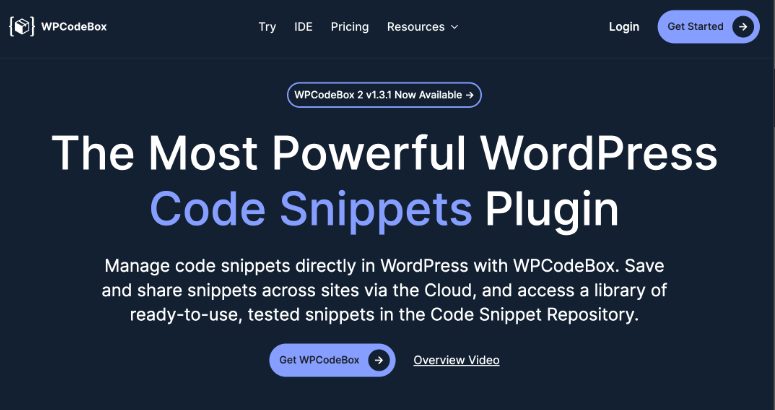
WPCodeBox is the only plugin on this list that can export your entire snippet collection as a standalone, installable WordPress plugin.
For agencies that build websites with the best Elementor themes and distribute them to clients who shouldn’t have access to a snippet manager, this is a truly unique feature.
The cloud sync system is based on a React-based single-page interface, so there is no need for page reloads, instant saves, and instant navigation. Agencies that use the best WordPress lead generation plugins on client sites will see the workflow immediately.
It’s a tool that changes the way you manage recurring customer services.
The code editor contains WordPress hooks and autocomplete actions. SCSS support with automatic compilation is included. These are developer-quality features that point to WPCodeBox’s actual audience.
Here lies the real limitation: there is no free version. $39/year is the entry point for a single website.
My experience with WPCodeBox
I tested WPCodeBox on two websites managed through a single cloud account. Syncing a snippet from one site to another took about 8 seconds and was reliable in 4 tests. The React interface really impressed me. Editing a PHP snippet was more like a local IDE than a WordPress admin panel.
The plugin export function worked fine. I created a schema markup snippet, exported it as a plugin, installed it on a test site without an active WPCodeBox and the snippet ran correctly. The problem: no integrated snippet library. Every snippet starts with an empty editor.
🟢► Advantages
- Export as a standalone plugin: I’ve bundled my snippets into a portable plugin file. This is the only tool on this list with this feature.
- Cloud sync across locations: I deployed the same snippet to two websites at the same time without manual copy and paste.
- React based interface: Instant navigation and saving felt faster than any other plugin in this test.
- WordPress Hooks Autocomplete: As I typed, I received suggestions for hook names – a real boost to developer productivity.
🔴► Disadvantages
- No free version: The minimum entry point is $39/year. There is no way to test WPCodeBox before paying.
- No built-in snippet library: Every snippet starts with an empty editor. New users don’t have a ready-made library to learn from.
My verdict: WPCodeBox is designed for agencies, not individual website owners. If you manage multiple customer locations and need cloud sync and customer deployable plugin exports, this is the best tool in this category for this workflow. For solo website owners, WPCode’s free tier covers the same core needs.
Prices: No free version. Single website starting at $39/year. Unlimited sites starting at $79/year. Lifetime license available for $199.
Ideal for: Non-technical website owners who just need to add tracking scripts and pixels to headers and footers
Why is Header-Footer Code Manager one of the best WordPress code snippet plugins?
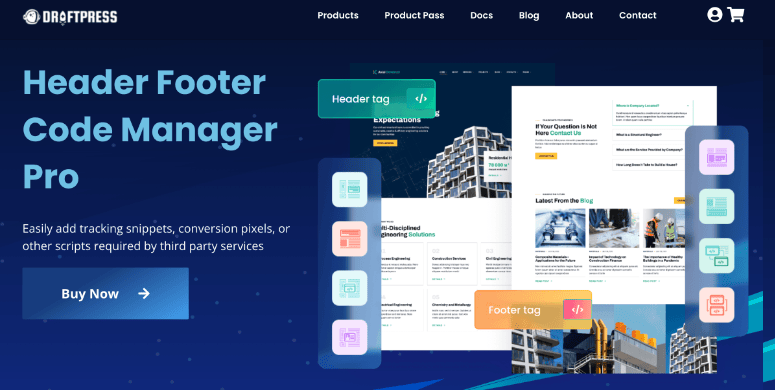
Header and Footer Code Manager intentionally does less than any other plugin on this list. It inserts HTML, CSS and JavaScript into the header and footer of your website, before the content or after the content. This limited scope is exactly why it has a 4.9/5 rating with 306 reviews and over 600,000 active installs.
The feature that most auditors skip is the audit trail. HFCM tracks which user added each snippet and when it was last edited. On team sites this is really useful, and no other free tool on this list tracks this.
Device targeting is available in the free version. If you ever need to troubleshoot a performance issue, knowing which scripts are loaded on which devices is the first step. Check out our guide on how to clear WordPress cache after making changes to see the full effect.
To get a complete overview of what affects your website speed, the WordPress Performance Optimization Checklist is a useful companion reference.
Here’s the hard limit: HFCM does not support executing PHP code. If you need to run PHP functions, hooks or filters, this plugin cannot help you.
My experience with the header-footer code manager
I added a Google Tag Manager snippet to the website header in less than 90 seconds. Install, activate, add new snippet, paste GTM code, select “head” location, save.
I added a second tester account to the site and had them add a Facebook pixel snippet. When I checked the snippet list, their name and timestamp were displayed correctly. The Accountability Trail worked exactly as described.
Test device targeting: I set a banner code to Mobile Only, verified that it fires in the 375px viewport using Chrome DevTools mobile emulation, and confirmed that it doesn’t exist on desktop. Worked on the first try.
🟢► Advantages
- Integrated audit trail: Each snippet shows which WordPress user added it and when, confirmed by a two-account test.
- 4.9/5 with 600,000 installs: The highest rating to install ratio in this category. It does its narrow job very well.
- Device targeting in the free tier: Desktop/Mobile rules available without upgrade.
- No PHP execution risk: Non-developers can’t accidentally run broken PHP because the plugin doesn’t support it.
🔴► Disadvantages
- No PHP snippet support: Hard architectural boundary. If you need to run PHP code, HFCM is the wrong tool.
- Limited to 4 injection sites: No paragraph-level placements or WooCommerce-specific placements in the free tier.
My verdict: HFCM is the right choice if your only goal is to add tracking codes and scripts as easily as possible. The audit trail makes it particularly strong for team environments. Once you need PHP execution, switch to WPCode or Code Snippets.
Prices: Free. HFCM Pro approximately $119 lifetime (unlimited sites).
👉 Start here with the Header-Footer Code Manager
Ideal for: Performance-oriented developers who don’t expect database overhead from their snippet manager
Why is FluentSnippets one of the best WordPress code snippet plugins?
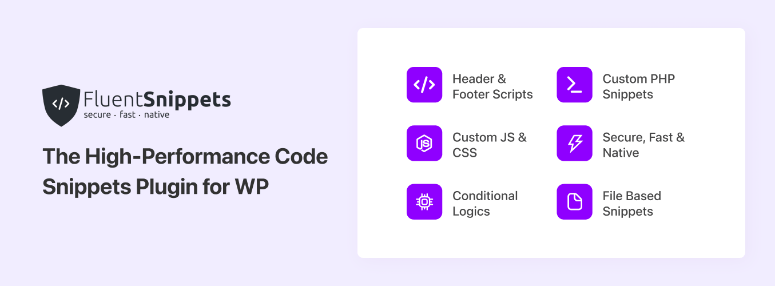
Every other plugin on this list saves your snippets to the WordPress database. FluentSnippets saves them as flat files. WordPress integrates these files natively at runtime. Result: no database queries from the snippet manager itself. Zero.
I ran Query Monitor before and after activating three PHP snippets in FluentSnippets and in WPCode. WPCode added 4 database queries per page load. FluentSnippets added zero.
On a website that uses the best WordPress plugins for image optimization and is already getting the latest performance improvements, this zero query architecture is missing.
For sites with managed WordPress hosting that handle tens of thousands of page views daily, eliminating database overhead through snippet management is a real optimization.
The standalone mode is the most unusual feature in this entire category. Enable standalone mode and your snippets will move there wp-content/mu-plugins.
You can then delete FluentSnippets – and the snippets will continue to run. This is really clever for customer sites where you don’t want a snippet manager to be visible.
The caveat: 40,000 installs versus WPCode’s 3 million. Fewer tutorials, fewer community-tested snippets, fewer forum responses.
My experience with FluentSnippets
I set up FluentSnippets on a staging replica with high traffic and enabled standalone mode. After deactivating the plugin, all mu-plugins snippets continued to run. I reinstalled FluentSnippets and the existing files were recognized immediately. The handover went smoothly.
One real concern: A WP.org review from early 2026 noted that FluentSnippets initially refused to save snippets after installation. I tested it myself and didn’t reproduce the issue, but the small community means it takes longer for issues like this to surface and get attention.
🟢► Advantages
- No database queries at runtime: Query Monitor confirmed that FluentSnippets adds 0 DB queries per page view, the only plugin on this list with this claim.
- Immunity to SQL injection: File-based storage prevents snippet data from becoming a target of database injection attacks.
- Standalone mode: I disabled the plugin and snippets still run through mu plugins. This is a unique architecture for client handoffs.
- Completely free: No paid version, no feature gating.
🔴► Disadvantages
- Small community: 40,000 installs compared to WPCode’s 3 million means fewer tutorials and slower support forum activity.
- Consider reliability: A documented case of snippets refusing to save upon initial installation.
My verdict: FluentSnippets solves a real problem, database overhead from snippet management, in a truly novel way. For performance-oriented developers on high-traffic sites, the zero-polling architecture is worth the reduced trade-off for the community.
For anyone who values a large support ecosystem and pre-built snippets, WPCode covers the basics with less technical risk.
Prices: Free. No paid tier.
👉 Start here with FluentSnippets
Insert a PHP code snippet by XYZscripts converts PHP code blocks into shortcodes that you insert directly into posts, pages, and widgets. With a 4.9/5 and 600+ WP.org reviews, users love it for one specific task: embedding dynamic PHP output into page builder content without editing theme files.
If you use the best WordPress social media plugins and need to embed dynamic share counts or social widgets in specific post locations via a PHP shortcode, this is the most straightforward tool for the task. PHP only, no CSS or JS management.
Prices: Free.
Simple custom CSS and JS Only covers CSS and JavaScript, nothing else. Live preview mode allows you to see CSS changes in real time on the frontend before saving.
If you’re customizing the best WordPress gallery plugins that require custom CSS overrides and want to see the result immediately, this is the most focused CSS injection option available. Not for PHP, not for conditional logic.
Prices: Free. Pro version available.
How to choose a WordPress code snippet plugin
The right plugin depends on what you actually need to run. Not just today, but in six months as your use case expands.
If you only add tracking codes, pixels and analysis scripts → Header Footer Code Manager handles this with the least complexity and a useful audit trail for team sites. Setting up your first snippet takes about 90 seconds.
If you want a complete code management system and are not a developer → WPCode is the clear choice. Thanks to the built-in snippet library, you can enable common functionality without having to find code yourself. Start with the free version and upgrade to Plus only if you need WooCommerce specific placements for your store running the best WooCommerce plugins.
If you want the most familiar interface → Code snippets use the same mental model as managing plugins – turn on, turn off. Be disciplined about backing up before applying plugin updates.
If you run multiple client sites → WPCodeBox’s cloud sync and plugin export feature transforms the agency workflow. The no-free version policy is a hard line – it either fits your budget or it doesn’t.
If you are a developer of a high traffic website → FluentSnippets’ zero database query architecture is truly differentiated. For websites with tens of thousands of visitors per day, removing database overhead from the snippet system is a real optimization.
When you add ad code, banner ads and marketing scripts → Woody Code Snippets’ universal snippet type and free device targeting make it the most flexible option for marketing-intensive workflows. If you manage a website with the best WordPress membership plugins with tiered content, Woody’s conditional logic in the free version handles member-specific snippet rules.
Here’s another scenario worth mentioning: If your website uses live chat software that requires a header script, that’s a perfect header-footer code manager job. Install, add chat widget code in the header, done.
The one question that simplifies most decisions: Do you need PHP to run or do you just need scripts in the header? The PHP capability is the dividing line that separates the full snippet managers from the simple script injectors.
FAQs: Best WordPress Code Snippet Plugins
What is a code snippet plugin for WordPress?
A code snippet plugin gives you a safe place to add custom code – PHP, CSS, JavaScript or HTML – without directly editing your theme’s functions.php file.
If something breaks, you can turn off the snippet without losing access to your site. This keeps your customizations theme independent so they can survive theme updates and changes.
Will a code snippet plugin slow down my WordPress site?
Most cause negligible additional effort. WPCode, Code Snippets, and others perform three to five additional database queries per page load, which is unmeasurable in practice on most websites. FluentSnippets does not query by saving snippets as files.
The performance impact of the snippets themselves depends entirely on what code you are running, not the plugin that manages it. For websites where every millisecond counts, combining a snippet plugin with high-quality WordPress hosting makes a bigger difference than choosing the snippet manager.
What happens if my code snippet breaks my website?
Most of the plugins in this list have a safe mode. If a fatal error occurs, access a special admin URL (usually with ?safe_mode=plugin-name attached) which bypasses the snippet, takes you back to the dashboard and disables the broken snippet.
WPCode also validates PHP syntax before saving and detects errors before they can go live.
Is WPCode free?
Yes. WPCode has a fully functional free version with unlimited snippets, the built-in library, header/footer scripts and conditional logic. Paid plans start at $49/year (Basic, 1 site) and unlock features like conversion pixels, WooCommerce-specific placements, and AI snippet generation.
What is the difference between WPCode and code snippets?
WPCode emphasizes a built-in library of expert-tested snippets that you can activate with one click, as well as code generators and conditional logic with a visual interface. Code Snippets emphasizes a minimal, plugin-like switching interface with strong multisite support and community cloud snippets.
WPCode is better for non-developers who want pre-built code; Code snippets are better for users who prefer a clean, familiar management layer.
Can I use a code snippet plugin instead of a child theme?
For adding PHP functions and custom code, code snippet plugins are the modern replacement for functions.php editing. To override theme templates, you still need a child theme or one of the best premium WordPress themes that cleanly supports child theme customization.
But for most customizations people add to functions.php – removing functions, adding analytics, changing default behavior – a snippet plugin is safer and easier to manage.
Final Verdict: Should I use code snippet plugins on my WordPress site?
Yes, they belong on every WordPress site.
This afternoon everything stopped loading on my Elementor site. That wasn’t a disaster, it was the day I was no longer afraid of custom code.
Whether you’re starting a WordPress blog from scratch or managing a mature website, the fix you need is often already available as a snippet. You just need a safe way to apply it.
Code snippet plugins give you this layer of security. The error handling, safe mode and toggle controls mean that in the worst case scenario you will end up with a snippet that is automatically disabled, rather than a website that will be down for hours.
There are free options for every use case on this list. The paid upgrades are reasonable if you need them – typically $40-$100 per year – and most solo site owners will never grow past the free tier.
Install one today, add your first Google Analytics snippet or tracking pixel, and see how much easier WordPress management becomes when you’re not afraid of the code editor.
Plugin reviews at a glance
WPCode – 4.9/5 · Code Snippets – 4.7/5 · Woody Code Snippets – 4.5/5 · Header-Footer Code Manager – 4.9/5 · FluentSnippets – 4.6/5
Resources Hub: WordPress Customization and Code Management
These IsItWP guides cover the tools and techniques that work alongside code snippet plugins for a faster, better-functioning WordPress site.