


I published a tutorial two years ago. In the first few months it ranked on page one and received around 900 visitors per month.
Then it began to slide quietly. Page 2. Then page 3. By the time I noticed it, traffic was down 65%.
The article had not changed. But the search results around it had.
Competitors released better versions. The information I shared was still accurate, but it seemed flimsy compared to what else was out there. My contents had expired.
Content decay occurs when a post gradually loses rankings and traffic. Not because you did anything wrong, but because the web continued without it.
When you’re trying to increase organic traffic to your WordPress site, content decay is one of the biggest silent killers you’ll face.
The good news is that it is repairable. In this guide, I’ll show you exactly how to find out which posts expire, how to restore them, and how to automate the entire process so you’re never caught off guard again.
In this guide, you’ll learn how to prevent content expiration:
- Here’s how to spot content decay before it destroys your rankings
- How to use All-in-One SEO to find and fix declining posts in your WordPress dashboard
- Use Google Search Console for free, manual decay detection
- How to set up Uncanny Automator to monitor content expiration on autopilot
- Which method is right for your situation
Key insights
- I’ll show you how to use All in One SEO’s content rankings feature to identify exactly which posts are losing traffic and fix them right from your WordPress dashboard
- I cover Google Search Console’s free comparison tool for bloggers who don’t yet have AIOSEO
- Discover the Uncanny Automator recipe that automatically flags old, outdated posts every week so you never miss an expiring article again
- I’ll go over 5 proven content refresh tactics that actually improve rankings
- I’ll explain the difference between real content decay and seasonal traffic drops so you don’t waste time fixing posts that don’t need it
What we will achieve in this tutorial
By the end of this guide, your WordPress site will have a clear system for finding posts that have lost traffic.
A step-by-step process to update and, if you choose Method 3, an automated recipe that monitors your content every week.
Here’s what you can do after reading this:
- Identify your most decaying posts using real ranking data
- Apply targeted content updates that signal freshness to Google
- Set up an automated content monitoring system in WordPress
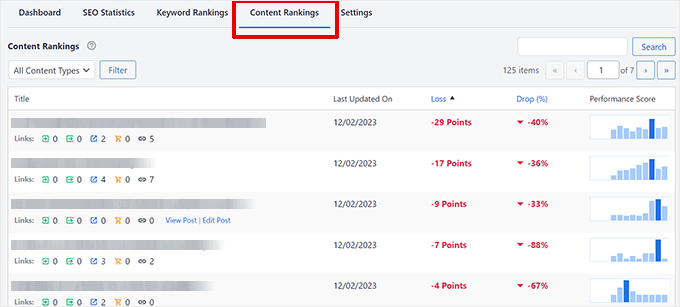
The screenshot below shows what the AIOSEO Content Rankings dashboard looks like once connected and populated. This is the view from which you will work in Method 1.
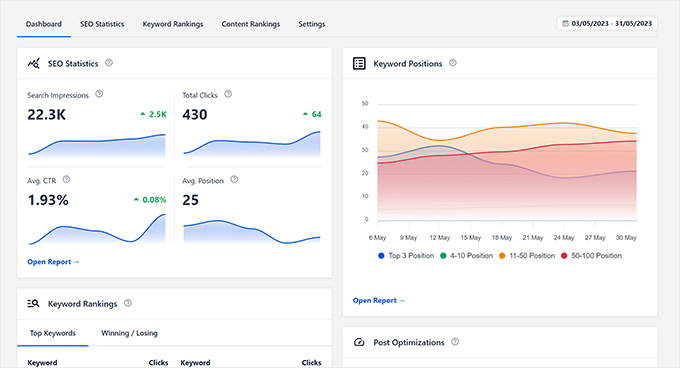
The AIOSEO Content Rankings view shows exactly which posts are losing ground and by how much.
So that you can jump to any section you want or see all the methods and steps at a glance, use the table of contents below.
With that out of the way, let’s get started.
What you need before we begin
Skill level: beginner
Time to completion: ~25-35 minutes
Before we begin, make sure you have the following:
- An existing WordPress site with published content. This tutorial assumes that you already have posts that could lose traffic
- A Google Search Console account: free to set up and required for all three methods. If you haven’t connected it yet, here’s how to set up Google Search Console for WordPress.
- All in one SEO: required for Method 1. The search statistics feature is included in the Elite plan. The free version does not contain it.
- Scary Automator: Only needed for method 3. The free version is available in the WordPress plugin directory.
Is it really content decay? (Check this first)
Before you spend time updating posts, make sure you’re actually dealing with content expiration and not one of the three common scammers.
Seasonal traffic losses occur as planned every year.
- A post about the “best Christmas presents” will always appear in January.
- If your traffic follows the same pattern year after year, it’s due to seasonality, not decline.
✅ Tip: If you do a quick search for your target keyword on Google Trends, you’ll find out within seconds.
Google algorithm updates can result in sudden drops in rankings across the site.
- If you notice that traffic drops sharply on many pages at the same time, especially around a confirmed core update date, that’s a different problem than the slow erosion of content decay.
✅ Tip: Staying on top of key WordPress and SEO statistics can help you identify industry-wide patterns versus issues specific to your site.
Technical problems.
- Issues like broken sitemaps, accidental noindex tags, or plugin conflicts can spike traffic overnight.
✅ Tip: A quick site audit in AIOSEO will detect these before proceeding.
What content decay actually looks like
Real content decay looks different:
- A gradual decline over a period of 6 to 18 months in a single post or a small group of posts, with no technical explanation.
- The post still receives impressions in Search Console, but its ranking positions are slowly decreasing.
✅ Tip: The Performance tab in Google Search Console gives you a 16-month view that makes this pattern easy to spot. A gently sloping line without sharp cliff edges is classic content decay.
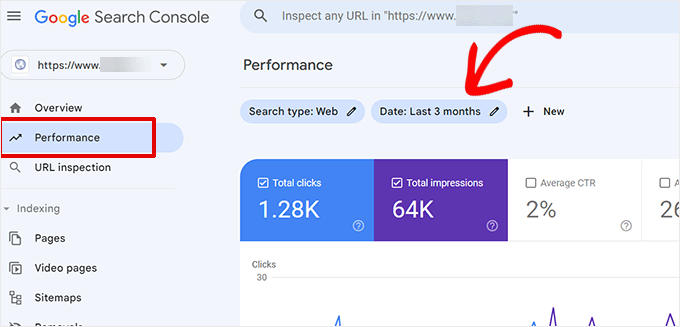
A slow, steady decline over 6-12 months without sharp drops is the hallmark of true content decline.
Now that you understand what real content decay looks like, I’ll show you how to fix it.
Method 1: All in one SEO – Find and repair expired content (recommended)

This is the method I use. All in one SEO is one of the most popular SEO plugins for WordPress and the plugin we use to identify and fix content expiration directly in your WordPress dashboard.
It connects to Google Search Console behind the scenes and displays your ranking data in a way that’s easy to process without spreadsheets and tab switching.
Instead of switching tabs and exporting spreadsheets, you can see which posts are rejected, open them in the editor, and start fixing them. All without leaving your dashboard.
Using the Elite plan is by far the fastest and most beginner-friendly way to combat content decay.
And if you’re still comparing options, my breakdown of AIOSEO vs. Yoast SEO explains why I recommend AIOSEO for this type of data-driven content work.
Check out my AIOSEO review for a full breakdown of everything this SEO plugin can do.
Step 1: Install and activate All-in-One SEO
To get started, go to All in one SEO website and purchase the Elite plan. If you’re not sure which plan is right for you, check out my All in One SEO Free vs. Pro comparison first.
Then from your AIOSEO account dashboard, download the plugin file and copy your license key.
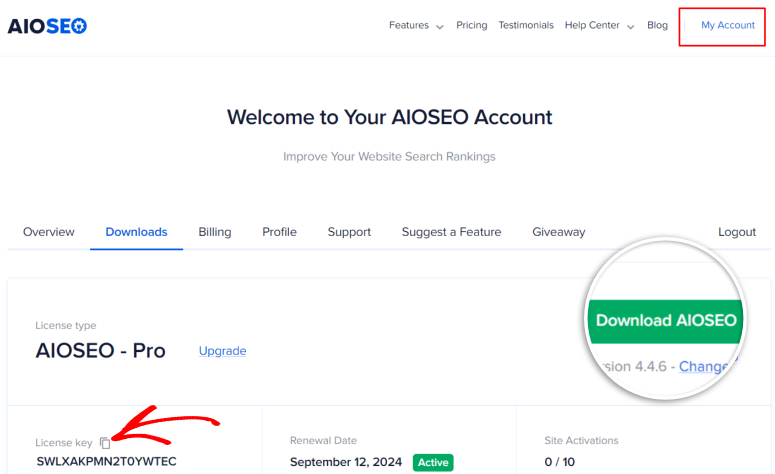
Then go to Plugins » Add new » Upload plugin In WordPress, upload the file, click “Install Now” and then click “Activate”. If you encounter any problems, here is a step-by-step guide on how to install plugins for WordPress.
When prompted, paste your license key to unlock full functionality. You’ll know it worked when you see “All in One SEO” in your left WordPress sidebar.
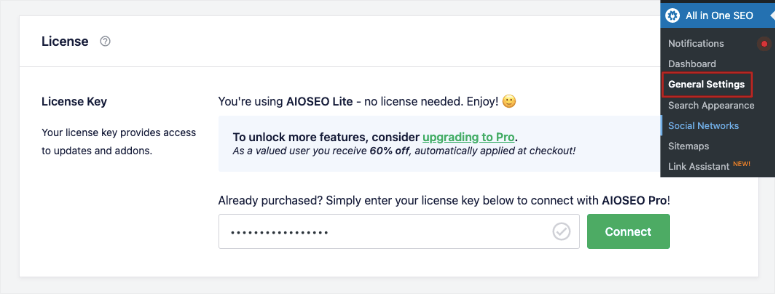
⚠️ Quick check: If you don’t see “All in One SEO” in your sidebar after activation, refresh the page. It appears immediately.
Step 2: Connect All in One SEO to Google Search Console
~3 minutes | Links your WordPress dashboard to your Google ranking data
Before AIOSEO can show you content rankings, it needs permission to read your Search Console data. This requires a quick Google authorization flow. It takes about 60 seconds.
Once you have installed AIOSEO, you should be taken directly to the setup wizard where you can connect to Google Search Console.
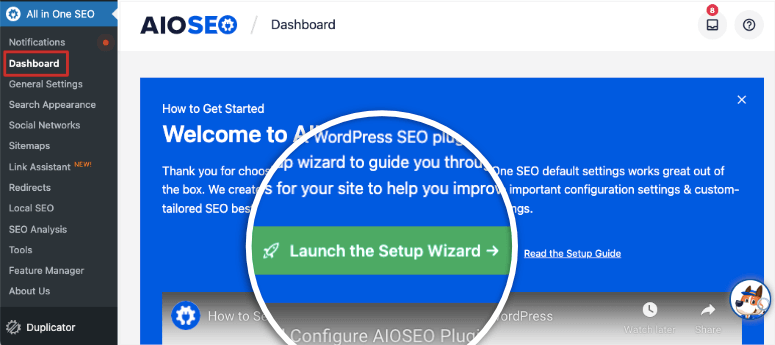
But here’s how to do it manually.
Start by walking All in one SEO » search statistics in your WordPress dashboard.
You will be taken to an overview page asking you to connect your account. Click Connect to Google Search Console. A Google permissions window will then open.
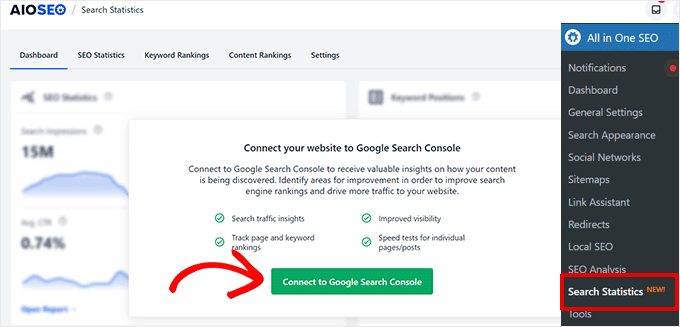
This button starts the authorization flow. Click on it and you will be taken through the Google permissions screen.
Select the Google Account that manages your Search Console property, then click Allow to grant access. You will automatically return to your WordPress dashboard.
Click Complete connection To complete the setup, AIOSEO will begin reading in your ranking data. The search statistics overview now shows a graph of your website’s clicks and impressions.
Once connected, the dashboard shows your site’s ranking performance, including clicks, impressions and trends, at a glance.
⚠️ Quick check: If you see “No data yet,” wait up to 24 hours. After the first connection, Google needs some time to synchronize.
Step 3: Find your expiring contributions
~5 minutes | Identifies which posts are losing rankings
In the Search Statistics dashboard, click Content rankings Tab. You will see a table listing your posts along with their ranking data.
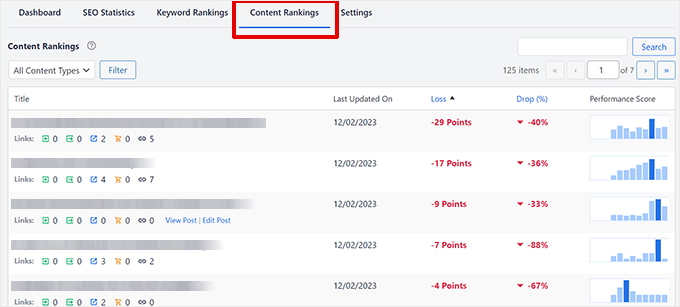
With content rankings, you can see post by post what is rising, remaining stable, and losing ground.
The two columns you should focus on are Losshow many ranking positions a post has lost and Fall %the percentage decrease in traffic.
Click on Loss Column heading to sort from highest to lowest. After doing this on dozens of sites, I always find that the posts at the top of this sorted list offer the greatest chance of recovery.
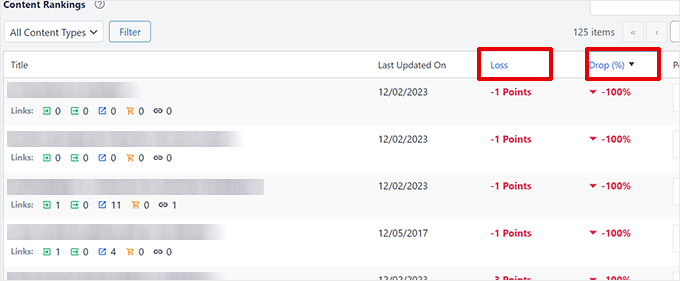
Sorting by loss immediately shows your highest priority posts. The ones where an update will have the greatest impact.
As a working rule, any post that has lost 15 or more ranking positions or has a traffic drop of 20% or more deserves your attention first.
Don’t worry if you have a long list. You don’t have to fix everything at once. Start with your top three.
⚠️ Quick check: If Content Rankings does not display data, AIOSEO requires at least 30 days of Search Console history to populate this view. After a month, check back to see if your website has been reconnected.
Step 4: Repair the Decaying Post
~20 minutes per post | The actual content update
Once you know which post you want to target, hover over it in the Content Rankings table and click Edit post. This will take you directly to the WordPress block editor with the AIOSEO panel open in the sidebar.
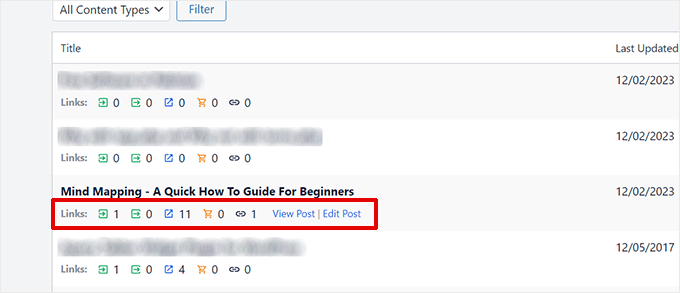
When you hover over any post in the content ranking list, an Edit Post button will appear. One click and you are in the editor.
Once you’re in the editor, take a look TruSEO Score in the AIOSEO sidebar. Anything below 70 clearly has room for improvement.
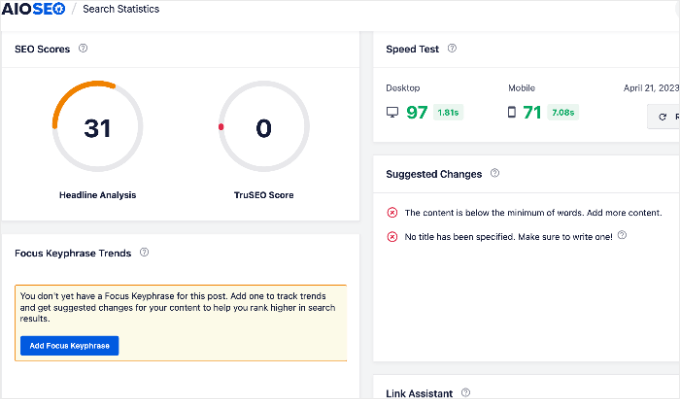
The checklist below the score tells you exactly what the piece is missing. Work through it from top to bottom.
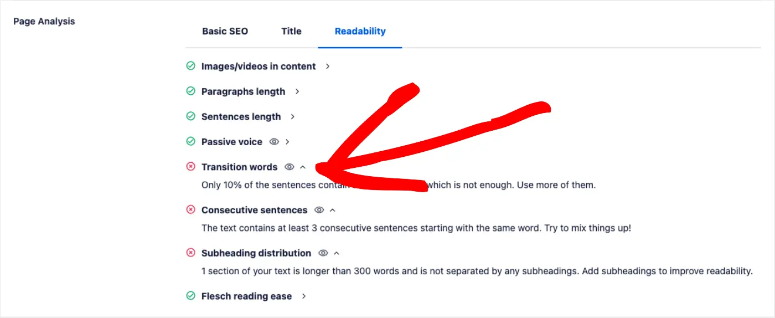
The TruSEO checklist is your refresh roadmap. Each point is a specific, actionable improvement.
These updates are constantly moving the needle.
Start with your stats and data:
- Check for more recent data for each issue you cite and only update the publication date after you make significant changes.
Check Competitors:
- Look at the top three Google results for your target keyword and identify any subtopics they cover that your post doesn’t cover.
- Adding even one missing section can greatly improve your thematic completeness. This is also a good time to check your on-page SEO signals throughout the post.
Optimize metadata:
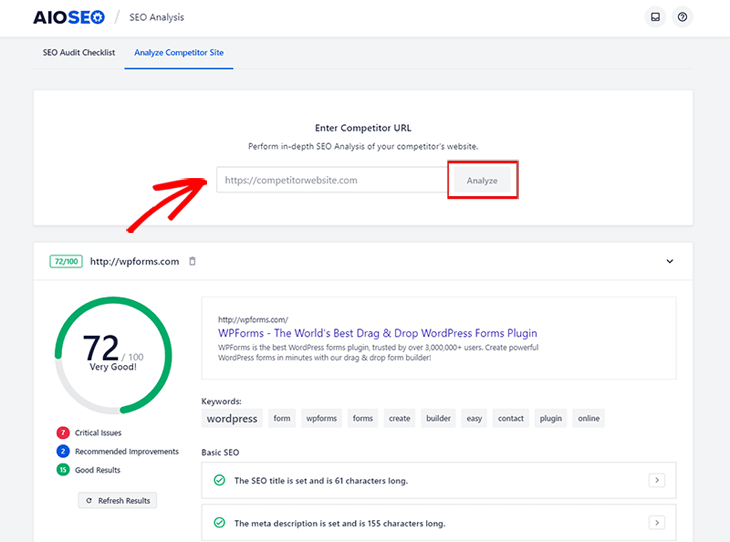
- Then click in the AIOSEO meta area and use the Headline Analyzer to generate a more click-worthy title. You can even use AI to help you create the meta title and meta description.
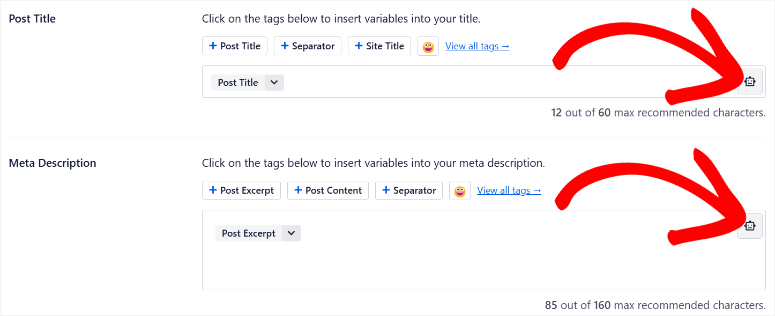
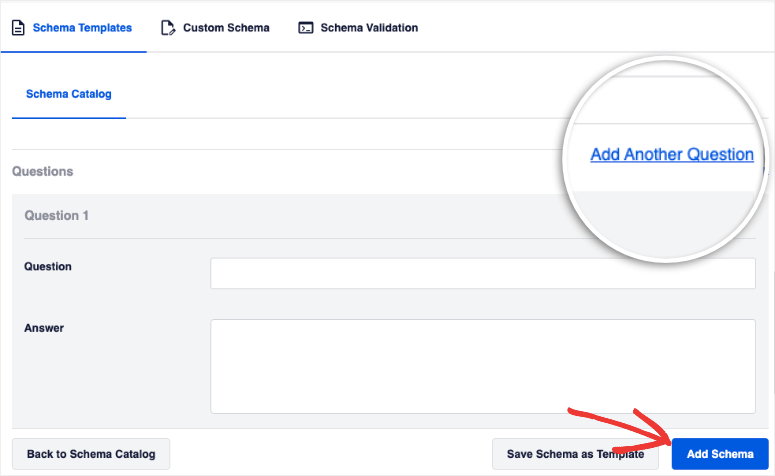
Then add an FAQ section.
- Google’s “People Also Ask” box shows you the exact questions your readers are typing. Answering three or four of these directly signals thorough topic coverage.
- As with metadata, you can also use AIOSEO AI to generate it for you.
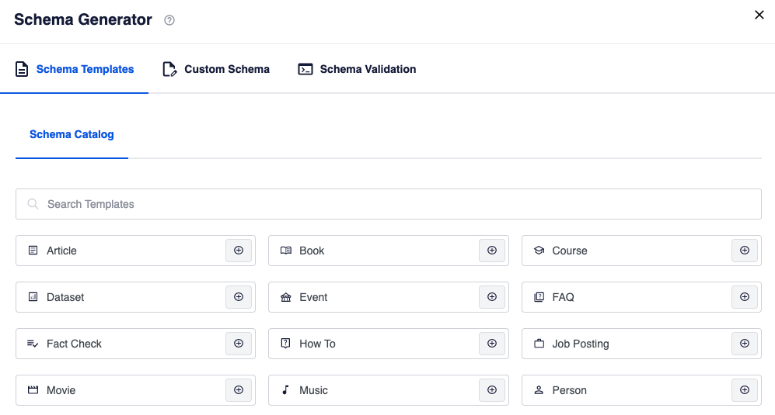
Finally, add a relevant schema.
- Schema markup is code that you can add to your website to make it easier for search engines to understand your content.
- Adding is easy with All in One SEO and you can add different types at once such as: B. FAQ schema, article, event, author and many more.
- You add it directly to the post or globally so that it is inherited by every post.
⚠️ Quick check: Read the post from the beginning before publishing. If you spot an old screenshot, broken link, or product name change, fix the issue now. These little details are exactly what Google’s quality rating looks for.
👉 Start here with all-in-one SEO
Google Search Console doesn’t have AIOSEO’s built-in remediation recommendations, but it’s completely free and gives you direct access to your raw ranking data.
If you don’t already have the AIOSEO Elite plan, this is a rock solid way to find your expiring contributions; it simply requires a little more manual work.
The key is this Compare Feature in the Performance tab.
This allows you to arrange your rankings from two time periods side by side, so you can see exactly which pages have lost positions and by how much.
If you haven’t used Search Console much before, it’s worth bookmarking my guide to Google Search Console for WordPress so you can always have it handy.
Step 1: Set up your date comparison
~3 minutes | Configures Search Console to show ranking changes over time
Open Google Search Console and click on your property. In the left sidebar, click Performancethen make sure you are on that Search results Subtab. Click at the top of the page Date range Button.
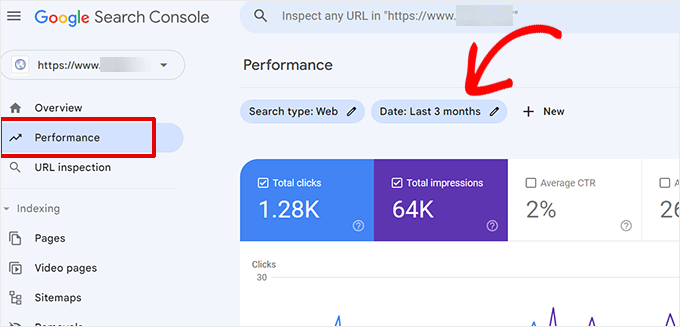
The Date Range button is located at the top of the performance report. Click on it to open the comparison options.
A drop-down menu will then appear.
Switch to Compare Tab in this dropdown menu. Then select the option to compare the last 6 months with the same period last year and then click Apply.
Before proceeding, check that all four metric boxes at the top of the chart are checked: Clicks, Impressions, CTRAnd position. You need visible positioning data to understand what’s coming next.
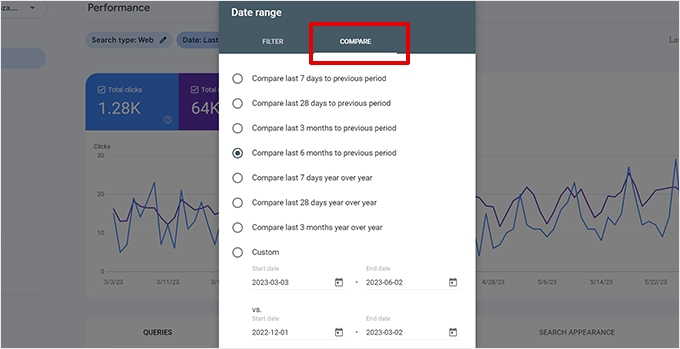
Select your two comparison periods and make sure all four metric checkboxes are checked before clicking Apply.
⚠️ Quick check: After you click Apply, you should see two colored lines on the chart. If you only see one, double check that you are logged in Compare tab, not the standard single time period date picker.
Step 2: Find pages that are losing in rankings
~5 minutes | Displays your highest priority decay candidates
Scroll past the chart and down to the data table. Click here pages Click the tab to switch from keyword view to page-level view. You will now see all of your pages listed along with their metrics for both time periods.
The column you are looking for is Position difference. It shows how many places each side gained or lost between the two periods.
Click the column heading to sort in ascending order. This puts your worst-performing pages – those with the biggest position drops – at the top of the list.
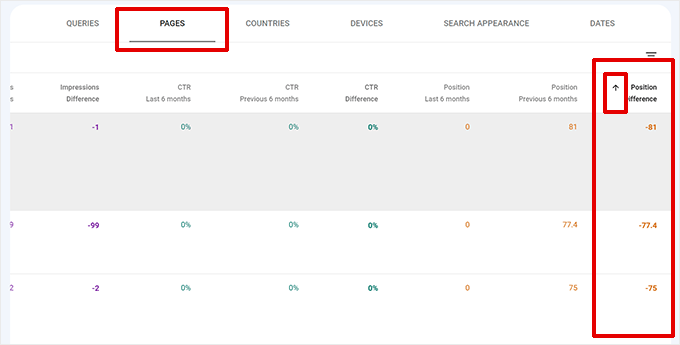
Sorting by position difference shows which pages have slipped the most. These are your candidates for content expiration.
Any page that has lost five or more positions is worth adding to your update list. Once you’ve identified your top candidates, click export in the top right corner to download the list as a CSV.
I keep a copy every time I do this exam. This allows me to track whether my updates have actually improved the rankings in the following weeks.
Using a good content marketing toolkit along with Search Console makes managing this tracking much easier.
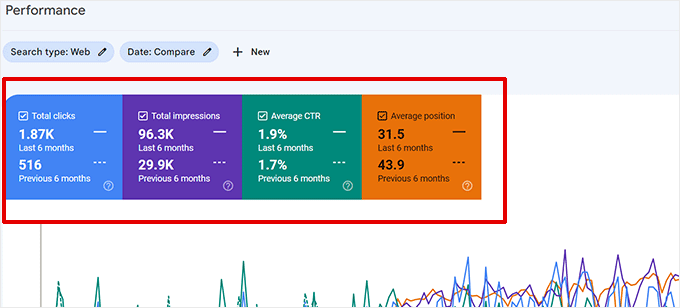
Export your list and keep a copy. This way you can track whether your updates actually restore rankings in the following weeks.
⚠️ Quick check: If you don’t see the Position Difference column, your comparison period may have been reset. Reapply it by clicking the “Date Range” button at the top of the page.
Step 3: Drill down on expiring keywords
~10 minutes | Determines which keywords to target in your update
Knowing that a page has been deleted is not enough. You need to know which specific keywords caused this decline so that your update can directly target those keywords.
In the pages table, click any declining page to filter the report to only that page. Then scroll to the data table and click Queries Tab.
This will switch the view of pages based on the search terms people used to find that particular page.
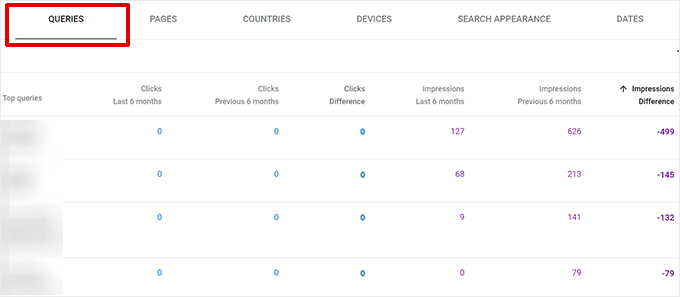
The Queries tab shows which keywords your page is losing ground on. These are the terms your update should directly address.
Look at the Position Difference column again, this time for individual keywords. The terms with the biggest declines are the ones your update should focus on.
If a keyword has moved from position 4 to position 11, adding a paragraph that answers the question more directly or expanding a short paragraph is often enough to bring it back.
Once you’ve identified your target keywords, your content optimization tools can help you fill in the gaps that are hindering your rankings.
A handful of keywords, Everyone slips a few positions, is a classic content decay that can be easily remedied with a targeted update.
⚠️ Quick check: Focus on keywords where you are still appearing in results but have lost positions, rather than keywords where impressions have dropped to zero. These are different problems with different solutions.
Method 3: Scary Automator – Automate your content decay monitoring
Methods 1 and 2 are great, but both require you to remember to check.
That’s where Scary Automator comes into play. It is a WordPress automation plugin that allows you to create workflows called “recipes” that run on a schedule without you having to do anything.
Think of it as a WordPress automation tool that acts as an always-on content watchdog.
The recipe you create here will periodically review your posts, mark anything that hasn’t been updated recently, and send you a notification with suggested updates.
It’s the closest thing to a set-and-forget content monitoring system you can build in WordPress.
For more information, check out my Uncanny Automator review.
Step 1: Install Uncanny Automator and create a new recipe
~5 minutes | Sets up the automation framework
Uncanny Automator has a free version that you can install directly from the WordPress plugin directory. This free version will perfectly help you detect and fix content decay.
Go to Plugins » Add newsearch for “Uncanny Automator” and then click Install now And Activate. Once activated, Automator will appear in your left sidebar.
To create your content decay recipe, go to Automator » Add New.
You will be asked to choose between a “Registered” prescription and an “Everyone” prescription. Choose Allbecause this recipe runs on a schedule and not in response to a user action.
Give it a name you recognize, e.g. E.g. “Content Decay Monitor” and click Confirm.
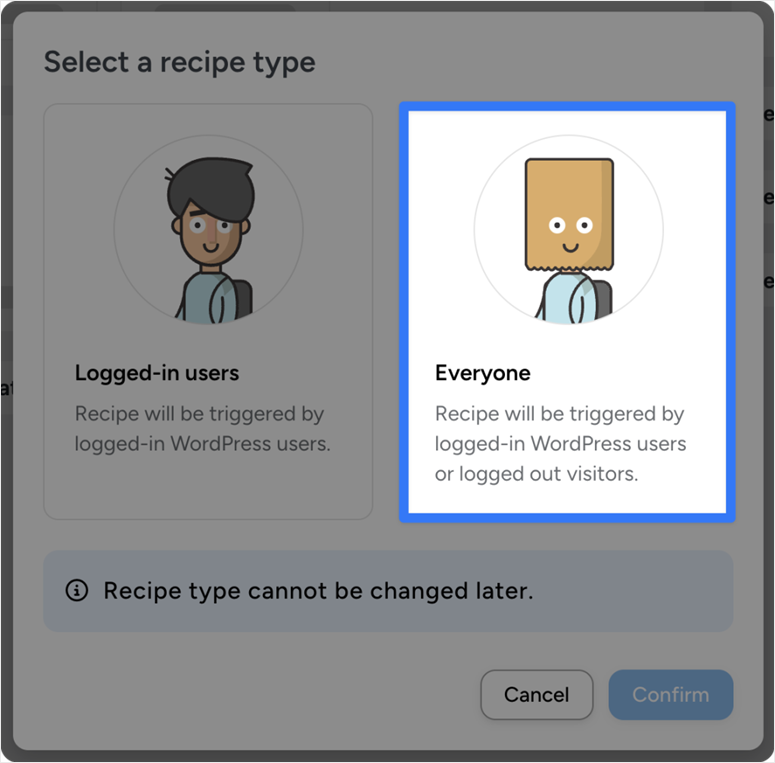
The Add New Recipe screen is where your automation begins. Name it something memorable so you can easily find it later.
⚠️ Quick check: After clicking “Confirm,” you should see a blank Recipe canvas with a “Triggers” section and an “Actions” section. If you see an error, make sure you have selected “Everyone” and not “Logged in” for that particular recipe type.
Step 2: Set a schedule trigger
~3 minutes | Tells the recipe when to run
The trigger is the trigger of the recipe.
Since you want this to run automatically on a recurring schedule, click Add triggers and look for the “Schedule” option.
Choose Repeat every day of the week and choose a time that suits you. I set mine for early morning so the results are ready when I start work.
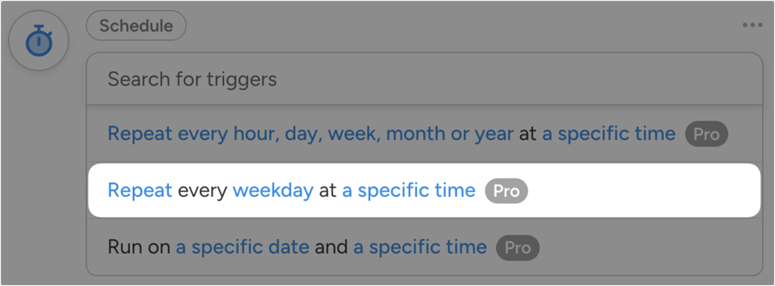
The schedule trigger tells Automator exactly when to run the recipe. On weekday mornings, you wake up with a new list.
⚠️ Quick check: Make sure the trigger shows a specific time next to the frequency. If it only shows “every day of the week” without a time, click the shutter button to expand the settings and add one.
Step 3: Go through your old posts
~5 minutes | Filters posts that haven’t been updated recently
Then click on Add action and search for “Loop”. Choose Cycle through WordPress posts. This action tells the recipe to go through each post on your site and check it based on a condition you specify.
Add a filter for in the loop settings Last modified date and set it to “is before” a date token that is 6 months ago.
This tells the recipe to only flag posts that haven’t been touched in at least 6 months. Anything newer is probably fine.
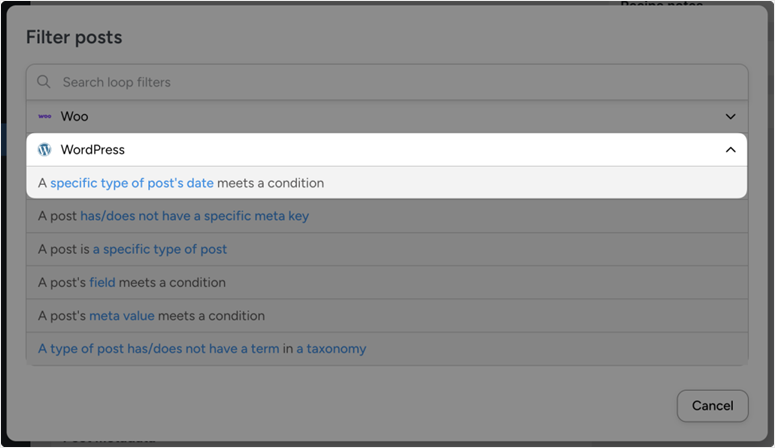
The post-loop filter is the heart of the recipe. It tells Automator which posts are outdated enough to flag.
⚠️ Quick check: If your site is new and doesn’t have many old posts, set the filter to 3 months instead of 6 months. You can always increase it later as your archive grows.
Step 4: Add AI analysis and activate the recipe
~5 minutes | Connects an AI to suggest updates and then pushes the recipe live
Now add the action that does the actual thinking. Click Add action again and search for your preferred AI integration.
Scary Automator supports OpenAI, Perplexity and others. Select the AI action and configure the prompt to analyze the post content and make suggestions about what is stale or missing.
A prompt like “Review this WordPress post and suggest three specific updates to make it more current and comprehensive” is a good starting point.
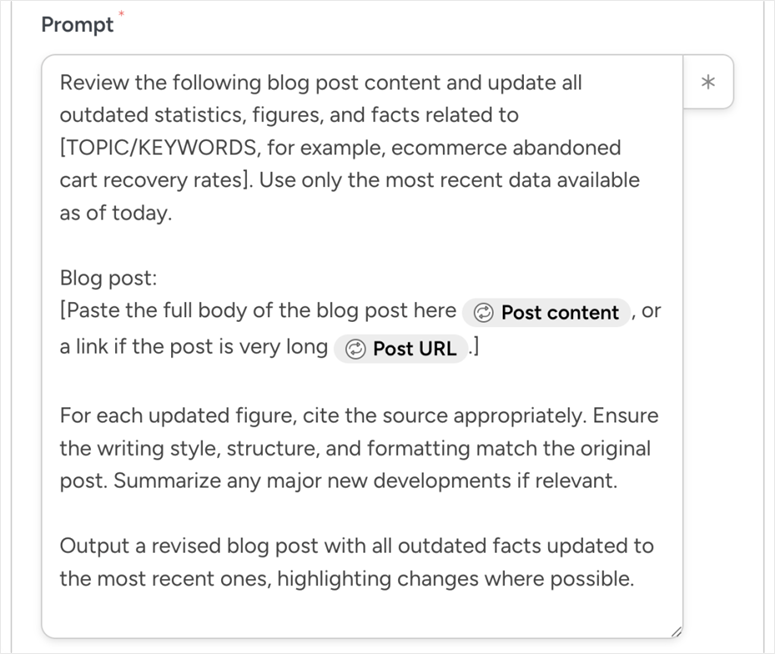
The AI action gives the recipe its intelligence. Configure the prompt to ask for specific, actionable update suggestions.
After the AI action, add another action to deliver the output somewhere useful: a ClickUp task, a Trello card, or even an email to yourself.
This is what you actually check every morning to decide which posts to update that week. Once everything is configured, toggle the recipe status Draft To Live at the top of the page.
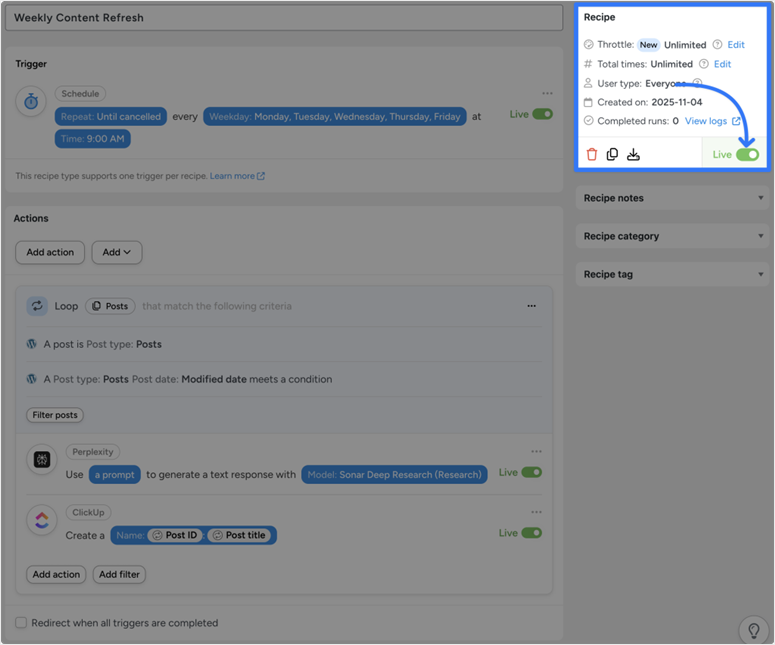
It is enough to switch the recipe to “Live”. From this point on, Automator will run every day of the week without your intervention.
⚠️ Quick check: After you go live, click Run now once to test the recipe manually. Before relying on the schedule, verify that posts cycle through correctly and output is sent to your chosen destination.
👉 Get started with Uncanny Automator here
All-in-One SEO vs. Google Search Console vs. Uncanny Automator: Which Should You Use?
Any method works. Which one is right depends on your situation, your budget, and how practical you want to be.
| Special feature | All in one SEO | Scary Automator | Google Search Console |
|---|---|---|---|
| Ease of use | ⭐⭐⭐⭐⭐ Everything in WordPress |
⭐⭐⭐⭐
Advance setup required |
⭐⭐⭐
External tool, more manual |
| Fix recommendations | ✅ TruSEO checklist integrated | ✅ AI generated suggestions | ❌ Manual analysis required |
| automation | ❌ Manual controls | ✅ Runs on autopilot | ❌ Manual controls |
| Best for | Bloggers who want speed and simplicity | Sites with 50+ posts for regular monitoring | Beginners on a tight budget |
| Prices | Elite Plan ($299.50/year) | Free (AI integrations may incur additional costs) | Free |
How to test your work
After updating a post, resist the urge to check the rankings the next day. Google needs time to re-crawl, re-index and re-rank the updated content. The realistic time frame for most sites is 4-6 weeks.
This applies whether you run a small personal blog or a larger content-driven website.
When this window has passed, return to the method you used.
Open in AIOSEO All in one SEO » search statistics » content rankings and compare the loss and drop% values for the post you updated with the previous values.
In Google Search Console, run your date comparison again with the post-refresh period as a newer range and look for an upward movement in the position difference.
✅ This is what success looks like: The post climbs back into its previous position area, at least partially. A side that was in position 18 moving up to position 11 is a win; carry on.
If rankings haven’t changed after 6 weeks, re-examine the keyword-level data in queries (GSC) or content rankings (AIOSEO) and look for what you may have missed.
Often it is a single subtopic from a competitor that is still not covered in your post.
Common problems and quick solutions
Problem: “Rankings have not improved after 6 weeks”
- What happens: The update may not have fixed the correct gap. Google’s quality signals are nuanced. Sometimes a post needs more than just updated stats.
- Quick solution: Open the top 3 competitor sites for your keyword and read them thoroughly. If they cover a subtopic that you don’t cover, that’s almost certainly why you’re stuck. Add it.
My experience: This happens to me most often with “how to” posts. The gap is usually a step that I assumed readers knew but actually requires some explanation.
Problem: “Content Rankings does not show data in AIOSEO”
- What happens: AIOSEO requires at least 30 days of Google Search Console data after the first connection to populate this view.
- Quick solution: Check whether the GSC connection is active under All in one SEO » search statistics. If you see a connection but there is still no data, wait another week and check the connection again.
Problem: “My Uncanny Automator recipe won’t trigger”
- What happens: The recipe may still be in draft mode or the schedule trigger may not have been saved correctly.
- Quick solution: Open the recipe and confirm that the switch is at the top Live (not draft) and click Run now once to test it manually.
Issue: “GSC position difference column is not displayed”
- What happens: The comparison date range has been deleted or reset – without it, GSC only displays data for a single time period.
- Quick solution: Reapply the Compare To date range Date range Click the button at the top of the performance report.
That’s it. You can now identify and fix any content expiration issues on your site using your preferred method. If something is unclear, check out the frequently asked questions below.
FAQs: How to prevent content from expiring and keep posts fresh and up to date
How long does it take to resolve content expiration?
Most content updates show a significant change in rankings within 4 to 6 weeks. However, the timeline depends on how competitive your keyword is and how important your update was. A small change to a slightly competitive post can recover in two weeks. It can take two to three months for a post that competes with high authority sites to receive a major overhaul.
Does content expiration fix work every time?
Not always. Sometimes a post expires because the entire topic has shifted – the intent behind the keyword has changed, or a new format (like a video or tool) now dominates the results. In such cases, a complete reorganization or redirect to a more related post may be more helpful than a standard update.
How often should I check for content expiration?
A monthly check is a good habit for most bloggers. If you have a large site (100+ posts), it is more practical to run a quarterly audit and use Uncanny Automator to flag outdated content between audits rather than manually reviewing each post. To understand how top blogs deal with this, blogging statistics show that sites that publish updated content consistently perform better than those that don’t.
Can I fix content expiration in the free version of All in One SEO?
No. The search statistics feature, which includes content rankings, requires the Elite plan. You can still use Google Search Console (Method 2) for free or use the free version of Uncanny Automator for Method 3.
What is the difference between content expiration and a Google penalty?
A Google penalty causes a sudden, sharp drop on many pages and is triggered by a specific policy violation (thin content, unnatural links, etc.). Content decay is a slow, gradual decline of individual posts caused by competitive and relevance factors. If a lot of pages have been lost overnight, consider a penalty first.
Should I delete or redirect corrupted content?
Only if the post does not have a realistic recovery path. For example, if the topic is really outdated or you have a much more meaningful post on the same topic. For most outdated posts, updating is better than deleting. When you delete, always add a redirect to the most relevant existing page.
Final thoughts
Content decay is one of those problems that’s easy to ignore until it’s already costing you thousands of monthly visitors.
The good news is that you now have three solid options to detect and fix the problem early before it becomes a serious traffic problem.
All in one SEO makes the whole process quick. You can identify a lapsing post, get a checklist for corrections, and republish an improved version, all from your WordPress dashboard.
If you’re not ready for the Elite plan, Google Search Console provides you with the same underlying data for free.
And if you want to forego manual verification altogether, Scary Automator takes over the monitoring for you on autopilot.
Start this week with just one post. Find your biggest dropper in AIOSEO or Search Console, spend 20 minutes improving it, and see what happens next month. This single update might surprise you.
Resource Hub: WordPress SEO and content strategy
Use these guides to build on what you’ve learned here and keep your WordPress site ranking well over the long term.