
If your WordPress site has user accounts, someone will share their credentials.
It could be a student sharing their course password with a friend, a member sharing their subscription with family, or a customer sharing a software license among a team.
Either way, you’re losing out on revenue and your user data no longer makes sense.
Netflix cracked down on account sharing across 100 million households. Not because it was easy, but because the loss of sales was real. Your website is facing the same problem but on a smaller scale.
In this tutorial, I’ll show you how to restrict user logins in WordPress to one active device at a time. No developer required.
They use a free Core Restriction plugin and WPCode to set exceptions for specific users or roles.
Whether you run a membership site, manage a subscription product, or sell online courses, this setup takes about 15 minutes and is automatic from there.
Key insights
- I’ll show you a free plugin that limits any account to an active login with a single settings change
- I’ll cover two login logic behaviors and explain which one is less disruptive to your users
- Show how you can use WPCode to exclude specific users or roles without touching your theme files
- I’ll explain how you can target restriction by device type so that mobile and desktop sessions can be treated differently
- I’ll show you how to test whether the restriction works before broadcasting it live
What we will achieve in this tutorial
At the end of this guide, each user account on your site will be locked for one active login session at a time.
If someone tries to log in from a second device, WordPress will either block the attempt or silently end the previous session. It’s your choice.
This works on any WordPress site with user accounts: membership sites, online courses, subscription products, or multi-author blogs.
What you have set up:
- Each time you log in, a login limit per account is automatically enforced
- Optional exceptions for administrators, editors, or specific VIP user IDs
- A working test to confirm the restriction is active
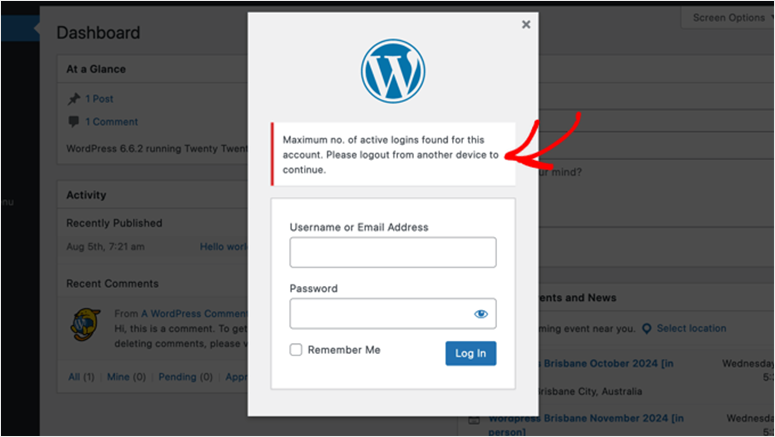
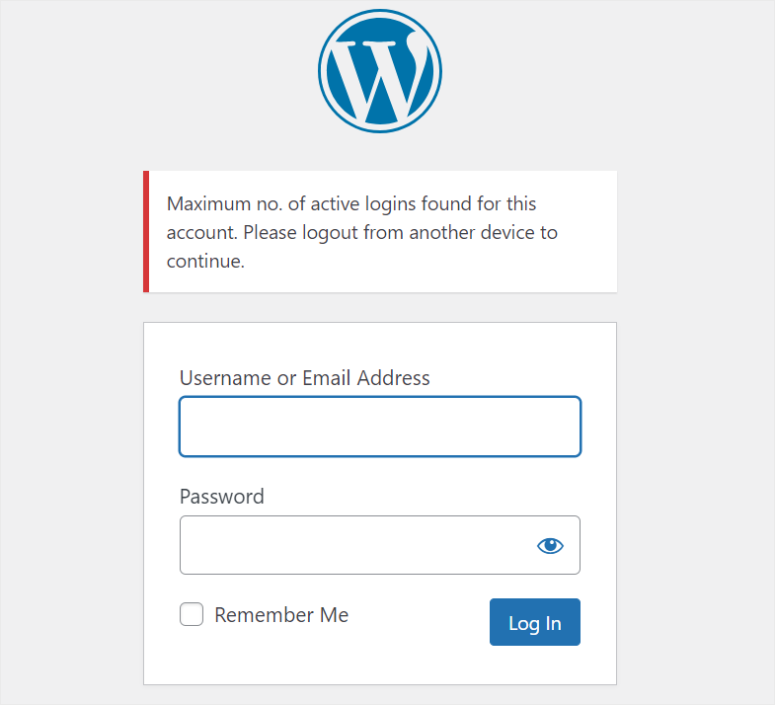
What a blocked user sees when they try to log in from a second device.
What you need before we begin
Skill level: In between
Time to completion: ~15 minutes
- Logged in – Limit concurrent sessions – free plugin from the WordPress repository.
- No purchase is required for what we do here.
- Install it like any other plugin (Plugins » Add newsearch for “Logged in”).
- WP Code – only required for method 2 (user and role exceptions).
- The free WPCode Lite version is enough. Install it the same way.
- WordPress administrator access – You need to enter the “Settings” and “Code Snippets” menus.
- User IDs for everyone you want to exclude – Method 2 only. I’ll show you how to quickly find these if you don’t know them.
How to restrict user login in WordPress to one device
Now that I’m showing you two methods, I’ve broken the steps down into simple sections. You can use the table of contents below to jump to any method or step you want to read.
With that all done, let’s dive in.
Method 1: Logged in – Limit concurrent sessions
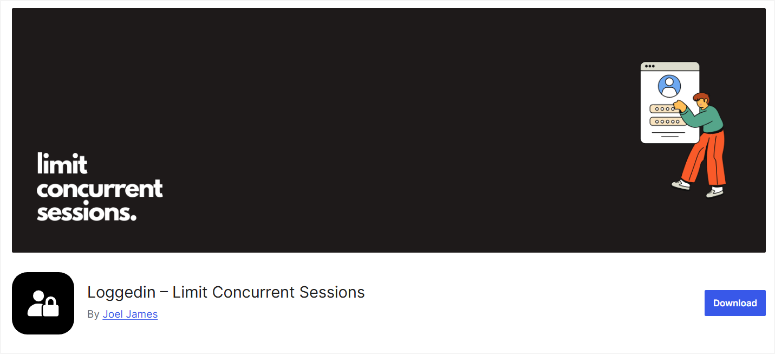
This is where I would start on any website.
The Loggedin – Limit Concurrent Sessions plugin is free, requires no code, and automatically enforces the restriction once you save your settings. Once it’s running, there’s nothing to wait for.
Before you configure it, you should know the following: By default, the plugin allows three active logins per user when you activate it for the first time. So it’s already doing something, but it’s not yet limiting enough.
Step 1: Install and configure your login limit
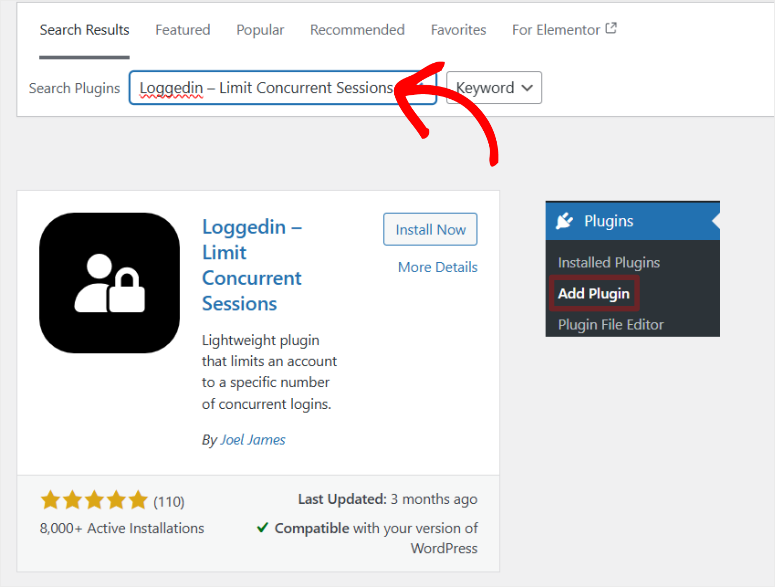
As mentioned, Logged in – Limit concurrent sessions is a free plugin.
Therefore, you can access it by going to All plugins » Add new plugin in your WordPress dashboard. Next, use the search bar to find the tool in your WordPress plugin repository.
If you run into any problems, check out my tutorial on installing plugins for guidance.
After installation and activation, go to Settings » General. Note that this is the Settings option native to WordPress and not its own menu item.
Then scroll to the bottom of this page and you will find this Registered Settings Section.
Here’s exactly what to do:
- Find them Maximum active registrations field and change the value to 1.
- Don’t save yet, but define the login logic first (next step).
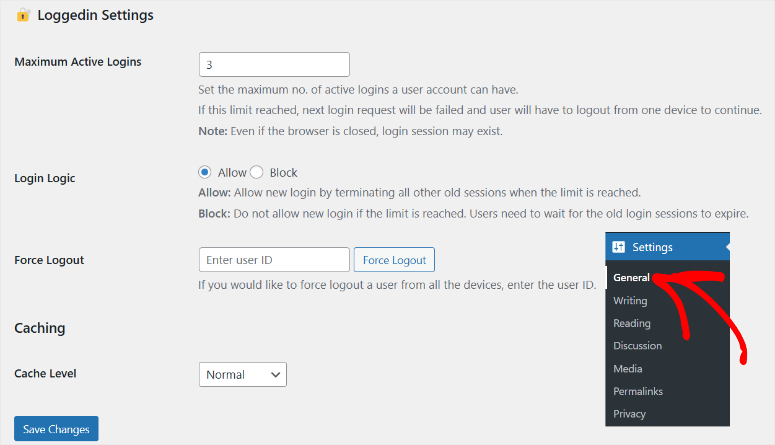
⚠️Quick check: Make sure you’re there Settings » Generalnot the Loggedin plugin’s own page. The settings are not displayed in a special plugin menu.
Step 2: Choose your login logic
This is the decision that really matters and is the one that most tutorials skip over.
The Login logic Dropdown has two options: Allow And block. They sound similar, but behave completely differently from your users’ perspective.
- Allow means: If a second login attempt occurs, WordPress will let it through. However, silently ends the user’s oldest active session. The person who has already registered will be kicked out without warning. You’re just at the login screen wondering what happened.
- block means: The renewed login attempt will be rejected. The person trying to log in sees an error message telling them that the account is already in use. Your existing session remains active.
Here’s the thing: which one you choose depends on your audience.
block Works best for membership or course sites where you want clear enforcement and are okay with some friction. Allow is less confrontational and is suitable for internal teams or lower-stakes setups where silent meeting exchanges are fine.
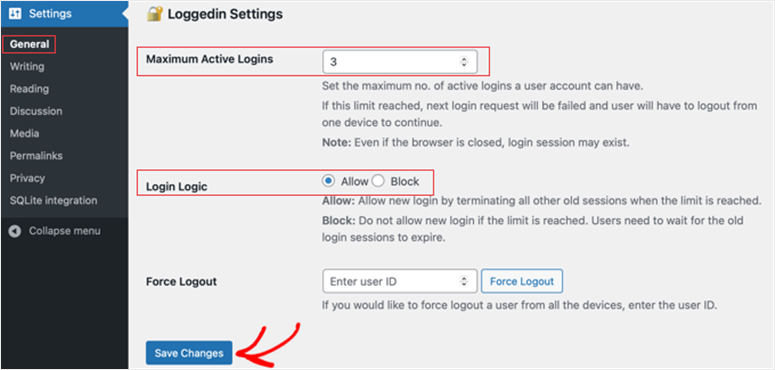
Once you’ve decided, select your option from the drop-down list and click save Changes.
Step 3: Force logout of existing sessions
This step is optional, but I would do it on release day.
The first time you enable restriction, users who were already logged in on multiple devices will remain logged in. The restriction only applies to new registrations. Force logout fixes this.
To use it, you’ll need the WordPress user ID for each account you want to reset.
The quickest way to find it: Go to Users » All usersHover over any username and look at the URL displayed in your browser’s status bar. You will see something like this ?user_id=5. This number is the ID.
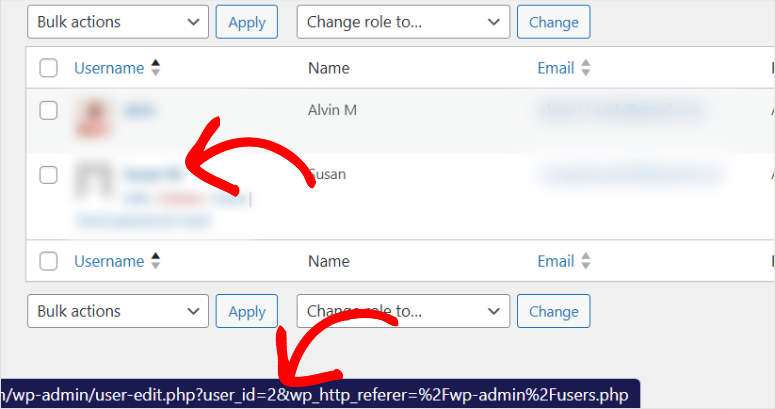
Enter the ID Force logout field and click on the button. This user will be immediately logged out of all active sessions.
Step 4: Set your cache level
If you are running a caching plugin like WP Rocket, W3 Total Cache, LiteSpeed Cache or similar, this setting is important.
The incorrect cache level can cause WordPress to serve stale session data, causing the login limit to behave unpredictably.
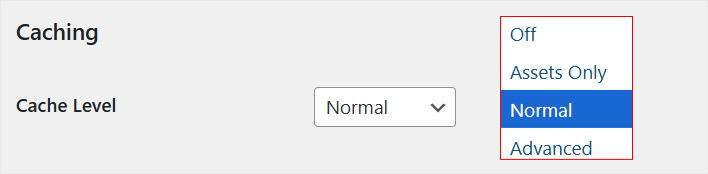
The Registered Settings section contains a Cache level Dropdown with four options:
- Normal – the right choice for most websites. Manages standard WordPress caching setups.
- Asset only – stores static files (CSS, JS), but not session data. Good for simpler caching configurations.
- Progressive – Use this if you are running an aggressive full page caching setup.
- Out of – only if you don’t use caching at all.
For most membership or course sites running WP Rocket or similar, Normal works well. Click save Changes Once you choose your level.
That’s it. You can now limit users on your WordPress site to one device. Check out the screenshot below to see what to expect.
What if you want more control? This is where method 2 comes into play.
Method 2: WP Code – Exclude specific users or roles
Method 1 applies the restriction to every user of your website. This is usually what you want, but not always.
Administrators, editors or senior members often need access from multiple devices. It’s frustrating to remove your own administrator account from a second tab.
If you want to manage who has what access to your website, exceptions are the right approach.
This is where WPCode comes into play. You add a short PHP snippet that tells Loggedin to skip the restriction for specific user IDs or roles without editing the theme files or your child theme.
The free version, WP Code Liteis all you need here.
It gives you a dedicated interface to manage snippets, keeps your code separate from your theme, and allows you to easily turn snippets on and off without breaking anything.
The free WPCode Lite version has a library of over 130 pre-built snippets and supports custom PHP, which is exactly what we use.
You can find it in the WordPress repository at Plugins » Add new and search for “WPCode”.
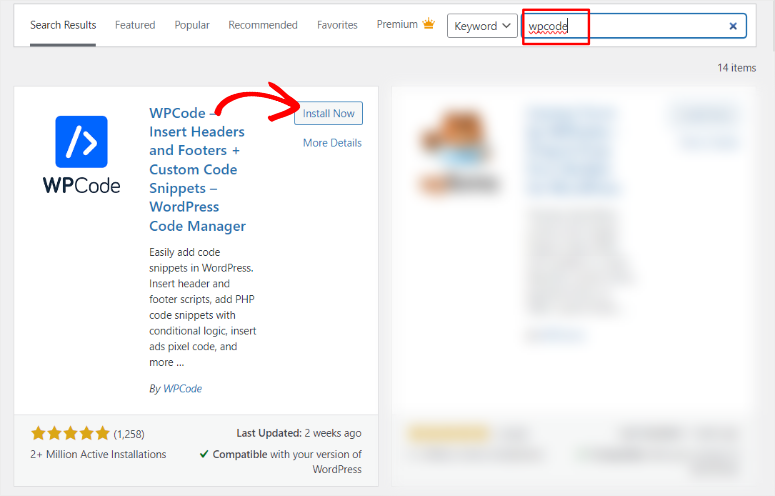
Then install and activate it like any other plugin.
Step 1: Create a new PHP snippet
Once WPCode is installed and active, you’ll see Code snippets Menu item in your WordPress sidebar.
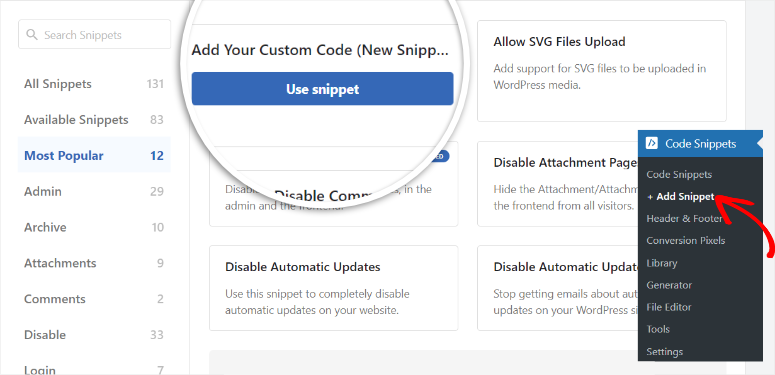
Here’s exactly what to do:
- Go to Code snippets » + Add snippet in your dashboard.
- You will end up in the snippet library. Look for that Add your custom code (new snippet) Option.
- Hover over it and click Use snippet.
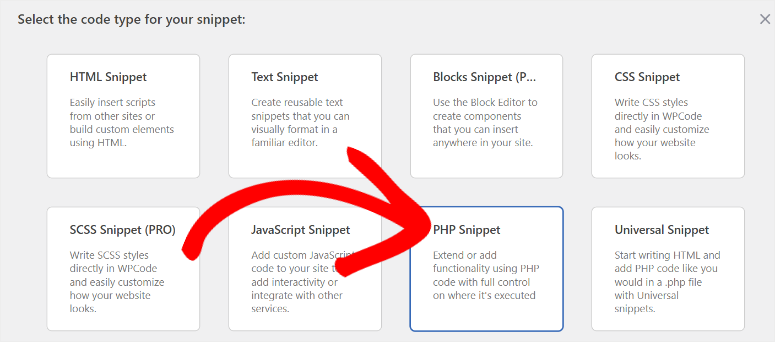
- A popup will appear asking what type of code you are adding. Click PHP snippet.
Step 2: Exempt specific users
Now you are in the snippet editor. This is where you add the code that bypasses the login restriction for individual user accounts.
Here’s exactly what to do:
- Give your snippet a clear title, something like “ Bypass login restrictions for specific users.
- Paste this code into the Code preview Area:
function loggedin_bypass_users( $bypass, $user_id ) {
$allowed_users = array( 1, 2, 3 );
if ( in_array( $user_id, $allowed_users ) ) {
$bypass = true;
}
return $bypass;
}
add_filter( 'loggedin_bypass', 'loggedin_bypass_users', 10, 2 );
- Substitute
1, 2, 3in the$allowed_usersArray containing the actual user IDs you want to exclude.
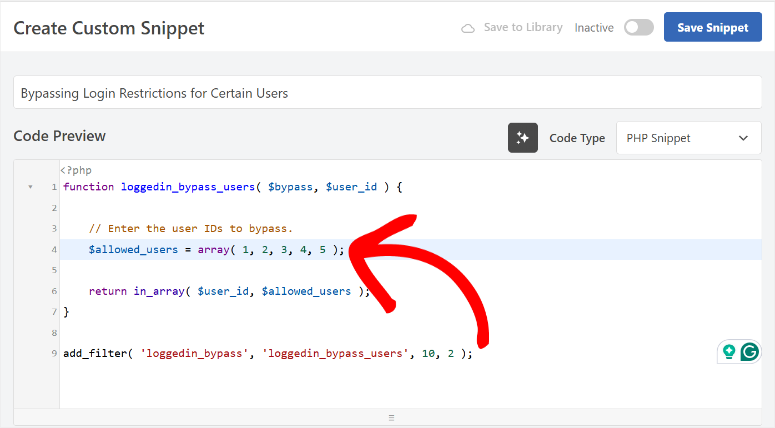
To find a user’s ID: Go to Users » All usersHover over the username and look at the URL in your browser’s status bar. You see ?user_id=X. This number is your ID.
This is the same process we used in Method
Step 3: Exclude certain roles
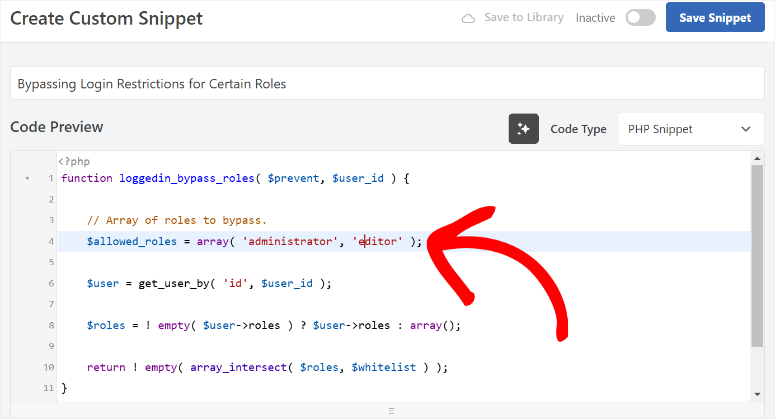
If you prefer to exclude entire roles instead of individual users, create a second snippet using this code. The process is identical to step 2.
All you have to do is select “Add custom code (new snippet)”, then type PHP and paste the code.
function loggedin_bypass_roles( $bypass, $user_id ) {
    $allowed_roles = array( 'administrator', 'editor' );
    $user = get_userdata( $user_id );
    if ( $user && array_intersect( $allowed_roles, $user->roles ) ) {
        $bypass = true;
    }
    return $bypass;
}
add_filter( 'loggedin_bypass', 'loggedin_bypass_roles', 10, 2 );
When you’re done, edit the $allowed_roles array to match the roles on your site.
By default, administrators and editors are excluded. So, remove “Editor” if you only want to exclude admins, or add other roles like “shop_manager” or “Subscriber”.
Step 4: Set device type (optional)
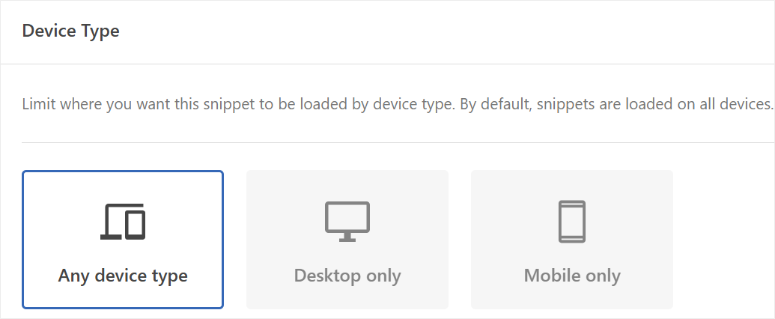
This is a feature that most people don’t know is included in WPCode, and it’s useful for this specific use case. Before saving your snippet, scroll down to find the Device type Attitude.
You have three options:
- Any device – The snippet will run for all users regardless of what device they are on (this is the default).
- Desktop only – The restriction bypass only applies when users log in via a desktop browser
- Mobile only – The bypass only applies to mobile devices
Most websites leave this enabled Any device.
However, if your membership content is primarily desktop-based and you want to block multiple desktop sessions while being more relaxed on mobile, you can set that here.
Step 5: Save and activate your snippet
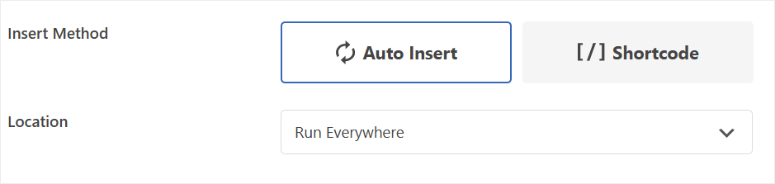
When you’re done, go under the WPCode snippet section to find that Insert Tab.
Here, navigate to “Insert Method” where you can paste the code Automatic insertion or Shortcode. Then use the “Location” dropdown menu to tell WPCode where you want the snippet to appear.
After that, it’s time to activate and save.
Here’s exactly what to do:
- Scroll up in the snippet editor.
- Toggle snippet status Inactive To Active.
- Click Save snippet.

Well done. The snippet will go live immediately. No page refresh required. The logged in user will now skip the restriction for everyone in your exception list.
👉 Get started with WPCode here
How to test your work
Don’t assume it will work. Check it out. This test takes two minutes and confirms that the restriction is indeed being enforced.
Here’s exactly what to do:
- Open your browser Incognito or private mode.
- Go to your WordPress login page and log in with a regular user account (not an administrator account).
- Open your normal browser window without logging out.
- Try logging into the same account.
If you want block The login logic should display the error message “This user’s login limit has been reached.”
If you want AllowYour incognito session should end. Refresh it and you will be redirected to the login screen.
If both sessions remain active, double check two things: Confirm Maximum active registrations is set 1 (don’t leave it at the default value of 3) and make sure you clicked save Changes after adjusting the settings.
⚠️Quick tip: For this test, use a subscriber or customer account, not your administrator account, especially if you have set up an administrator role exception.
Common problems and quick solutions
Problem: “The admin account is also blocked”
- What happens: By default, the restriction applies to all user roles, including Administrators.
- Quick solution: Add the role bypass snippet from Method 2, Step 3 and add “administrator” in that
$allowed_rolesarray. If you only need to exclude yourself, bypassing the user ID from step 2 is easier.
My experience: I always add the admin exception before enabling the restriction on a live site – this saves an embarrassing support call.
Problem: “Users are randomly logged out, even without a second login”
- What happens: A caching plugin serves up stale session data, triggering false “second login” detections.
- Quick solution: Go back to Settings » General » Login settings and change the cache level to Progressive. Clear your cache after saving. If you are not sure which speed optimization plugin is causing the conflict, Advanced Mode covers most configurations.
My experience: This comes up against websites that do aggressive full-page caching – particularly WP Rocket.
Problem: “The restriction does not work at all after activation”
- What happens: The plugin defaults to 3 active logins and you forgot to change this to 1.
- Quick solution: Go to Settings » Generalconfirm Maximum active registrations is set 1and click save Changes.
Problem: “Members complain that they are constantly being logged out for no reason”
- What happens: They share credentials between family members or devices – the approval logic silently replaces their session.
- Quick solution: Change the login logic to block So you see a clear error instead of a silent logout. Or use Force Logout to reset their sessions and explain the new policy.
I hope you found this tutorial on restricting users to one device helpful. If something is unclear, check out the frequently asked questions below.
FAQs: How to restrict user login in WordPress to one device
Does this work with WooCommerce or membership plugins like MemberPress?
Yes. Loggedin integrates with WordPress’ central login system, so it works regardless of which membership or ecommerce plugin you use. The restriction affects all WooCommerce customer accounts, MemberPress members and all other role-based user systems.
Will this lock out my administrators?
By default, the restriction applies to every role. If you want to exclude administrators (or other roles), add the role bypass snippet from Method 2, Step 3. You can run both snippets at the same time, one for roles and one for individual users.
What happens to users who are already logged in if I enable this?
Existing sessions will not be terminated immediately when you enable the restriction. The limit only applies to new login attempts. If you want to force this retroactively, use the Force Logout feature from Method 1, Step 3 and enter the user IDs you want to reset.
Can I limit accounts to 2 or 3 devices instead of 1?
Yes. Just change the Maximum active registrations value in Settings » General to any number you need. If you set the value to 2, two simultaneous sessions per account are possible. This is useful if you want to allow both a phone and a laptop, but nothing more.
Final thoughts
Limiting logins to one device is one of those changes that will quickly pay for itself on any site with paid accounts.
You set it once and every new login after that is automatically enforced. No maintenance, no manual checks or searching for access data participants.
The Loggedin plugin handles the core restriction in minutes.
WPCode gives you the flexibility to exclude the right people without touching a line of theme code.
Both give you a setup that is tight enough to protect your revenue and flexible enough to not frustrate your own team.
If you run a membership site or sell access to any kind of content, it’s worth doing so today.
Your user data will immediately become more reliable and the revenue you lose from sharing credentials will no longer leak out.
For a deeper dive into securing your site beyond login controls, the complete WordPress security guide is a good next step.
Resource Hub: WordPress Security and User Management
These guides cover the next steps for locking down your site and properly managing your users.