
Starting an online business doesn’t necessarily mean you have to manage inventory, handle shipping, or deal with customer returns.
One of the smartest ways to make money online is to set up an Amazon affiliate store with WordPress. Plus, it’s a lot easier than you might think.
But setting up your first affiliate store can be overwhelming. From choosing the right tools to optimizing your website for clicks, there are several important steps you need to take if you actually want to make money.
That’s where I come into play.
After building multiple affiliate stores and testing different approaches, I’ve learned exactly what works and what wastes your time.
In this guide, I’ll walk you through creating a professional Amazon affiliate store with WordPress and WooCommerce. I use the same setup for my own affiliate projects.
The best part? You can get started with free plugins that deliver professional results for less than $2 per month.
Are you ready to build your Amazon affiliate store? Let’s dive in.
What is an Amazon Affiliate Store?
An Amazon affiliate shop is an online shop that promotes products available on Amazon via special recommendation links.
Instead of storing inventory or shipping products yourself, you essentially act as an intermediary, driving visitors to Amazon where they complete their purchase.
If someone clicks on your affiliate link and buys something, even if it’s not the exact product you linked to, you’ll earn a commission.
This is called affiliate marketing and is one of the most beginner-friendly business models on the internet.
Here’s why Amazon affiliate stores work so well:
- No inventory or fulfillment issues: You never touch a product. Amazon handles all storage, packaging, shipping, returns and customer service. Your only job is to drive qualified traffic to your store.
- Minimum startup costs: Because you don’t purchase the products in advance, your initial investment is low. You need WordPress hosting, a domain name and an SSL certificate. With providers like Bluehost, this can all cost as little as $1.99 per month.
- Huge product selection: Amazon’s catalog contains hundreds of millions of products in every category imaginable. Whether you run a food blog, a tech review site, or a DIY resource, you’ll find relevant products to promote.
- Proven Trust and Conversion: Most people already trust Amazon and have accounts there. You don’t convince them to trust a new business. Just redirect them to a place they like to buy from anyway.
⚠️ A critical note: You cannot add Amazon affiliate links to websites that are primarily aimed at children under 13. This is a strict requirement in Amazon’s Terms of Service.
Examples of Amazon affiliate sites
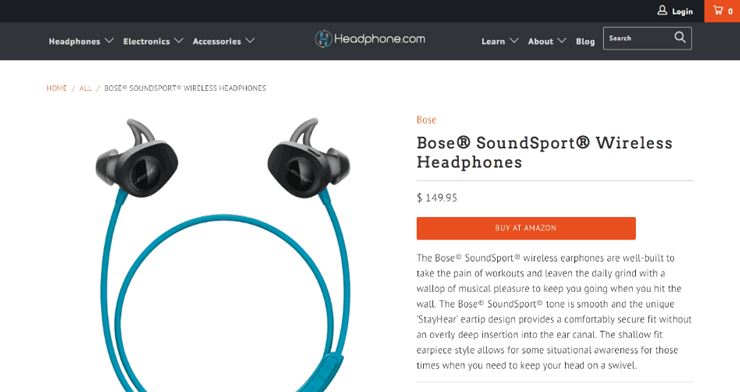
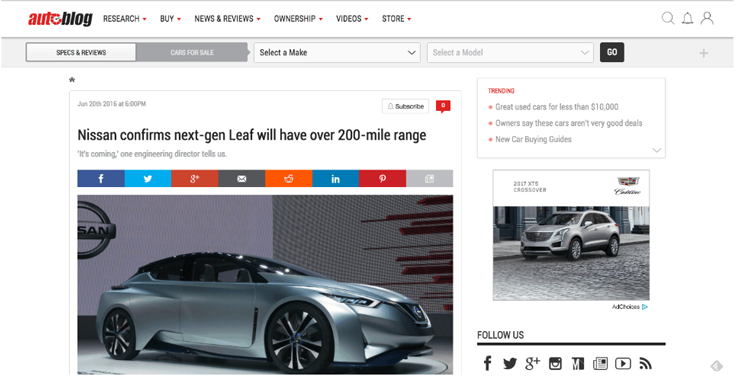
If you’re wondering what an Amazon affiliate marketing store would look like, here are some examples to inspire you.
1. First example: www.headphones.com
2. Second example: www.autoblog.com
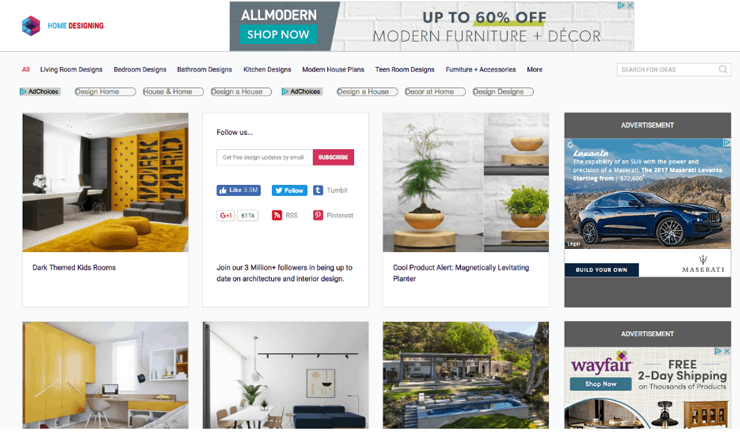
3. Third example: www.home-designing.com
Opening an Amazon Affiliate Store (Step by Step)
In the following sections, I’ll show you exactly how to set up your Amazon affiliate store step by step. If you want to jump to a specific section, use these links:
Here’s a quick table so you can see everything you need before you get started.
| What you need | Details | Cost | Notes |
|---|---|---|---|
| WordPress hosting | Bluehost, Hostinger or a similar hosting provider | $1.99-$15/month | Includes free domain and SSL certificate |
| domain name | Your website address | Free | Included with Bluehost hosting |
| SSL certificate | Security for your website | Free | Included with Bluehost hosting |
| Amazon Associates account | Free membership in the affiliate program | $0 | Requires 3 sales in the first 180 days to remain active |
| WooCommerce plugin | Free WordPress eCommerce plugin | $0 | Manages all product display functions |
| WordPress theme | Design for your business | $0 | Free WooCommerce themes available, premium optional |
| Products to promote | Start with 10-15 products | $0 | No warehousing required – Amazon takes care of everything |
| Time investment | Initial setup + ongoing content | ~5 hours assembly | Then 2-5 hours per week for content and products |
Let’s get started.
Step 1. Getting started with WooCommerce and WordPress
There are dozens of WordPress eCommerce plugins you can use to create an Amazon affiliate store, but I always recommend WooCommerce.
It’s powerful, flexible, completely free and supports millions of online stores worldwide.
More importantly, WooCommerce has built-in support for external/affiliate products, making it perfect for Amazon affiliate stores.
Before we dive deeper, let’s clarify a common point of confusion: There are two types of WordPress.
You need WordPress.orgthe self-hosted version, not WordPress.com. If you’re unsure about the difference, check out my guide explaining WordPress.com vs. WordPress.org.
To get started you will need three things:
- WordPress hosting – This is where your website files are located
- A domain name – Your website address (e.g. yourstore.com)
- An SSL certificate – This encrypts data and displays the padlock in browsers
Now you may be thinking, “I only promote Amazon products. Why do I need an SSL certificate?”
Here’s why: While Amazon processes payments for affiliate sales, you’ll probably want to expand at some point.
Maybe you sell your own digital products, add email capture forms, or even sell physical products alongside your affiliate offers. For all of this, an SSL certificate is essential and also helps with search engine optimization.
Normally the setup quickly becomes expensive:
- Domain Name: ~$14.99/year
- Hosting: Starting at $7.99/month
- SSL certificate: $50-$200/year
That’s a significant upfront investment for a new affiliate business.
The good news?
Our friends at Bluehost, an official WordPress and WooCommerce recommended hosting provider, are offering IsItWP readers a free domain name, free SSL certificate, and over 60% off hosting.
Bluehost offers a WooCommerce hosting plan with everything you need to run an online store.
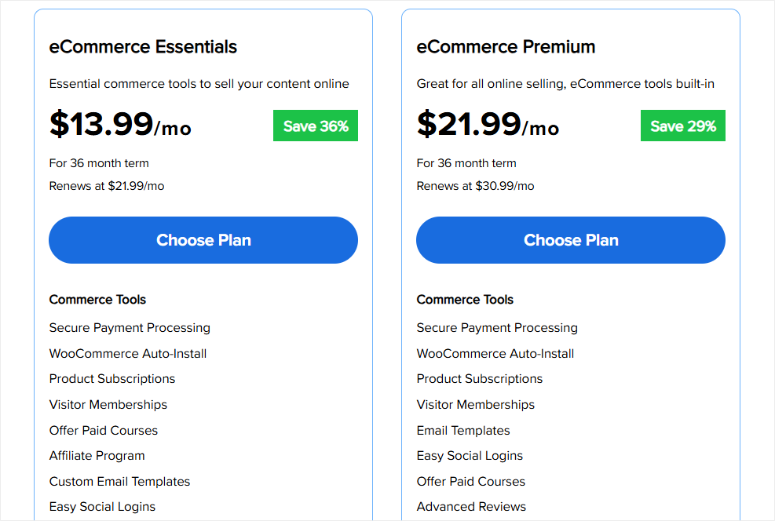
But you can start with their shared hosting plan, which starts from just 100 euros $1.99/month and upgrade your hosting as your website grows.
→ Click here to claim this exclusive Bluehost offer ←
If Bluehost doesn’t meet your needs, check out my WooCommerce hosting comparison post for more options.
Installation of WordPress and WooCommerce
After signing up with Bluehost, you need to install WordPress. Don’t worry, Bluehost makes this super easy with its one-click installer.
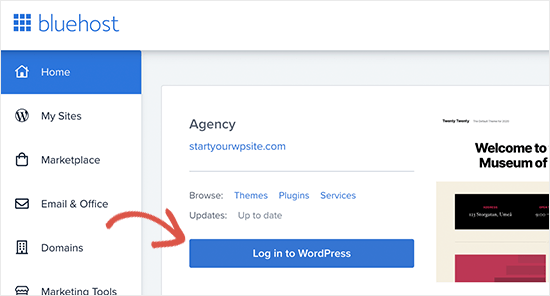
For detailed step-by-step instructions, see my complete WordPress installation guide.
Once you’ve set up WordPress, it’s time to install WooCommerce.
Go to Plugins → Add New in your WordPress dashboard. Search for “WooCommerce” and click Install nowThen Activate.
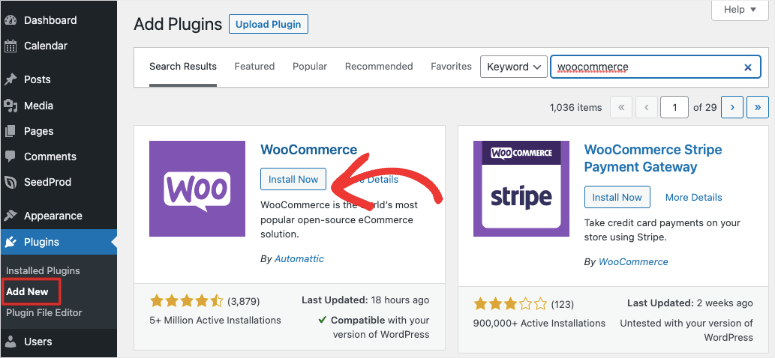
For more information about installing plugins, see my guide to installing a WordPress plugin.
Once activated, WooCommerce will launch a setup wizard that will ask you for your business address, industry, and product types.
You can skip all of this as we don’t run a traditional WooCommerce store that processes payments.
We are building an affiliate shop where Amazon handles everything. WooCommerce’s default settings do not apply to our use case.
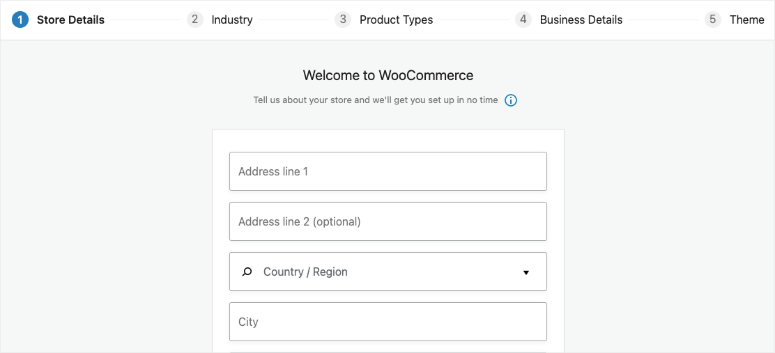
That’s it! You now have WordPress and WooCommerce installed and are ready to build your Amazon affiliate store.
Step 2. Enroll in the Amazon Associates program
Now that WordPress and WooCommerce are installed, you will need to join the Amazon Associates program to receive your affiliate links.
There’s something important to understand here: Amazon will initially approve most applications, but this approval is permissible provisionally.
To keep your account active, you must generate at least 3 qualified sales within your first 180 days. If you don’t reach this goal, Amazon will close your account.
This means you need real traffic and engagement before you apply.
I recommend building your website with quality content first and then promoting it once you have traffic. If you need help increasing traffic, read my complete WordPress SEO guide and then check out the best SEO tools.
If you’re ready to apply, go to Amazon assOcreates the website and click Sign in.
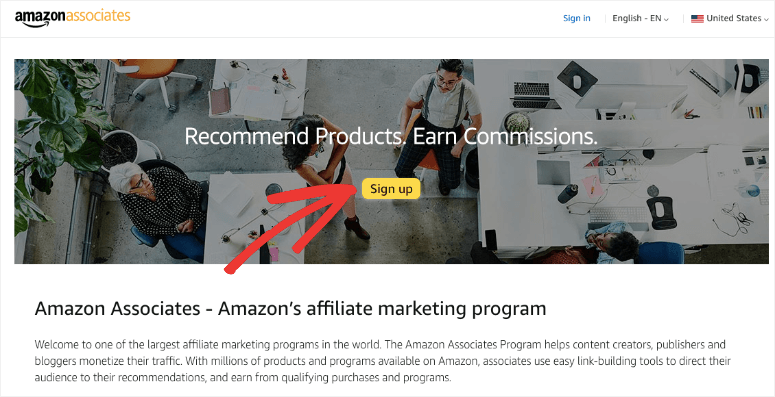
You will be asked to sign in with an existing Amazon account or create a new one. If you already have an Amazon account, you do not need to create a separate “affiliate account.”
Just use your regular Amazon login details.
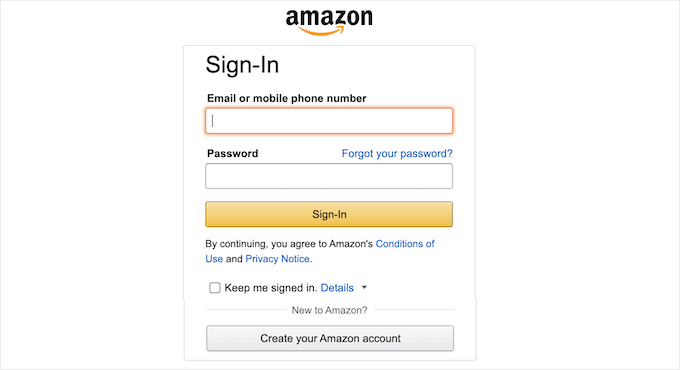
If you don’t have an Amazon account yet, click Create your Amazon account and follow the instructions.
Setting up your payee information
After signing up, Amazon will ask who should receive your affiliate payments. By default, they use the primary address associated with your Amazon account.
If you are happy with it, choose “The payee listed above” and click Next.
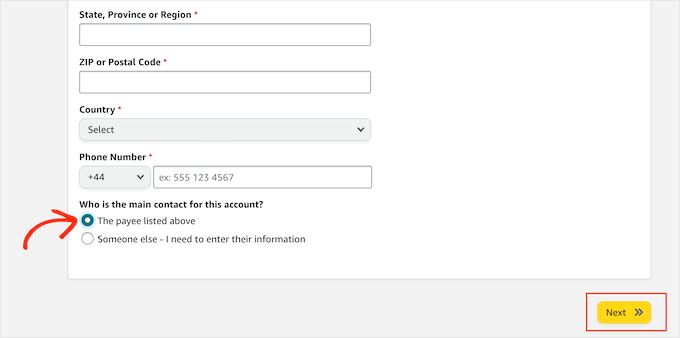
If you want payments to be sent to another person or business entity, select “Someone else” and enter their name and contact information.
This is useful if you are setting up the store for a customer or operating it under a company name.
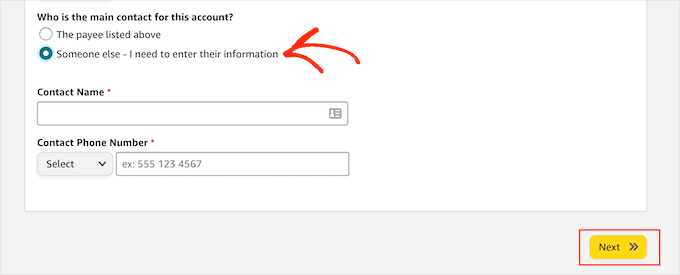
After clicking Nextadd your website domains.
Adding your website domains
On the next screen, enter the domain where you want to place your Amazon affiliate links, then click Add.
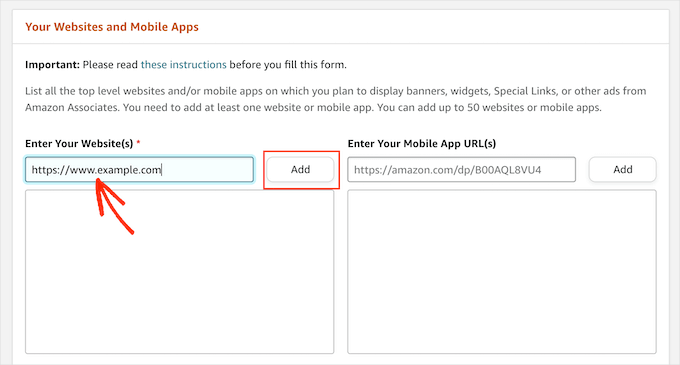
If you want to promote Amazon products on multiple websites, you can add up to 50 domains. Simply repeat the process for each site.
After you’ve added all your domains, click Next.
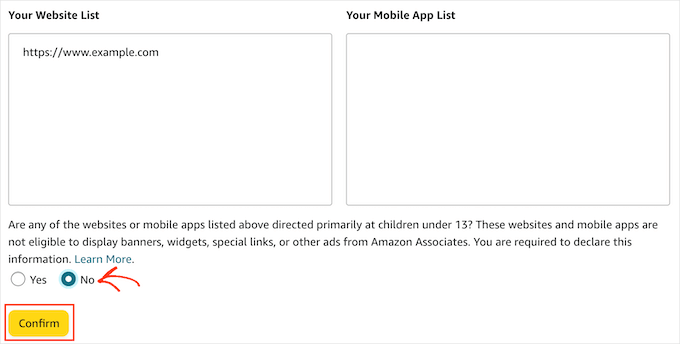
Amazon will then ask you to confirm this is not primarily aimed at children under 13 years of age. Choose NO and click Confirm.
Creating your Associates Store ID
Now comes an important step: creating yours Associates Store ID. This unique identifier records all of your commissions and appears in your affiliate links.
On the next screen, enter your preferred ID “What is your preferred Associates Store ID?” Field. I recommend using your website or company name to keep things straight.
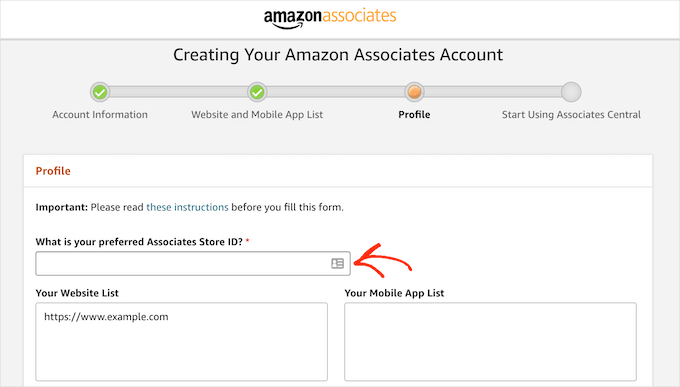
Amazon will then automatically format this into a proper ID (usually by adding “-20” at the end).
Next, answer a few questions about your website:
- What topics do you cover? Choose the categories that fit your niche
- Which products will you promote? Select the main product categories you want to focus on
- How do you direct traffic? Choose your primary traffic sources (SEO, social media, email, etc.)
- How do you build links? Explain how to integrate affiliate links (in-content links, product showcases, etc.).
- Monthly visitors: Enter your estimated monthly traffic (use Google Analytics if you have it installed)
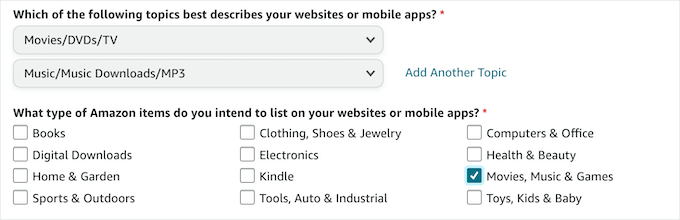
When you have completed all fields, click Finish.
Congratulations! You are now an Amazon Associate. Time to find products to promote.
⚠️ Note: There are also those Amazon Influencer Programwhich is designed for social media creators with large followings. However, for website owners and bloggers, the regular Associates program is better.
Step 3. How to find the best products for your Amazon affiliate site
Now that you’re approved as an Amazon Associate, it’s time to find products you want to promote in your store.
You can create affiliate links for almost any physical or digital product sold on Amazon. However, there are some exceptions, e.g. B. for Amazon Pharmacy products.
Let me show you the two easiest ways to find and create affiliate links.
Method 1: Using Amazon Associates Central
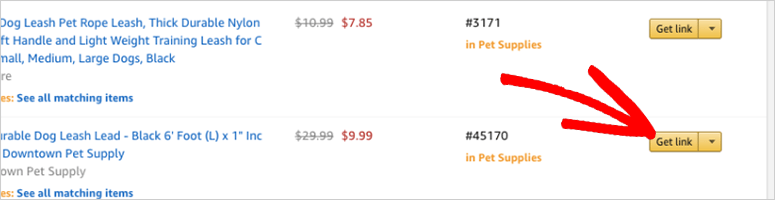
First, log in to your Amazon Associates account. Once inside, scroll down to the bottom of the page. You will see a section called “Recommended products for you”
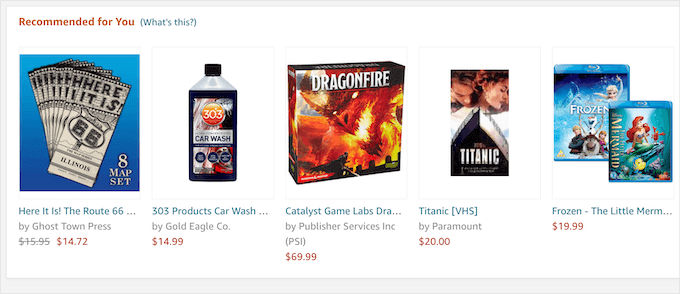
These recommendations are based on what your visitors have previously viewed or purchased. Amazon’s algorithm learns over time, so the more traffic you get, the more relevant these suggestions become.
To create an affiliate link for a recommended product, hover over the product image and click Get link button that appears.
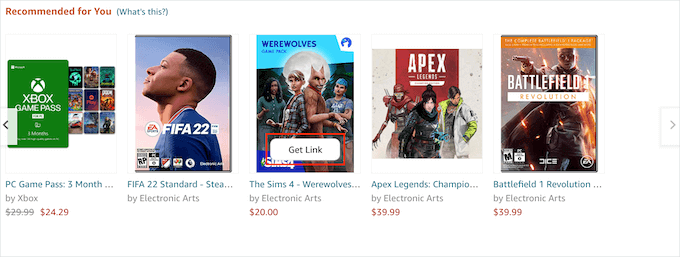
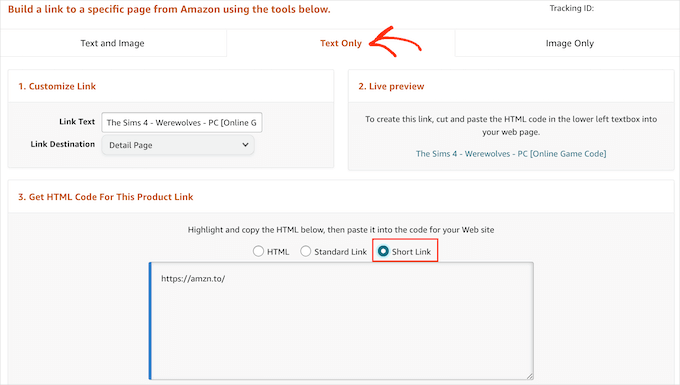
On the next page, click Text only Click the tab and then select the Short link Option. Once this is done, Amazon will generate a clean, trackable affiliate URL that you can use on your website.
Method 2: Use SiteStripe (my preferred method)
This is the method I use most because it’s faster and works while you’re browsing Amazon normally.
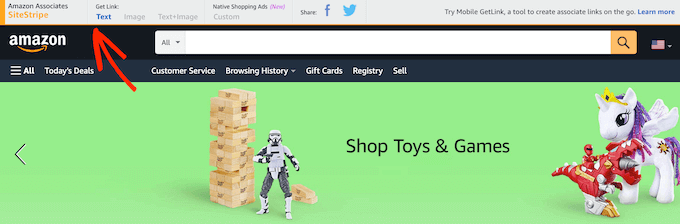
Once you log in to your Amazon Associates account, you will see a special offer SiteStripe banner at the top of every Amazon page you visit.
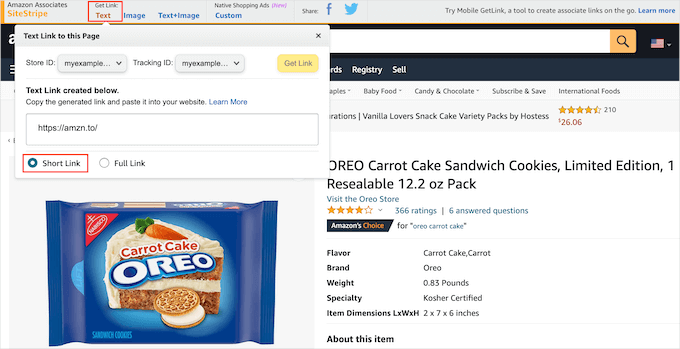
Now you can browse Amazon like a normal shopper. When you find a product you want to promote, just click on it Get link in the SiteStripe banner.
In the popup that appears, click Short link Option. Copy this URL. This is your affiliate link.
This method is incredibly convenient because it allows you to shop naturally and add products to your affiliate store as you discover them.
How to choose the right products
This is where strategy matters. Not all products convert equally well, and adding products randomly will not create a successful affiliate store.
The key is understanding your audience. Who visits your website? What problems are they trying to solve? Which products would really help you?
For example:
- Do you run a recipe blog? Your readers probably want cookware, small kitchen appliances, everyday kitchen appliances, and pantry staples.
- Are you creating a photo resource page? Focus on cameras, lenses, tripods, lighting equipment, and editing software.
- Create a DIY site? Promote tools, materials and home accessories that match your content.
The best affiliate shops match products to content. Of course, if you’re writing a tutorial on “How to Build a Home Gym,” include exactly the equipment you’re recommending in that article.
To find out what your audience wants, use analytics tools to see:
- Which pages receive the most traffic?
- What search terms bring people to your website?
- How long visitors spend on different pages
- Which topics generate the most engagement?
This data shows what your target audience cares about and helps you choose the products they will actually buy.
⚠️ Another smart strategy: Focus on product categories with higher commission rates. Amazon’s commission structure varies significantly by category. Some pay 10%, others only pay 1%. Check Amazon commission rates table to see which categories offer the best returns.
Once you have identified products that fit your target audience and offer good commissions, you can add them to your store.
Step 4. Add Amazon affiliate products in WooCommerce
WooCommerce makes it incredibly easy to add Amazon affiliate products to your store.
The key is to use the built-in WooCommerce feature External/partner product Type that displays products beautifully and takes buyers directly to Amazon when they click the buy button.
Let me walk you through the exact process I use.
Create your first affiliate product
In your WordPress dashboard, go to Products → Add New.
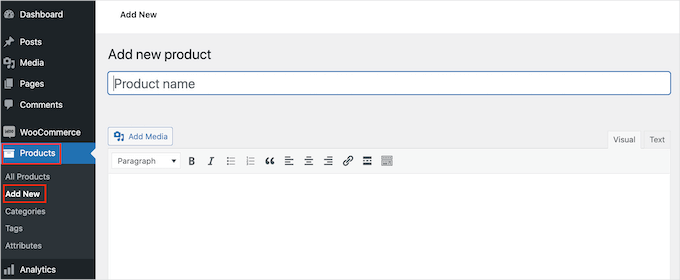
Next, you’ll see a screen similar to creating a blog post. First, enter a compelling product title at the top.
Next, add a detailed product description in the main editor section. This is where you sell the benefits, explain features, and give readers reasons to click through to Amazon.
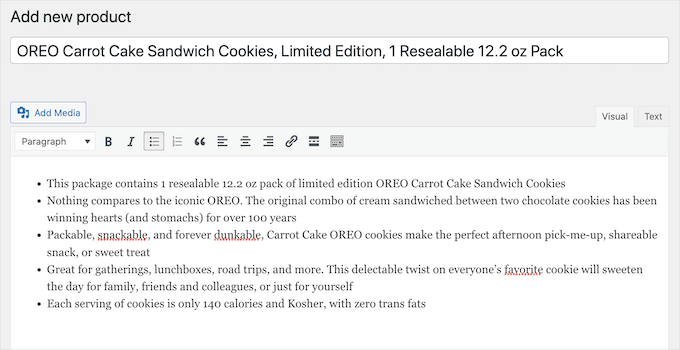
Your description should be helpful and informative; Don’t just copy from Amazon.
Consider this your personal recommendation. What do you like about this product? How would it solve your reader’s problem? Why are you promoting it?
⚠️ Important: Never copy product descriptions directly from Amazon. This violates the Terms of Service and may result in the suspension of your affiliate account. Write original content that adds value.
Setting up the affiliate product type
When you’re done, scroll down Product data Crate. By default, “Simple Product” is displayed. Click on this drop-down menu and select External/partner product.
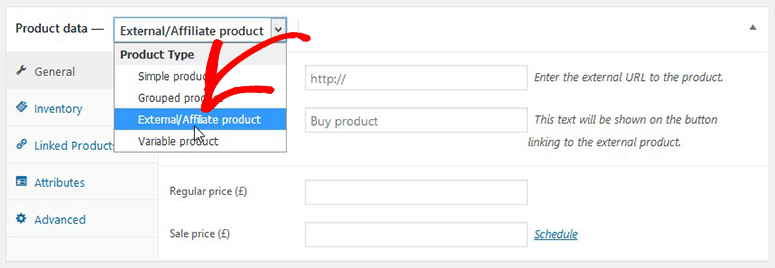
Now you see two critical fields:
Product URL: Insert your Amazon affiliate link here. This is the URL you created in Step 3 using SiteStripe or Associates Central.
Button text: This is what appears on your button. I recommend something action-oriented like “Buy on Amazon,” “Check Price on Amazon,” or “View on Amazon.” Avoid general text like “Buy Now” because you want visitors to know they are going to Amazon.
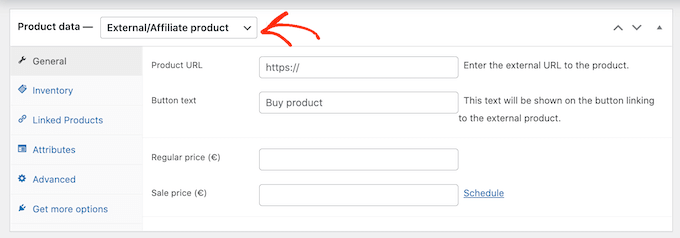
Critical pricing rule: Leave prices blank
Here’s something extremely important that throws many beginners off guard: DO NOT enter prices in the Regular Price or Special Offer Price fields.
Leave both fields completely blank.
Why? Prices on Amazon change constantly, sometimes even several times a day. Their affiliate program strictly requires that every price you display must be 100% accurate.
Remember that displaying an outdated price, even by mistake, violates their terms and conditions and may result in your account being suspended.
The safest approach is to let customers see the current price directly on Amazon when they click on your affiliate link. This will help you stay compliant and protect your account.
Adding a short product description
Next, scroll down Short description of the product Section. This text appears on your store page, category pages, and search results. Basically anywhere the product is listed but not displayed in full.
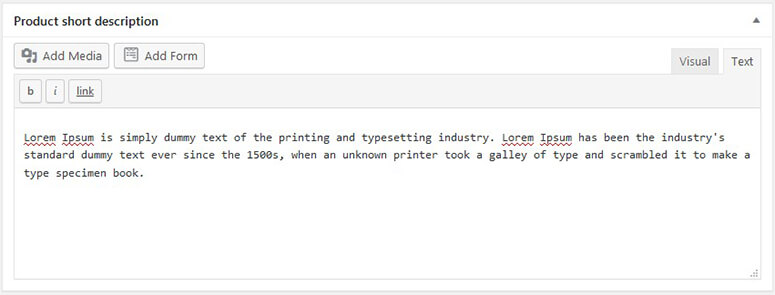
Keep this short and compelling. Focus on the core benefit or unique selling point. Think of it as your “elevator pitch” for the product.
For example:
- “Professional wireless headphones with 30 hours of battery life and studio-quality sound”
- “Portable espresso machine perfect for camping, traveling and small kitchens”
- “Heavy-duty yoga mat with additional padding for sensitive joints”
Add product images
Images are crucial for affiliate stores. They attract attention, showcase products and significantly increase click rates.
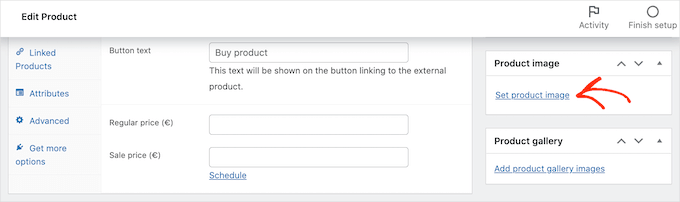
To do this, click on Set product image in the right sidebar to upload your main product image.
⚠️ CRITICAL WARNING: You can’t simply download images from Amazon and re-upload them to your website. This is one of the most common reasons why Amazon blocks affiliate accounts.
Instead, use images from these approved sources:
- Official image links from Amazon via SiteStripe or Associates Central
- Manufacturer websites: Official product photos can be found on the media/press pages
- Your own photos: if you own the product
- Licensed stock photos that show the product
If you want multiple images, click Add product gallery images to create an image gallery for visitors to browse.
Publishing your partner product
Once everything looks good, click Publish in the top right corner.
That’s it! Your first Amazon affiliate product is now available in your store.
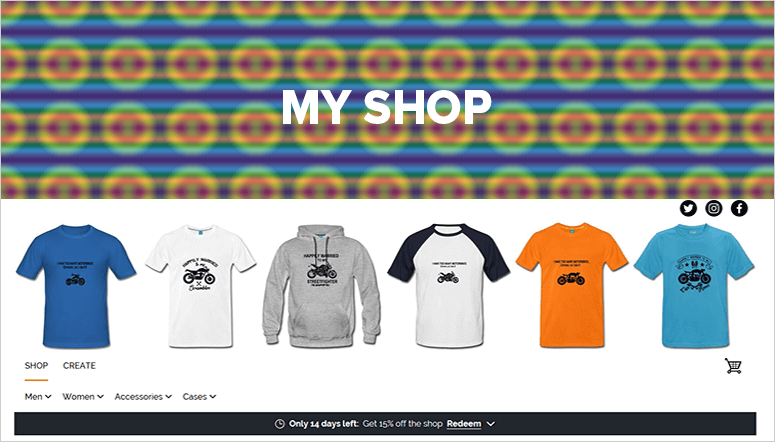
Visit your store page to view the ad. When visitors click the “Buy on Amazon” button, they are redirected to Amazon with affiliate tracking enabled.
Add more products
Now repeat this process for each product you want to add. I recommend starting with 10-15 products in your main niche and then expanding from there as you see what converts.
As your business grows, you can organize products into categories like “Kitchen Appliances,” “Fitness Equipment,” and “Tech Accessories” to help visitors quickly find what they need.
Step 5. Customize your WordPress Amazon Affiliate Store
At this point, your Amazon affiliate store is functional, but probably looks pretty basic right now.
The design of your store has a direct impact on how many people click on your affiliate links. A professional, trustworthy appearance can significantly increase your earnings.
Let me show you how to transform your store from generic to beautiful.
Choose the right topic
WordPress themes control the entire look and feel of your website: colors, fonts, layouts, and overall design.
The default WordPress theme offers minimal WooCommerce support and will not showcase your affiliate products effectively.
You need a theme specifically designed for WooCommerce stores.
There are hundreds of excellent options available. Especially for affiliate shops, I recommend taking a look at:
These themes include pre-built designs for shops, product pages and landing pages that will instantly give your affiliate products a professional look.
Once you have chosen a theme, install it by clicking Appearance → Themes → Add New in your WordPress dashboard. For detailed instructions, see my guide to installing a WordPress theme.
Creating a Custom Theme with SeedProd (my preferred method)
Although pre-made themes work great, I actually prefer creating completely custom designs Seed Prod. It is the best WordPress page builder and is used by over 1 million websites.

Why do I love SeedProd for affiliate stores? Three reasons:
- No coding required: You create everything visually using drag-and-drop blocks. If you can use PowerPoint, you can use SeedProd.
- Integrated WooCommerce Blocks: SeedProd includes special blocks designed specifically for WooCommerce stores, making it perfect for affiliate products.
- AI site builder: You give SeedProd a few instructions about your website and it designs the entire website for you using AI. Seriously. It creates your homepage, shop page, product templates – everything. Plus, you can easily customize the results.
- AI content and design assistance: SeedProd’s AI can generate text, headings, images, and section layouts for product pages and landing pages. This saves time when creating affiliate pages and helps you publish faster without staring at a blank screen.
For a detailed overview of everything SeedProd can do, check out my SeedProd review.
Using SeedProd’s WooCommerce blocks
Once you install SeedProd, you get access to powerful WooCommerce specific blocks that give your affiliate products an incredible look.
For example this Product grid Block allows you to showcase multiple affiliate products on each page in a beautiful, clean layout.
It also automatically fetches products from your WooCommerce store and displays them with images, descriptions, and your Buy on Amazon buttons.
While the Current products The block displays recommendations of products that a user has recently viewed but not purchased.
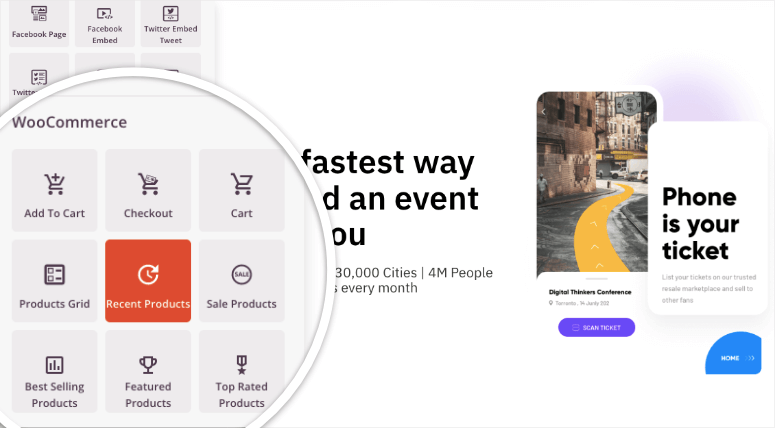
Other useful WooCommerce blocks include:
- Best selling products – Highlight your top-performing affiliate products
- Selected products – Spotlight specific products you want to promote
- Product categories – Help visitors search by category
Beyond WooCommerce blocks, SeedProd also includes conversion-boosting elements like:
- Product reviews and testimonials – Build trust with social proof
- Countdown timer – Create urgency for limited-time Amazon offers
- Star ratings – Show product quality at a glance
- Social share buttons – Let visitors share products they love
Using ready-made templates
Don’t want to design from scratch? SeedProd includes pre-built templates for every page type you need:
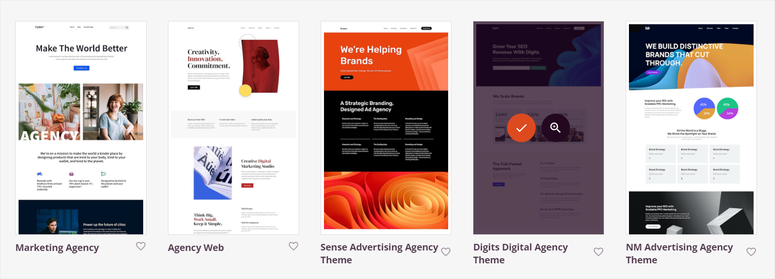
These templates are fully customizable, allowing you to customize colors, fonts, images, and layouts to perfectly match your brand.
For complete instructions on creating custom themes, check out my guide on how to create a custom WordPress theme.
Creating high-converting product pages
Here’s a pro tip: Don’t just add products and hope for clicks. Create dedicated blog posts and landing pages around your best products.
For example, instead of just listing “wireless headphones” in your store, create something like this:
- “The 5 Best Wireless Headphones for Working from Home”
- “Budget vs. Premium: Which wireless headphones are worth it?”
- “How to Choose Wireless Headphones: Complete Guide for 2026”
This content offers real added value, a ranking on Google and leads naturally to your affiliate products. This is how the most successful affiliate stores work.
Bonus tip: Resources for growing your Amazon affiliate store
Building your Amazon affiliate store is just the beginning. The real work begins now: increase traffic, optimize conversions and maximize your revenue.
The right tools make the difference between a business that makes $50 a month and a business that generates serious revenue. Let me share the exact tools and strategies I use to build affiliate stores.
1. Optimize with All in one SEO
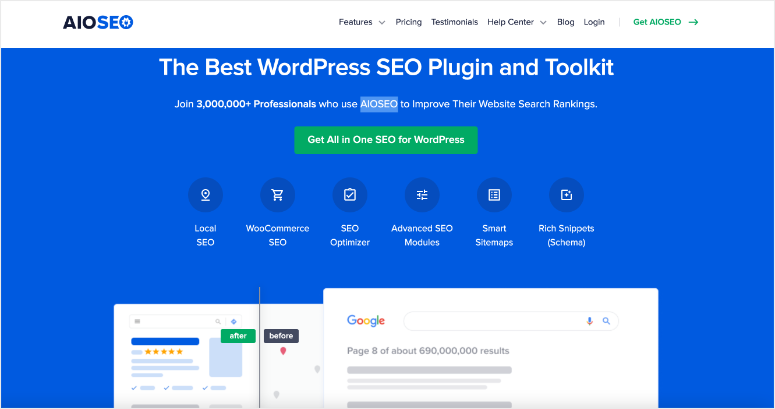
Search engine optimization is the lifeblood of every affiliate shop. The higher your product pages rank on Google, the more traffic you get, and more traffic means more clicks on your Amazon affiliate links.
I recommend AIOSEO for WordPress as the best eCommerce SEO plugin available. It is specifically designed to help WooCommerce stores rank better in search results.
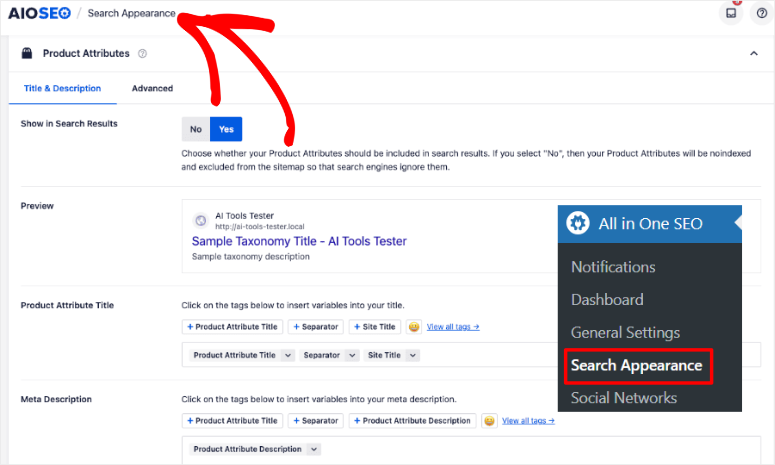
This makes all-in-one SEO indispensable for affiliate shops:
- Product schema markup: This adds special code to your product pages that helps Google understand what you’re selling. Your products can appear in rich snippets with images, prices and reviews directly in the search results – which massively increases click-through rates.
- WooCommerce SEO Features: Integrated optimization specifically for product pages, categories and shop pages. You don’t have to worry about SEO for eCommerce, it’s done automatically.
- Smart Link Assistant: Automatically suggests internal links between your products and blog posts. This ensures that visitors browse longer and increases the likelihood that they will click through to Amazon.
- Social media integration: When people share your products on Facebook, Twitter or Pinterest, All-in-One SEO makes sure they look perfect with the right images and descriptions.
For more information, see my AIOSEO review. Also, compare All in One SEO with Yoast SEO to see why I switched to AIOSEO for all my affiliate projects.
If this SEO plugin is right for you, check out my All-in-One SEO coupon page for the best deals.
2. Track clicks on your affiliate links MonsterInsights
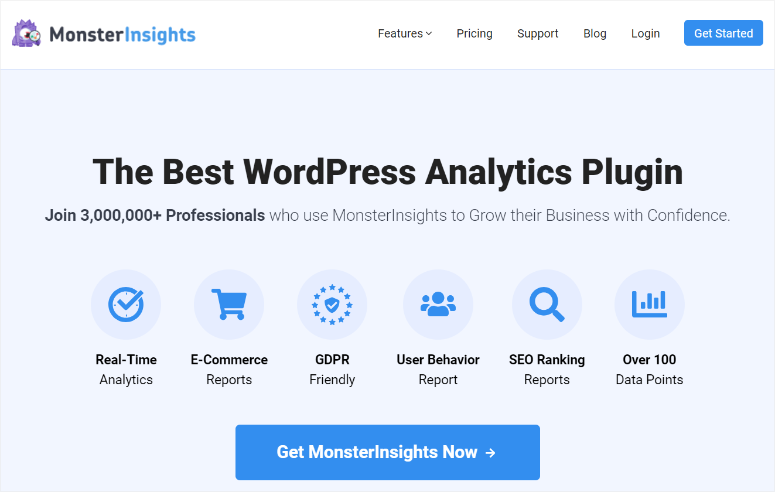
Here’s the truth about affiliate marketing: you can’t improve what you don’t measure.
For an Amazon affiliate store, your most important metric is Affiliate link clicks. Your entire business model depends on driving traffic from your website to Amazon.
You need to know which products people are actually clicking on.
Here is MonsterInsights becomes invaluable. It automatically tracks all of your outbound affiliate links and shows you exactly which products your audience is interested in.
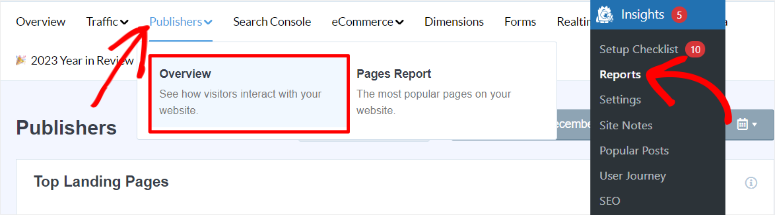
This is what MonsterInsights reveals:
- Most powerful products: See which affiliate links get the most clicks. Double down on these winners by creating more content around them.
- Low performance products: Identify products that get views but not clicks. Either improve the presentation or remove it completely.
- Traffic sources: Find out whether your clicks come from Google, social media, email or direct traffic. This will tell you where to focus your marketing efforts.
- User behavior: See how visitors navigate your store before clicking on affiliate links. This reveals optimization opportunities that you would otherwise never notice.
For more information, see my MonsterInsights review.
If this analytics plugin is right for you, check out my MonsterInsights coupon page to find the best deals.
3. Recover abandoned carts with OptinMonster
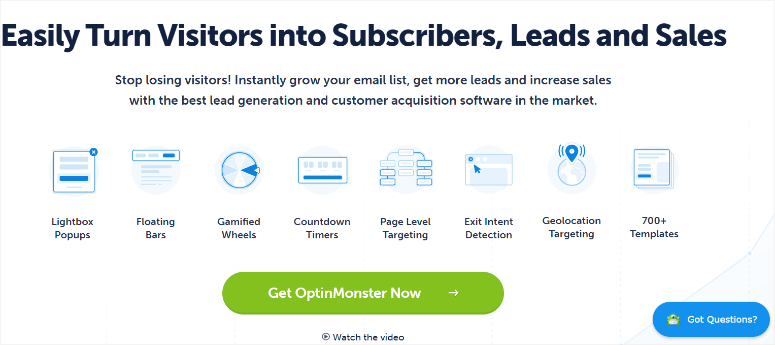
In traditional e-commerce, an “abandoned cart” occurs when someone adds products but does not complete the checkout process.
In affiliate shops, abandonment occurs when visitors view products but leave without clicking on your affiliate links.
This is where you lose money.
OptinMonster solves shopping cart abandonment with Exit-Intent® technology. It detects the exact moment a visitor is about to leave your website and shows them a targeted popup to engage them.
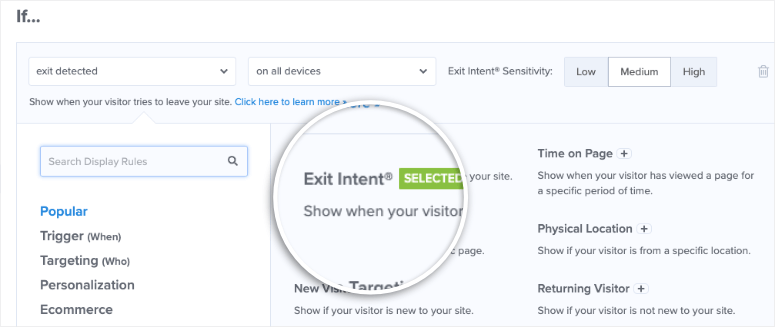
This is how I use OptinMonster in affiliate shops:
- Product specific popups: If someone looks at a high-commission product but leaves, show them a popup that highlights that exact product with a strong call-to-action: “Wait! Check the current price on Amazon before you go.”
- Alternative recommendations: If someone looks at a product but doesn’t click on it, show them similar alternatives when they leave: “Looking for wireless headphones? Here are three other top-rated options.”
- Email capture: Can’t convert them right now? Capture their emails before they leave so you can make targeted product recommendations later.
- Discount notifications: Since Amazon changes prices frequently, you can alert visitors: “Want to know when this product goes on sale? Get price drop notifications.”
The beauty of OptinMonster is its targeting rules. You can display different popups based on:
- Which product they viewed
- How long they spent on the site
- Whether they have been there before
- What device they use
- Where they came from (Google, Facebook, etc.)
This level of personalization significantly increases engagement and conversions.
For more information, see my OptinMonster review. Compare OptinMonster to Thrive Leads to decide between lead generation tools.
If this lead capture tool is right for you, check out our OptinMonster coupon page for the best deals.
Continue to expand your shop
The most successful Amazon affiliate stores have one thing in common: they never stop improving.
Continue adding new products that match current searches in your niche. Write helpful product comparison posts that rank on Google. Use content marketing strategies to attract more qualified visitors.
Above all, pay attention to your data. Let MonsterInsights show you what works, optimize those winners with all-in-one SEO, and win back lost traffic with OptinMonster.
This combination of tools helped me grow affiliate shops from zero to a consistent four-digit monthly income. The same strategy will work for you.
That’s it! To ensure you complete each step, here is a simple spreadsheet checklist for you to refer to.
| ✓ | Step | Key actions | Time |
|---|---|---|---|
| ☐ | Step 1 WordPress and WooCommerce setup |
Sign up for Bluehost hosting, install WordPress, activate the WooCommerce plugin and skip the WooCommerce setup wizard | 45 mins |
| ☐ | Step 2 Join Amazon Associates |
Apply to the Amazon Associates program, add your website domains, create your Store ID, and answer profile questions | 20 mins |
| ☐ | Step 3 Find your first products |
Search Amazon with SiteStripe enabled, select 10-15 products in your niche, and copy affiliate links using the Get Link button. | 30 mins |
| ☐ | Step 4 Add products to WooCommerce |
Create external/affiliate products, include Amazon links, add product images (not from Amazon!), write descriptions, leave prices blank | 2 hours |
| ☐ | Step 5 Customize your shop |
Choose and install a WooCommerce theme OR use SeedProd to create a custom theme, customize colors and layout | 1-2 hours |
| ☐ | bonus Install growth tools |
Add all-in-one SEO for search rankings, MonsterInsights for tracking clicks, and OptinMonster for recovering lost visitors | 45 mins |
| ☐ | start Go live and advertise |
Add an affiliate disclosure statement, create initial blog posts with links to products, share on social media and start building traffic | Ongoing |
Once you’ve finished the checklist, check out the frequently asked questions below if anything is unclear.
FAQs: Running an Amazon affiliate shop with WordPress
Update: Since I first published this guide, I’ve received dozens of questions from readers who are building their own Amazon affiliate stores. Here you will find answers to the most frequently asked questions.
Can I add products from other affiliate networks?
Absolutely! WooCommerce is not just limited to Amazon products. You can add affiliate products from ShareASale, CJ Affiliate, individual brand programs like Nike or Apple, or any company that offers affiliate links. This diversification is actually a smart business strategy because relying solely on Amazon leaves you vulnerable to changes in commission rates. Simply use the same external/affiliate product type and include the affiliate link you used.
I live outside the United States. Can I participate in the Amazon affiliate program?
Yes! Amazon operates affiliate programs in over 17 countries, including the UK, Canada, Australia, Germany, France, Italy, Spain, Japan, India and Brazil. However, since each country has its own program, you must apply for each country individually. If you have visitors from multiple countries, apply to multiple programs so you can monetize all your traffic. Commission rates and product availability vary by country.
Do I have to disclose my affiliate partnership?
Yes, absolutely. Both Federal Trade Commission regulations and Amazon program policies require clear disclosure that you earn commissions through purchases. You must also include this exact statement in a prominent location: “As an Amazon Associate, I earn from qualifying purchases.” Most successful affiliate websites place this at the top or bottom of product pages, on a dedicated disclaimer page, and in the website footer. Failure to disclose may result in FTC fines and immediate termination of your Amazon account.
Can I promote Amazon products without setting up an affiliate store?
Yes! Many successful affiliates simply write blog posts and add affiliate links naturally into their content. If you run a fitness blog, you could write “The 10 Best Resistance Bands for Home Workouts” and link to each product directly in the article. List articles are actually great for affiliate content. This approach is great if you want to focus on content rather than maintaining a product catalog. For this method you don’t need WooCommerce at all. The WooCommerce approach in this tutorial works best if you want a specialized shopping experience with organized categories and a professional storefront.
What are the commission rates for Amazon affiliates?
Commission rates vary significantly by product category and are subject to change at Amazon’s discretion. From 2026, rates will typically be between 1% and 20%, depending on the category. Amazon Fashion luxury cosmetics and private label products earn 8-10%, while electronics and video games typically earn only 1-3%. For current rates, please see the Amazon Associates Program Standard Commission Income Statement for your specific country. Smart affiliate marketers focus on higher commission categories whenever possible because selling a $100 item at 10% earns ten times more than selling the same item at 1%.
Can I promote Amazon services?
Yes! Amazon offers fixed rewards for advertising various services such as Amazon Prime trials, Music Unlimited subscriptions, Prime Video, Audible trials, and Amazon Business registrations. These rewards often pay $3 to $15 per conversion and can be more profitable than low-commission physical products. Current reward amounts and promotion terms and conditions can be found in your Amazon Associates dashboard.
What is the difference between Amazon Associates and Amazon Affiliates?
There is no practical difference. Amazon Associates is the official name of the program you are joining. “Amazon Partner” is the informal title given to participants. Both terms refer to the same thing: marketers who earn commissions by promoting Amazon products.
How much does the Amazon affiliate program cost?
Nothing. It’s completely free to join and manage your Amazon Associates account. There are no monthly fees, no minimum sales requirements to remain active after the initial 180-day qualifying period, and no costs to generate affiliate links. The only investment is your time to build and maintain your business.
Final Verdict: Should You Build an Amazon Affiliate Store?
Here’s the honest truth: Building an Amazon affiliate store won’t make you rich overnight, but it is one of the smartest, lowest-risk ways to make money online.
I’ve watched too many people ponder this decision for months, paralyzed by questions about the “perfect” niche or the “right” time to enter. Meanwhile, someone else opens a simple shop, learns from real traffic data, and starts earning commissions within 90 days.
The nice thing about Amazon partner shops is that testing costs almost nothing. For less than the price of dinner, you can start a real business, learn what converts, and build something that generates income while you sleep.
Will every product you promote be a winner? No. Will your first draft be perfect? Definitely not. But you learn more in one month of running a live store than in six months of planning.
Just start. Pick a niche that you actually understand, add 10-15 products that you would really recommend, write helpful content about it, and see what happens.
Affiliate stores with the most unusual designs or the most products are not successful. They are the ones who help real people solve real problems and gain trust by being genuinely useful.
Your shop doesn’t have to be perfect. It simply has to exist.
Resource Hub: Build a Successful Affiliate Business
Are you ready to continue growing your affiliate store? Here are the essential resources:
These articles will not only help you create a better Amazon affiliate site or an affiliate site in general, but also help you get more conversions.
The best time to start was six months ago. The second best time is today.