


A few months ago I noticed something strange. My contact form was overflowing with dozens of entries from the same three countries every day.
None of them were potential customers. All of them were junk.
I quickly set up CAPTCHA to help with this. This only slowed things down but didn’t stop them completely. What I needed was a way to block the entries at source by country.
It turns out that WPForms makes this surprisingly easy.
In this guide, I’ll show you two ways: one that blocks by country IP via WPForms Pro, and one that filters by email domain, which works on any plan, including the free version.
If you still don’t know which contact form plugins for WordPress are best for your website, read this guide first.
At the end of this tutorial, your forms will no longer accept entries from the countries you selected.
Key insights
- I’ll show you how to block form entries using WPForms’ built-in country filter without additional plugins
- I cover email domain denylist for websites in the free WPForms Lite plan
- Explain the allow vs. deny strategy so you can choose the right approach for your site
- I reveal a simple VPN test that confirms your blocking is actually working before it matters
- I’ll walk you through the most common sources of errors and explain why entries still go through after you’ve set everything up
What we will achieve in this tutorial
At the end of this guide, your WPForms contact form will reject submissions from countries that you have marked silently, automatically, and without any additional code or plugins.
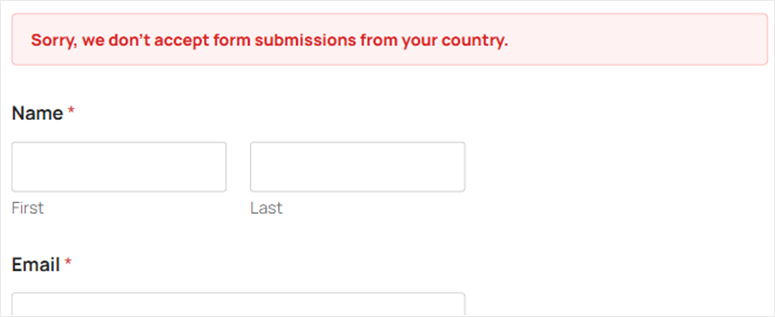
This is what it looks like in practice:
- Visitors from blocked countries submit the form and see an error message
- Entries from these regions never reach your inbox
- Legitimate users from your target markets are not affected at all
What you need before we begin
Skill level: In between
Time to completion: ~10 minutes
Before we begin, make sure you have the following:
- WPForms installed and activated – Go to the WPForms website and purchase a Pro plan to access the country filter.
- A form has already been created – You need at least one form in WPForms to apply these settings. If you haven’t created one yet, create a simple contact form before continuing.
- WordPress administrator access – You are working in the WPForms form editor.
If you are using WPForms Lite (free), skip to Method 2. The country filter is a Pro feature, but the email denylist works on any plan.
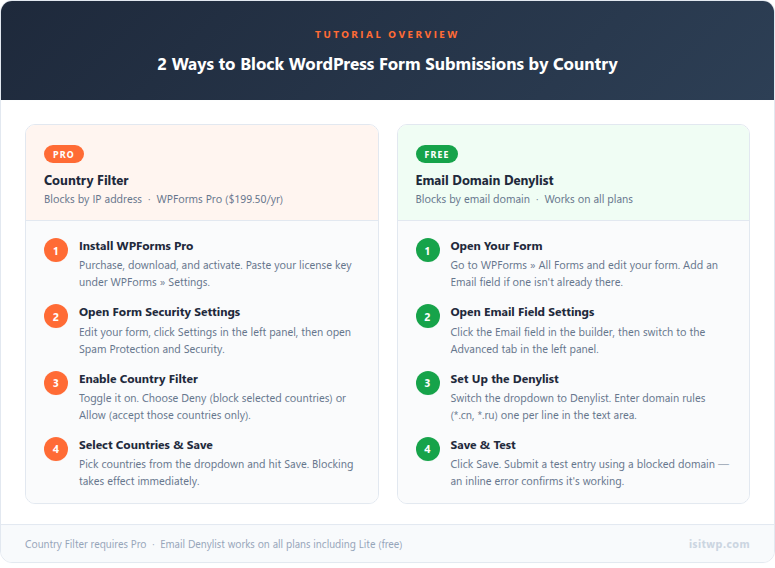
You can also use the table of contents below to jump to a method or step you want to read.
Now that you have everything prepared, let’s get started.
Method 1: Block Form Submissions by Country (WPForms Pro)
WPForms is a drag-and-drop WordPress form builder used by over 6 million websites.
It is the form plugin that I use on every website I manage. Not only because it’s easy to set up, but also because it handles a lot of tasks behind the scenes.
The feature we care about here is the country filter. It is part of WPForms’ anti-spam and security settings.
When you enable it, WPForms checks the IP address of each person submitting your form and compares it to the list of countries you configured.
If they are on the blacklist, the submission will be rejected before it reaches your inbox.
Once your license is active, configuration takes approximately 5 minutes.
However, for this tutorial I’m using WPForms Pro. Not because you can’t do this with the free version of WPForms, but because the country filter is a purely pro feature.
The good news: Method 2 later in this guide covers a free alternative that works differently but can be just as effective.
🤓☝️A few extras worth knowing:
WPForms also supports CAPTCHA and Akismet integration, which you can combine for stronger protection in addition to country filtering.
If you want a more comprehensive look at anti-spam plugins for WordPress, this comparison covers all the major options.
WPForms also handles conditional logic, allowing you to create forms that behave differently depending on where a user comes from.
This is useful if you want to show different content to different regions instead of blocking them completely.
Step 1: Set up WPForms Pro
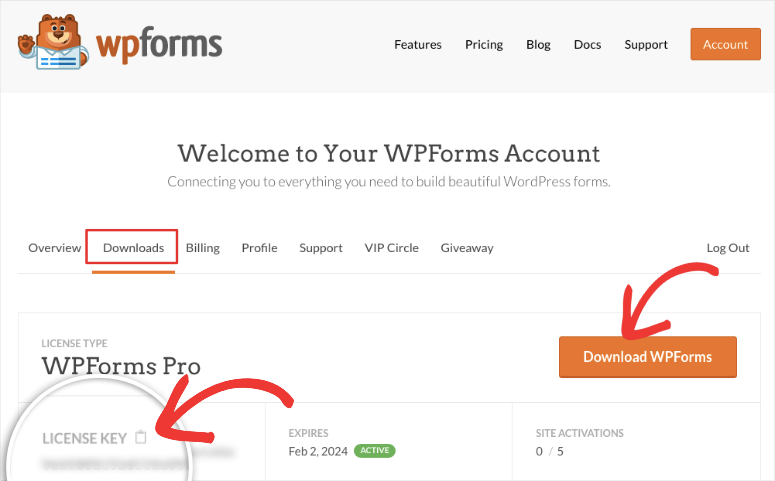
Visit the WPForms website and get a Pro plan. After purchasing, log in to your WPForms account and download the plugin file.
Copy your license key from the account dashboard. You’ll need it soon.
Then go to in your WordPress dashboard Plugins » Add new » Upload plugin.
Next, upload the downloaded file and click Install nowThen Activate plugin.
From there, navigate to WPForms » Settings and click Generally Tab. Paste your license key into that License key field and click Check key. If it is active, a green confirmation will appear.
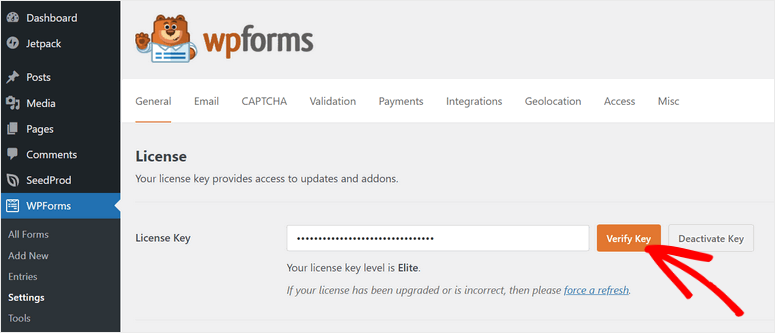
If you encounter any problems, here’s how to install a WordPress plugin.
This is the setup. If you want the full instructions with screenshots, you can find complete instructions in the WPForms review.
Now open the form you want to protect. To do this, go to WPForms » All formshover over the form name and click Edit.
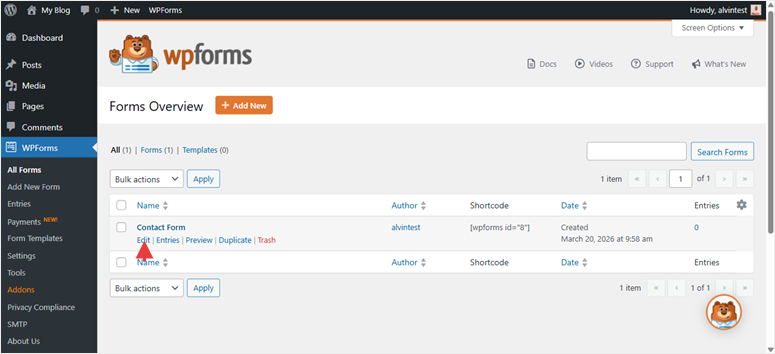
Step 2: Navigate to Spam protection and security
Search for the in the form editor Settings Tab in the left navigation pane. It’s at the bottom of the panel icons. Click on it and you will see a list of settings categories.
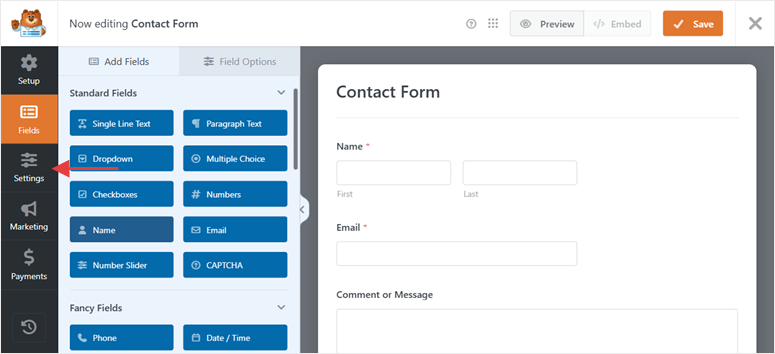
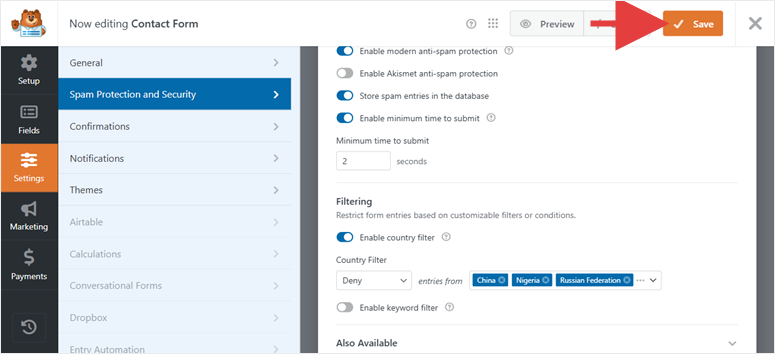
Click there Spam protection and security.
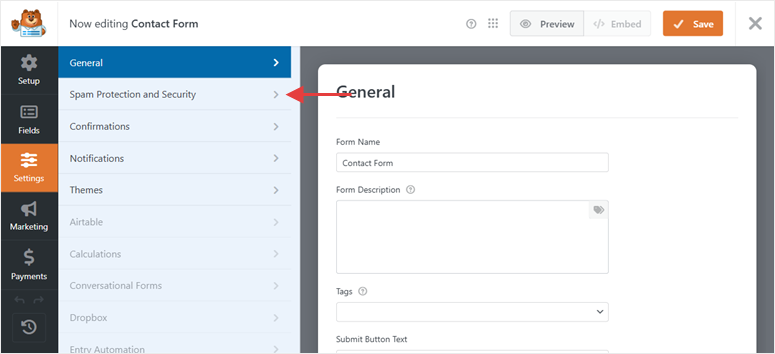
This will open the section where all of WPForms’ filtering options are available, including CAPTCHA settings, keyword filters, and the country filter.
Step 3: Enable the country filter and choose your mode
Here, in the “Spam Protection and Security” section, scroll down until you see this Filter Headline.
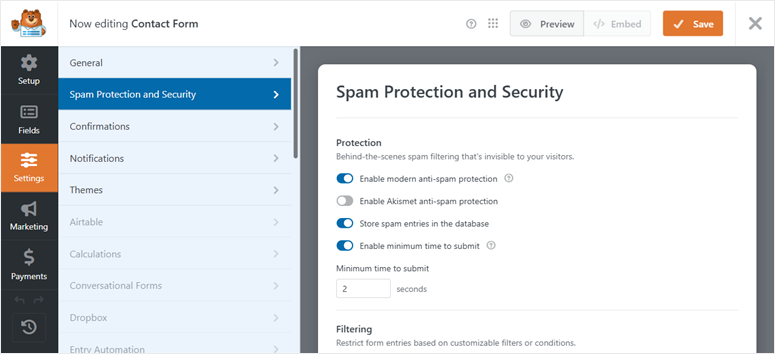
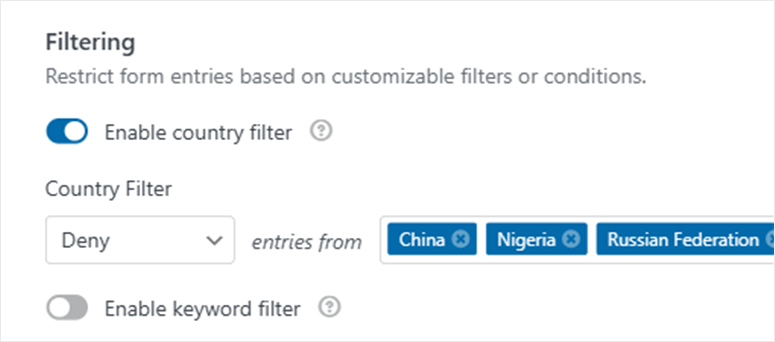
Below you will find the Activate country filter switch. Click on it to turn it on.
Once activated, two new options will appear: a drop-down menu and a country selector.
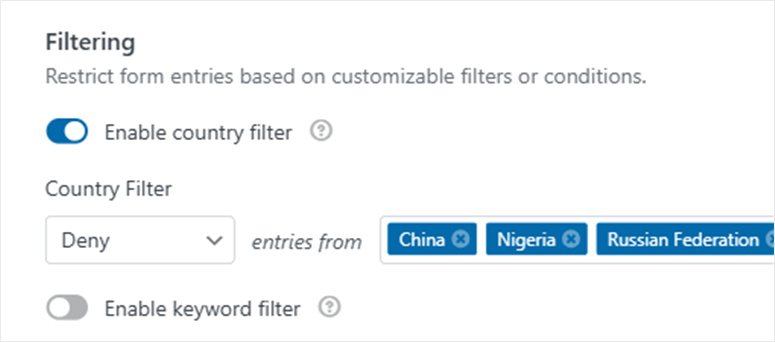
The dropdown menu is the most important thing to get right. You have the choice between Deny mode and Allow Mode. Remember that they work in opposite directions.
- Deny is what most people need. It means “Block entries from these specific countries, allow all others.” Use this option if you are dealing with spam from some known problem regions.
- Allow is the opposite. It means: “Only accept entries from these countries, block all others.” Use this option if your business only serves a specific market and you want to limit your form entirely to that audience.
After doing this on dozens of sites, I always start with “Deny” unless I have a clear reason to go the other direction. It’s safer; a misconfiguration Allow List may accidentally block your own customers.
Step 4: Select your countries and save
With the mode selected, click the country selector below the drop-down menu. A searchable multiple selection list opens. Enter the name of a country to quickly find it or scroll through the list.
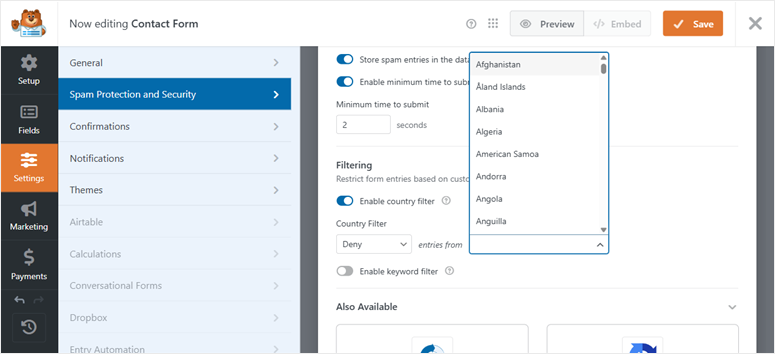
Select each country you want to apply your rule to. For one Deny Setup, these are the countries to be blocked. For one Allow Setup these are the only countries that can submit.
However, in this tutorial I will focus on the reject list.
When you have made your selection, click Save in the upper right corner of the form editor. WPForms saves the settings immediately.
Step 5: Make sure your form is published on one page
The country filter only works on forms that are active on your website. If your form is not yet embedded on a page, you can find the quick version here.
Go to Pages » Add New (or edit an existing page).
Then click + Click the icon to add a new block, search for WPForms and select the WPForms block.
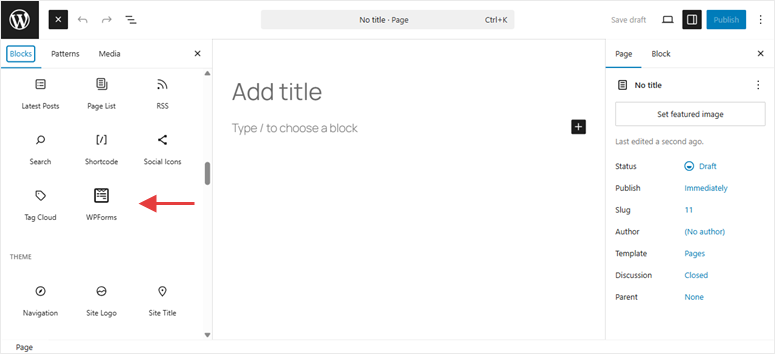
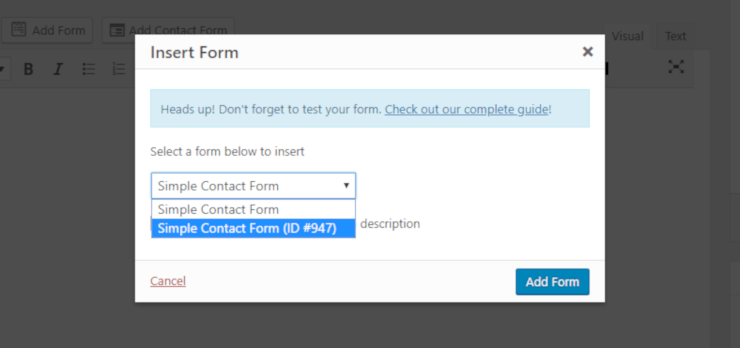
A drop-down menu will appear where you select your form from the list. Then update or publish the page.
Method 1: Final result
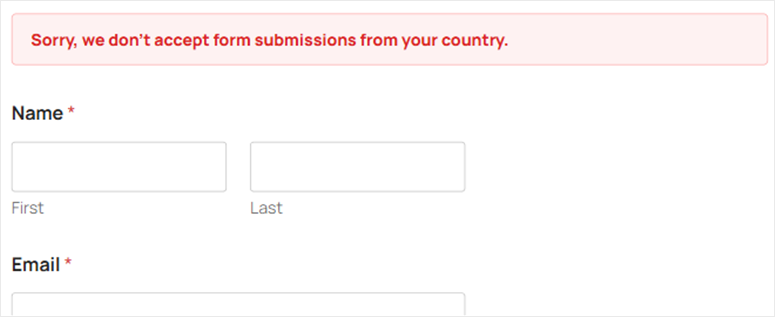
Once the form is online, any submission from a blocked country will be rejected. The visitor sees an error message and the entry never reaches your WPForms inbox.
Method 2: Filter Submissions by Email Domain (Any WPForms Plan)
If you’re there WPForms LiteSetup takes about two minutes. Go to Plugins » Add neware looking for WPFormsand install the free WPForms Lite plugin.
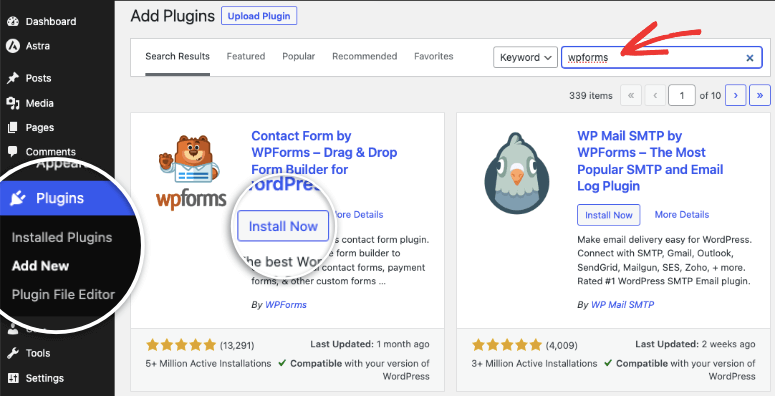
Click Activate, and you are there; no license key required. For complete setup instructions, see the WPForms review.
If you are using WPForms Lite or an entry-level paid plan, the country filter is not available. However, there is another approach that works for every plan.
Instead of blocking by IP address, this method blocks by email domain.
You set rules that reject submissions from specific email domains, such as: *.cn (all Chinese domain emails) or *.ru (Russian domains). Anyone submitting an email with an address from these domains will be rejected.
It’s not as secure as IP-based blocking, since someone could use a Gmail account and slip through, but it handles a significant portion of spam, particularly spam that comes from regional free email services.
Step 1: Open your form and look for an email field
Go to WPForms » All formsHover over your form and click Edit. In the form editor, check whether your form contains an email field.
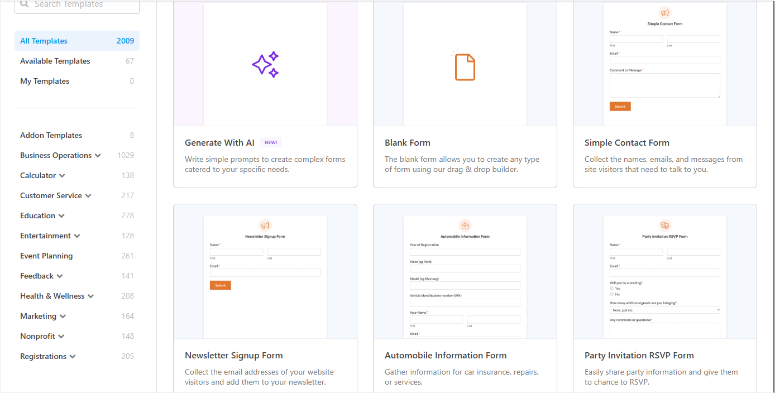
If you don’t have a form ready, you can quickly create one using the 2100+ form templates available.
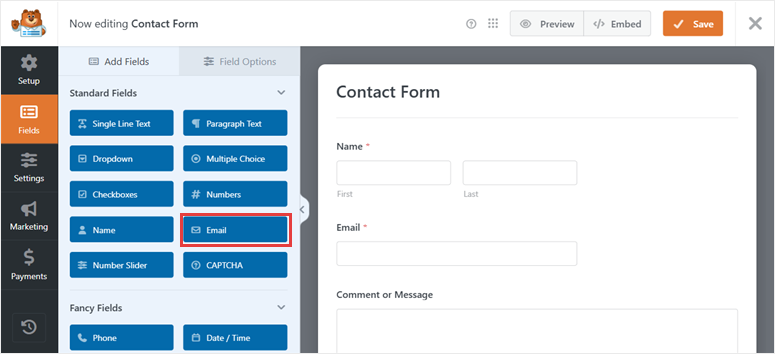
In the form builder, look for the email field.
If you don’t see one, drag it e-mail field from the left pane into your form. You can find it in the “Standard Fields” section. Place it anywhere in your form layout.
The Denylist feature is specifically attached to the Email field. It doesn’t appear anywhere else in Settings.
Step 2: Open the advanced settings of the email field
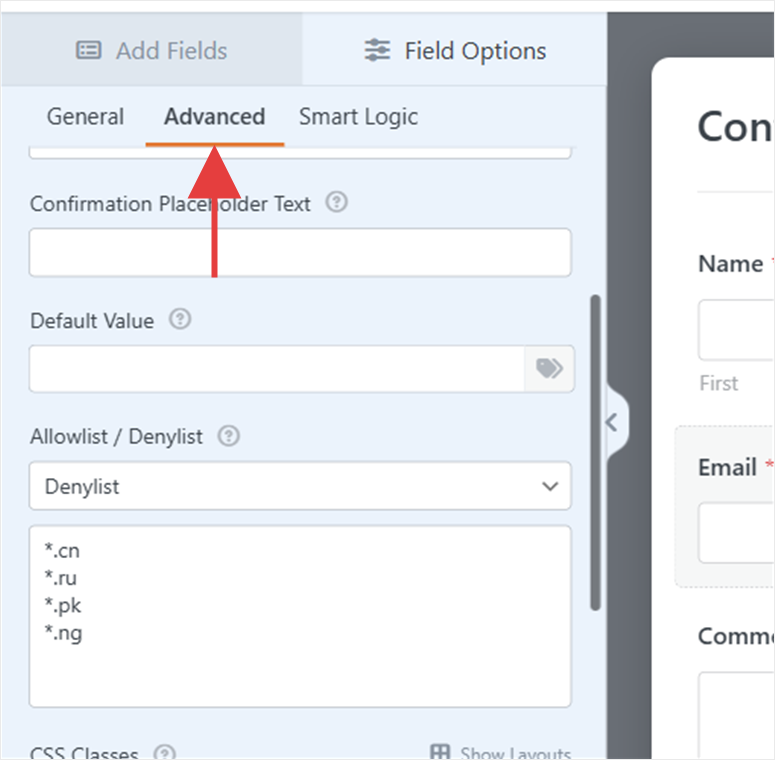
In the form builder, click the “Email” field to open its settings in the left pane. By default you will land on the Generally Tab. So go to Progressive Click the General tab. It’s located at the top of the panel, right next to “General.”
The Advanced tab contains field-specific settings such as validation rules, CSS classes, and allow/deny options.
Step 3: Set up the blacklist
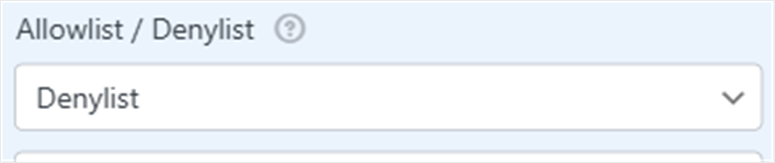
On the Advanced tab, scroll down until you find this Allow list/deny list Section. There is a drop down menu set to None by default.
Click on the drop-down menu and select Denylist. (Or Admission list if you want to limit submissions to only certain trusted email domains.)
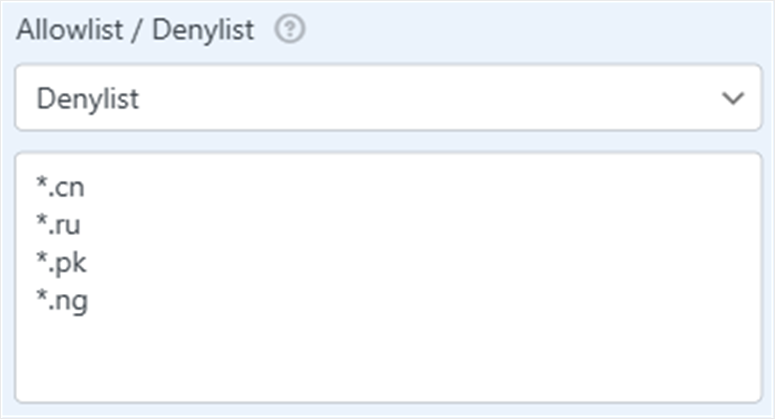
Once you select “Denylist,” a text area will appear. Here you enter the email addresses or domains to be blocked; one entry per line.
To block entire country domains, use wildcard format: *.cn, *.ru, *.pk. To block a specific domain, enter it directly: spamdomain.com.
The trick I learned: start only with the domains that generate the most spam, not every country you can think of. An overzealous denylist may inadvertently block legitimate users from email providers that you weren’t expecting.
Step 4: Enter your domain rules and save
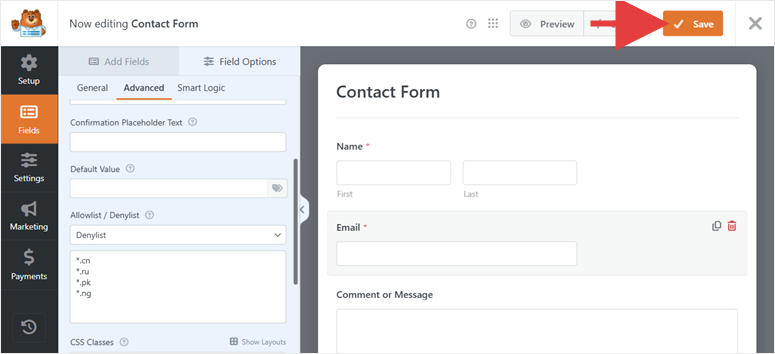
After you enter your rules in the text area, click Save in the upper right corner of the form editor. The rules apply immediately to all new submissions.
Method 2: Final result
If someone sends an email containing an email from a blocked domain, WPForms will reject the submission with an inline validation error in the email field. You won’t be able to get through without using a different email address.
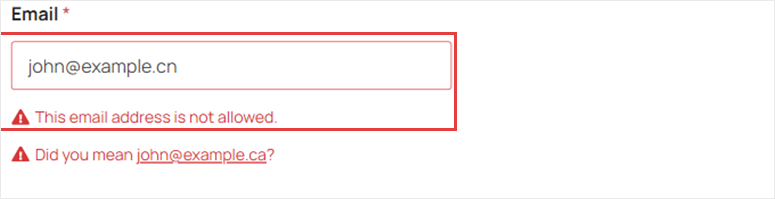
That’s it. You can now block form submissions from specific countries via either the free or pro version of WPForms.
Country Filter vs. Email Denylist: Which Should You Use?
Both methods are built into WPForms – but they work differently and are suitable for different situations.
| Special feature | Country filter | Email block list |
|---|---|---|
| Plan required | WPForms Pro ($199.50/year) | Any plan including Lite (free) |
| How it blocks | Geolocation of IP address | Email domain matching |
| Block accuracy | High – works regardless of the email used | Medium – bypassable with Gmail or similar |
| Best for | Blocking spam from known spam-prone countries | Block regional email providers or free plan users |
| VPN bypass risk | Yes, VPN users can spoof their country | No, the email domain is checked, not the IP |
| Setup time | ~5 minutes | ~3 minutes |
The best setup uses both together.
The country filter blocks IP-based spam from problem regions. Email Denylist intercepts anyone who comes through with a regional email address. Together they close the gaps that the others leave open.
👉 Get started with WPForms here
How to test if you have blocked form submissions from specific countries
Don’t just save and assume it will work. So I check these settings carefully before calling a project complete.
Testing the Country Filter (Method 1):
The most reliable way is a VPN. Set your VPN to a country you block, then visit your form and submit a test entry.
If the country filter is active, an error message is displayed and no entry is displayed WPForms » Entries.
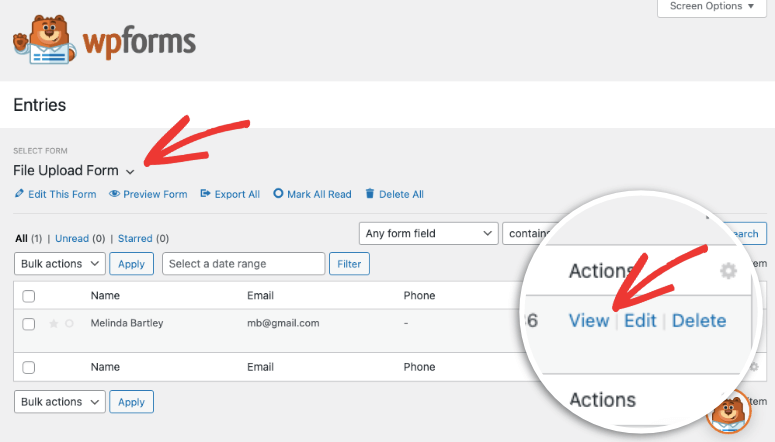
If the submission is successful, double check that you have saved the settings and that the form on the page is the same as the one you configured.
Testing Email Denylist (Method 2):
This is easier because you don’t need a VPN. Simply submit your form using a test email address with a blocked domain.
For example, if you blocked *.cntry submitting it (email protected). You should immediately see an inline error in the email field.
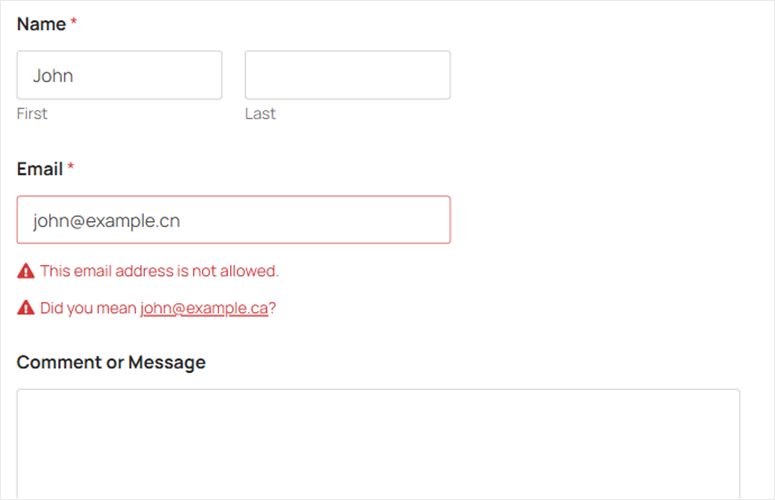
In both cases, success looks the same: the submission is rejected, no entry appears in your WPForms inbox and the visitor sees an error message.
Common problems and quick solutions
Problem: “The Country Filter option doesn’t appear in my settings.”
What happens: The country filter is a feature of WPForms Pro. If you’re on Lite or a cheaper plan, the setting simply isn’t there.
Quick solution: Go to WPForms » Settings and check the License Tab. If your license shows as inactive or expired, re-enter your key and click Check key. If you have a plan that doesn’t include the country filter, upgrade to Pro or use Method 2 instead.
My experience: I’ve seen this surprise people after a plan extension. The license key sometimes needs to be updated manually even if the subscription is current.

Problem: “Entries still come through after I enable the country filter.”
What happens: VPN users can mask their real country. Someone transmitting from a blocked country via a VPN appears to be coming from another location.
Quick solution: Combine country filter with email denylist from method 2. VPN users can hide their IP but cannot change their email domain. Combine both methods for maximum coverage.
Issue: “My country filter is blocking legitimate users”
What happens: You are using Deny mode, but one of the blocked countries includes legitimate customers, or you accidentally used Allowed mode with an incomplete country list.
Quick solution: Go back to the form’s anti-spam and security settings. If you are in denial mode, remove the affected country from your blocked list.
Once you are in approval mode, add the missing country to your approved list. Always check that your approval list is complete before publishing.
Well done. You can now set up your forms to reject submissions from specific countries and troubleshoot any errors. If something is unclear, check out the frequently asked questions below.
FAQs: How to block form submissions from specific countries
Does blocking form entries from certain countries affect my SEO?
No. The country filter only affects form submissions. It doesn’t stop anyone from viewing your website. Visitors from blocked countries can still browse your pages, read your content, and be indexed by search engines. Your form submissions will simply not be accepted.
What does a blocked user actually see when they try to submit?
WPForms displays an inline error message, the same type of validation error you would see for a missing mandatory field. By default, the message does not say “Your country is blocked”. This is a general error message. You can try again but the result will be the same.
Can anyone bypass the country filter with a VPN?
Yes. The country filter compares the sender’s IP address with a geolocation database. A VPN makes someone think they are in another country. For this reason, it is worth combining Method 1 with Email Denylist from Method 2. Someone using a VPN still needs to provide an email address, and you can block regional email domains regardless of IP.
Is the country filter on WPForms available for free (Lite)?
No. The country filter is a feature of WPForms Pro. If you are using WPForms Lite Method 2, Email Denylist is your alternative. It’s built into the email field settings and available in every plan, even free.
Can I block multiple countries at the same time?
Yes. The country selector in WPForms is a multi-select dropdown menu. You can add as many countries as you need in a single session. There is no limit to how many countries you can add to your block or allow list.
Should I use Allow or Deny mode?
Use Deny if you want to keep most countries accessible but block a specific handful of known spam sources. Use Allow if your company only operates in certain markets and you want to limit submissions to those regions only. Most websites do better with “Deny”. Allow mode requires you to maintain a complete whitelist, and a missing country means these users cannot reach you at all.
Final thoughts
When form spam piles up from the same regions, you now have two solid options for dealing with it. With WPForms, the country filter is easy to set up.
Once turned on, it runs automatically and without ongoing maintenance.
Email Denylist takes a few more minutes to configure, but adds a useful second layer, especially for catching anyone who evades IP-based blocking.
Start with one method, test it, and then add the second if you still see unwanted entries. That being said, most websites will have almost no spam reaching their target regions within a day of activation.
Resource Hub: WordPress Form Security and Management
Want to go even further with WordPress forms and spam protection? These guides cover everything from choosing the right form plugin to protecting your site from bots.